
What is OpenClaw
OpenClaw (Lobster 🦞) is an open-source and free personal AI assistant that can run on personal computers (such as Mac, Windows, Linux), and supports receiving commands through chat software such as Feishu, DingTalk, WhatsApp, Telegram, iMessage, etc., and directly operating the computer to complete tasks. It can organize files, fix code, manage emails, and supports integration with top models such as Anthropic and OpenAI. OpenClaw has permanent memory, can remember user preferences and context to self-evolve, and develops new skills according to new instructions. OpenClaw's powerful flexibility and extensibility make it an ideal tool for improving personal efficiency and productivity.
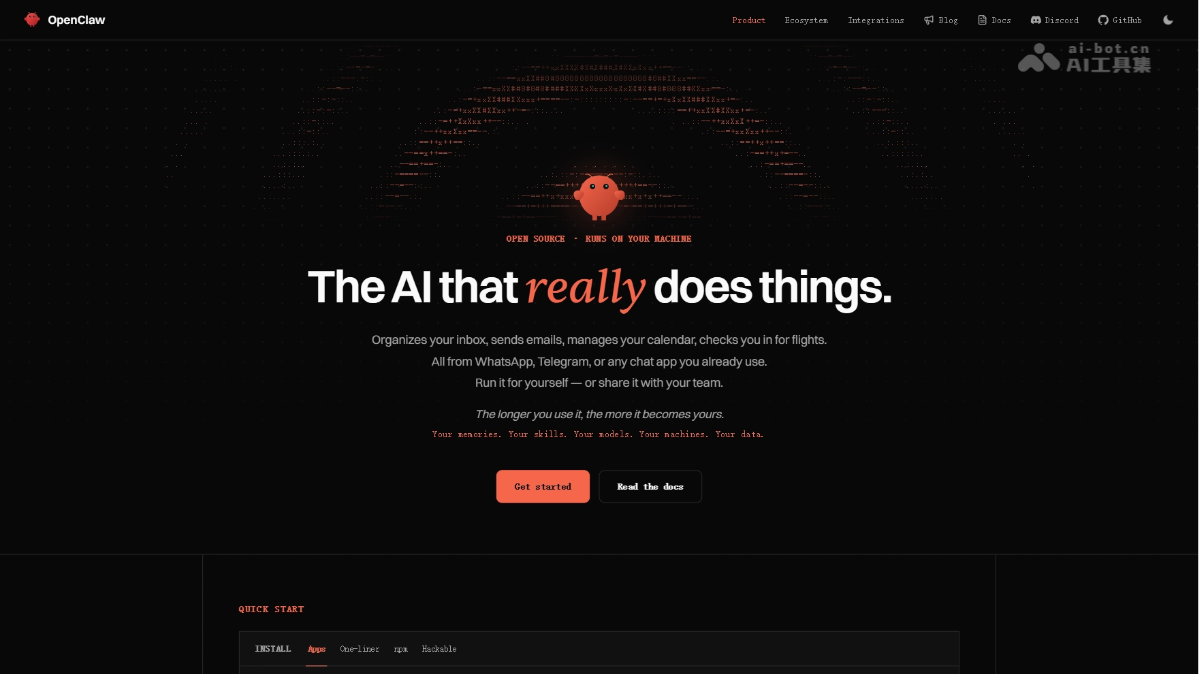
Main features of OpenClaw
- Task execution: Supports receiving commands through chat software (such as Feishu, DingTalk, WhatsApp, Telegram, iMessage), and directly executing tasks on the local computer, such as organizing files, fixing code, sending emails, managing schedules, etc.
- Multi-platform support: OpenClaw can run on multiple operating systems such as Mac, Windows, Linux, and supports integration with mainstream AI models such as Anthropic and OpenAI, as well as local models.
- Persistent memory: It has powerful memory capabilities, can remember user preferences, context information, and task details, and achieves persistent memory across sessions.
- Self-evolution: Users can teach skills or operation logic, and OpenClaw can internalize them into permanent skills and apply them in subsequent tasks.
- System operation: OpenClaw has the same level of system permissions as a human user, and can directly call the terminal, write scripts, install software tools, and control smart home devices.
- Gateway integration: OpenClaw connects to various chat platforms through the gateway, enabling real-time transmission of commands and feedback, supports multi-agent collaboration, and can clone multiple agents as needed.
- Skill extension: It supports a rich set of skill plugins, and users can extend its functions according to their needs, such as web research, browser automation, file management, etc.
- Automated workflows: It supports setting scheduled tasks and automated workflows, such as regularly checking emails, automatically running code tests, generating reports, etc.
-
Simplified installation: Automatically identifies existing AI subscriptions and API Keys on the computer, so first-time users do not need to manually configure a bunch of parameters.
-
Browser rework: Open a webpage to directly chat with the Agent, and task progress will not be lost after a refresh, so you can check the execution status at any time.
-
Session cross-device migration: The same task can be seamlessly switched between the local computer, paired devices, and Cloud Worker, automatically sleeping when the cloud is idle and continuing when restored.
-
Multi-person collaboration: Team members can enter the same shared session and take over tasks while retaining context, with support for gateway member permission management.
-
Memory autonomous learning: The Agent automatically calls historical conversations, organizes long-term memory in the background, can summarize experience from past tasks, and generate reusable Skills.
-
Automation continuous operation: Scheduled tasks are bound to the original conversation context, support cyclic checks at a set pace, and can start multiple subtasks in parallel and then aggregate the results.
-
Security and permissions: Sensitive credentials are requested separately through a masking interface, supporting single-operation authorization. Security audit information is displayed before plugin installation, and team environments support roles and granular permissions.
How to use OpenClaw
- Check prerequisites: Ensure that Node.js (version >=22) and pnpm (optional, recommended for building from source) are installed on the system.
- Install the CLI: Install the OpenClaw CLI by running
curl -fsSL https://molt.bot/install.sh | bashor, on Windows, runningiwr -useb https://molt.bot/install.ps1 | iex. - Run the onboarding wizard: Execute OpenClaw
onboard --install-daemonto set up model authentication (OAuth is recommended), gateway configuration, chat channels (such as WhatsApp, Telegram), and pairing defaults. - Start the gateway: If a background service was installed in the onboarding wizard, the gateway should already be running automatically; to start it manually, use
OpenClaw gateway --port 18789 --verbose。 - Quick verification: Run OpenClaw
statusandmoltbot healthto check the gateway status and health. - Connect the first chat platform: Use
OpenClawchannels loginto log in to WhatsApp (scan the QR code), or manually configure tokens for platforms such as Telegram and Discord. - Pairing approval: When sending a message via DM for the first time, you need to approve the pairing through
OpenClawpairing approve <platform> <code>to ensure that messages are processed. - Run from source (for development purposes): Clone the repository
git clone https://github.com/OpenClaw/OpenClaw.git, install dependencies and build the project, runOpenClawonboard --install-daemon。 - End-to-end verification: Send a test message in a new terminal, such as
OpenClawmessage send --target <phone_number> --message "Hello", to ensure that Moltbot responds. - Optional extensions: Install the macOS menu bar app, iOS/Android nodes (supporting Canvas, camera, voice), or set up remote access (such as SSH tunnel, Tailscale).
Usage examples of OpenClaw
- Automated browser shopping
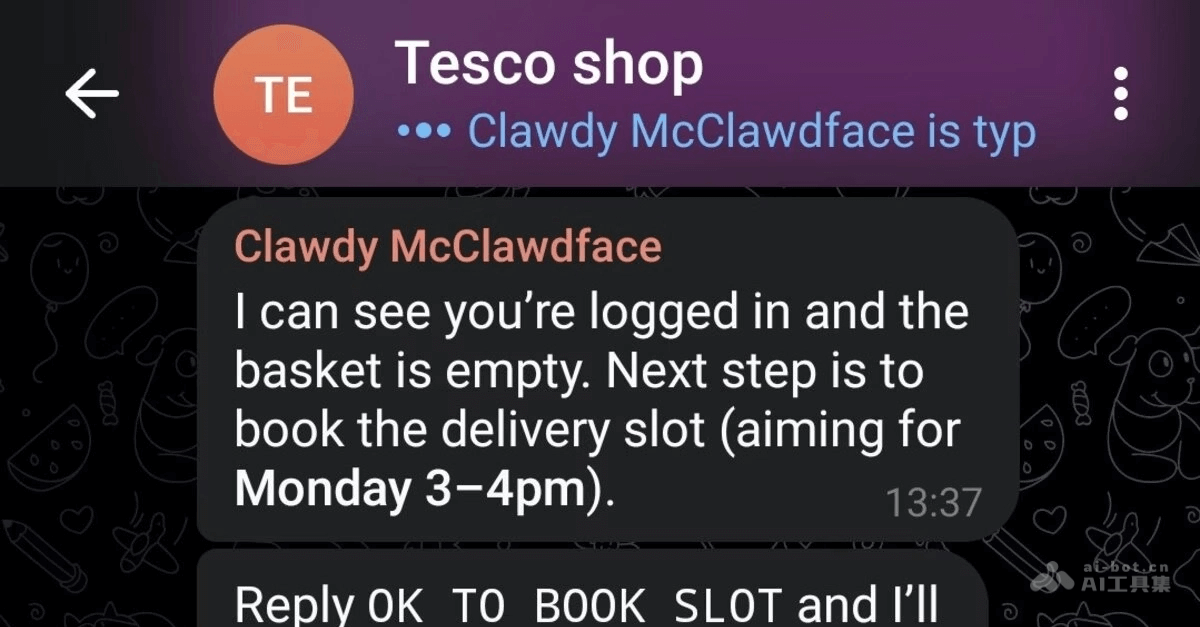
- Automated photography capture

- Chinese learning
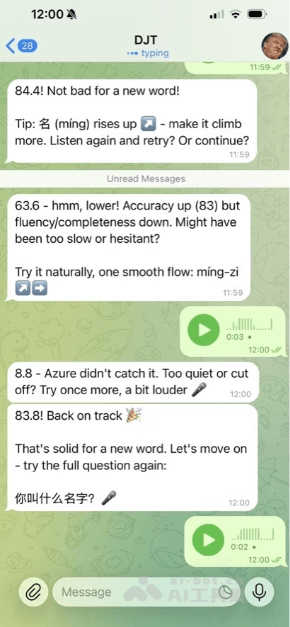
OpenClaw's official website address
- Official website address:https://openclaw.ai/
- GitHub repository:https://github.com/openclaw/openclaw
- OpenClaw installation tutorial:OpenClaw installation tutorial - The complete OpenClaw usage guide, from beginner to expert
- OpenClaw + Feishu tutorial:OpenClaw + Feishu step-by-step deployment tutorial, the best way to raise crayfish!
Application scenarios of OpenClaw
-
Personal productivity improvement: By sending commands through chat software, you can manage schedules, organize files, and search for information, improving personal work efficiency.
-
Work automation: It can assist with code development, handle emails, and generate project reports, enabling workflow automation.
-
Home automation: The tool controls smart home devices, manages household shopping lists, and automatically places orders, making home management more convenient.
-
Learning and research: Used to organize academic materials, provide language learning assistance, and generate study notes, supporting learning and research.
-
Creativity and content creation: Used to assist with writing, design, and video production, providing creative inspiration and content optimization suggestions.