

OpenClaw As a recently popular powerful agent, I believe many friends want to take advantage of the hype and experience it.
OpenClaw is an open-source, locally deployable AI agent assistant launched by Austrian programmer Peter Steinberger. It can automatically execute multiple tasks such as email processing and browser operations through language instructions. It is a truly action-capable AI.
But for ordinary people, the barrier to trying it is indeed a bit high - complicated steps, installation errors, messy configuration...
So even though so many experts are optimistic about this crayfish, many people still back off after learning about it.
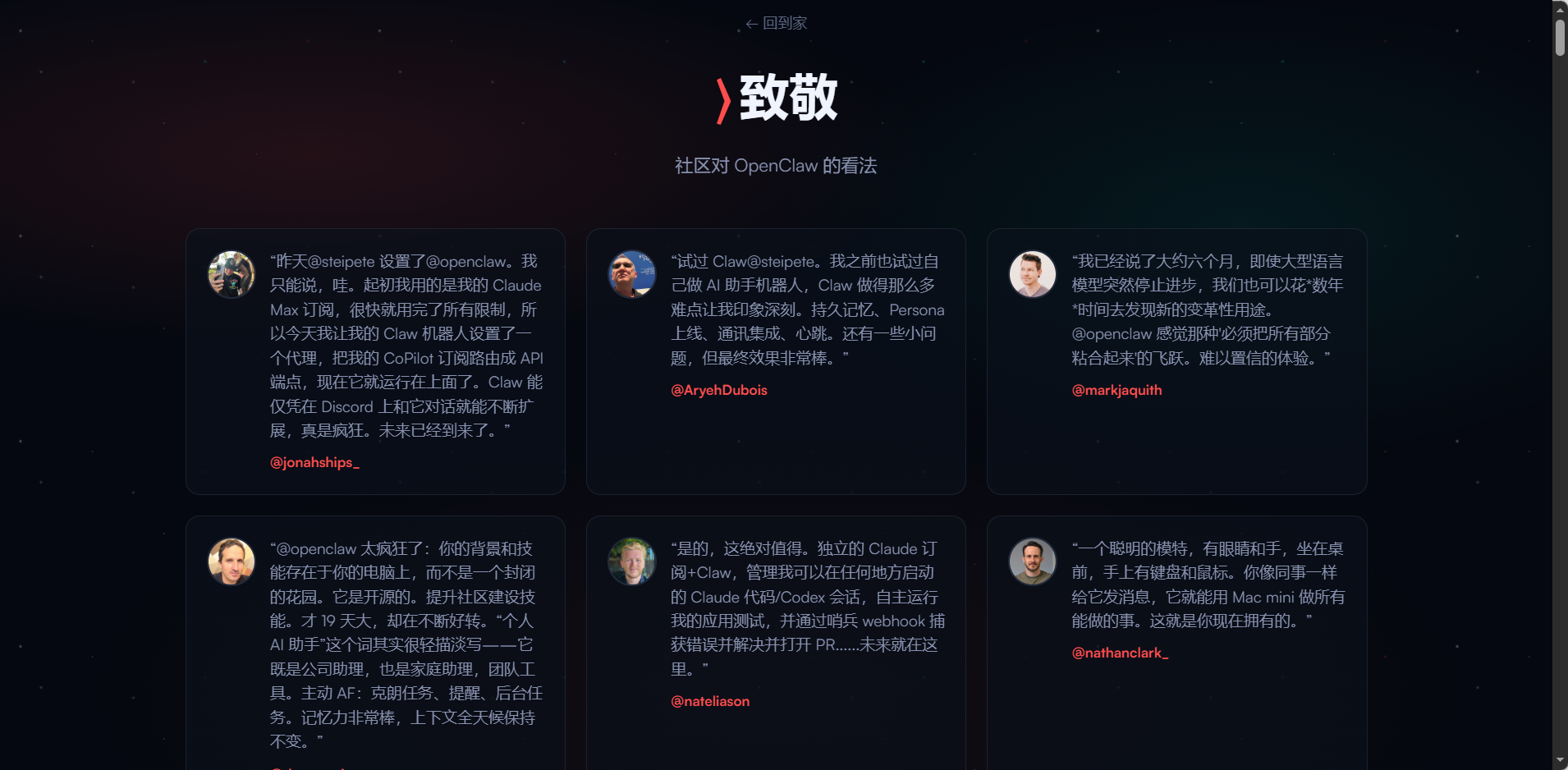
In today's tutorial, I will use the most plain language to take everyone step by step through the complete process of installing and setting up OpenClaw, helping everyone skip these pitfalls.
01. Installing OpenClaw and connecting it to Feishu
Before formally installing OpenClaw, basic environment configuration must be carried out to check whether the prerequisite environment meets the requirements. (This installation demonstration uses the Windows system.)
-
Windows10/11
-
Node.js version 22 and above
-
Package managers: npm, pnpm (Node.js generally comes with npm)
-
Ability to access the international network
-
Git (not mandatory, can avoid some errors)
After ensuring the requirements are met, we open the OpenClaw official website and copy the installation command under the Quick Start section.
Command: iwr -useb https://openclaw.ai/install.ps1 | iex
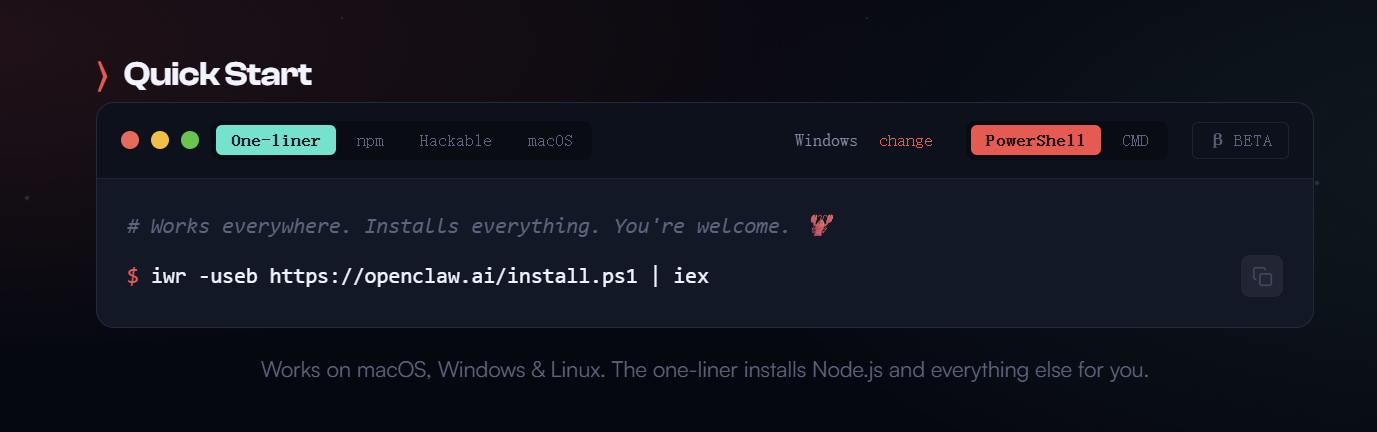
Official website:https://openclaw.ai
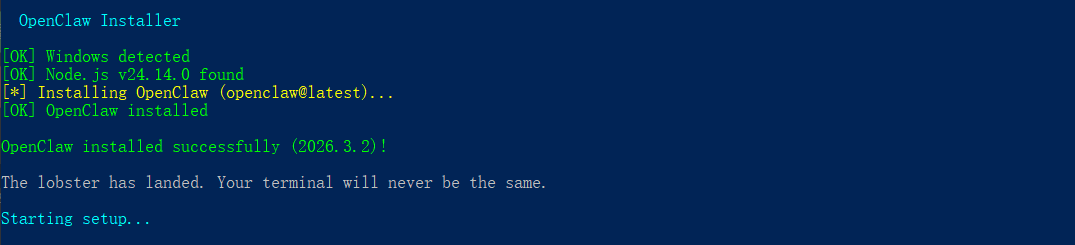
Search for PowerShell in the Start menu (or use the Win key + x key and click Windows PowerShell), run it as administrator, enter the command we just copied and press Enter.
As shown in the figure below, the installation has begun.
The next two options are respectively to inform about the default permission usage rules and to choose the guide mode. We choose the default "Yes" and "QuickStart" options, and directly press Enter twice.

Choose the large model to use. Here we use the domestic Zhipu GLM, that is, Z.AI. You can also switch to any large model you want to use in the list.
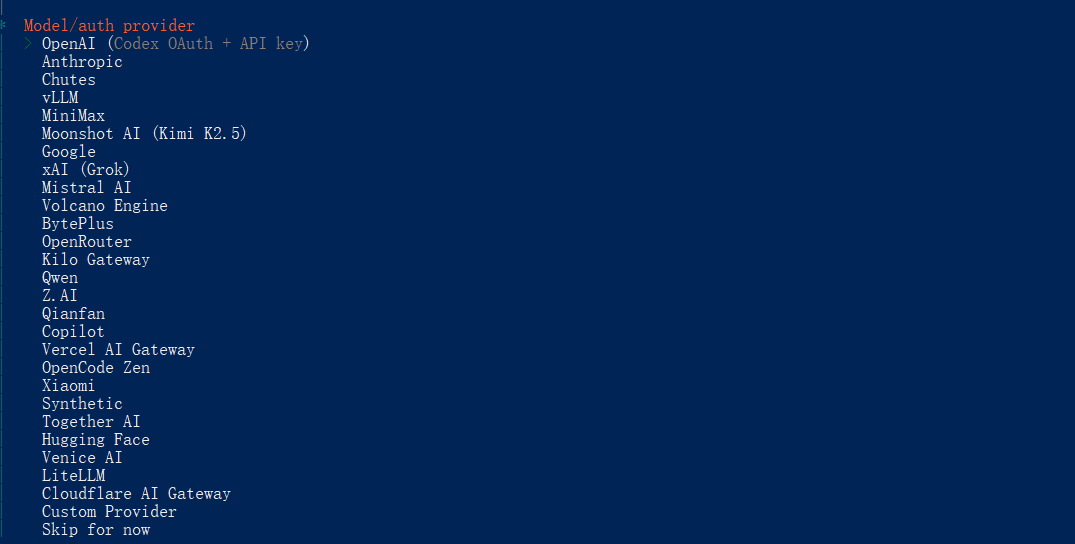
After choosing the appropriate authentication method, choose to enter it now API Key。

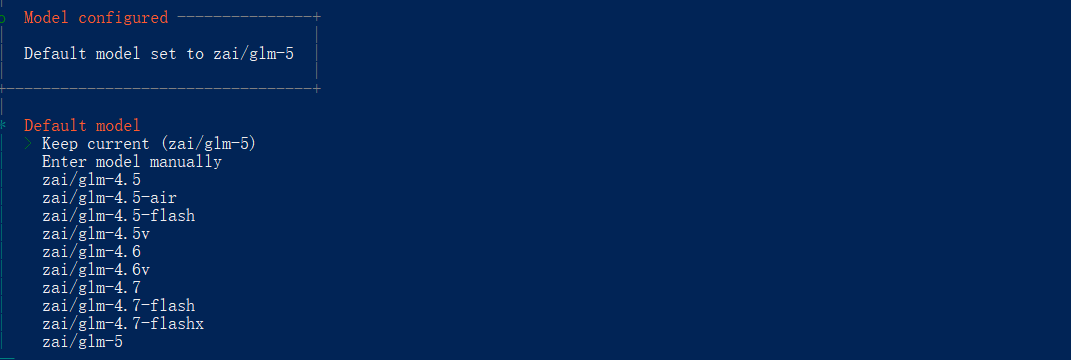
Then choose the required model. Here we choose the default GLM-5 model.
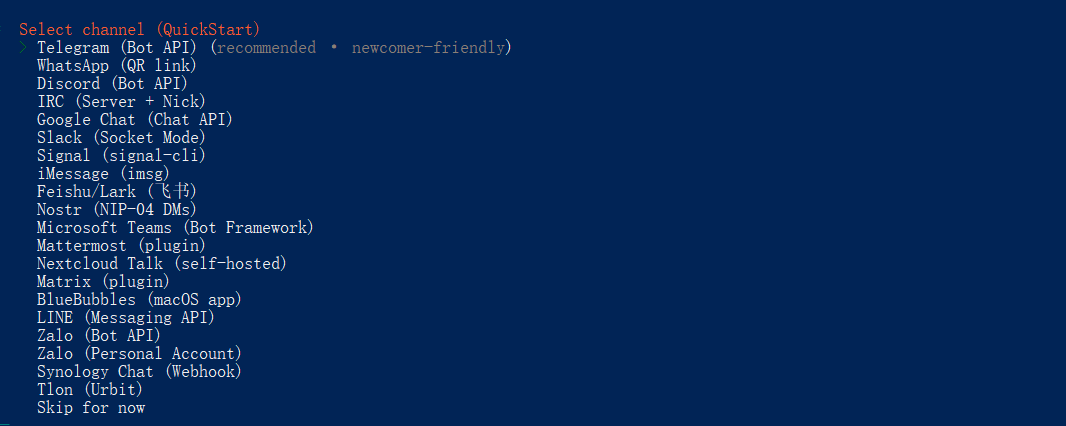
Except for Feishu, the list contains all foreign software. We can choose Feishu or the last option to skip for now. Here we choose Feishu.
Choose the first item to install the Feishu plugin.

Choose to press Enter to confirm.

We temporarily leave PowerShelland go to the Feishu Open Platform in the browser.

Official website:https://open.feishu.cn
Click the Developer Console in the upper right corner, click Create Enterprise Self-built Application, enter the application name and description, and create it.
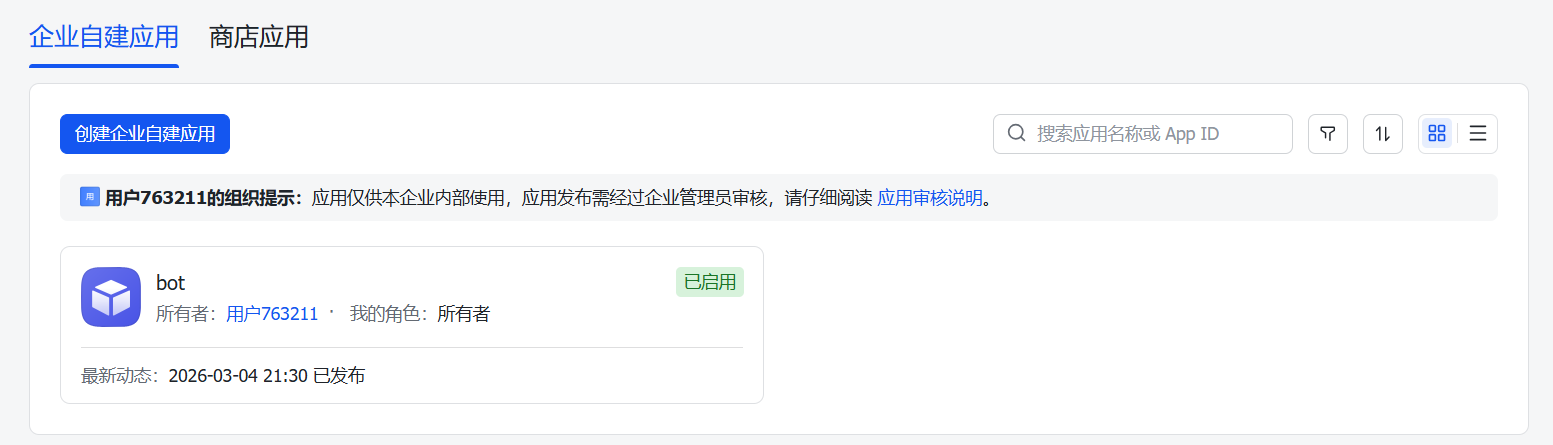
After creation, add a bot.
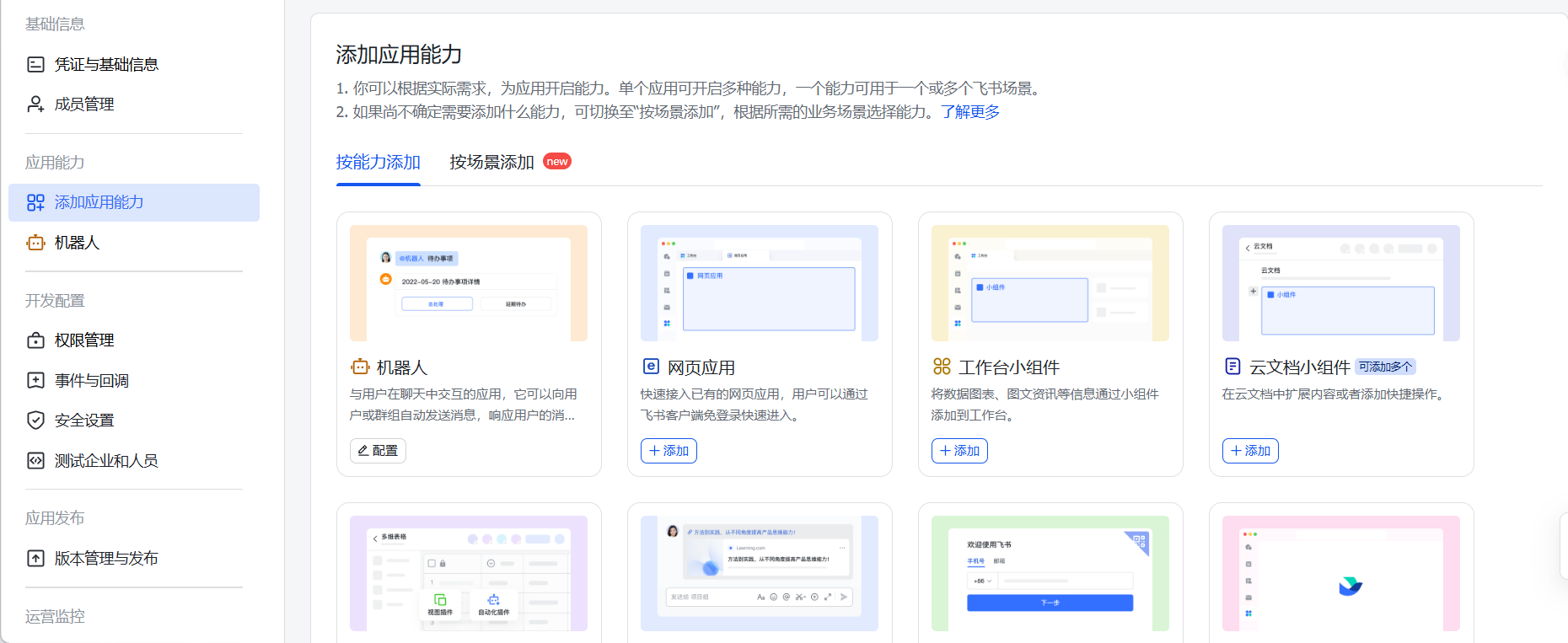
In permission management, enable permissions or batch import permissions. Enable permissions such as event subscriptions, contacts, messages and groups, cloud documents, and multi-dimensional tables as needed.
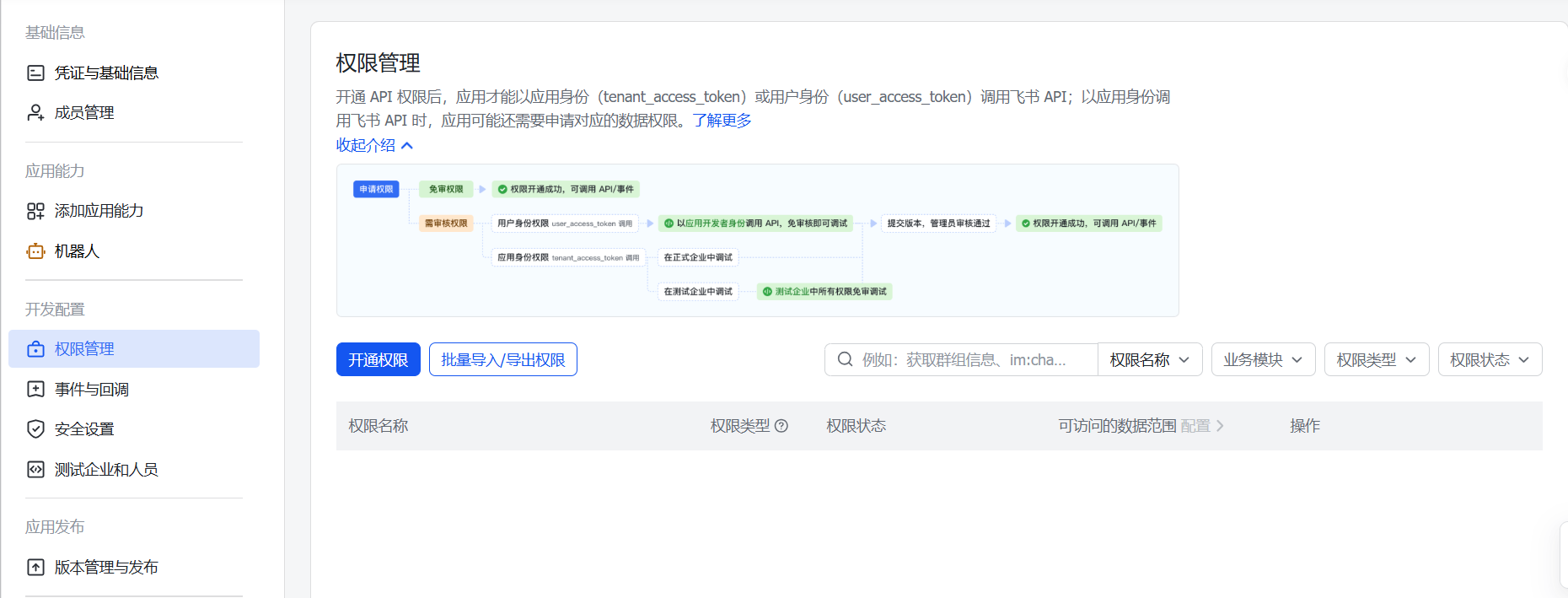
Then click Create Version above to publish the application.
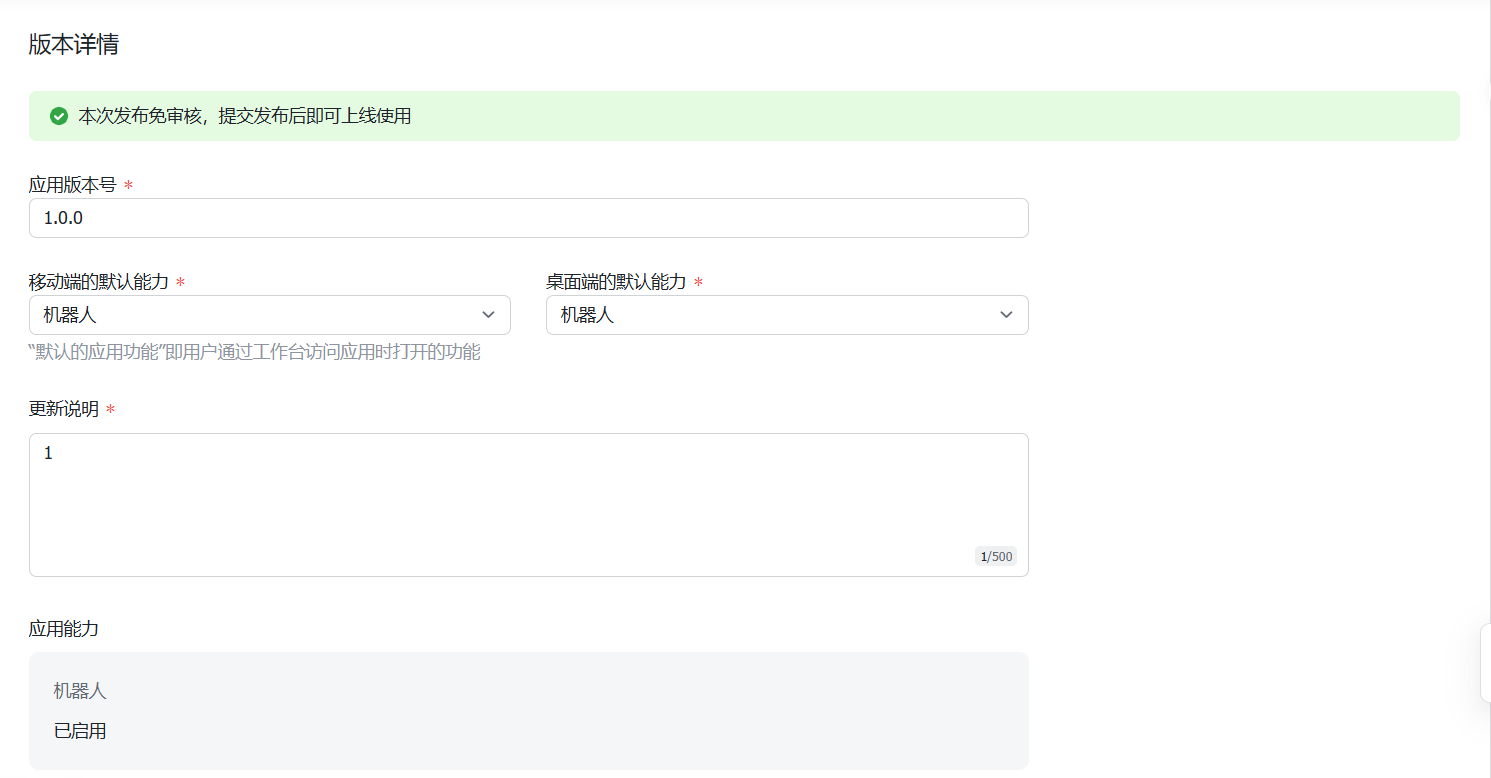
Finally, click the Credentials and Basic Info section, and enter the App Secret and App ID from the application credentials into PowerShell in sequence.

Keep the default "WebSocket" mode, and just press Enter. Then choose the domestic version of Feishu or the international version.

Choose the second option. Make the bot respond in all groups, but it must be @mentioned.

Choose the "No" option.

First press the space bar to select the first item, then press Enter.

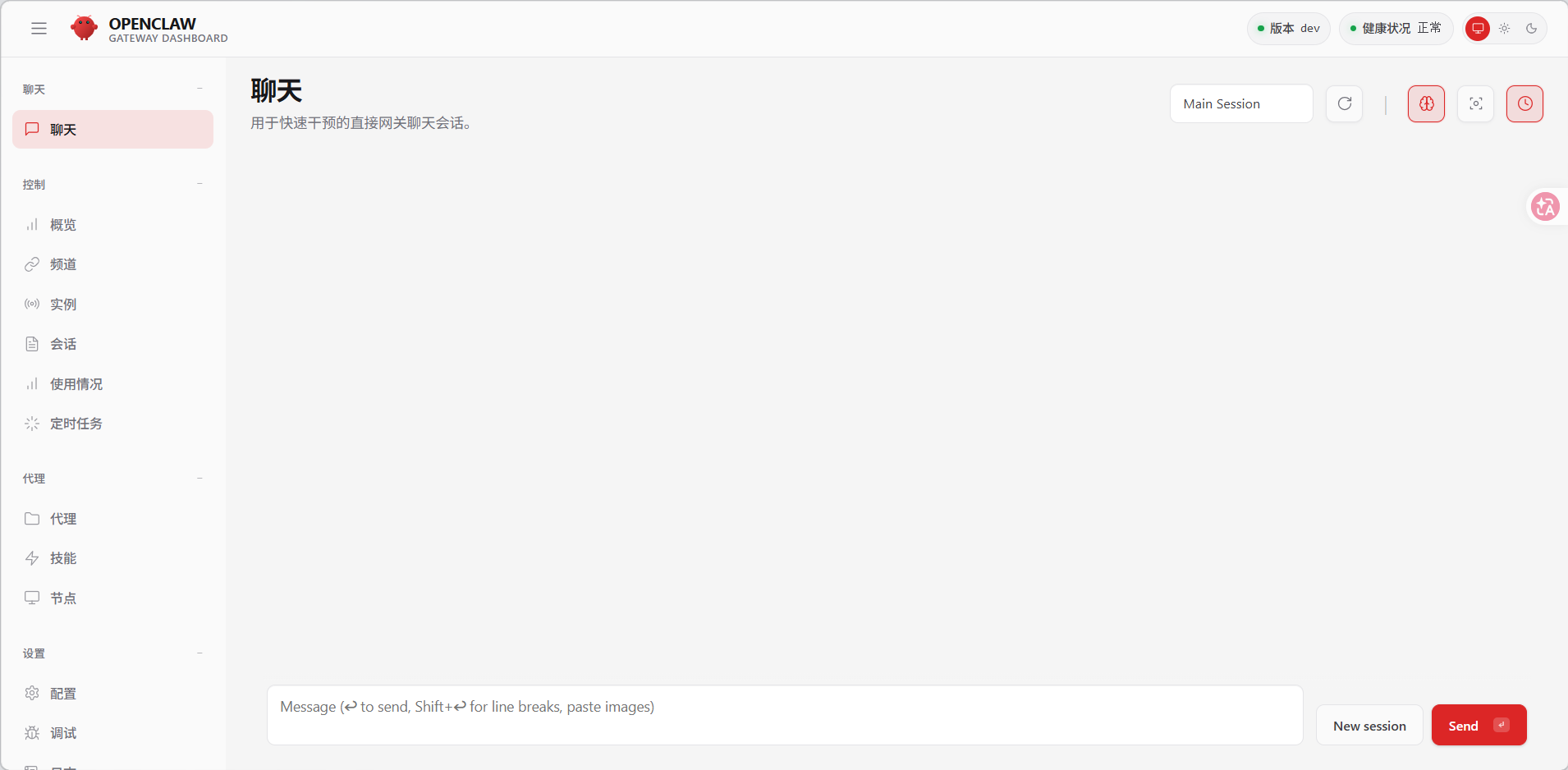
Select the second option to open the web version, and wait for the OpenClaw web page to open automatically. At this point, our OpenClaw setup is complete.

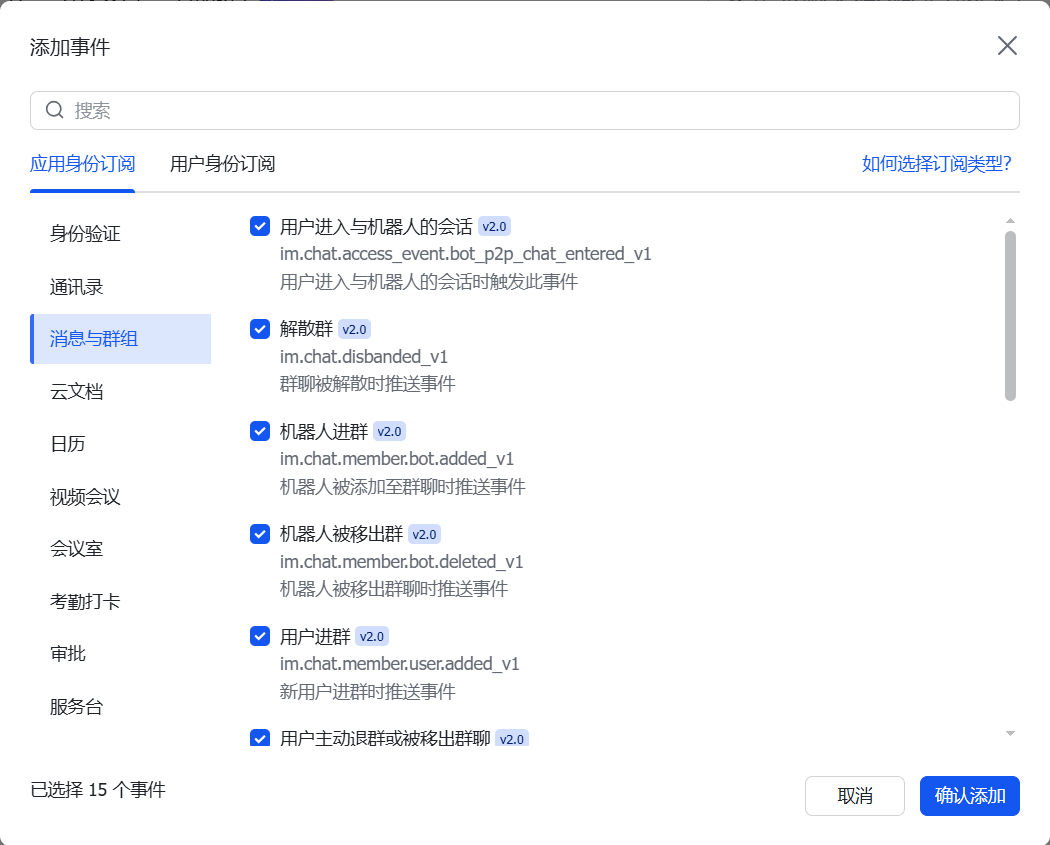
Let's return to the Feishu Open Platform, click Events & Callbacks on the left, and in the Event Configuration subscription method, select to receive events using a long connection.
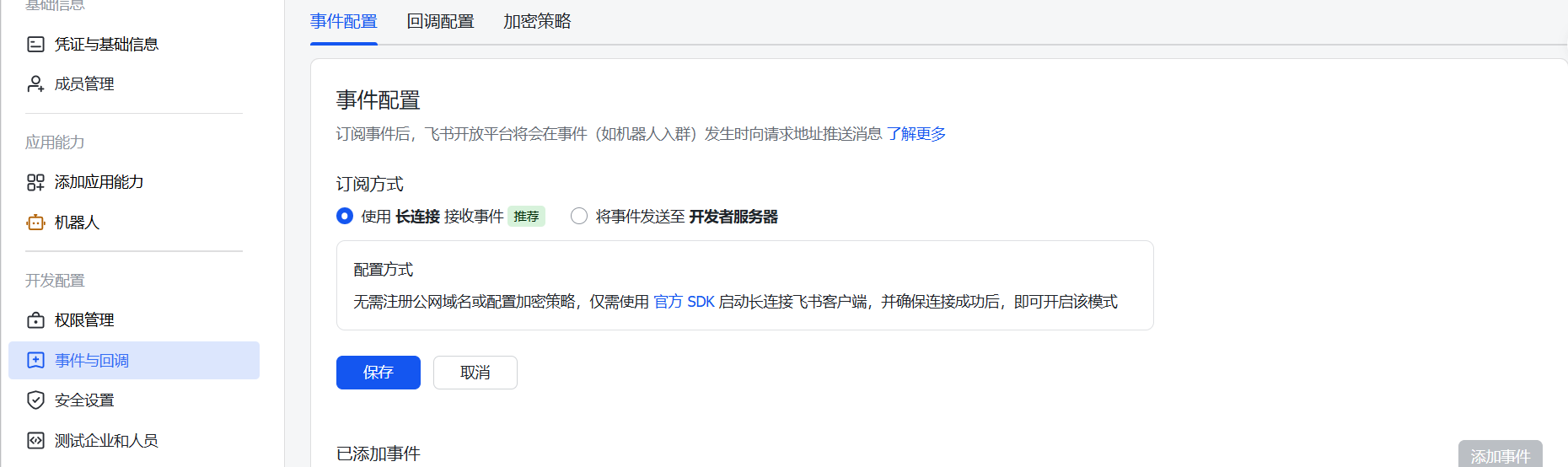
Add events below, select Messages & Groups, and freely add events.
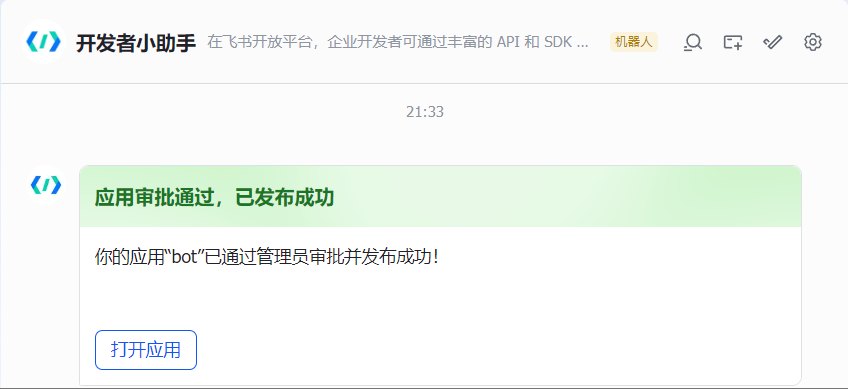
Open Feishu, click Open App in the Developer Assistant to test whether OpenClaw is connected properly, then copy the command given by the bot into PowerShell and you're done.

02. Skills Usage and Recommendations
If you want to know why OpenClaw is so powerful, the existence of Skills plays a big part.
Skills are functional modules for the specific operations OpenClaw performs when completing complex tasks. The more Skills that can be called, the stronger OpenClaw's capabilities become.
OpenClaw already has many useful Skills built in, and you can install them directly if needed. After connecting to chat software, additional software-related Skills will also be added.
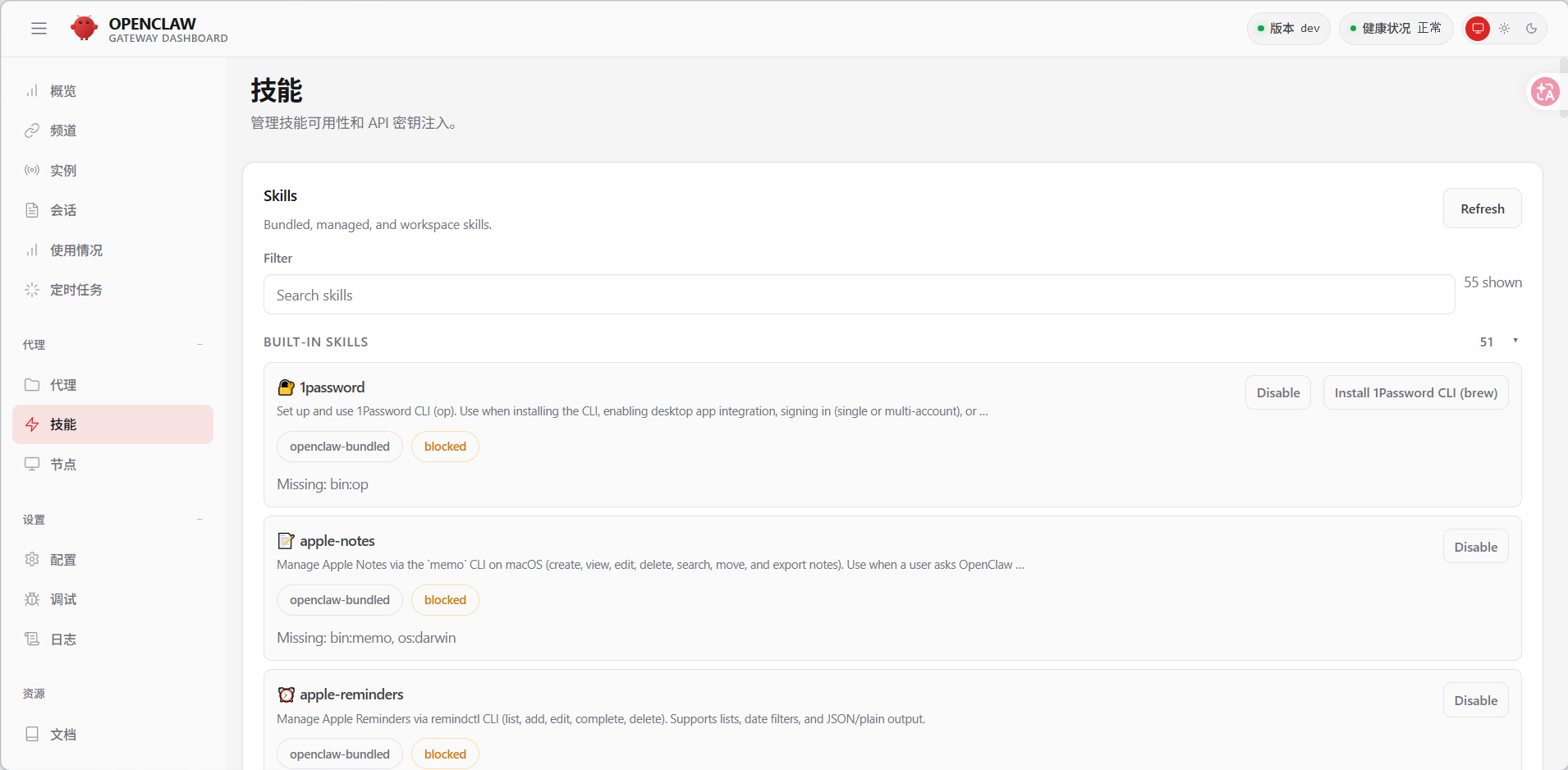
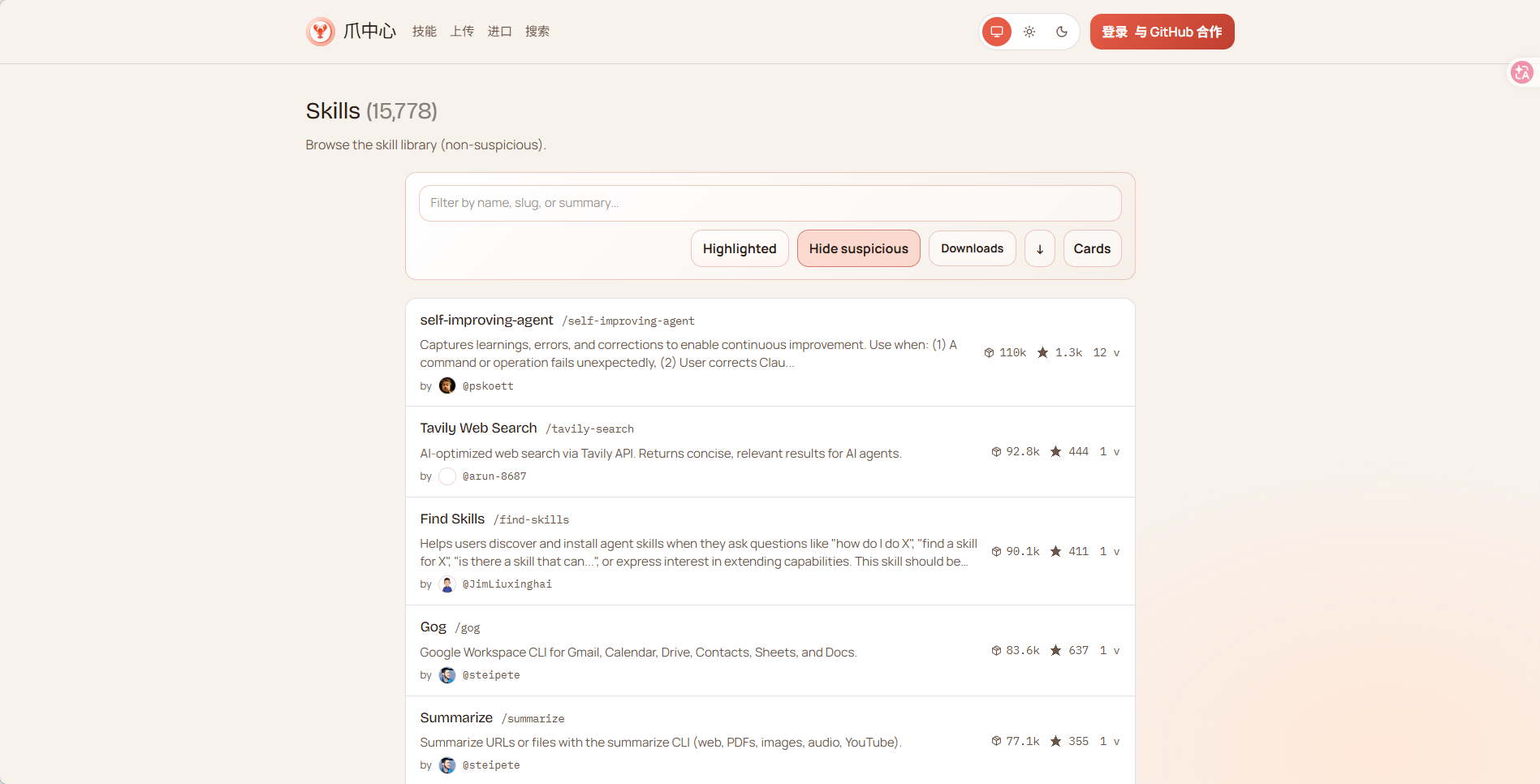
If you want to add more Skills, you can look in Clawhub. This is an official plugin marketplace that has collected a massive number of Skills for us to use.
https://clawhub.ai
Go to the official website and click the Browse skills option to browse various Skills.
Remember to install CLI before downloading. Enter the command below in PowerShell, and afterward you can also download Skills through PowerShell.
Command: npm i -g clawhub
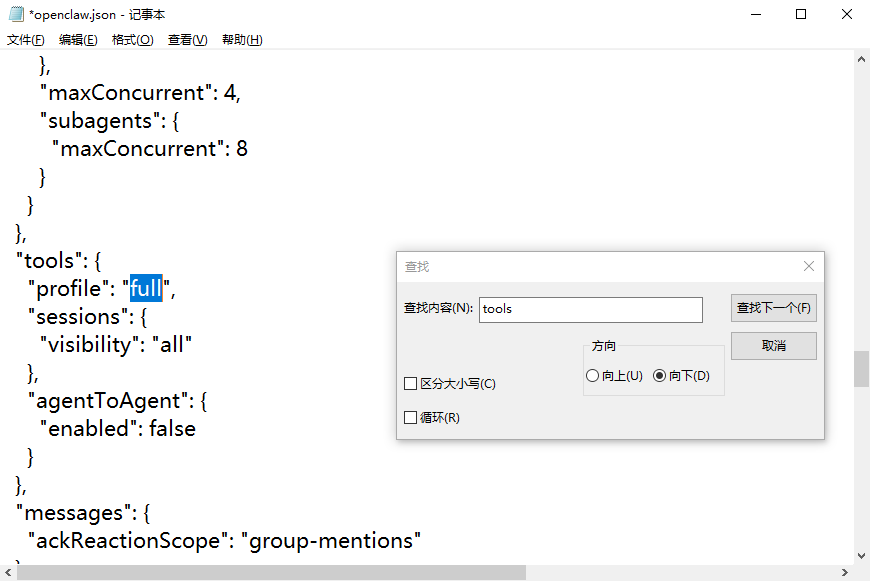
Open the openclaw.json file in the installation directory, find the "tools" node, and change "messaging" to "full".
In Settings - Configuration's "Settings" list, select "Tools" to enable Enable Agent-to-Agent Tool, and click Save above to save the settings.
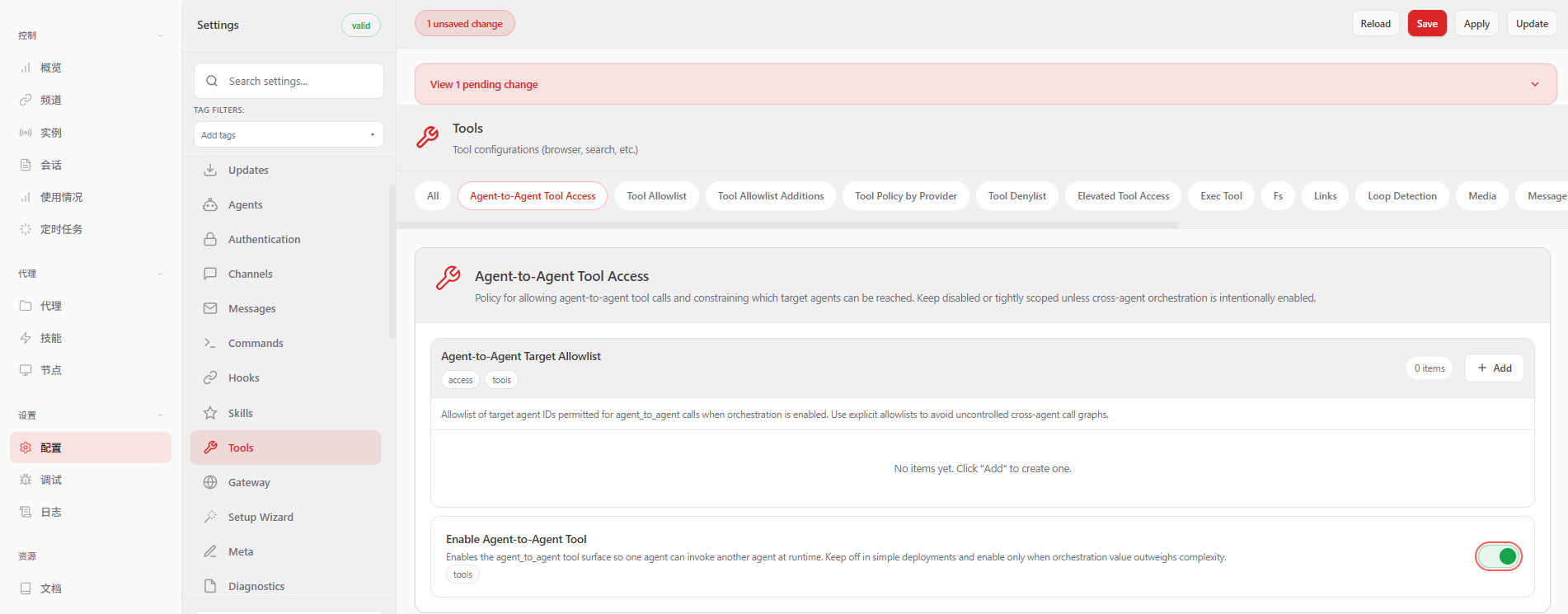
Once completed, you can start adding the Skills you need.
I recommend three Skills to friends, which are very helpful for using OpenClaw and finding Skills. Note that when downloading Skills, you need to use a VPN.
Skill Vetter
Skill Vetter can scan and review Skills that are about to be installed, helping us avoid malicious Skills containing viruses.
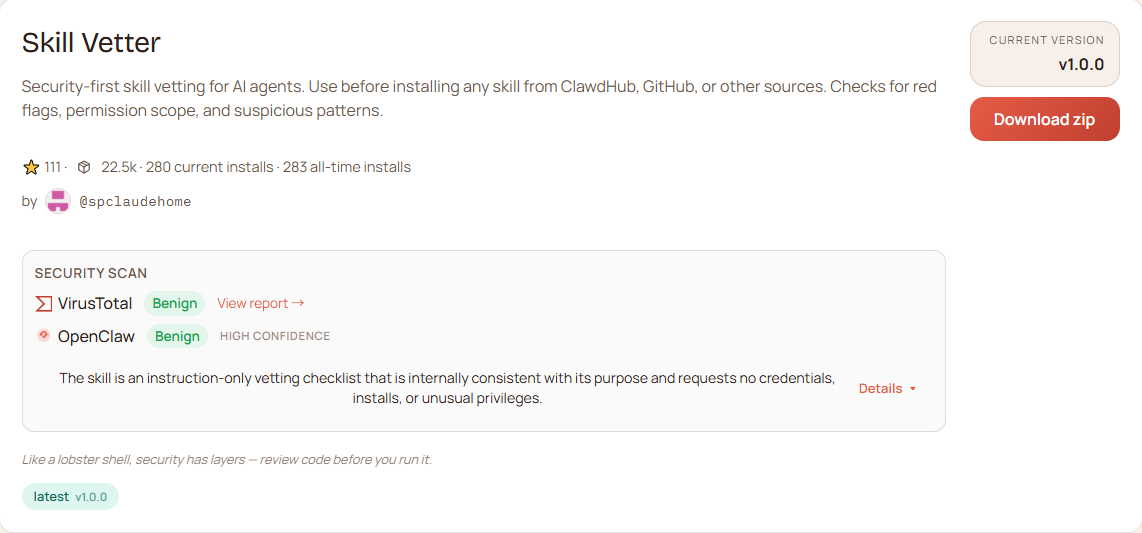
Copy the name of the Skill from the website.
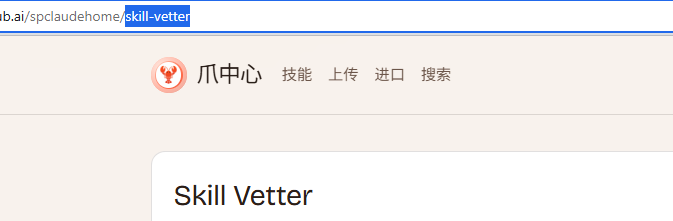
Enter the command below in PowerShell and replace the content inside the quotation marks with the specific name, then press Enter to install.
Command: clawhub install "xxx"
After confirming the installation is complete, you need to restart the gateway for the Skills to take effect.
Command: openclaw gateway restart
Tavily Web Search
Tavily Web Search optimizes web search, giving Claw a good ability to search for information online.
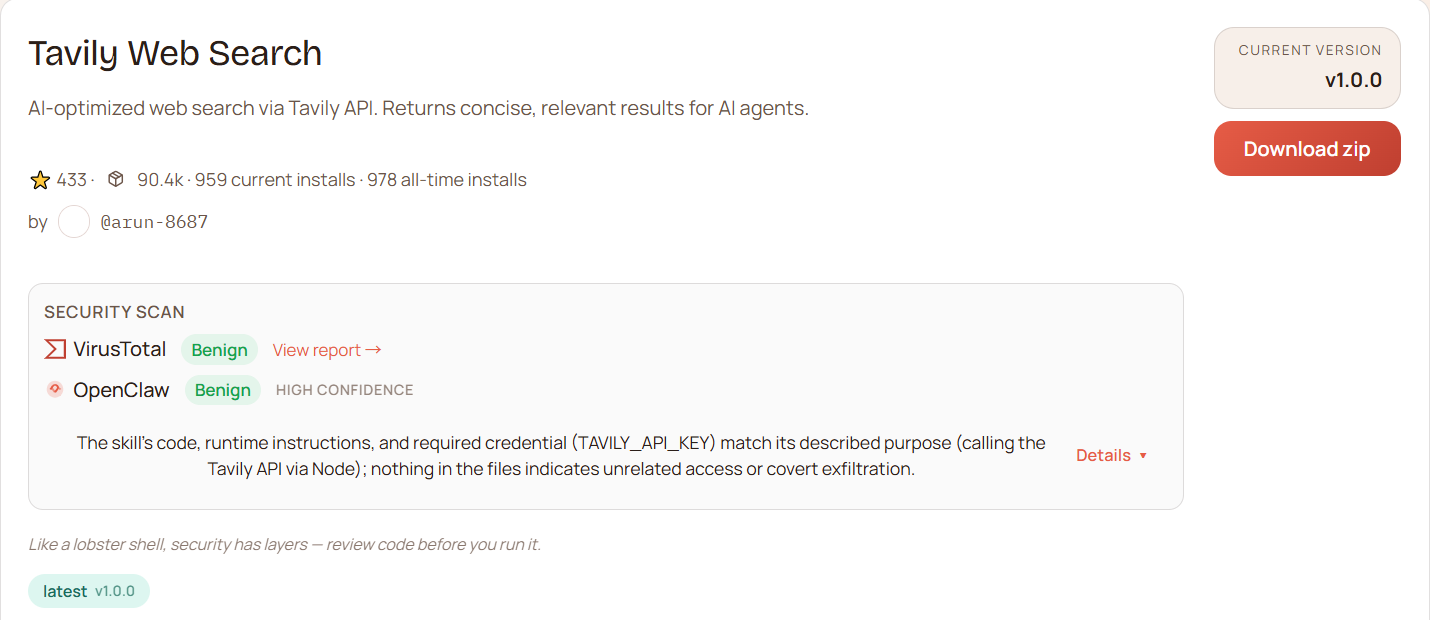
Using this Skill requires us to get a Tavily API Key.
Official website:https://www.tavily.com
After completing the installation and restarting the gateway, click Register/Log in in the upper right corner.
After completion, you can see a default API Key in the center of the redirected page. Using it easily causes errors, so we click the plus sign to the right of API Keys to create a new one for use.

Enter the prompt in the chat interface and replace the content with the API Key created earlier.
Prompt: Help me configure Tavily's API Key: xxx; after configuring, test whether it can be used
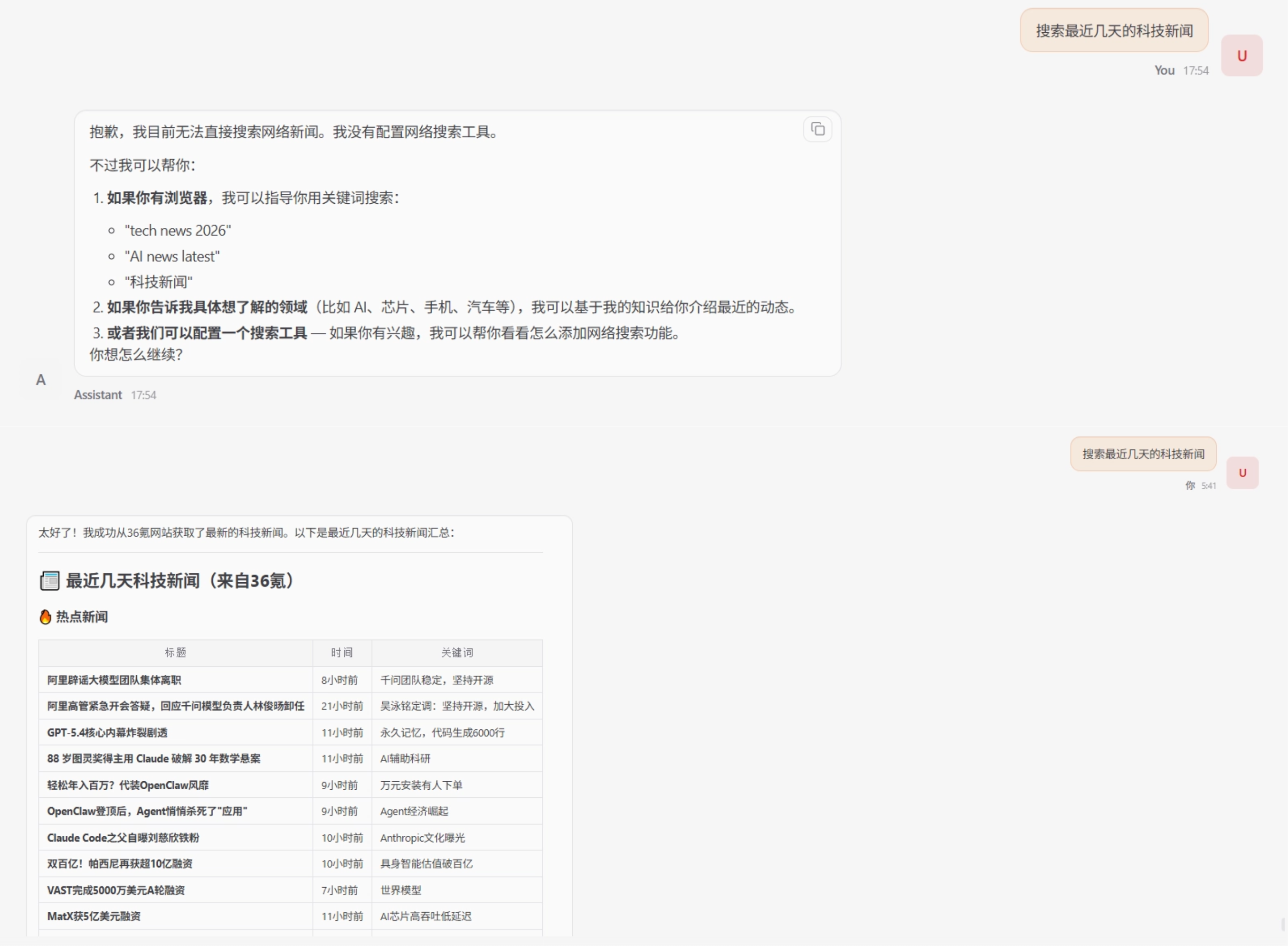
After a successful test, you can experience the feature and directly see the difference in capability with and without the Skill.
Before adding Tavily Web Search, it could not search web pages at all. After adding it, the main agent can automatically call the Google browser to go to the 36Kr page to find news.
Prompt: Search for recent technology news
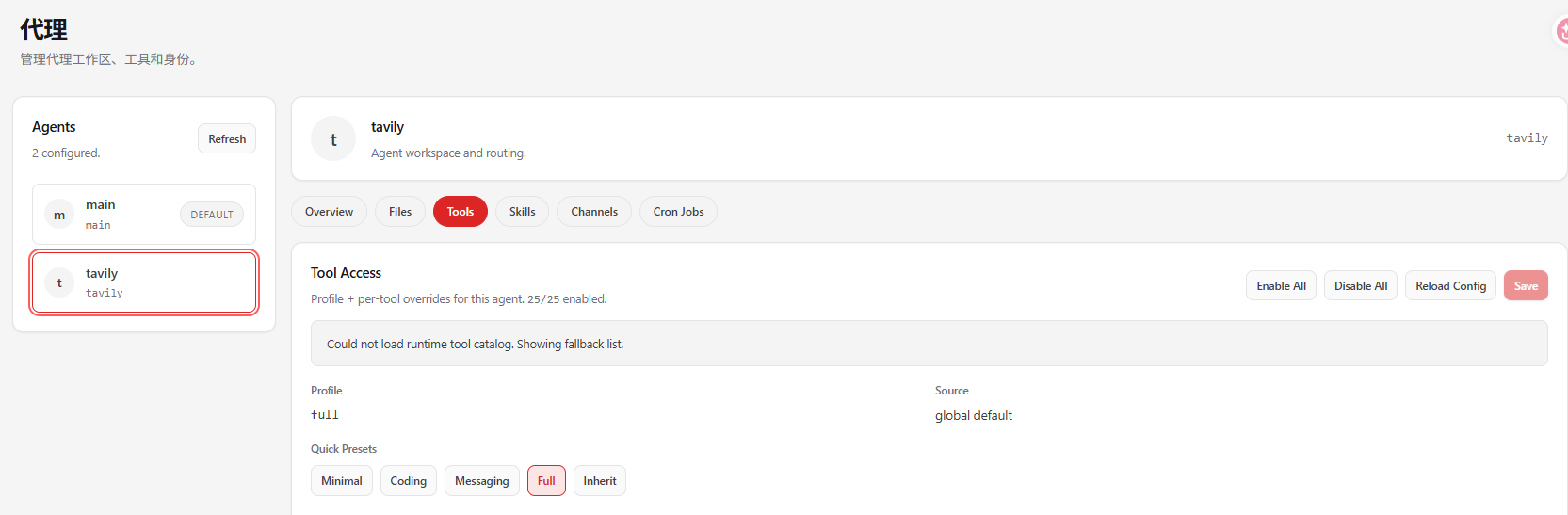
While waiting for results, you may notice that a sub-agent is automatically created. This is a mechanism established by OpenClaw to handle batch tasks or concurrent tasks. Under this sub-agent, each result is sent back to the main agent in turn to help complete the task.
Find Skills
Find Skills can help users find and install Skills. You only need to enter your goal or keywords and it will search for suitable Skills on your behalf.
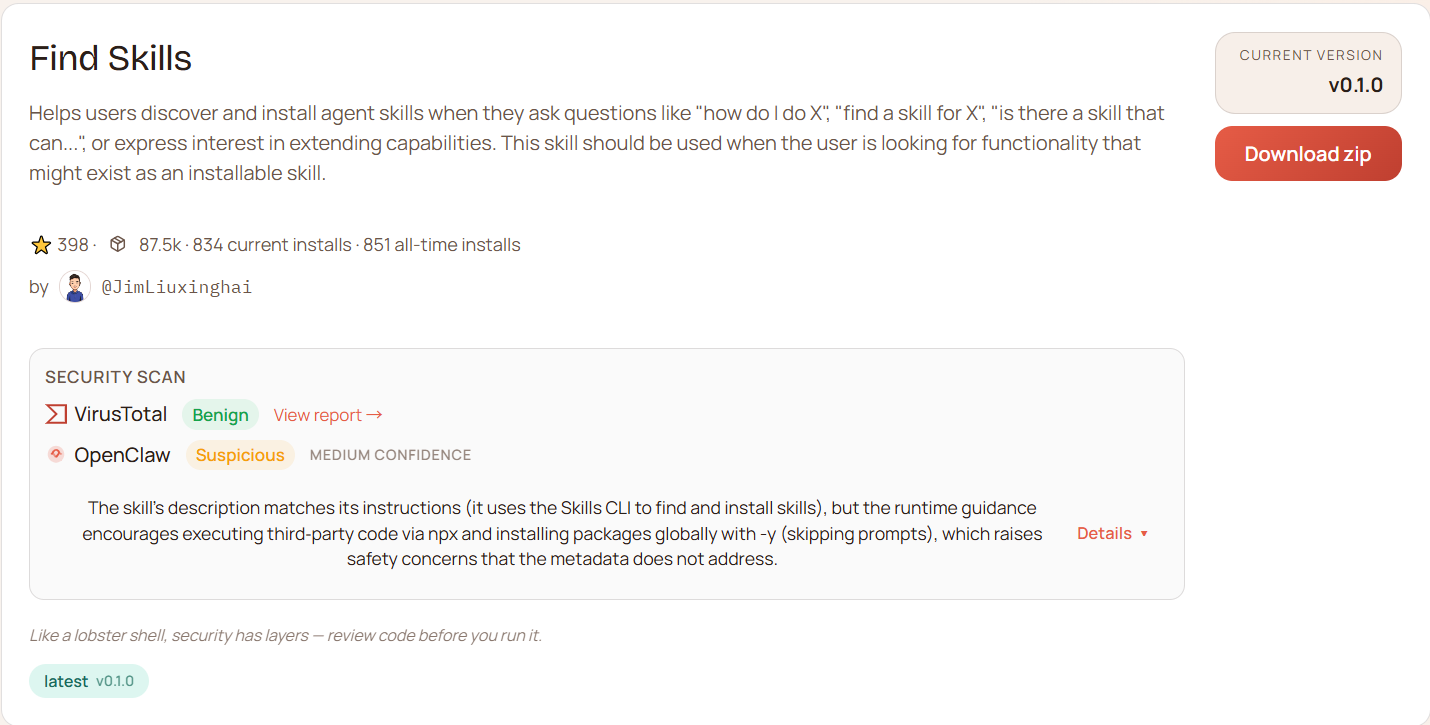
This step is fewer than the previous one, and you do not need to obtain an API Key. After entering the command and completing the installation, just restart the gateway.
Test in the same way, and enter the command.
After confirming the installation is complete, try asking it to find Skills suitable for generating images.
Prompt: I want to find Skills for AI image generation.
The main agent called the Google browser to jump to the Clawhub official website, then went to the search page to look for Skills with the keyword "Image Generation".
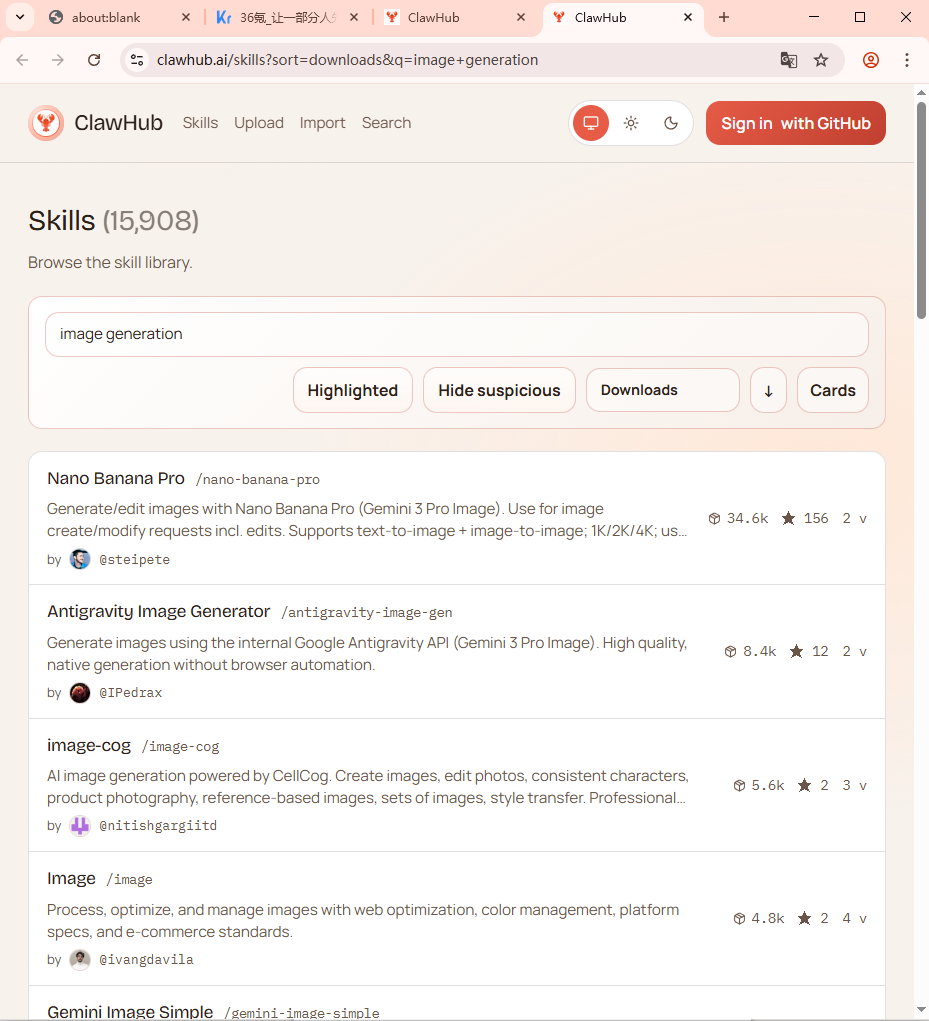
Finally, it summarized a text-based recommendation, and an installation command could also be executed. In contrast, when Skills are not installed, it cannot directly run commands and can only give us some suggestions.
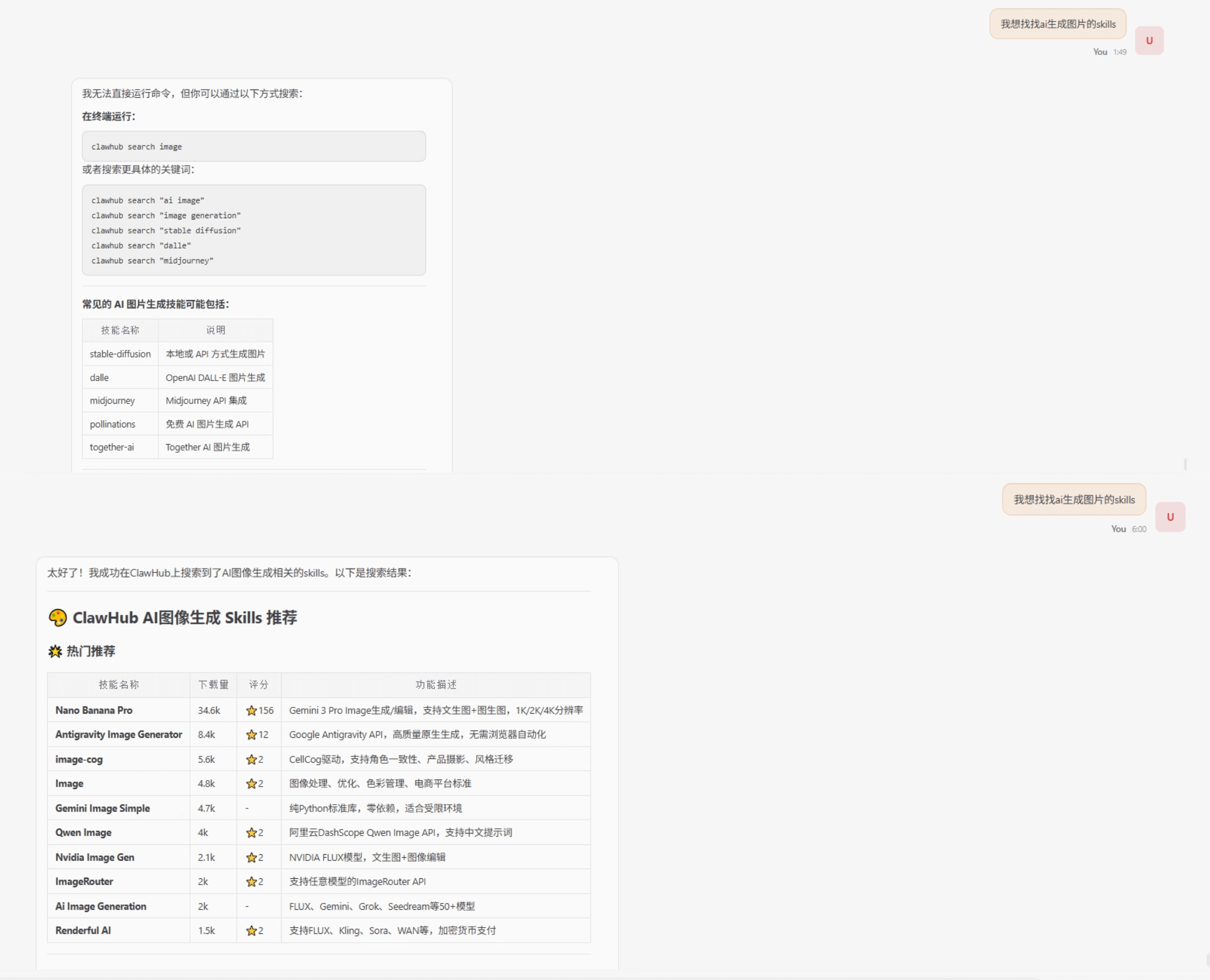
OpenClaw currently has various security risks, and the plugin community is a mixed bag. Before downloading various Skills, everyone should first download security-checking Skills like Skill Vetter.
Comparing before and after, only OpenClaw with added Skills can unleash its powerful capabilities.
03. Cloud OpenClaw Recommendations
If you do not have an idle computer, here are a few mainstream cloud lobsters. You can also experience OpenClaw's features, and installation is even simpler~
Kimi Claw
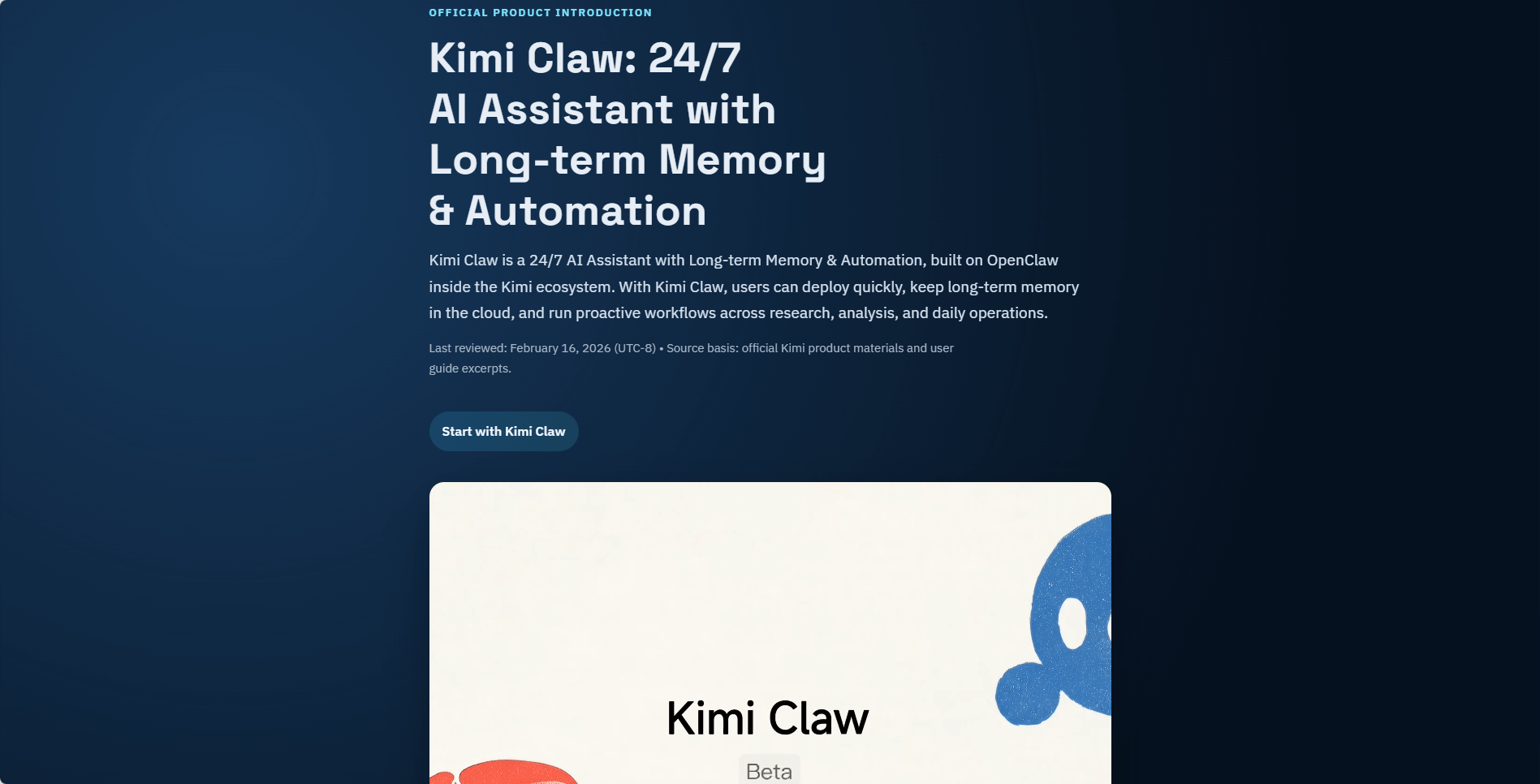
Kimi Claw is a cloud intelligent agent launched by Moonshot AI, 199 yuan/month. It can be created with one click in a browser or APP, and comes with 40GB cloud storage and the Kimi K2.5 model.
Official website:https://kimi-claw.com
MaxClaw
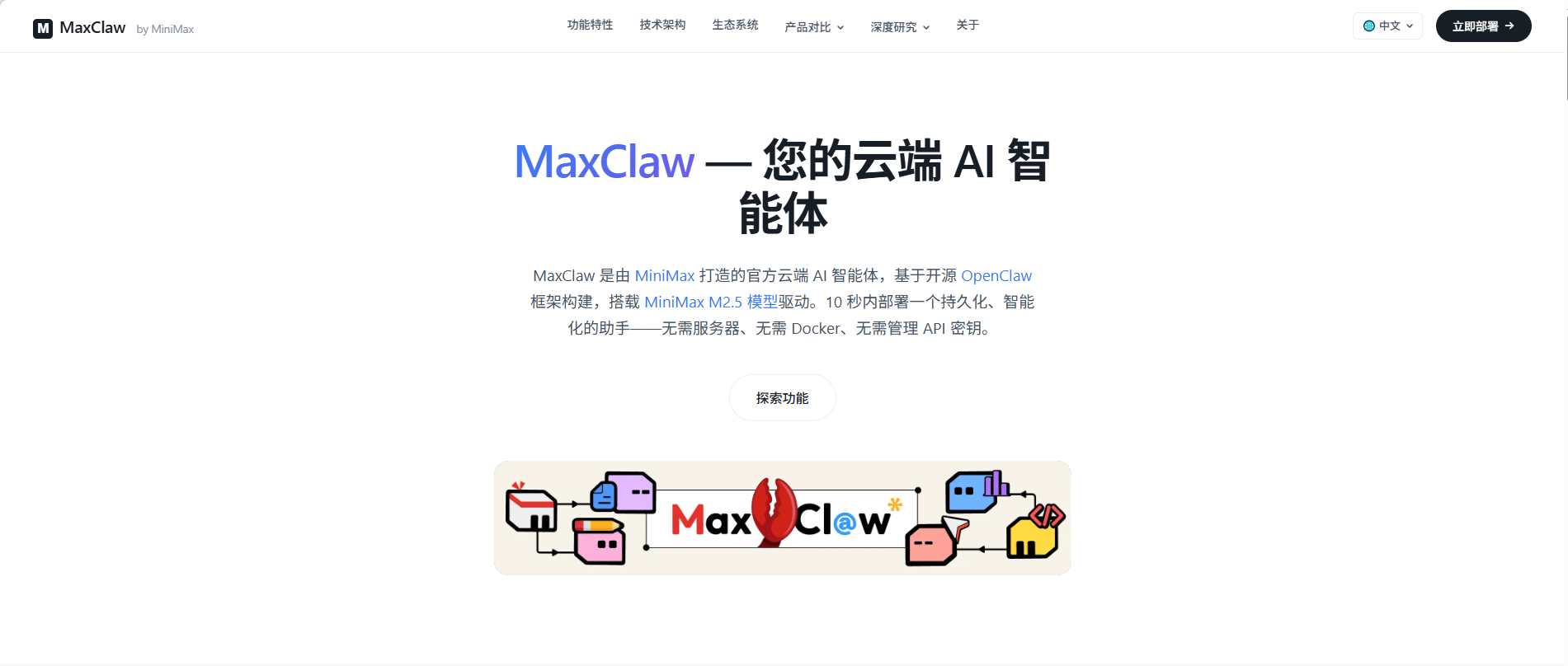
MaxClaw is a cloud AI assistant launched by MiniMax, starting at 39 yuan/month. It has long-term memory of 200,000+ Tokens and 50GB cloud storage, is equipped with the MiniMax M2.5 model, and usage consumes credits.
Official website:https://maxclaw.ai
CozeClaw
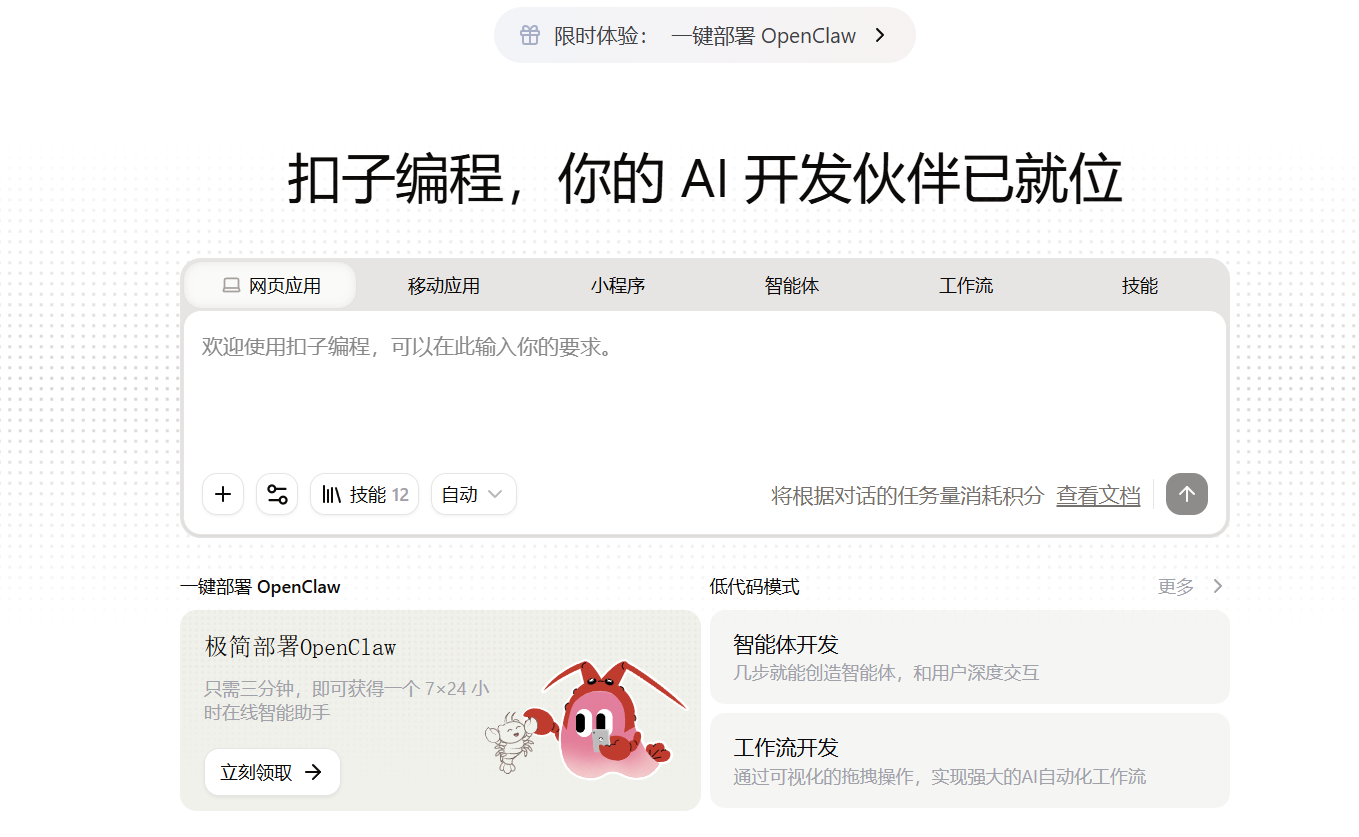
Coze recently launched a one-click OpenClaw deployment service. You can use it directly after recharging 49 yuan for membership. You can choose popular models such as Doubao 2.0, and it comes with a preset set of practical skills.
Official website:https://code.coze.cn
Alibaba Cloud
Alibaba CloudCloud OpenClaw is an AI intelligent agent based on OpenClaw and the Alibaba Cloud Bailian large model platform. It supports the Qwen series of large models and provides a free trial with a 300 yuan cloud server ECS quota.
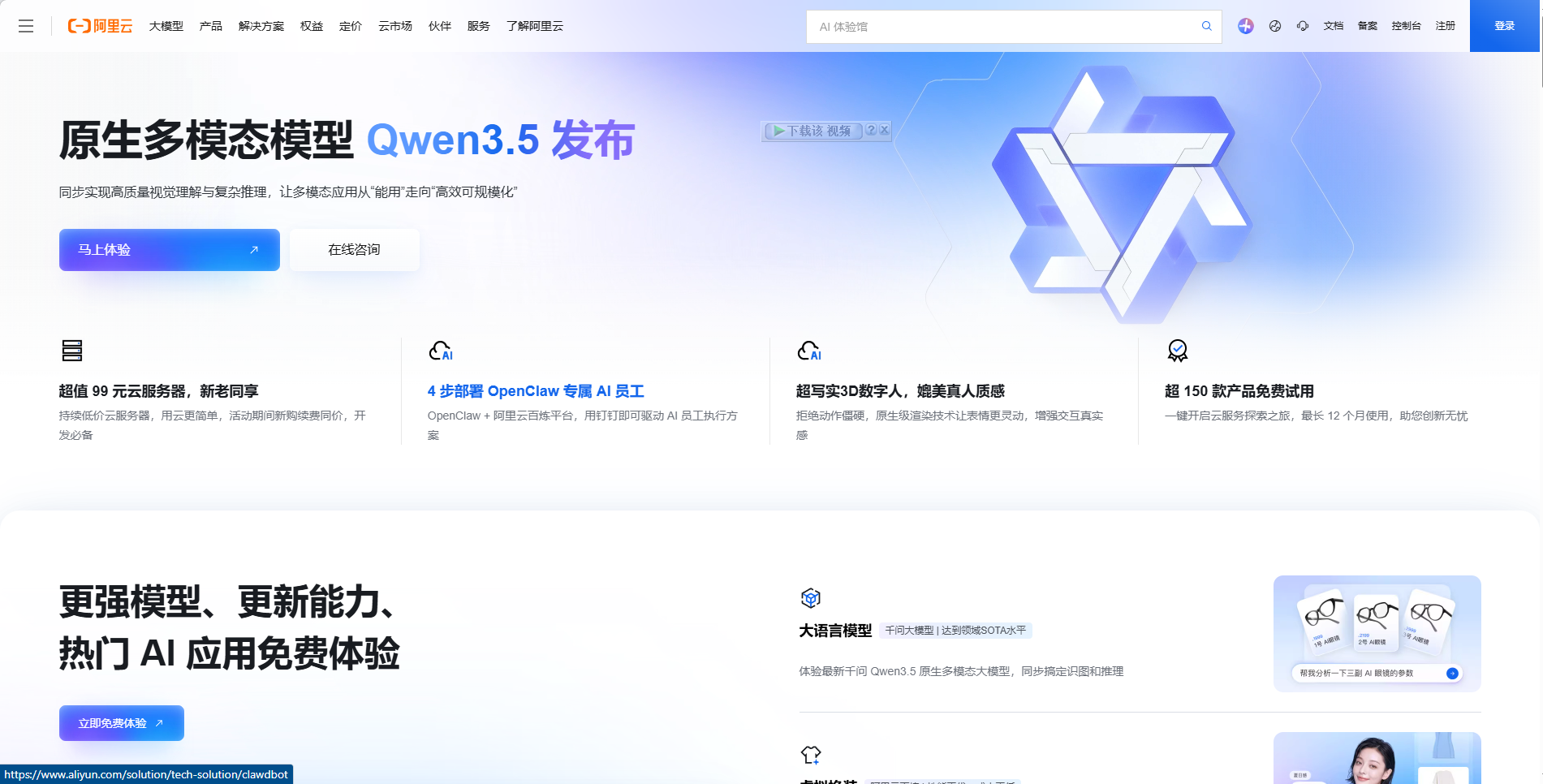
Official website:https://cn.aliyun.com
04. Some Sharing
After in-depth experience, I believe OpenClaw does have the potential to become an intelligent assistant for our life and work.
OpenClaw can connect to major chat software and take over all repetitive mechanical labor. OpenClaw can proactively work 24 hours a day, receive instructions at any time, and also has persistent context memory that never forgets, multi-threaded concurrent processing capabilities, and a learning speed that instantly masters new skills. Each of these "completely beats" humans.
But the more complex the instructions we give and the more external tools OpenClaw calls, the more Tokens are consumed, and the consumption will skyrocket exponentially.
To make this "lobster" both easy to use and cheap, everyone is recommended to do the following optimizations after deployment:
-
Use free local models or relatively cheap open-source models for simple tasks, and call flagship models for complex logic;
-
Regularly have OpenClaw clean up or summarize short-term memory;
-
Build a local knowledge base index so that OpenClaw only searches and reads the most relevant passages when needed.
-
By using the large Token discount packages offered by various model vendors and cloud providers, the threshold is low, the Token volume is large, and the cost-effectiveness is very high.
After that, we can fully enjoy the dividends brought by this cyber lobster.
All time-consuming and labor-intensive tasks can be handed over to tireless digital life, allowing us to have precious energy to unleash our unrestrained creativity.
Perhaps this is the ultimate technological romance that OpenClaw gives to each of us!
Original link:OpenClaw + Feishu nanny-level deployment tutorial, the best way to raise crayfish!