

Recently Claude has started banning accounts on a large scale again. Whether it's a new account or an old one, it can be gone without any warning. The most headache-inducing part is that the context, personal preferences, and project workflows that were painstakingly fed in before all have to be reorganized and migrated...
Many people are starting to turn to one with a friendlier interface and a more systematic experience Codex, but an OpenAI subscription requires an overseas bank card. This single payment threshold alone has blocked quite a few ordinary users.
Fortunately, Codex's official ecosystem is very open and supports us freely configuring third-party models.

We can absolutely integrate domestic models, such as DeepSeek, Kimi. As long as they support OpenAI-compatible interfaces, in theory they can all be integrated into Codex. Not only can this avoid the payment threshold, but token costs are also cheaper.
If you're a beginner using it for the first time, I'd recommend starting with Kimi. Kimi's Chinese comprehension, long-text processing, coding, and multimodal overall capabilities are all very strong, making it the domestic model best suited for Codex.
Moreover, I have a Kimi membership activated for daily use, and within the membership quota there are no additional token fees.
In today's article, I'll teach you step by step how to integrate third-party large models into Codex to get everyday tasks done.
01. How to integrate Kimi into Codex
What we're using is the cross-platform desktop assistant that has already gained 112k+ Stars on GitHub CC Switch。
CC Switch is an AI model switcher, specifically helping us manage model providers for different tools. It was first used in Claude Code , and now Codex, OpenCode, OpenClaw, andHermes Agent can all use it.
Previously, when we switched models we had to manually edit JSON, TOML, or .env files, and different tools had different configuration formats, so beginners could easily get stuck. With CC Switch you can directly add providers and fill in API Keyin the interface, and switch with a few mouse clicks. The operation is much simpler.
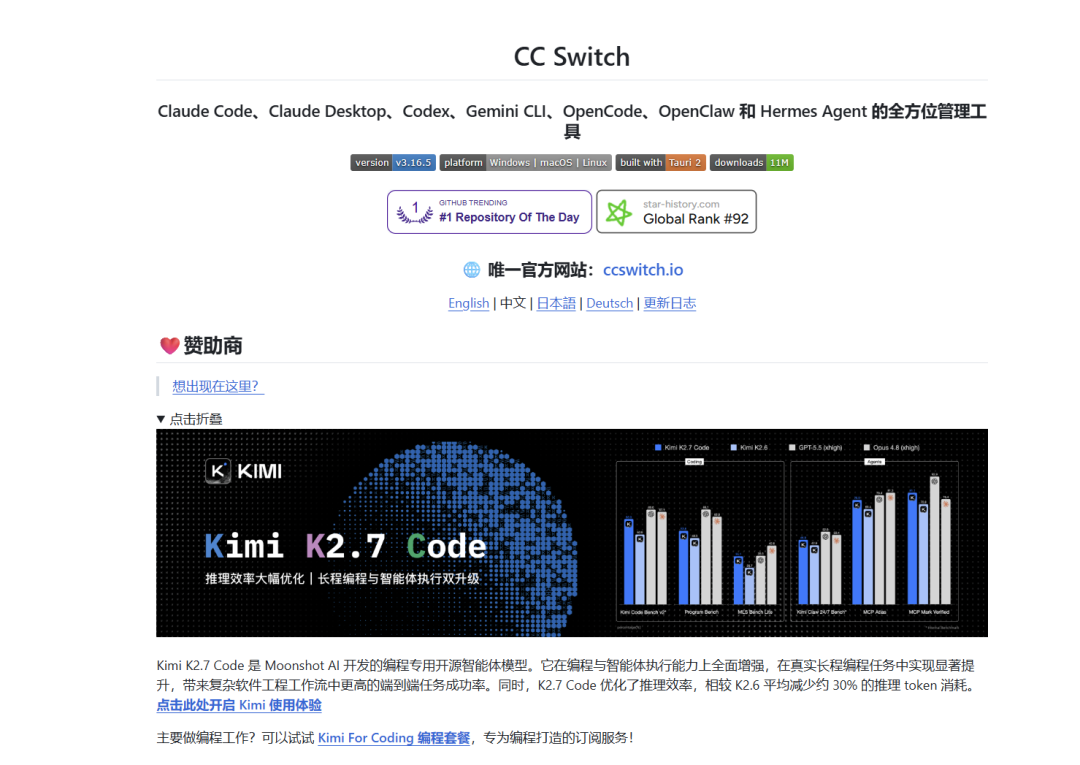
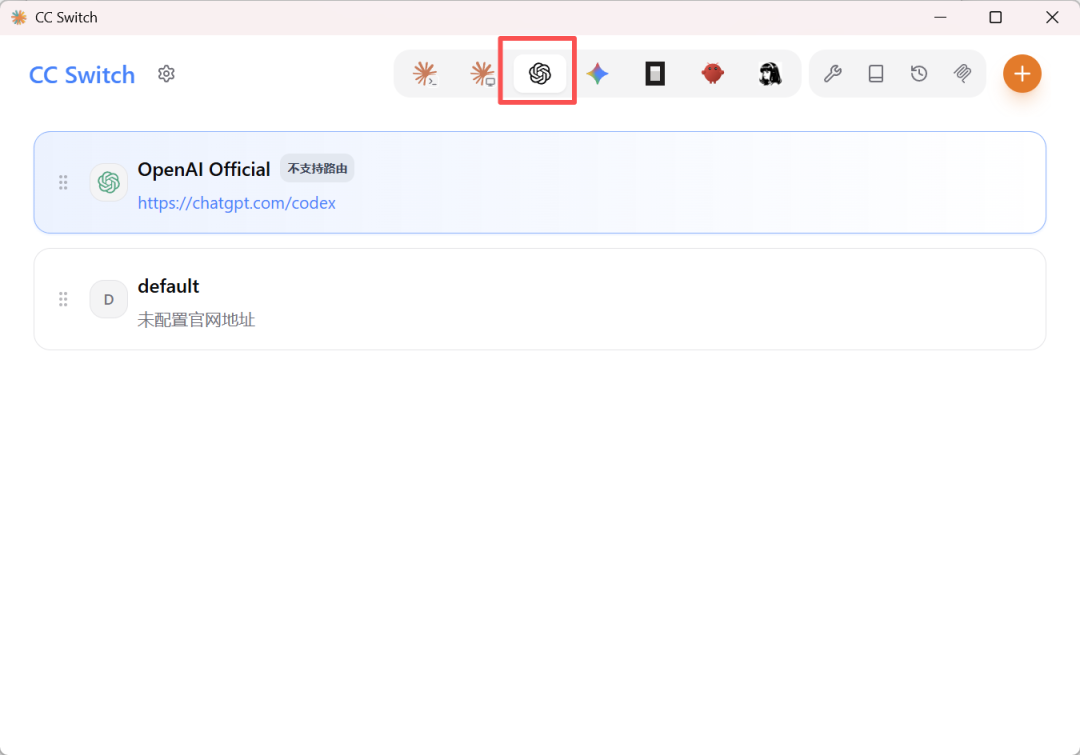
Let's open CC Switch, and click "+" under the OpenAI project.
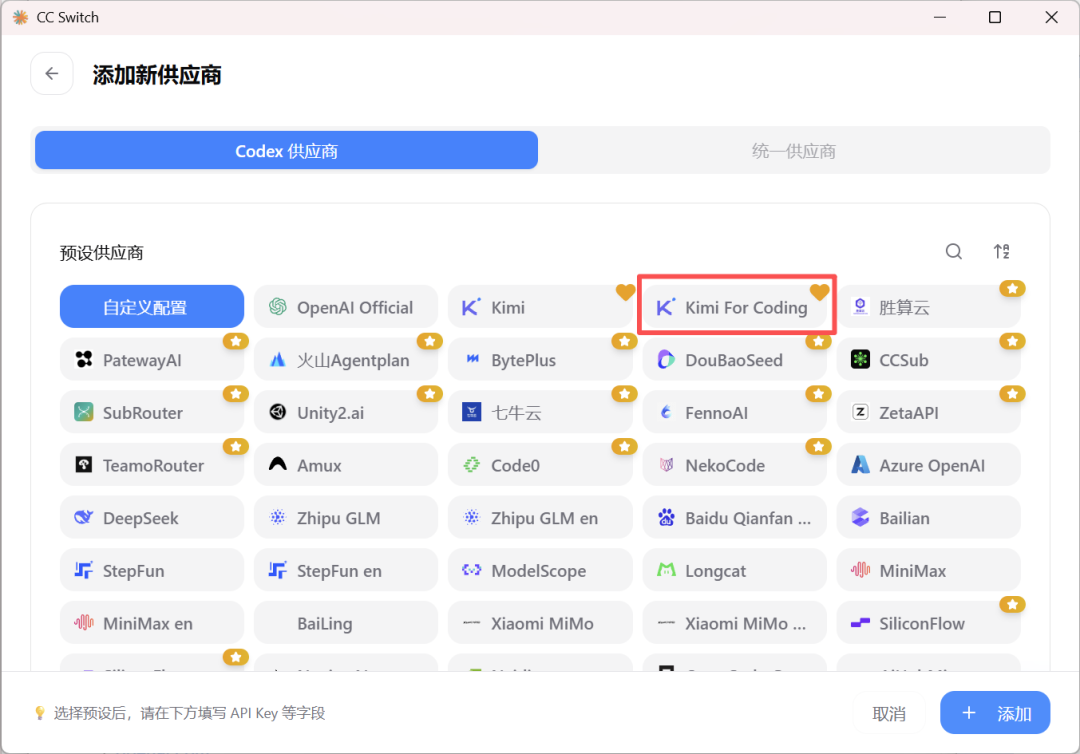
On the add new provider screen, select the Kimi For Coding preset.
Note that it's not Kimi, but Kimi For Coding. Since I have a Kimi membership activated for daily use, Kimi For Coding comes with our membership quota and does not require spending extra money.
CC Switch has already pre-filled the parameters for us; we just need to fill in the API Key from the dropdown.
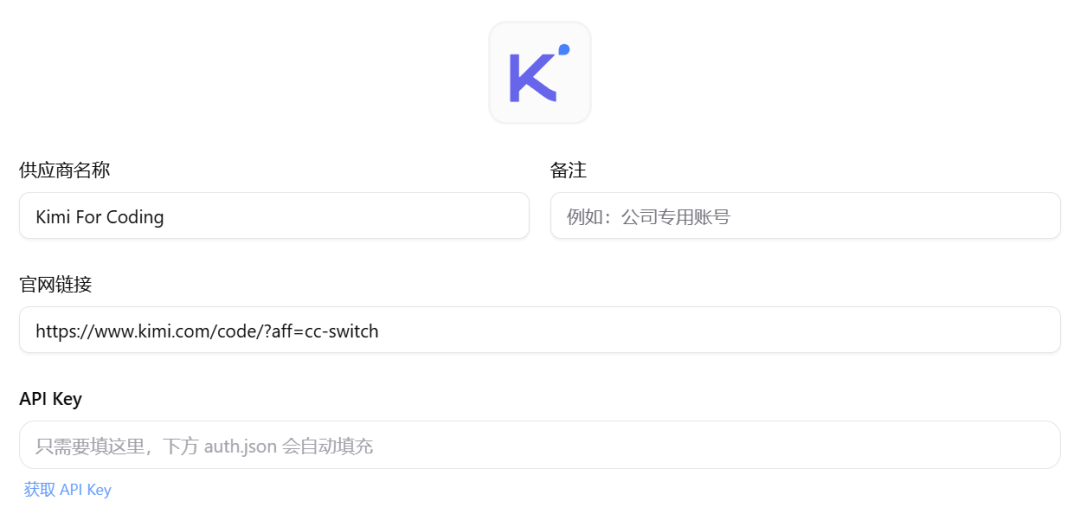
Let's open Kimi Code, create a new API Key in the console, copy it out, then go back to CC Switch and paste it in.
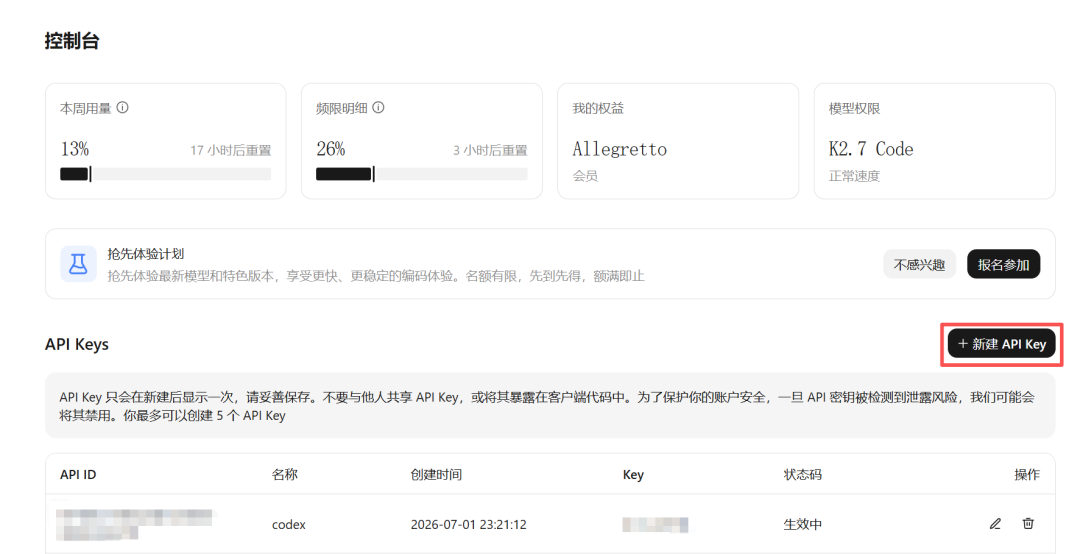
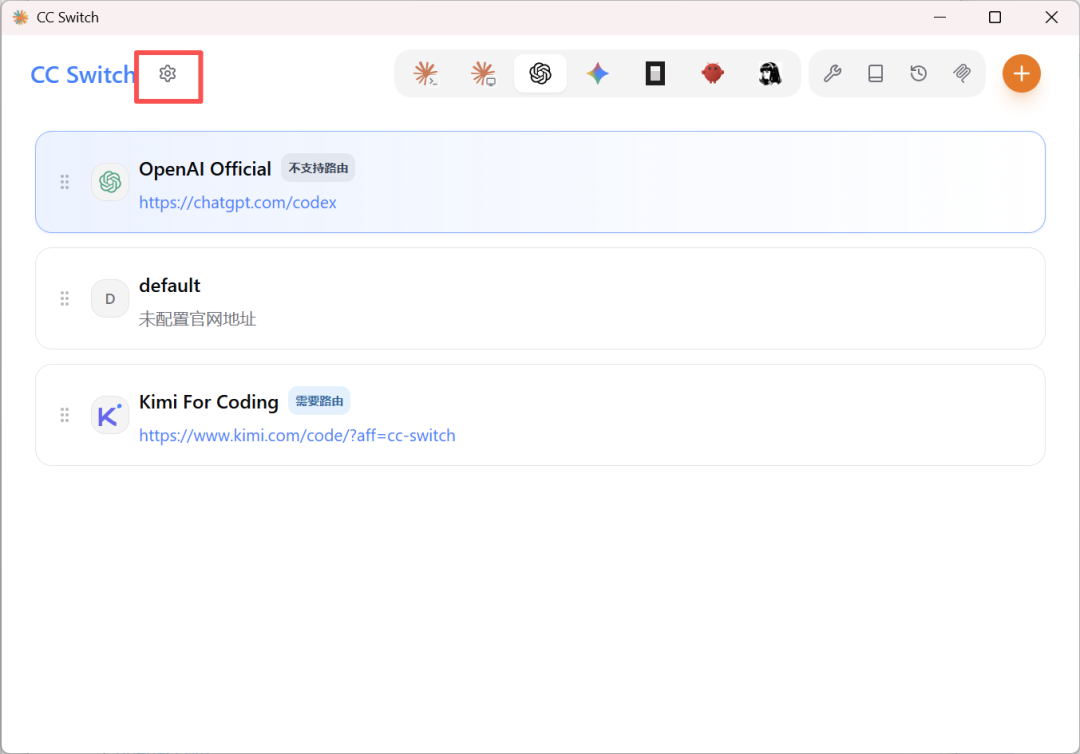
Go back to the CC Switch home page and open the settings button in the upper left corner.
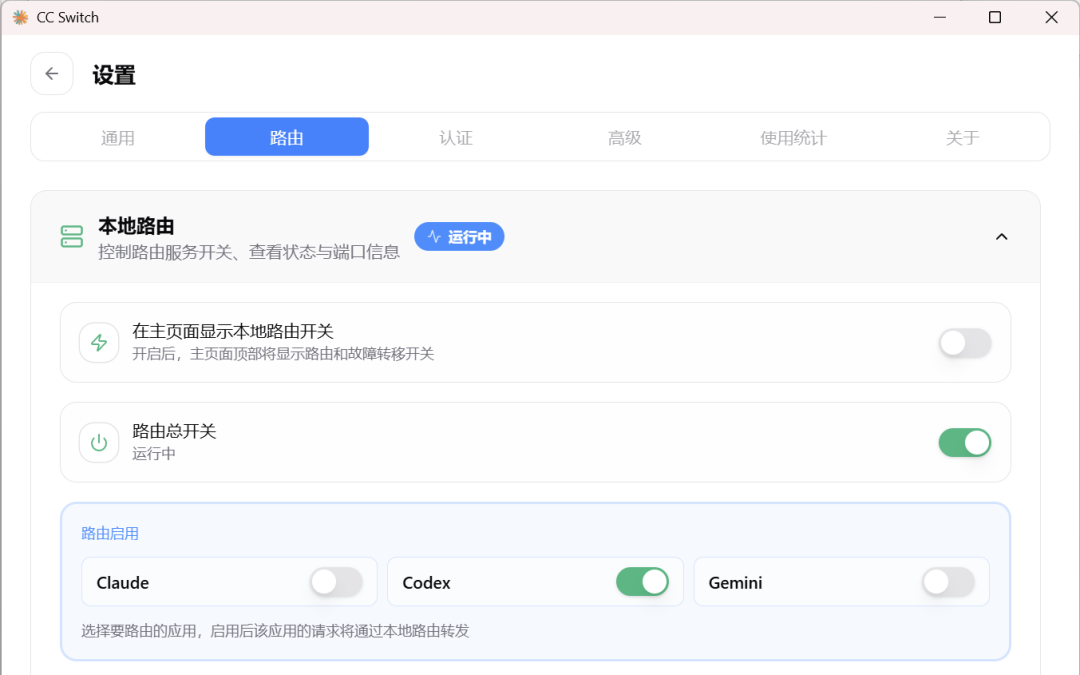
Find the local routing switch and turn it on.
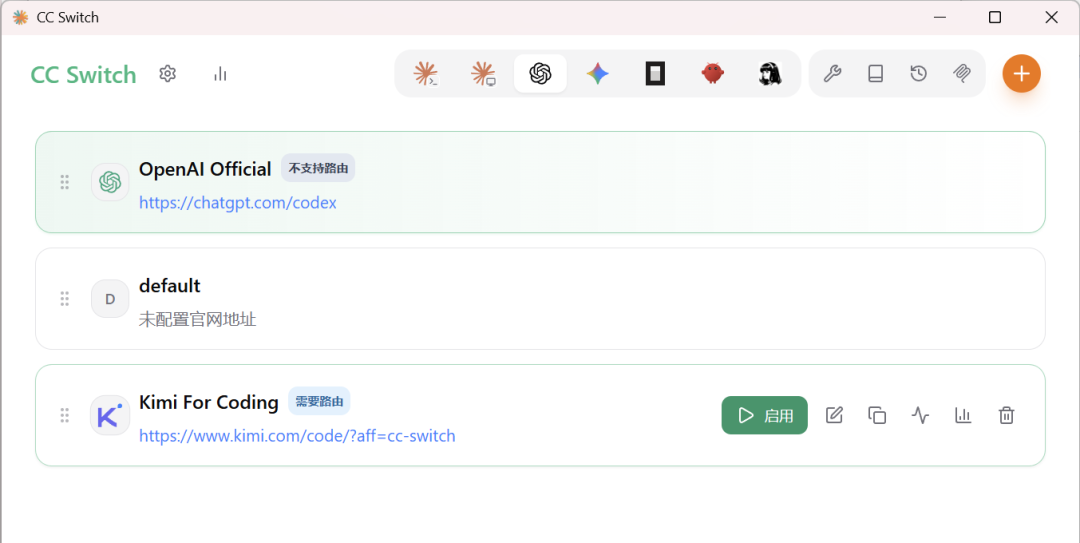
Click to enable the Kimi For Coding we just configured.
At this point, open Codex again, and you'll see that the model options on the page now include Custom or Kimi, and it can be used normally.
If you later want to switch back to OpenAI's official model, just turn off routing in CC Switch and switch to OpenAI Official.
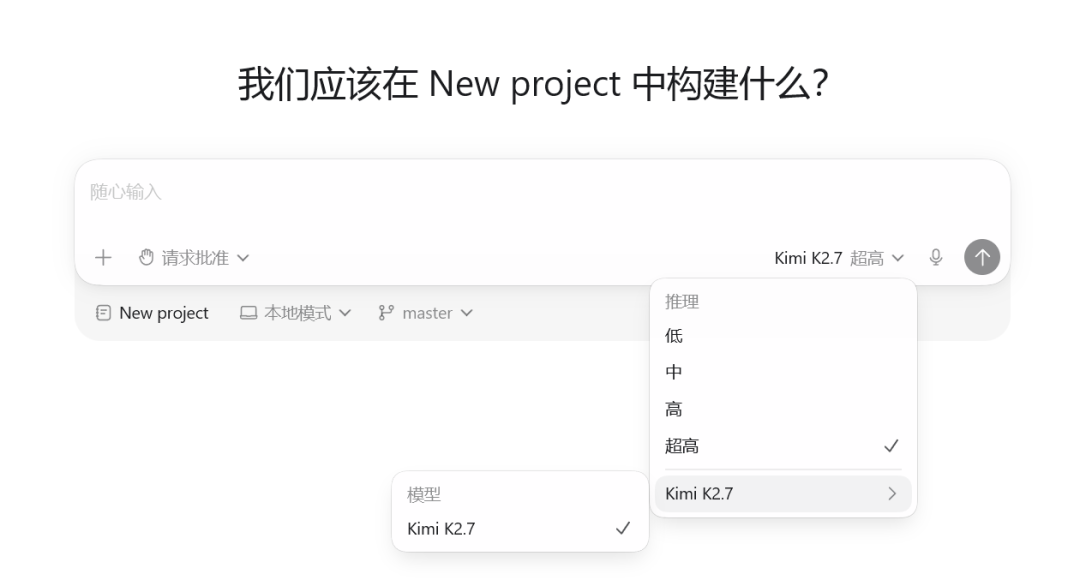
02. What can Kimi do after being integrated into Codex
Kimi itself is already quite handy in Chinese comprehension, long-text processing, and coding. After being integrated into Codex, these capabilities no longer remain only in the chat window; through Codex they can enter local files, projects, and workflows, truly applying the capabilities to specific tasks.
Code
Recreate the Plants vs. Zombies web game.
Codex directly generated an openable HTML web game. It used SVG to create the visuals, and the game logic is complete as well.
After opening it, you can choose Sunflower, Peashooter, and Wall-nut, click on the lawn to plant, collect sunlight, and block zombie attacks. Although the visuals, values, and animations still need further polishing, you can make a runnable demo in just a few minutes. This efficiency is already very satisfying.
Summarize a long report
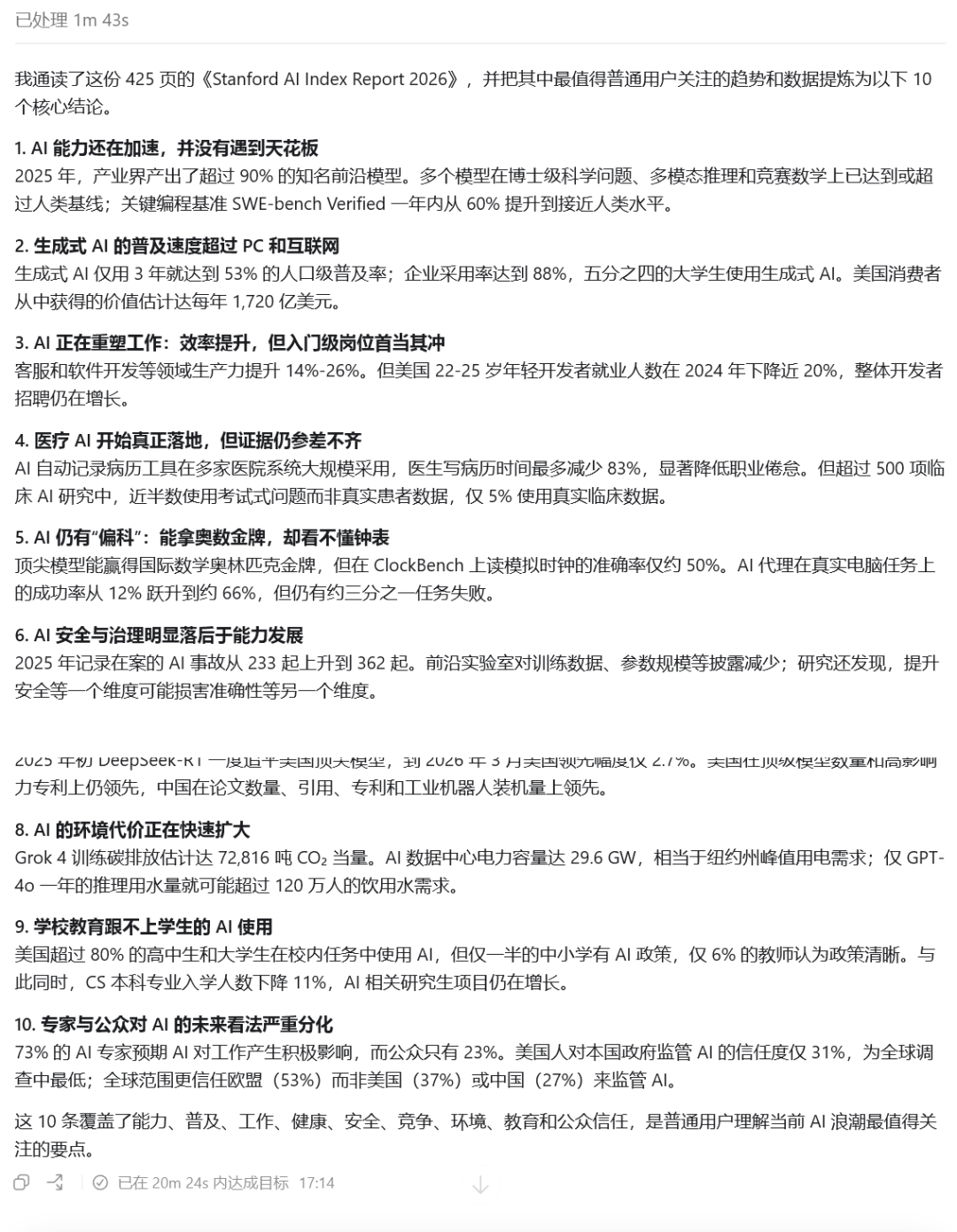
A lot of AI materials are purely in English, with many pages and dense data, and it is exhausting for ordinary people to read through them once. We can also send the report to Codex.
Summarize the file I uploaded, "Stanford AI Index Report 2026," and extract the 10 core conclusions in the report that are most worth the attention of ordinary users.
We do not need to struggle through English PDFs ourselves. We can directly have Codex + Kimi break down an English report into trend conclusions that ordinary people can understand, which is very convenient.
Create a PPT
In real office scenarios, we can also distill our own workflows into skills for use. For example, if we need to make a PPT, we can first install the skill.
Please use the baoyu-design skill to convert the file I uploaded into a PPT of about 20 pages, showcasing the core viewpoints in the file, aimed at ordinary people interested in AI.
PPT generation has always been one of Kimi's strengths. Kimi will help us break down information into a suitable structure, with each page being one core viewpoint, using large numbers to capture the key points, and then pairing it with an explanation that ordinary people can understand, making it relatively easy to read.
The layout is also simple and clean, alternating between dark backgrounds and light backgrounds, with large titles, key numbers, and short explanations. The content has layers, and the pages will not be monotonous.
Video production
Compared with some models that are more oriented toward text and reasoning, Kimi has more comprehensive multimodal capabilities and can handle complex needs related to images and videos.
I asked Codex to call the Remotion plugin to make a short video of a mobile game ranking:
@remotion Help me make a compilation short video of the 5 most popular mobile games in China in 2026. It needs to include real clips of related game videos (download them yourself, a few seconds for each is fine). The clips need to be high-definition, and the aspect ratio and size of each clip should remain consistent. Refer to the effect of a professional ranking list. Search for the ranking list + video materials yourself, and appropriately add narration and background music.
Let's take a look at the final generated video together:
Kimi automatically collected all the materials, judged the image content, selected exciting clips, and generated narration based on the video images. The video successfully incorporated exciting fight scenes and actual gameplay demonstrations from different popular mobile games. With narration and background music with a strong sense of rhythm, it is already quite a good finished video.
The key thing is that making this video took only 16 minutes, which is very efficient.
03. Some sharing
Compared with cumbersome overseas payments and the anxiety of possibly facing account bans at any time, it is better to change your thinking,and combine Codex, this easy-to-use Agent tool, with the model capabilities we use most smoothly in daily life.
The capabilities of the Kimi K2.7 Code model are already very close to GPT-5.5, and it is better adapted to Chinese scenarios, while the usage cost is still low. For most people,Kimi may be the best choice for connecting to Codex, with a low usage threshold and a better overall experience.
In the past, when we used AI, we often needed to copy and paste content ourselves and upload files. Now we directly give Codex a goal, and Codex can use model capabilities to understand the task, read local files, modify files, generate results, and save them to a specified directory.
From chatting to helping us get the work done well, this may be the prototype of future human-machine collaborative workflows.
In the future, competition among large models will no longer be simply about competing on parameters and leaderboard rankings, but about who can more seamlessly integrate into users' mature toolchains and truly help us implement and finish specific complex work.
Original link:Connect Kimi to Codex, the best choice for beginners using Agents