
Recently, DeepSeek not only became a hit within the AI circle, but also successfully "broke out of the circle" and became a topic of hot discussion among the general public. This is great. AI technology is entering public life, and the popularization of AI in 2025 is even more worth looking forward to. AI Tool Collection will also continue to share more practical AI tools with everyone!
Site Owner Recommends:How to solve DeepSeek server busy issues? 16 free full-power R1 alternatives
However, with DeepSeek's explosive popularity, server lag issues have also frequently appeared, causing many users to be unable to use it normally. In the "AI Tool Collection" community, quite a few friends are complaining about this problem. For this reason, AI Tool Collection wrote this article to provide everyone with a complete solution, including:
- Get the official API Key
- Local deployment of DeepSeek
- Recommended excellent third-party AI clients
1. Get the official API Key
API Key: An API Key can be understood as a string of passwords, through which you can directly access DeepSeek's services.
Although using the official API Key is the simplest way, due to excessive server load, lag issues still exist.
You can visit https://platform.deepseek.com/api_keys to create an API Key. Later in this article, AI Tool Collection will introduce how to use it.
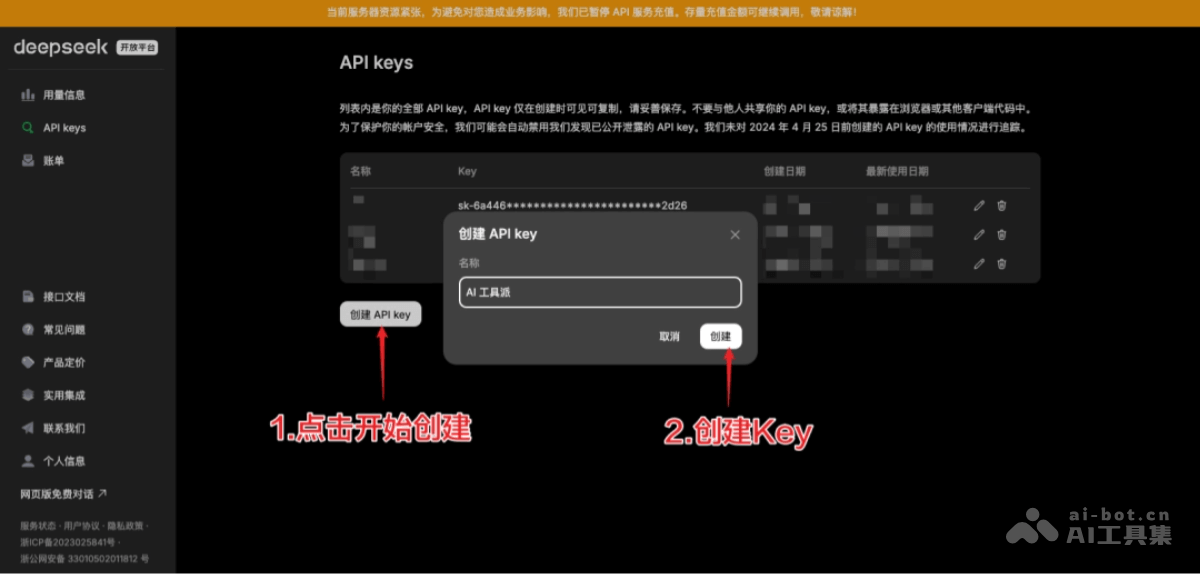
It should be noted that using an API Key will incur costs, but at present due to special reasons,the official recharge service has been suspended, and it is recommended to use a third-party API alternative:SiliconFlow。
2. Local deployment of DeepSeek
To solve the server lag problem, AI Tool Collection recommends everyone use the Ollama tool forlocal deployment. Ollama not only supports DeepSeek,but can also run many other AI models。
The deployment method is as follows:
1. Download Ollama
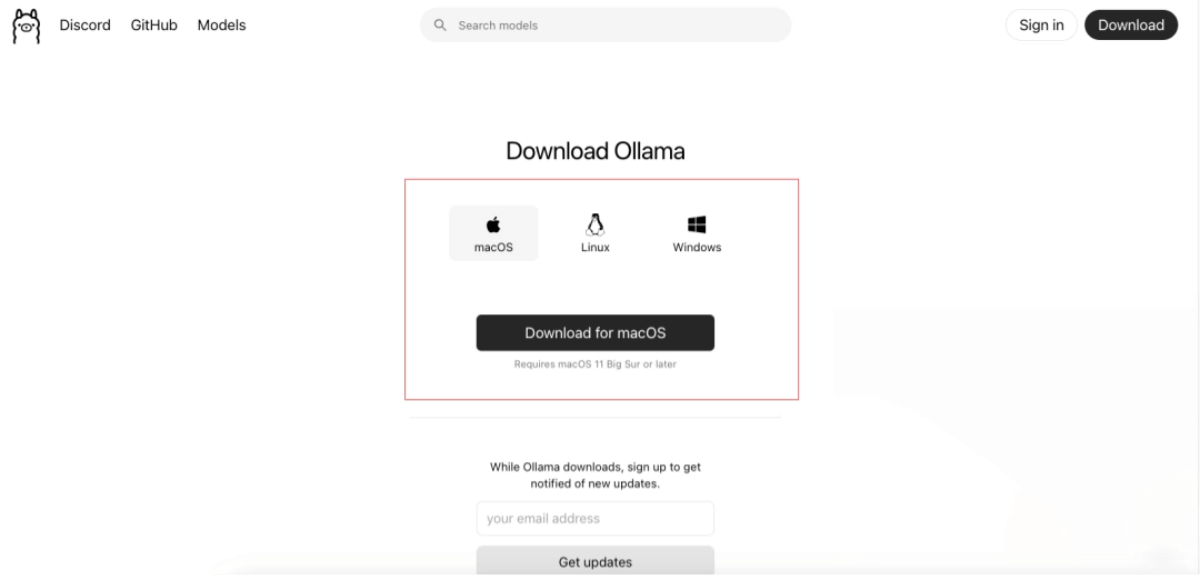
First visit theOllamaofficial website, download the corresponding version of Ollama according to your current computer system, and then install it.
Ollama is a tool used to run and manage AI models locally, and is used to interact with various models.
You can also see the Ollama icon on your computer. Double-click it to open:
2. Download the DeepSeek model
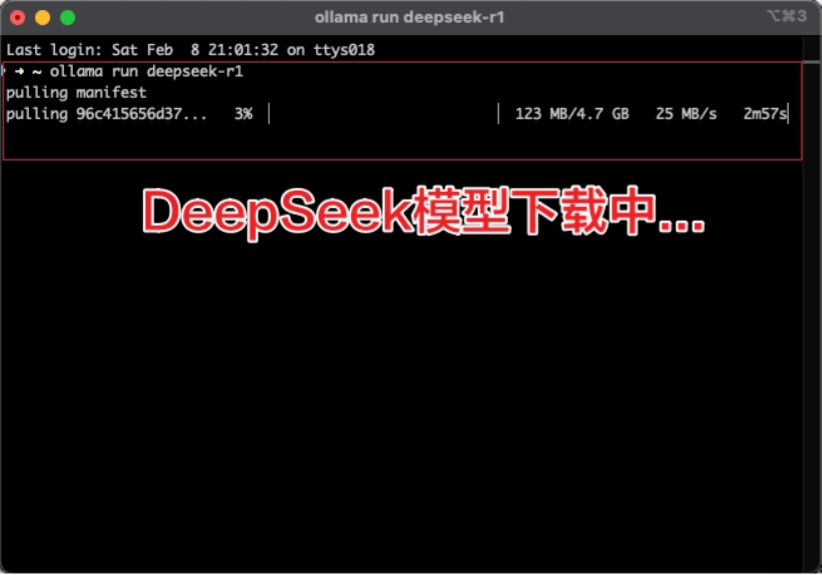
Next, you need to open your computer's terminal command-line tool and enter the command ollama run deepseek-r1. By default, it installs the DeepSeek 7b model.
- How to open the command line:
- Windows: Press the Win+R key combination to open the "Run" dialog box, enter "cmd" or "powershell", click "OK" or press Enter to open the corresponding command-line tool.
- Mac: Press Command + Space to open Spotlight, search for "Terminal", and open it.
Then you can normally download the DeepSeek model:
3. Test DeepSeek
After the download is complete, directly converse with DeepSeek in the terminal, for example, enter: "Please introduce AI Tool Collection." Then wait for DeepSeek to think and reply:
AI Tool Collection has compiled some commonly used Ollama commands. When using them, replace <model_name> with the specific model name:
- Install model: ollama pull <model_name>
- Run model: ollama run <model_name>
- Delete model: ollama rm <model_name>
- All installed models: ollama list
III. Recommended Third-Party AI Clients
For users unfamiliar with the command line, AI工具集 recommends the following 3 excellent third-party AI clientsto make using DeepSeek more convenient:
- ChatBox
- CherryStudio
- AnythingLLM
1.ChatBox
ChatBox is a multi-platform AI client that supports document, image, and code processing, with an emphasis on local data storage and privacy protection. Official website:ChatBox
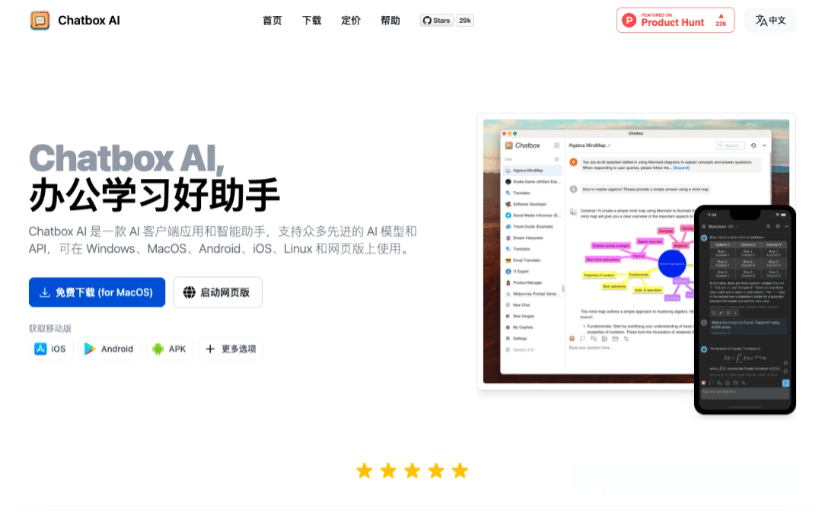
Launch it after installation:
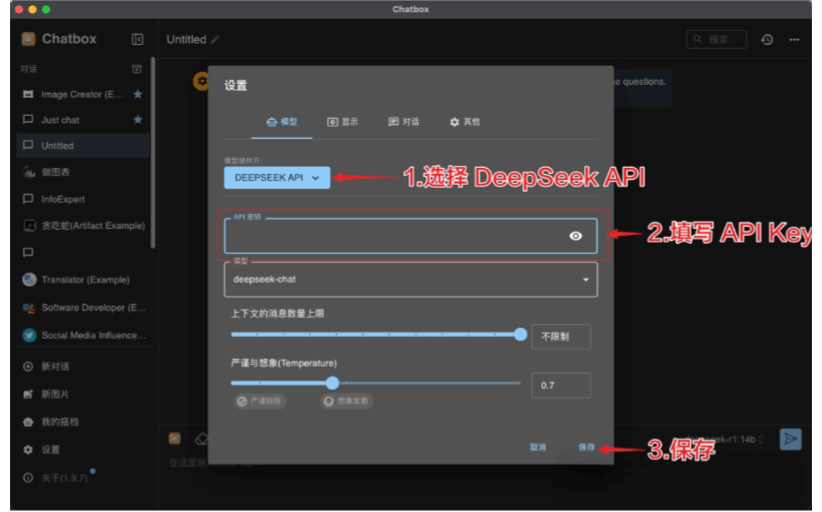
1.1 Using the DeepSeek API
- First, click the settings in the bottom-left corner, then proceed as follows:
- Select the model provider as "DEEPSEEK API"
- Fill in the API Key copied earlier
- Save
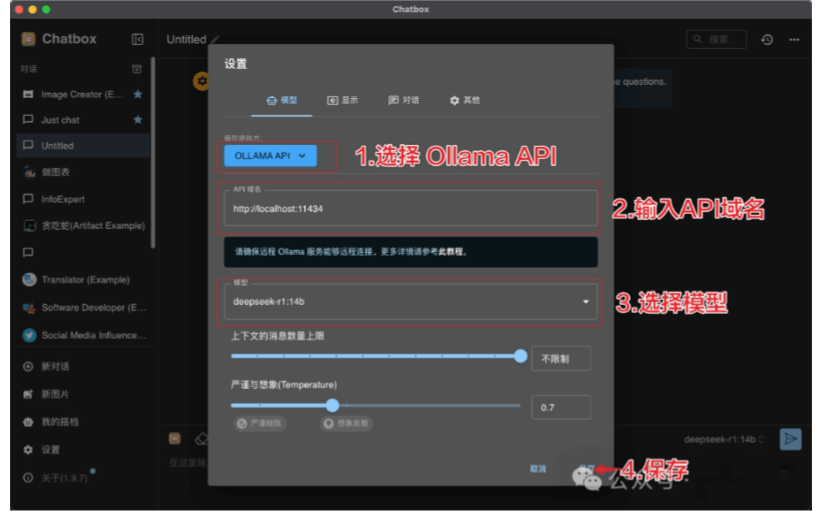
1.2 Using Ollama
- First, click the settings in the bottom-left corner, then proceed as follows:
- Select the model provider as "OLLAMA API"
- Fill in the API domain as:http://localhost:11434
- Select the previously installed model
- Save
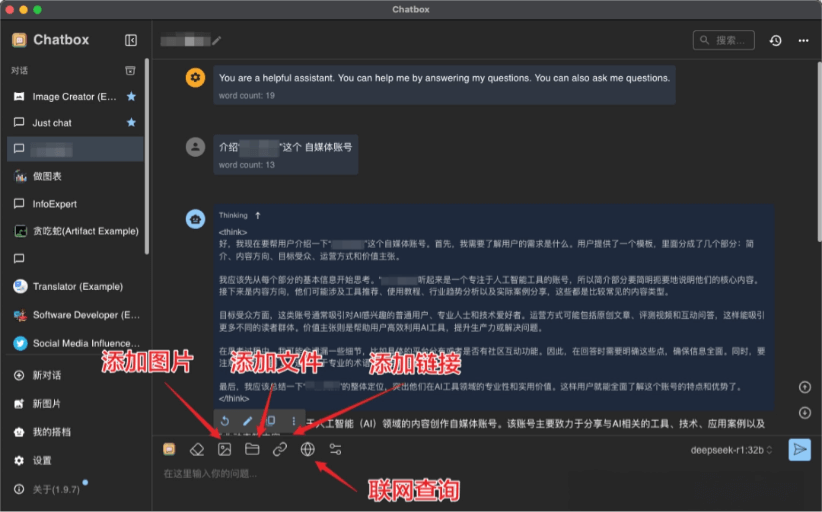
1.3 Start the conversation. ChatBox also supportsadding images, files, links, and web search queries, which is very convenient.
2.CherryStudio
CherryStudio is an easy-to-use AI client that supports services from a variety of large language models, provides an intuitive visual interface and remote API access, reduces dependence on local hardware, and improves usage efficiency. Official website:CherryStudio
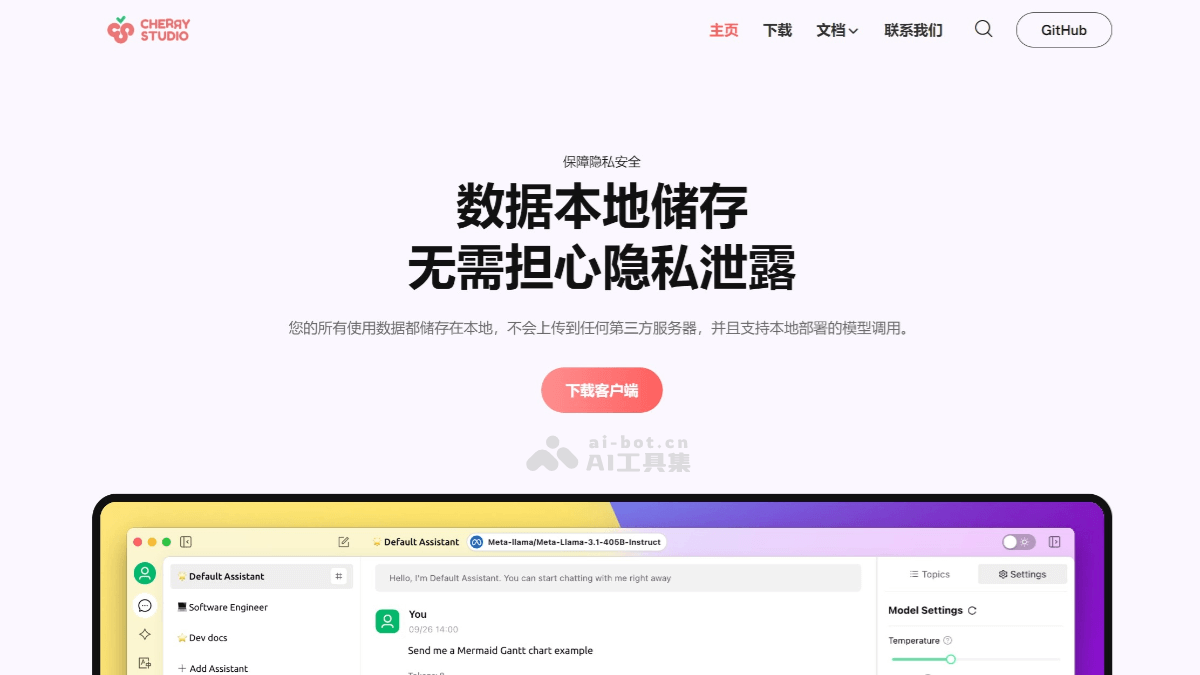
Launch it after installation:
2.1 Using the DeepSeek API
- First, click the settings in the bottom-left corner, then proceed as follows:
- Click "Model Services"
- Click "DeepSeek"
- In "API Key", fill in the API Key copied earlier, and add the "DeepSeek Reasoner model" below
- Enable the service
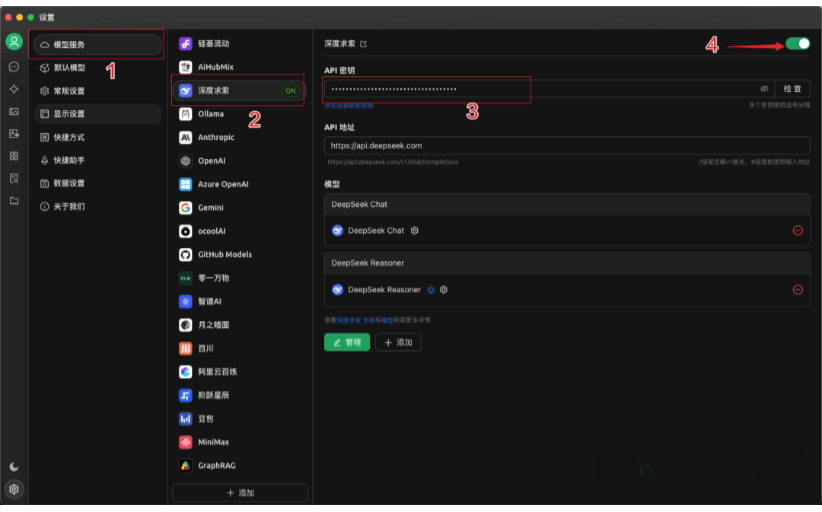
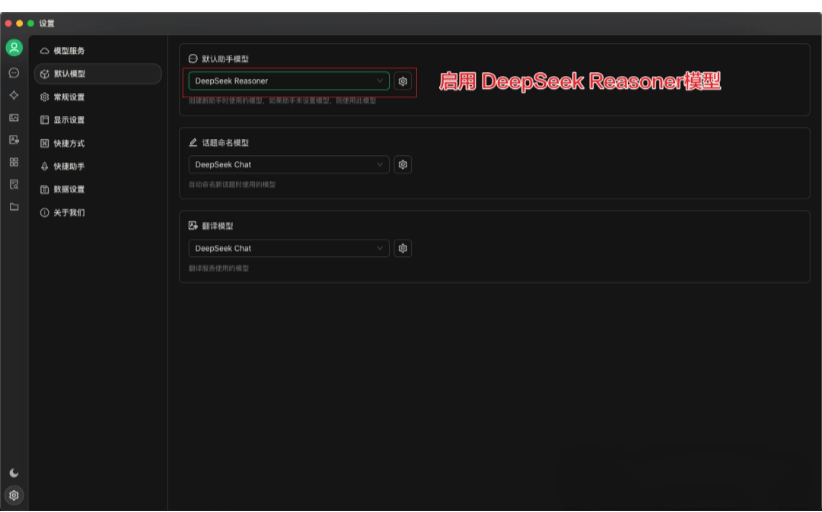
Then you also need to set the default model to the "DeepSeek Reasoner model":
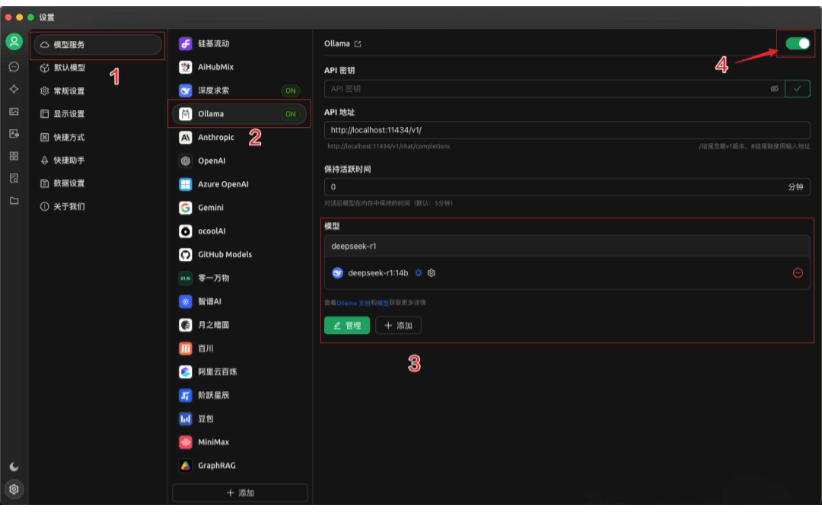
2.2 Using Ollama
- First, click the settings in the bottom-left corner, then proceed as follows:
- Click "Model Services"
- Click "Ollama"
- In Models, click "Manage" and add the previously installed DeepSeek model
- Enable the service
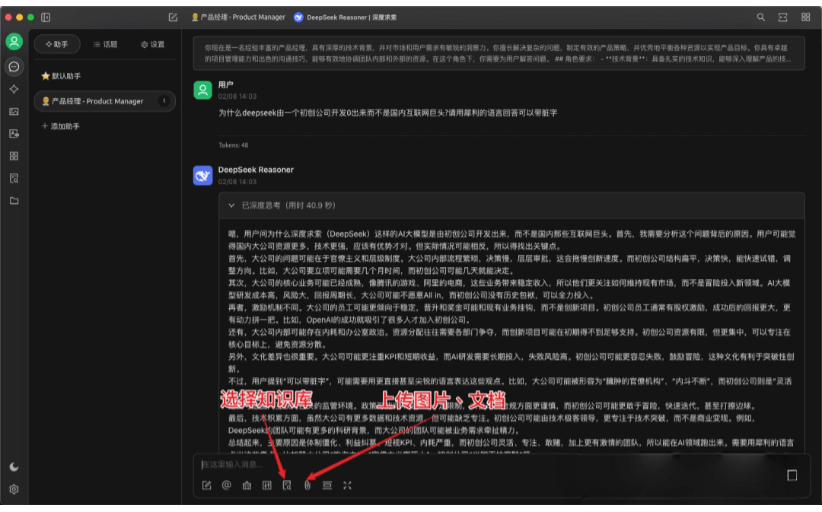
2.3 Start the conversation
3.AnythingLLM
AnythingLLM is an AI tool that supports local deployment, allows users to run and manage large language models locally, and provides a visual interface to make it convenient for users to interact with models. Official website:AnythingLLM
Launch it after installation:
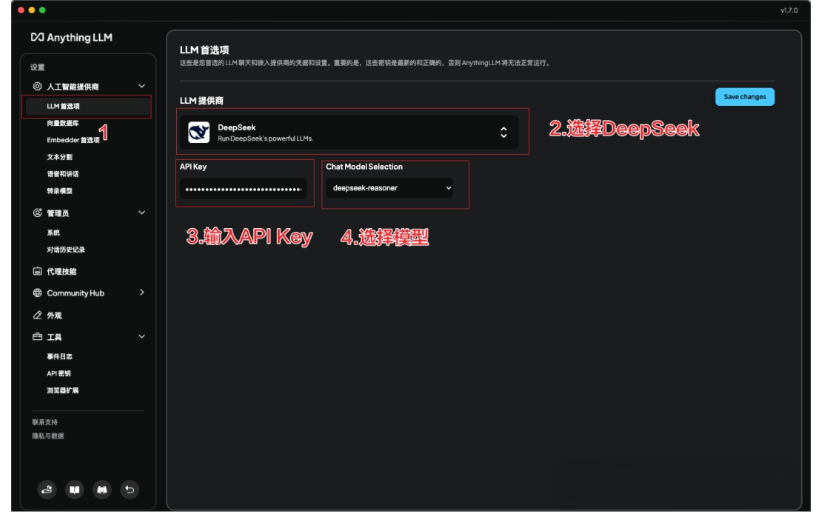
3.1 Using the DeepSeek API
- First, click the settings in the bottom-left corner, then proceed as follows:
- Click "LLM Preference"
- Under "LLM Provider", select DeepSeek
- In "API Key", fill in the API Key copied earlier
- Select the "deepseek-reasoner model"
- Save
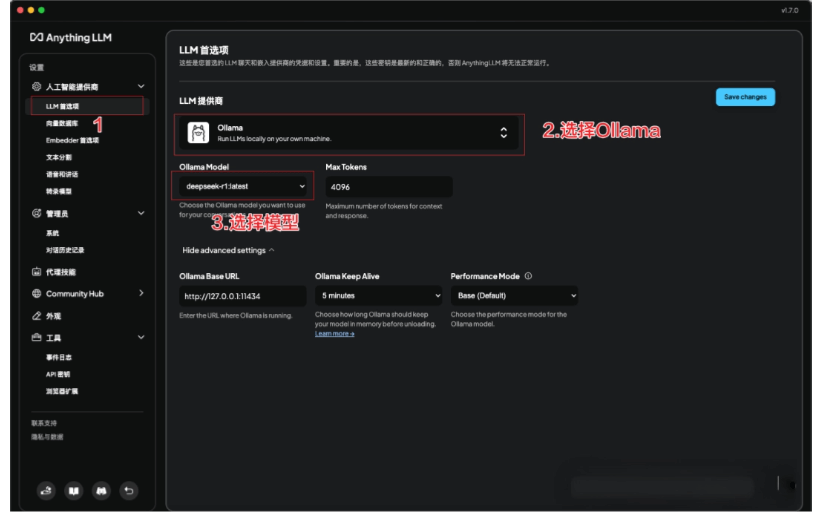
3.2 Using Ollama
- First, click the settings in the bottom-left corner, then proceed as follows:
- Click "LLM Preference"
- Under "LLM Provider", select "Ollama"
- Select the "deepseek-reasoner model"
- Save
3.3 Configure the workspace
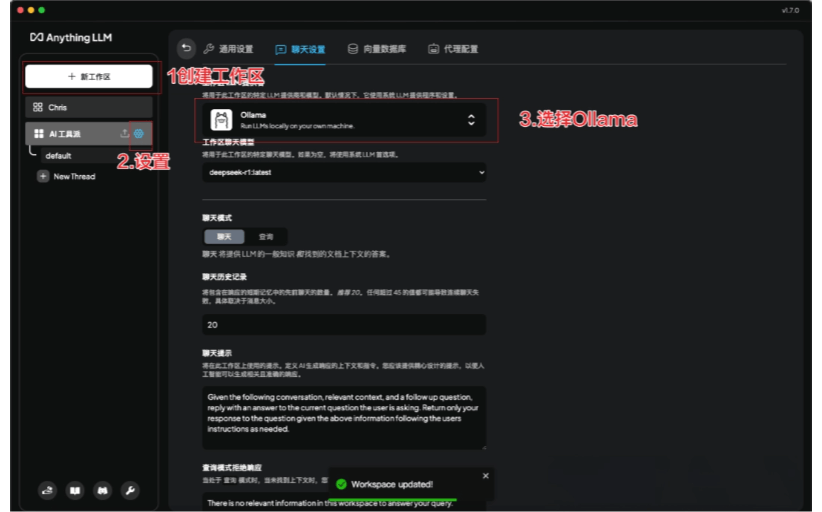
- Anything LLM has one more step than other tools: "Set up a workspace". Each workspace can use a different model. The configuration process is as follows:
- Click "New Workspace" to create one
- Click workspace settings
- Choose the method you use, such as DeepSeek or Ollama. Chris uses Ollama here.
- Save
3.4 Start a conversation: You can create a new conversation and chat with DeepSeek normally:
IV. Summary
This article mainly introduces how to use the DeepSeek API and local deployment, and mainly analyzes 3 excellent third-party AI clients, so that everyone can use DeepSeek more efficiently. Of course, there are many other such software programs, and everyone is welcome to add more.
I hope that in 2025, AI can become more widespread, so that more people can receive AI empowerment and unleash their creativity.
Original link:DeepSeek User Guide: From API Key to Local Deployment, All in One Step, 3 AI Clients Recommended