
What is Kimi Code Desktop
Kimi Code Desktop is the official desktop client of Kimi Code , supporting macOS and Windows. The tool brings Kimi Code's AI Agent programming capabilities into a graphical interface, allowing developers to have conversations with AI to read and write code, run commands, and complete automated tasks. The product offers multiple working modes such as Plan, Goal, Swarm, and Tower, supporting single-Agent planning and execution as well as multi-Agent parallel collaboration. With built-in terminal, browser, Git status viewing, and screenshot annotation features, it covers the entire workflow of development, debugging, and review, and can be used together with the Kimi Coding Plan subscription, making the AI programmingprocess clearly visible and controllable at any time.
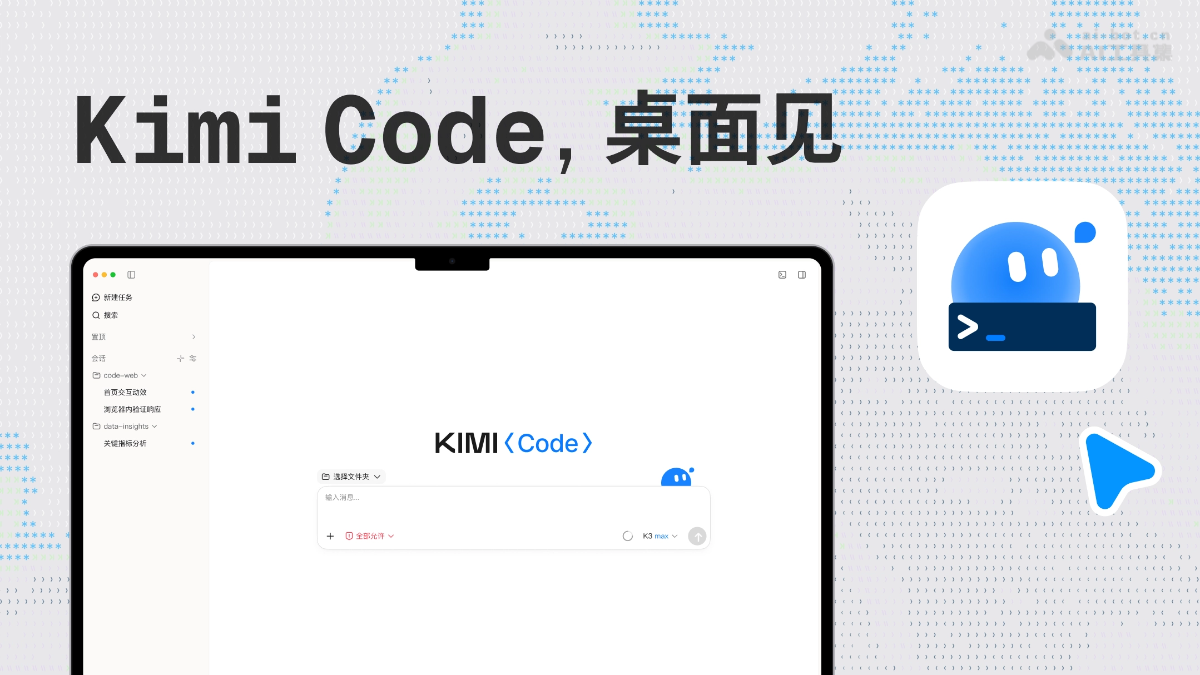
Main features of Kimi Code Desktop
-
AI Agent conversational programming: Use natural language to have AI read and write code, run commands, and complete automated tasks, covering the full range of scenarios from idea validation to complex engineering.
-
Four working modes: In Plan mode, a plan is produced first and executed after confirmation; in Goal mode, it continuously advances autonomously around a goal; in Swarm mode, a main Agent splits tasks and dispatches Subagents to divide the work; in Tower mode, multiple Agents collaborate in parallel, adapting to tasks of different scales.
-
Full-process visibility: View the Agent's tool calls, execution progress, and code changes in real time. File paths in the chat can be clicked to preview directly, making the process clearly visible.
-
Efficient session and configuration management: Supports tabs, pinning, batch management, AI automatic naming, and global search; configurations such as models, providers, permissions, and plugins can all be adjusted graphically.
-
Screenshot and web page annotation: Select a screen area or web page element, attach comments and a screenshot, and send it to the Agent to precisely report issues such as page misalignment and errors, achieving "fix exactly what you point to."
-
Built-in terminal and browser: The terminal can directly execute builds, tests, and format checks and view Git output; the browser can preview web pages and let the Agent complete interaction verification and information lookup.
-
Code review and Git/PR integration: The right-side panel shows change diffs by file or by single turn, and you can expand the side conversation to ask follow-up questions; the Git area displays branch status, file changes, and PR progress, connecting the entire review and merge workflow.
-
Seamless CLI integration: Existing local tasks in Kimi Code CLI are automatically synced to the desktop client, with the original Agent capabilities fully preserved for a smooth transition.
How to use Kimi Code Desktop
- Download and install: Visit the Kimi Code Desktop official website https://www.kimi.com/code,下载对应 the macOS (Apple/Intel) or Windows version and complete the installation.
- Log in to your account: Log in to your Kimi account with one click, or configure a third-party model provider in settings.
- Select a workspace: After creating a new session, select a local project folder as the workspace below the input box, and the desktop client will organize sessions by workspace.
- Start a task: Describe your requirements in natural language in the input box, and choose the Plan, Goal, Swarm, or Tower working mode according to the characteristics of the task.
- Confirm and follow up: In Plan mode, first review the execution plan given by the Agent, and start execution after confirmation. During the process, you can view each step's tool calls and code changes at any time.
- Verification and Review: Run build and test commands through the built-in terminal, preview results in the built-in browser, and review code diffs file by file in the right panel.
- Feedback and Adjustment: Give the Agent precise feedback on issues through screenshot annotations or web element annotations, or expand the conversation in the sidebar to ask follow-up questions, until the task is completed and delivered.
- Wrap-up Management: View branch and PR progress in the Git status area, follow up on code review and merging, and complete the entire development loop.
Core Advantages of Kimi Code Desktop
-
Official Desktop Client: Simultaneously launched on both macOS and Windows, bringing Kimi Code's Agent capabilities from the command line to a graphical desktop application.
-
Transparent and Controllable Process: The Agent's tool calls, execution progress, and code changes are fully visible, allowing you to step in with feedback at any time and build a more solid trust relationship with AI.
-
Flexible Working Modes: From Plan and Goal to Swarm and Tower, it covers tasks of various scales, from single-task confirmed execution and long-term goal advancement to multi-subtask division of labor and even multi-Agent parallel collaboration.
-
Full-Process Development Loop: With built-in terminal, browser, and Git/PR status viewing, execution, verification, review, and merging are completed in one window without switching tools.
-
Intuitive Feedback Mechanism: Screenshot annotations and web element annotations let issue feedback "point to exactly what needs changing," enabling the Agent to accurately understand requirements and reducing communication costs.
-
Efficient Session and Configuration Management: Tabs, AI automatic naming, and global search keep multiple sessions well organized, while configurations such as models, permissions, and plugins are adjusted graphically, saying goodbye to cumbersome command-line operations.
-
Seamless CLI Migration: Existing local tasks in Kimi Code CLI are automatically synced to the desktop client, allowing existing users to transition smoothly at zero cost, with Agent capabilities fully preserved.
Comparison of Kimi Code Desktop with Similar Competitors
| Comparison Dimension | Kimi Code Desktop | Cursor | Windsurf(Devin Desktop) |
|---|---|---|---|
| Product Form | Official desktop client, a GUI-first Agent workbench | AI-native IDE forked from VS Code | AI-native IDE derived from VS Code, renamed Devin Desktop starting June 2026 |
| Interaction Interface | Native graphical interface, aimed at developers accustomed to GUI | VS Code-style editor + embedded Agent panel | Editor + Kanban-style Agent Command Center for managing parallel sessions |
| Core Agent | Conversational Agent that reads and writes code, runs commands, and automates tasks | Agent mode (Composer), autonomously completing multi-file edits and iterating until tests pass | Cascade multi-step Agent (replaced by Devin Local starting July 2026) |
| Plan Confirmation Mechanism | Plan mode: produce a plan first, execute after review and confirmation | Agent executes autonomously, supplemented by Rules to constrain behavior | Cascade progressively displays the plan and pauses segment by segment for approval, with high transparency |
| Multi-Agent Parallelism | Swarm (subtask division) + Tower (multi-agent parallelism, experimental) | Up to 8 parallel agents (based on git worktrees) + cloud Background Agents | Agent Command Center + Spaces (git worktree context packages) to coordinate multiple sessions |
| Long-task mode | Goal mode: continuously and autonomously drives toward the goal | Cloud Agent + Routines automated loops | Cloud sessions collaborating with autonomous agents in the Devin ecosystem |
| Code completion | No emphasis, focused on agent tasks | Tab completion (industry benchmark, predicts the next edit) | Supercomplete predictive completion, unlimited in the free version |
| Built-in terminal/browser | Both built in, browser supports element annotation interaction | Integrated terminal; preview depends on extensions | In-IDE Previews real-time rendering + App Deploy deployment pipeline |
| Code review | View diffs by file/single round, supports multi-format preview | BugBot automatic PR review | Step-by-step diff approval, can reject individual segments |
| Annotation feedback | Screenshot annotation + web element annotation, "change exactly what you point at" | No equivalent system-level annotation feature | No equivalent system-level annotation feature |
| Git/PR integration | Git status area + PR progress tracking | BugBot + git worktrees | Terminal git is primary, integration is relatively basic |
Kimi Code Desktop use cases
-
Rapidly validating ideas: Describe your idea in natural language, let the Agent quickly generate a runnable Demo and preview it instantly in the built-in browser, achieving rapid validation from idea to prototype.
-
Developing a personal app from scratch: Set a goal via Goal mode and let the Agent autonomously complete the entire process of project setup, coding, and debugging, suitable for independent developers delivering small apps end to end.
-
Engineering transformation of large codebases: Use Plan mode to review the approach before executing; delegate large-scale tasks to Swarm/Tower multi-agent parallel decomposition, advancing refactoring and migration safely and efficiently.
-
Bug localization and UI fixes: Box-select the error area, annotate the screenshot, and send it to the Agent; work with the built-in terminal to reproduce the issue and the browser to verify the result, achieving precise fixes by "changing exactly what you point at".
-
Code review and collaboration follow-up: With the Git status area and change diff panel, complete and track the entire workflow from coding, self-review, and commit to PR merge progress in a single window.