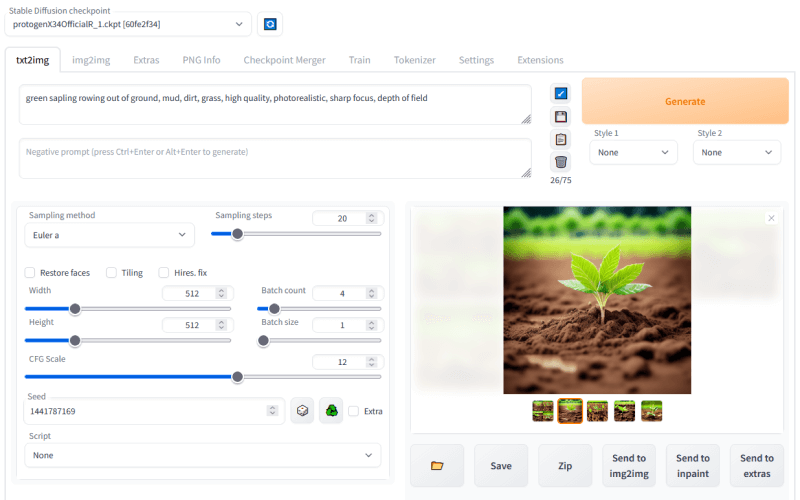
Stable Diffusion is a text-to-image generative model released in 2022 by the startup Stability AI and researchers from LMU Munich and Runway. It supports text-to-image, image-to-image, image modification, low-resolution image inpainting, and other functions. Because it is free and open source and produces relatively high-quality images, it is widely loved by creators. This article will explain how to run Stable Diffusion online and locally, so you can quickly get started generating the images you want.
Table of Contents
How to Run Stable Diffusion Online
DreamStudio
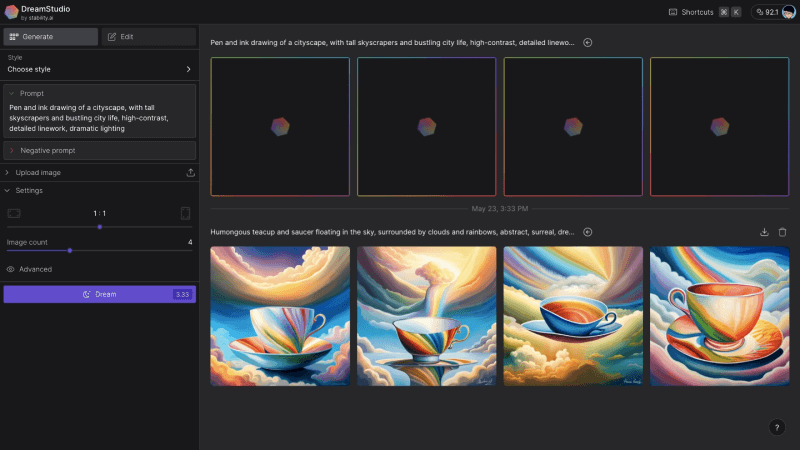
DreamStudio is a web application officially launched by StabilityAI to make it convenient for users to generate images. Based on the Stable Diffusion model, users can enter natural language and change adjustment parameter controls to create custom images, and it also supports API access for use in applications or bots they develop themselves. After registering and logging in to DreamStudio, you can receive 25 free credits, which can generate about 30 standard images. If you need more generations, you can purchase them; $10 can buy 1,000 credits.
Official website address:https://beta.dreamstudio.ai/generate
Clipdrop Stable Diffusion XL

Clipdrop is a suite of AI image processing tools launched by StabilityAI, supporting AI image functions such as image erasing, image upscaling, image relighting, background removal, background replacement, and outpainting. In addition to these functions, Clipdrop supports the latest Stable Diffusion XL version. Users can visit its website, enter a prompt text description, choose an image style, and click the Generate button to generate an image. Currently, the free version of Clipdrop allows users to generate 400 images per day with Stable Diffusion XL, with a small Clipdrop watermark in the lower right corner. If you want more generations and to remove the watermark, you can consider upgrading to Clipdrop's premium version; after paying, you can generate 1,500 images per day and use other AI functions without limit.
Official website address:https://clipdrop.co/stable-diffusion
Hugging Face
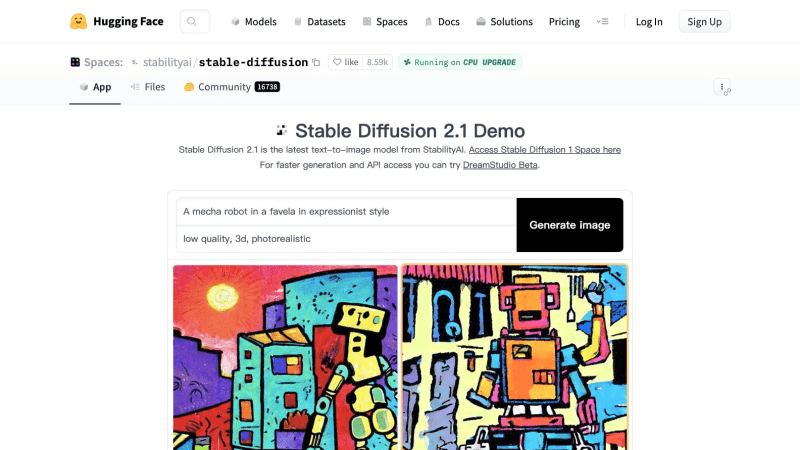
Hugging Face is a well-known open-source AI model community. The platform brings together major well-known AI models from around the world. Users can download AI model datasets through Hugging Face, or directly run them online to view real-time results. Stable Diffusion on Hugging Face was officially created by StabilityAI and is currently version 2.1. Users can directly enter a description and click Generate image to generate an image. Because Hugging Face has a huge number of users, the image generation speed may be slower, taking about 10 seconds or more.
Official website address:https://huggingface.co/spaces/stabilityai/stable-diffusion
Replicate
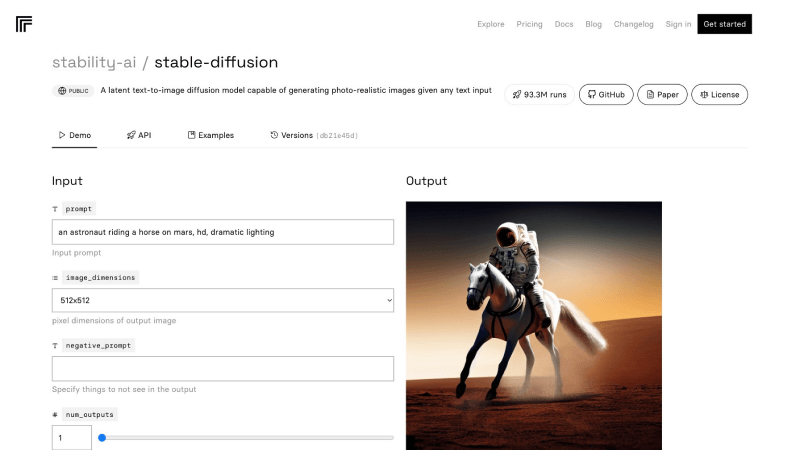
Replicate is a platform that helps users quickly run open-source machine learning models, such as language models, video creation and editing, image resolution enhancement, image restoration, and image-text conversion. Users only need to add a few lines of code to quickly develop their own AI applications. Replicate's platform also provides an online runtime environment for Stable Diffusion. Compared with Hugging Face, Replicate generates faster.
Official website address:https://replicate.com/stability-ai/stable-diffusion
How to Run Stable Diffusion Locally
If you are willing to tinker, want to fine-tune the provided input data model, or are motivated by privacy and security, then running the Stable Diffusion model on your own local computer may be a good choice. The following are the steps to run Stable Diffusion locally:
Step 1: Install Python and Git
Install Python version 3.10.6. You can download and install it fromPython's official website. After installation is complete, you can open the command-line terminal and enterpython -versionto check the Python version. Next, install the code management tool Git, which can be downloaded fromGit's official websiteto download the installation package.
Step 2: Register GitHub and Hugging Face accounts
GitHub is used to host software code, while Hugging Face is an open-source AI model community. Registering accounts on these two platforms will make it convenient for you to manage code synchronization later, as well as download Stable Diffusion models.
Step 3: Clone Stable Diffusion Web-UI to your local computer
Stable Diffusion Web-UI is an open-source Stable Diffusion web interface project based onGradiodeveloped to help developers quickly create a user interface for Stable Diffusion. First create a folder, such as sd-project, then use the cd command to navigate to that folder,cd sd-project. Then run the git clone command to download the project,git clone https://github.com/AUTOMATIC1111/stable-diffusion-webui.git
Step 4: Download the Stable Diffusion model from Hugging Face
Visit the Hugging Face official website, log in with the account you registered,download Stable Diffusion version 1.5. After the model download is complete, navigate to the "models" folder inside the stable-diffusion-webui folder, then place the model here.
Step 5: Set up Stable Diffusion Web-UI
Open the command-line terminal and use the cd command to navigate to the stable-diffusion-webui folder, such ascd xx/sd-project/stable-diffusion-webui, then enterwebui-user.batto install the dependencies.
Step 6: Run Stable Diffusion
After the dependencies are installed successfully, a URL will appear in the command prompt:http://127.0.0.1:7860. Copy and paste it into the browser address bar to run stable-diffusion-web-ui.