
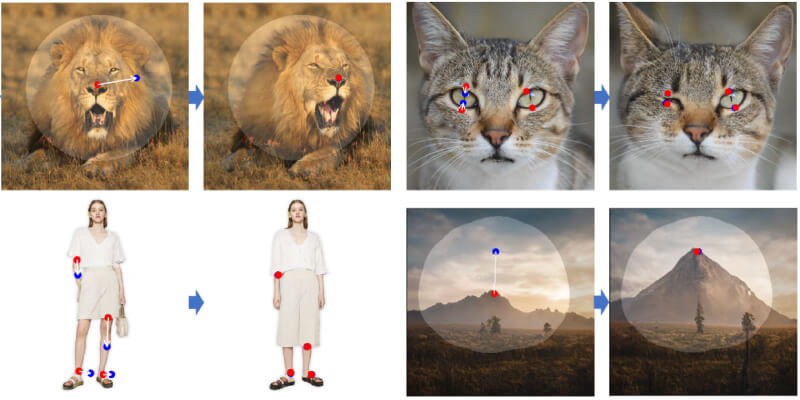
DragGAN is a popular open-source AI image project and research that enables flexible and precise control over the pose, shape, expression, and orientation of static objects in images by dragging, allowing operations such as opening an animal's mouth, changing a car's angle, and raising a mountain in a landscape. Recently, the DragGAN teamGitHublaunched and open-sourced its official implementation project. This article will introduce how to run, install, and use DragGAN, including multiple methods for online running and local use.
Article Contents:
Run and Use DragGAN Online
If you just want to try out the effects of DragGAN, running DragGAN online is a better choice. Here we will introduce 3 methods for using DragGAN online, including OpenXLab, Hugging Face, and Google Colab.
Run via OpenXLab Puyuan
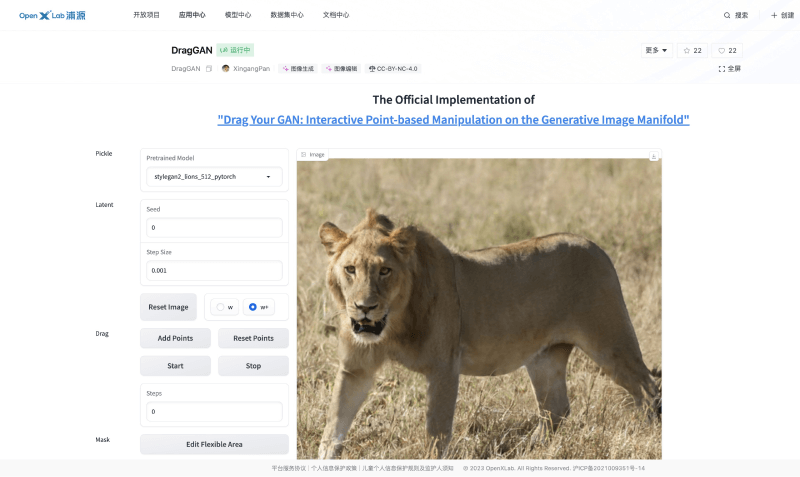
OpenXLab Puyuan is an AI model community and hosting platform launched by "Shanghai Artificial Intelligence Laboratory", similar to the one to be introduced belowHugging Face. The DragGAN team provides an official implementation of the DragGAN project in OpenXLab. Users can visit the website and run DragGAN to test the dragging effects.
Run address:https://openxlab.org.cn/apps/detail/XingangPan/DragGAN
Run via Hugging Face
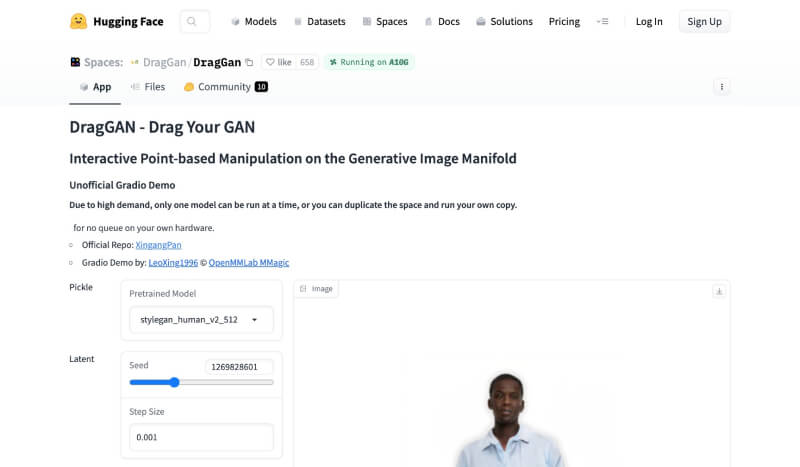
Hugging Face is a well-known open-source AI model community. The platform brings together various types of AI models, datasets, and running spaces. After the DragGAN project was open-sourced and launched, its official team created a project space on Hugging Face as soon as possible. Interested users can visit at any time to test the running effects.
Run address:https://huggingface.co/spaces/DragGan/DragGan
Use via Google Colab
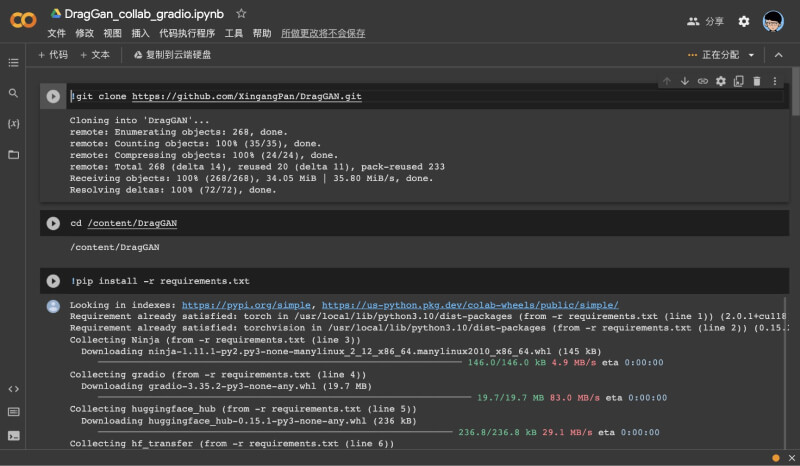
Google Colab is a cloud platform launched by Google that allows users to write, run, and share Python code using a Jupyter notebook environment. Google Colab is a free service that provides users with virtual machines, including access to high-performance CPU, GPU, and TPU resources, as well as pre-installed libraries such as TensorFlow and PyTorch. If you are a technical user, you can choose this method, open the run address below, then select GPU in the settings and run the installation code and demo code blocks.
Run address:https://colab.research.google.com/drive/1mey-IXPwQC_qSthI5hO-LTX7QL4ivtPh?usp=sharing
Install and Use DragGAN Locally
If you want to install and deploy DragGAN locally on your own computer, simply follow the instructions on the DragGAN GitHub project. Before operating, please first download and installGit、PythonandConda. The specific steps are as follows:
Step 1: Clone the official DragGAN project
Open Command Prompt or Terminal, use the git command,git clone https://github.com/XingangPan/DragGAN.gitclone the official project to the folder you want.
Step 2: Set up CUDA and install the Python environment
- After cloning is complete, use the cd command
cd DragGANto enter the folder - then set up the conda environment:
conda env create -f environment.yml, (Note: If you are running on a Mac, please edit the environment.yml file and delete- cudatoolkit=11.1, because Mac does not use NVIDIA GPUs. In addition, Mac also needs to be set to run using CPU. In the terminal, configureexport PYTORCH_ENABLE_MPS_FALLBACK=1 - activate the conda environment:
conda activate stylegan3 - install the relevant dependencies:
pip install -r requirements
Step 3: Download the pretrained model
Use the commandpython scripts/download_model.pydownload
Step 4: Set up the DragGAN GUI interface and run it
Use the commandpython visualizer_drag_gradio.pyDownload based onGradiointerface. After downloading and installing, copy the local address from 'Running on local URL' in the terminal.http://127.0.0.1:7860Then you can run it in your local browser.
The above is the method for running DragGAN compiled by the AI Tool Collection for everyone. If you have any problems during installation and use, you can leave a comment in the comment section or seek help from the official DragGAN GitHub project.