
Today I'll share something suitable for working with images.
When using AI to generate images normally, you can search for styles you like, and there are ready-made prompt references. If you're not satisfied with the results, just generate a few more times.
The real trouble is when the generated image is already 80 or 90 percent satisfactory, but there are still a few details that need to be changed. When communicating with AI, you can't clearly explain the specific location, and AI can't accurately find the modification target either. After several rounds of conversation, more and more places end up being changed incorrectly.
Now there's a way to work around this problem. On GitHub, the Cowart project directly brings an infinite canvas into Codex. You can draw arrows on the original image and write modification suggestions, and then Codex generates a revised version.

Follow on WeChat and reply "Open Source" to joinAI Open Source Project Communication Group
01. Project Introduction
Cowart is a local infinite canvas plugin for Codex, developed based on tldraw.
Project address: https://github.com/zhongerxin/cowart#
The canvas can store text, sketches, reference images, and generated images, and can also directly annotate image modification suggestions.
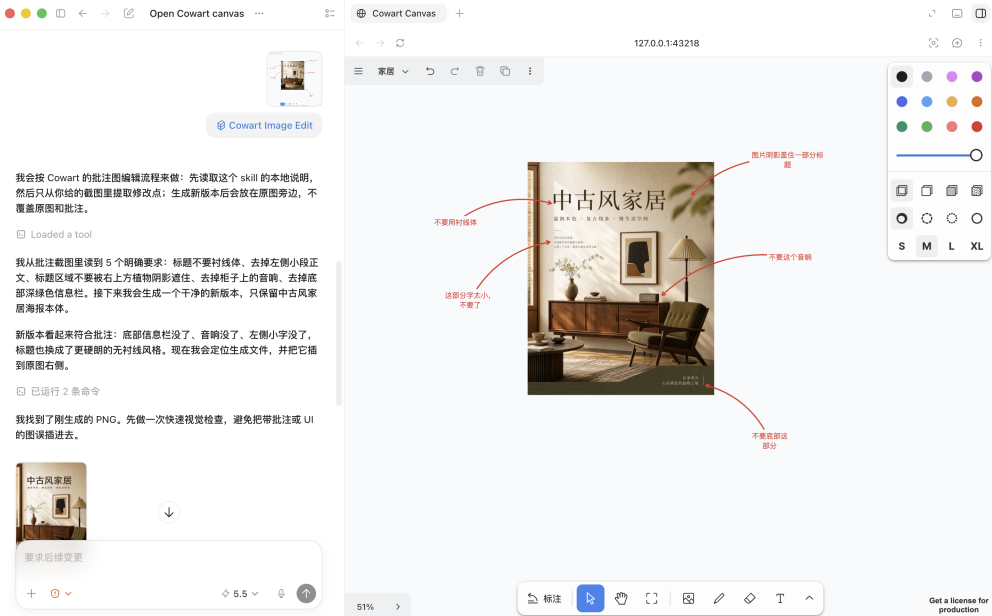
Canvas data is saved in the canvas directory of the current project. Codex can read the canvas selection and place generated results in specified positions, eliminating the process of manual saving, uploading, and re-layout.
Cowart has a built-in MCP service, currently providing two tools:
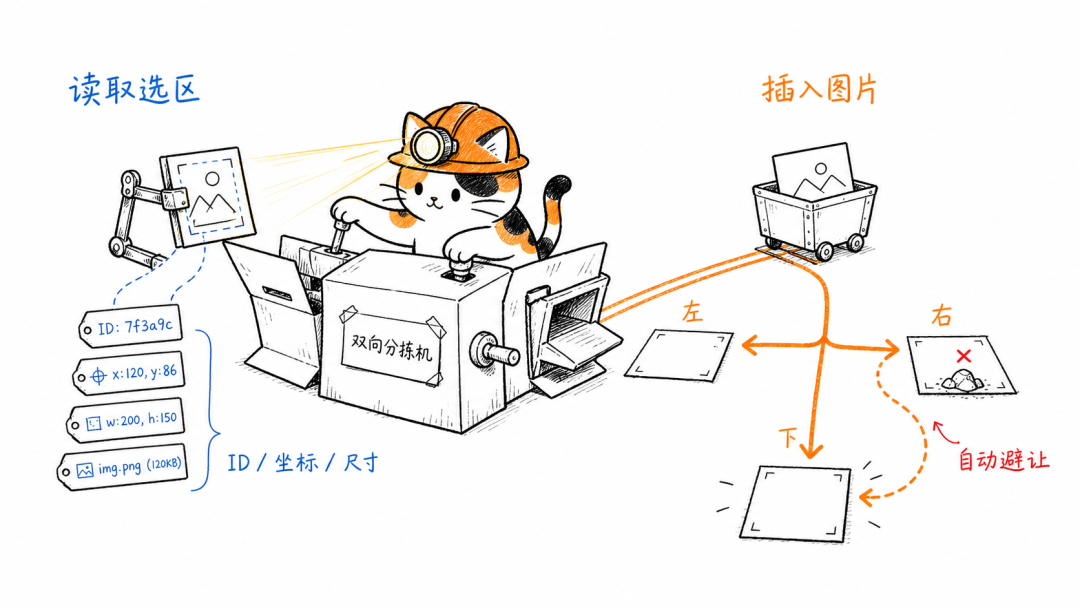
get_cowart_selection is used to read the currently selected canvas elements, including element ID and type, coordinates and rotation angle, width and height information, image file name and resource address, and whether it belongs to an AI image placeholder frame.
insert_cowart_image is responsible for inserting local images into the canvas. The MCP service will copy the image file, create a tldraw image record, and find a suitable position based on the anchor point.
Insertion direction supports left, right, and below. When the target position is occupied by other content, Cowart will continue searching outward for blank areas, reducing image overlap.
Cowart is suitable for article illustrations, WeChat official account cover drafts, social media materials, PPT visual plans, product concept diagrams, and storyboard design. These contents all require frequent comparison and modification.
02. Project Test
To install Cowart, you only need to enter the following prompt in Codex:
Prompt:
Please install the Cowart Codex plugin from https://github.com/zhongerxin/cowart.git .
Please clone the repository to ~/plugins/cowart, confirm that .codex-plugin/plugin.json exists,
add the plugin to the personal marketplace, first run codex plugin marketplace add ~,
then run codex plugin add cowart@personal.
After installation, please verify the plugin, and tell me whether I need to start a new conversation to load the new skills and MCP tools.
Input:
Prompt: Open the Cowart canvas for this project.
Cowart will start the local service, and the default address is:
http://127.0.0.1:43217/
case 1 Generate an image in the canvas
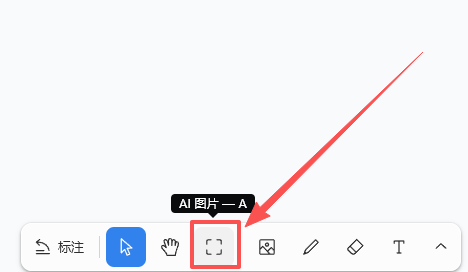
The Cowart toolbar has an "AI Image" tool, with the shortcut key A.
After clicking, the canvas will create an image placeholder frame with a default size of 320 × 220. The placeholder frame can be freely resized, and Codex will read the width-height ratio and generate an image according to the same ratio.
Let's try one:
Prompt: Generate an image in the Cowart canvas according to the prompt: generate a story session cover
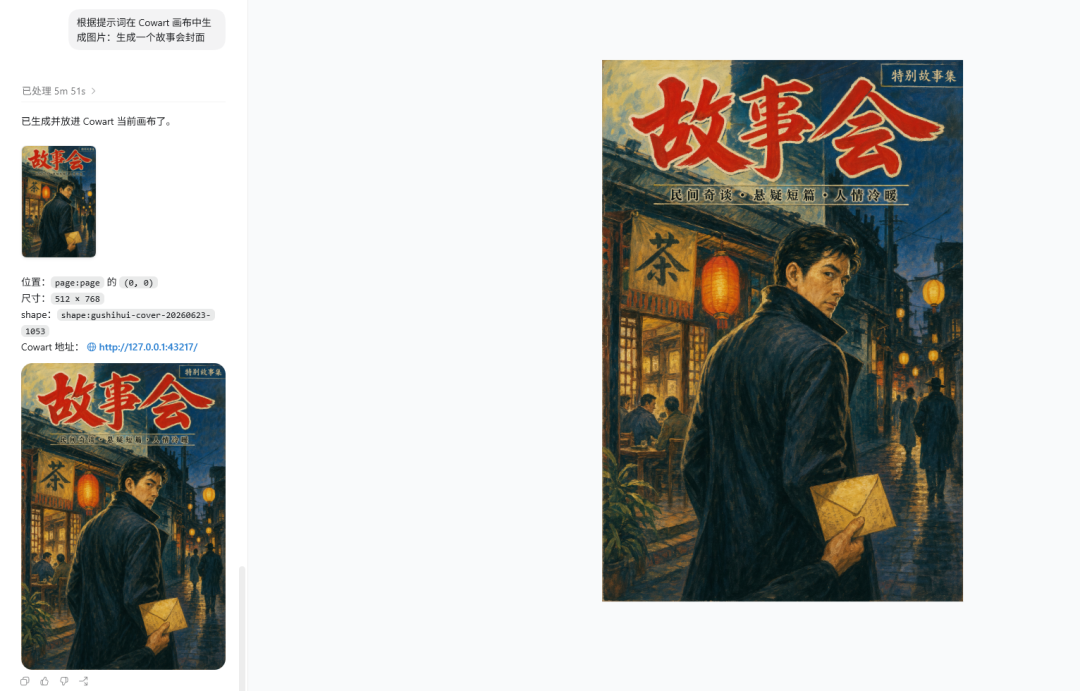
After generation is complete, the image is placed into the placeholder frame and moves along with it. If you keep the placeholder frame, you can continue generating or replacing new versions in the same position.
When no placeholder frame is selected on the canvas, Codex can still generate images. Cowart will find a blank spot nearby based on the current page and the selected element, and insert the new image there.
Case 2: Modify images with arrows and text
Cowart also provides an “Annotate” tool, with the shortcut C.
Drag the mouse next to an image to create a hand-drawn arrow. After releasing the mouse, you can directly enter the modification request.
After completing the annotation, capture the canvas containing the original image and the markups, then send the screenshot to Codex. Codex will recognize the position the arrow points to and the annotation text, and generate a clean new image.
Let’s try modifying the image generated above:
Prompt: Use my Cowart annotated screenshot to generate a clean revised image next to the original image.
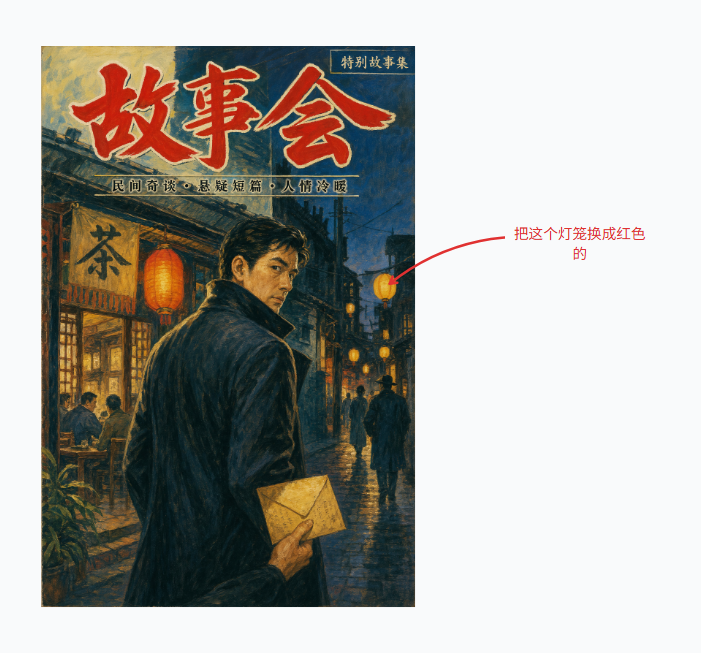
The new image is placed to the right of the original image by default. The original image, arrows, and annotations are all retained, making it easy to compare each revision.
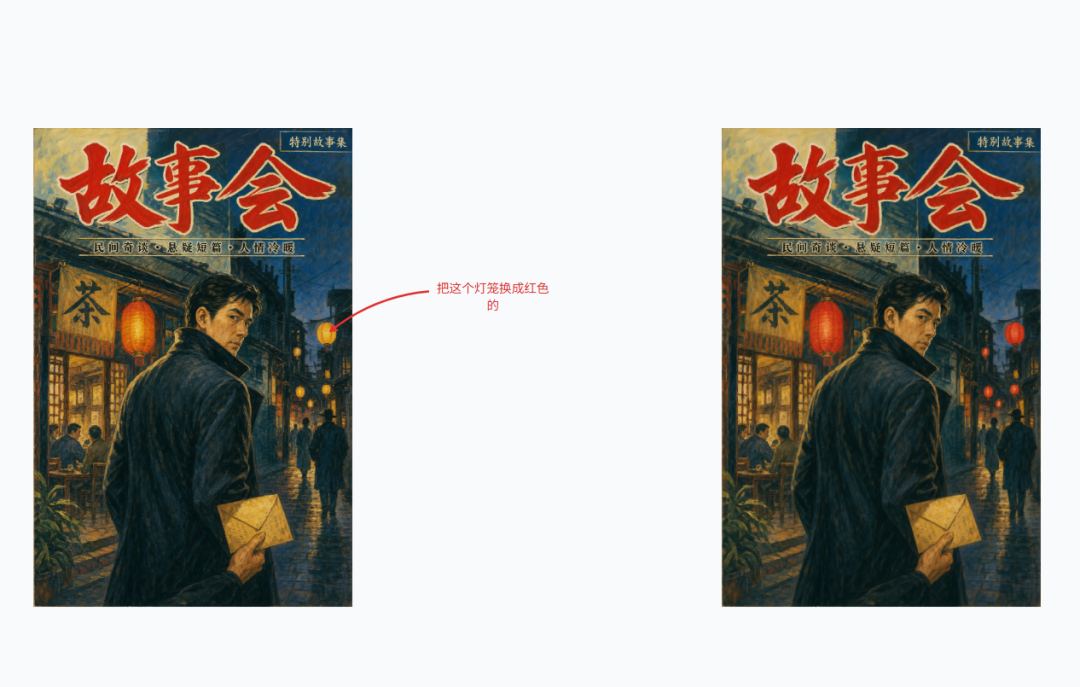
Of course, we can also modify multiple places at once.
Prompt: Use my Cowart annotated screenshot to generate a clean revised image next to the original image.
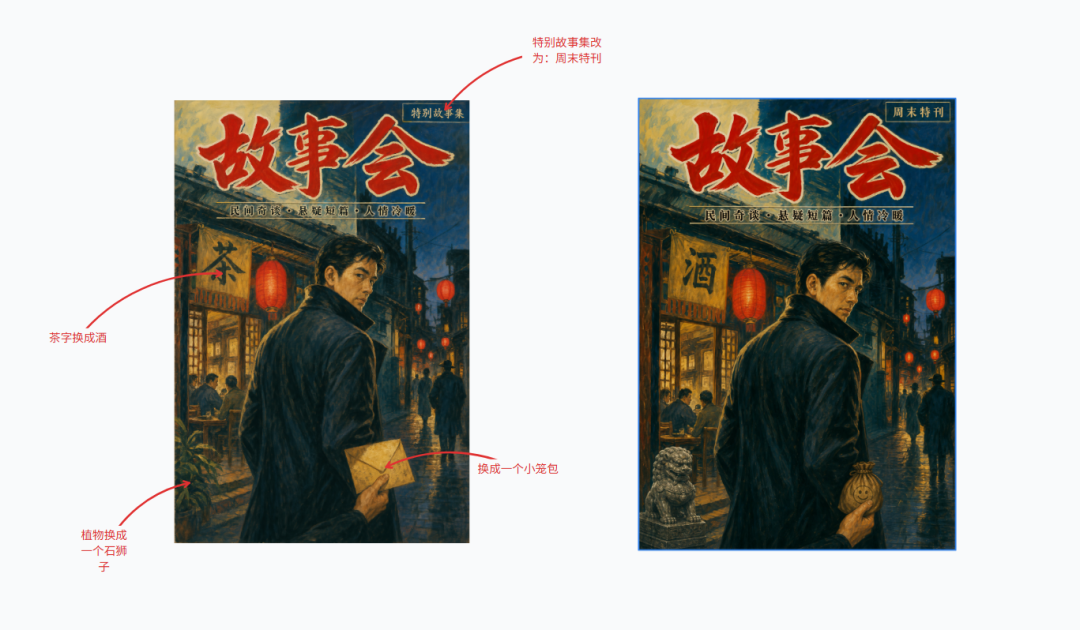
As you can see, the xiaolongbao seems to have not been changed correctly, because the current annotation-based modification relies on screenshot recognition. Blurry arrow positions, too-low screenshot resolution, or multiple annotations conflicting with one another can all affect the generation result.
03. Dig a little deeper
AI image generation is no longer just a niche activity.
Grand View Research estimates that the global AI image generation market was valued at 349.6 million USD in 2023, and will grow to about 1.08 billion USD by 2030, with a compound annual growth rate of 17.7% from 2024 to 2030.
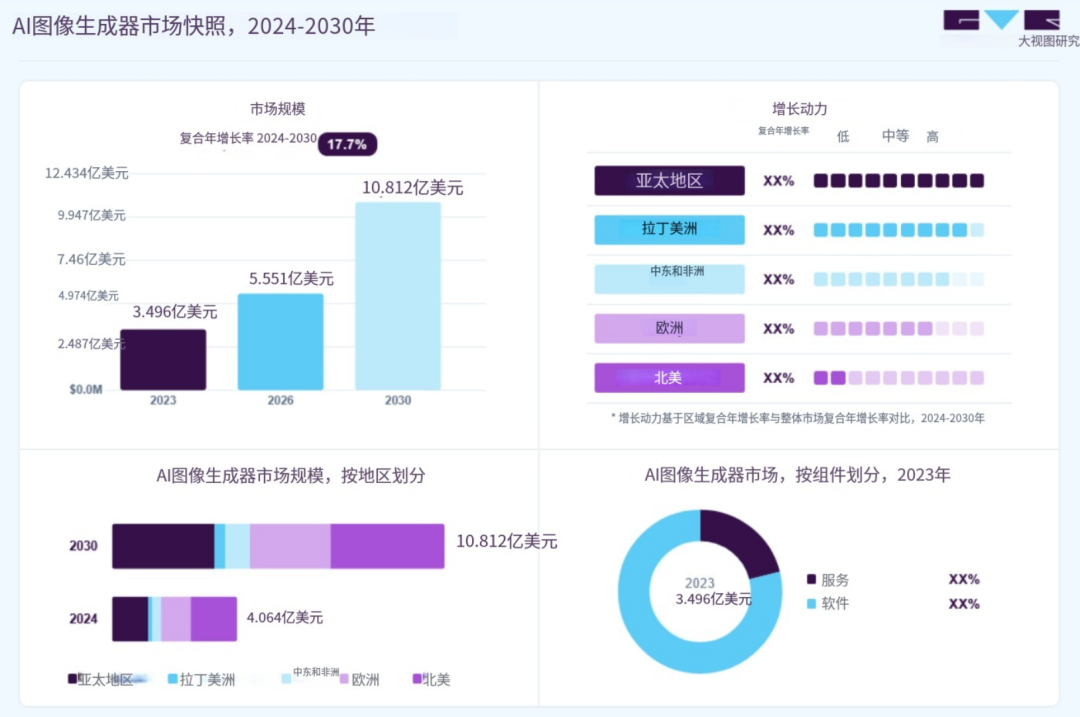
There are indeed many image generation AIs now, but modification requests are still hard to explain clearly, and image versions are also hard to iterate.
Cowart’s value lies exactly here. The original image, reference images, annotations, and revised versions all stay on the same canvas, and Codex can read the selection and place the new image next to the original one. There is no need to switch back and forth between folders, chat windows, and editors, and modification requests can also land on the specific position the arrow points to.
Cowart is more like an AI image workbench, turning where changes are needed into a visible picture, rather than a string of easily misunderstood text descriptions.
AI image generation is already fast enough. What matters more next is integrating generation, selection, annotation, revision, and comparison into real workflows.
Original link:GitHub racks up 2k Stars, putting an infinite canvas into Codex