
What is Bob
Bob is designed for the macOS platformtranslationand OCR software. Bob supports multiple translation methods, including text selection translation, screenshot translation, input translation, etc., and supports 10+ translation services, such as Apple Translate,Google Translate、Baidu Translate, etc. Bob has a text-to-speech feature and supports reading the original text and the translation aloud. Bob's OCR feature is powerful, supporting screenshot OCR, silent screenshot OCR, Finder image selection OCR, etc., and supports offline recognition, QR code recognition, intelligent segmentation, and other features. Bob is easy to use and can quickly invoke features based on keyboard shortcuts. It is suitable for use in various applications and is an efficient tool for translation and text recognition.
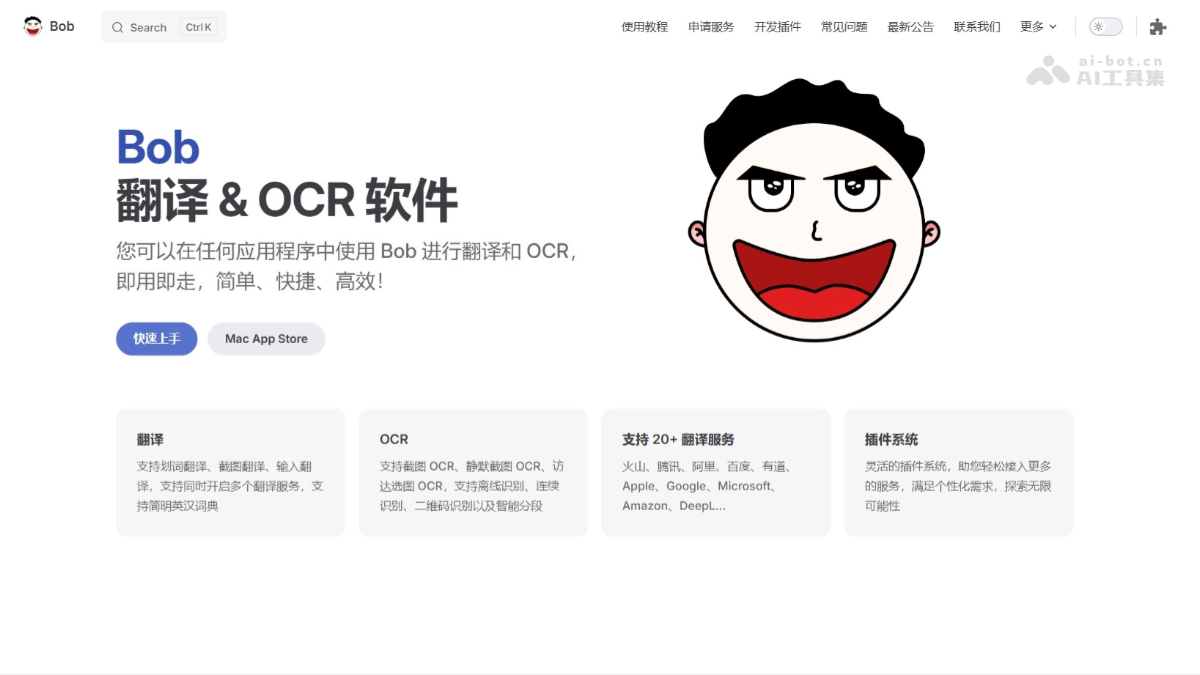
Bob's main features
- Translation feature: supports text selection translation, screenshot translation, input translation, supports enabling multiple translation services at the same time, and supports the Concise English-Chinese Dictionary.
- OCR feature: supports screenshot OCR, silent screenshot OCR, Finder image selection OCR, and supports offline recognition, continuous recognition, QR code recognition, and intelligent segmentation.
- Supports 20+ translation services: includingVolcano, Tencent,Alibaba, Baidu, Youdao, Apple, Google,Microsoft、Amazon、DeepL, etc.
- Plugin system: provides a flexible plugin system, making it convenient to integrate more services and meet personalized needs.
How to use Bob
- Install Bob: visit Bob's official websitehttps://bobtranslate.com/,下载并安装。安装完成后,从应用程序文件夹或Launchpad启动Bob。
- Translation feature:
- Text selection translation: select the text to be translated. Press Bob's text selection translation shortcut (the default is ⌥ D). The translation result is displayed in a floating window above the current application.
- Screenshot translation: press the screenshot translation shortcut (the default is ⌥ S). Capture the screen area to be translated. After releasing the shortcut, the translation result will be displayed.
- Input translation: press the input translation shortcut (the default is ⌥ A). Enter the text to be translated and press Enter.
- PopClip invocation: after selecting text, click the Bob plugin icon that pops up in PopClip to translate.
- OCR feature:
- Screenshot OCR: press the screenshot OCR shortcut (the default is ⇧ ⌥ S). Capture the screen area to be recognized. After releasing the shortcut, the recognition result is displayed in a floating window.
- Silent screenshot OCR: press the silent screenshot OCR shortcut (needs to be customized). Capture the screen area, and the recognition result is directly copied to the clipboard.
- Finder image selection OCR: press the Finder image selection OCR shortcut (needs to be customized). Select an image file in the Finder window for recognition.
Bob's application scenarios
- Academic research: researchers can quickly translate foreign-language literature, papers, and academic materials, improving research efficiency.
- Business communication: business professionals can translate business documents such as emails, contracts, and reports, promoting cross-language communication.
- Travel: travelers can translate menus, road signs, signs, etc., to better understand their surroundings when traveling abroad.
- Learning foreign languages: students can translate textbooks, exercises, and study materials to assist with foreign language learning.
- Technical Support: IT professionals translate technical documents, error messages, user manuals, etc., improving the efficiency of technical support.