
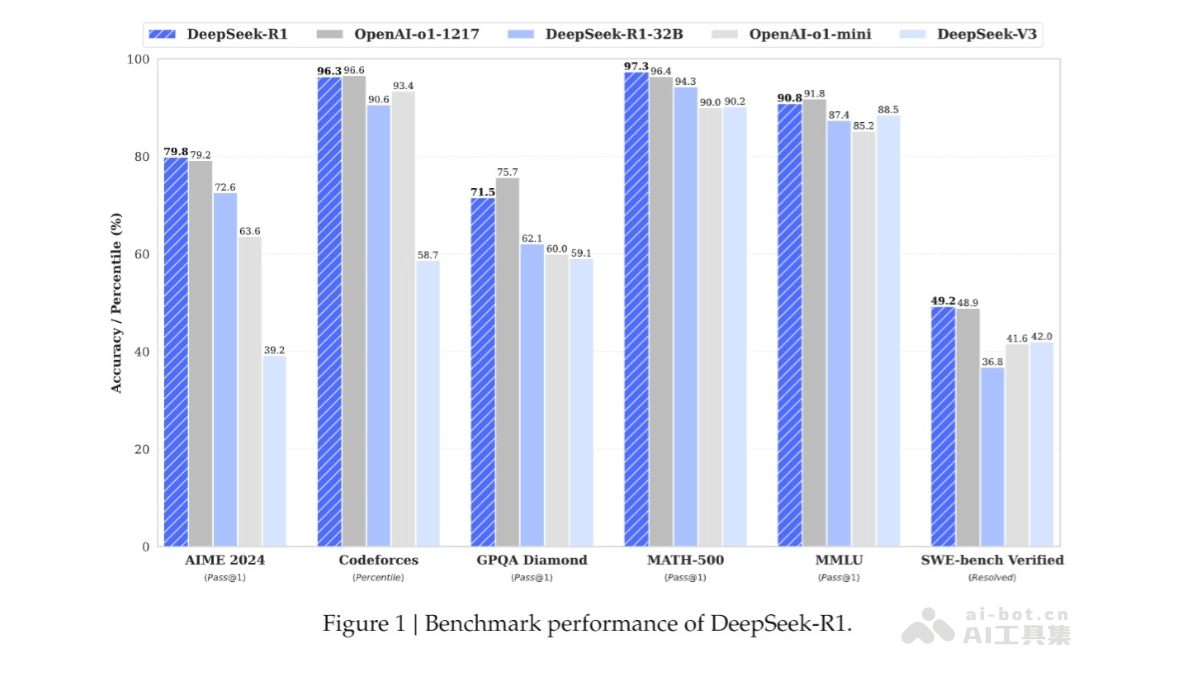
DeepSeek R1Exploding in popularity worldwide, it doesn't require professional prompt-writing skills. As long as you can clearly state your question, even if you're a primary school student who can only type, you can still get high-quality answers. Development cost and output quality comprehensively lead OpenAI o1.
Webmaster's Recommendation:How to solve DeepSeek server being busy? 16 free full-blooded R1 replacements
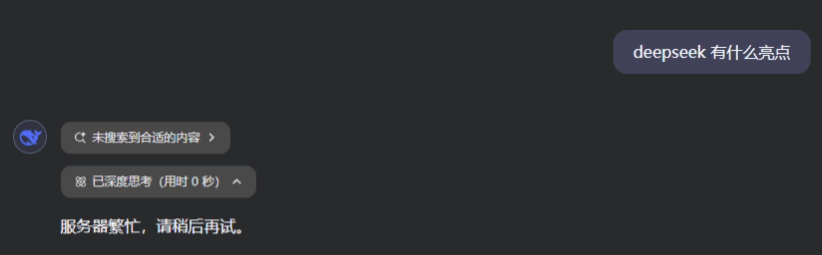
The only downside is that its traffic is too high, so it often goes down.
Many people have started using other platforms that have integrated R1. Some may ask, Blogger, Blogger, the other platforms that have integrated R1 are indeed very strong, but they still consume too many Tokens. Is there a free and simple way to use DeepSeek R1?
Yes, bro, there is.

You can just deploy R1 locally on your computer! No internet connection required, no need to worry about data leaks, completely free, and you can also build a personal knowledge base and train your own exclusive AI assistant.
01
Deployment Process
Local deployment only requires three steps:
- Install Ollama
- Download the DeepSeek-R1 large model
- Use Cherry Studio to call the model
More than 40 open-source models in Ollama's model library, such as the large model Qwen2.5 launched by Alibaba Cloud Tongyi Qianwen, Meta's latest large model Llama 3.3, and so on, can all be locally deployed through this process.
The operation is simple, anyone can do it with zero foundation, and it's completely free!
Next, let's restore the entire process of locally deploying the DeepSeek-R1 large model step by step.
02
Install Ollama
OllamaIt is a command-line tool for running large models on a local computer. With it, you can run large models locally.
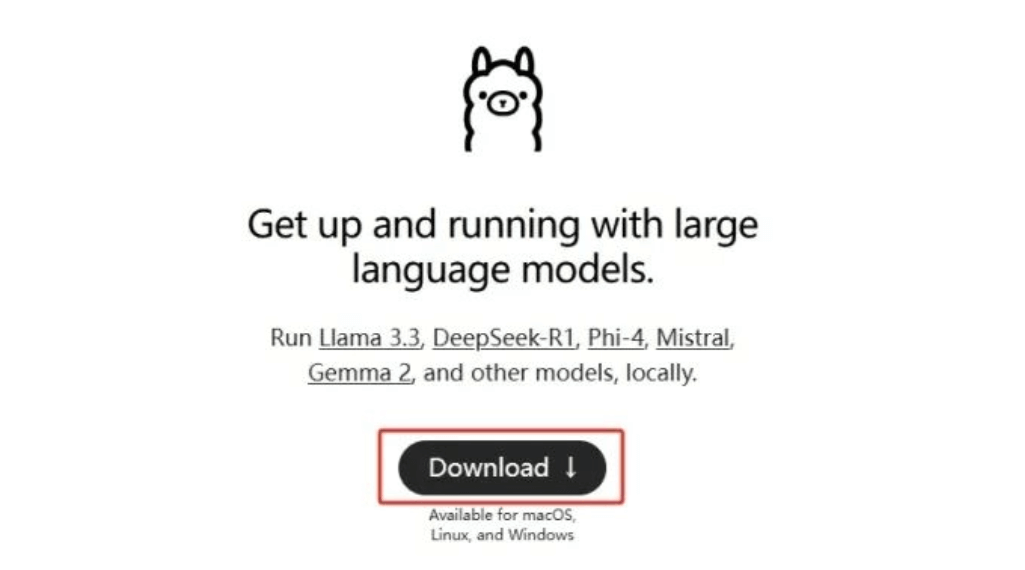
Go to the Ollama official website, log in, and click Download.

The Ollama installation package has been packaged for everyone, scan the QR code to follow the official account and reply:Ollama Claim
I use the Windows system, so I directly choose the Windows version to download.
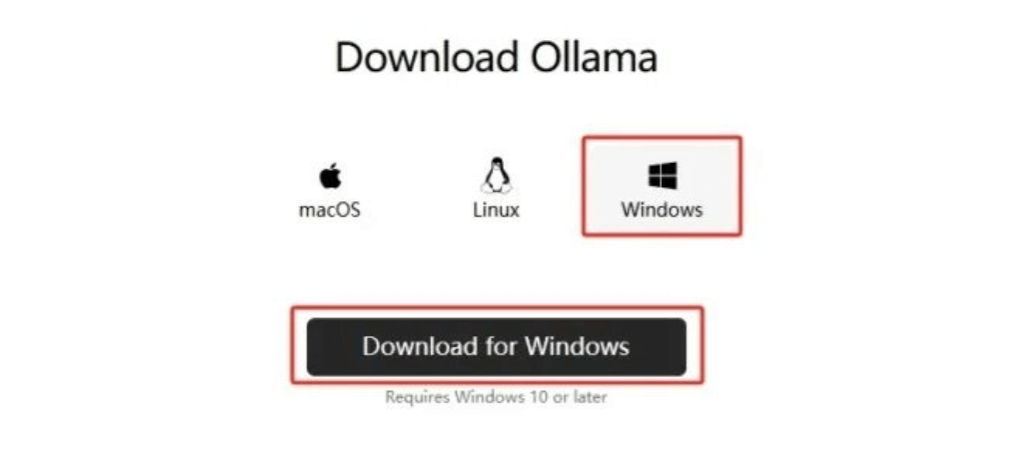
After downloading, click install. It will be installed on the C drive by default. The Windows version does not support changing the installation location, so we can just click "Next" without thinking!
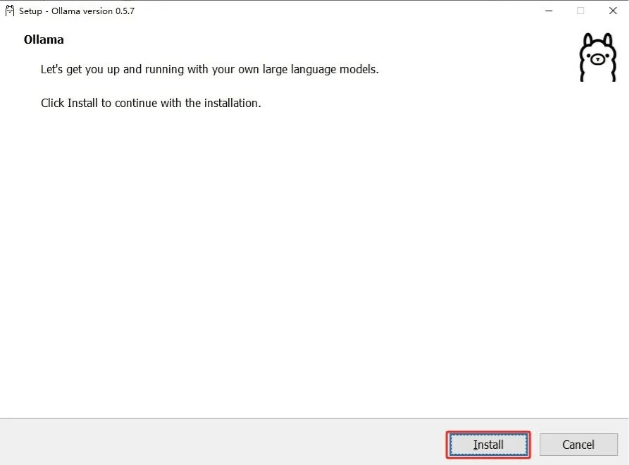
Note that after the installation is complete, a prompt box will pop up in the lower right corner. Click "Confirm", and clicking it will pop up the window.
Ollama is installed successfully.
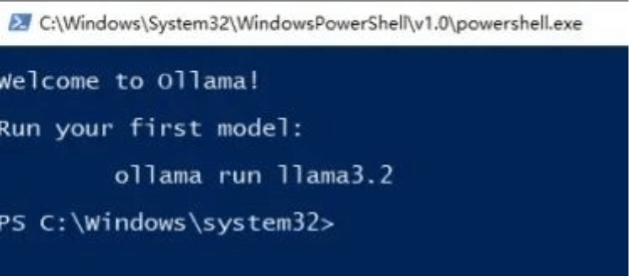
03
Deploy the DeepSeek R1 model
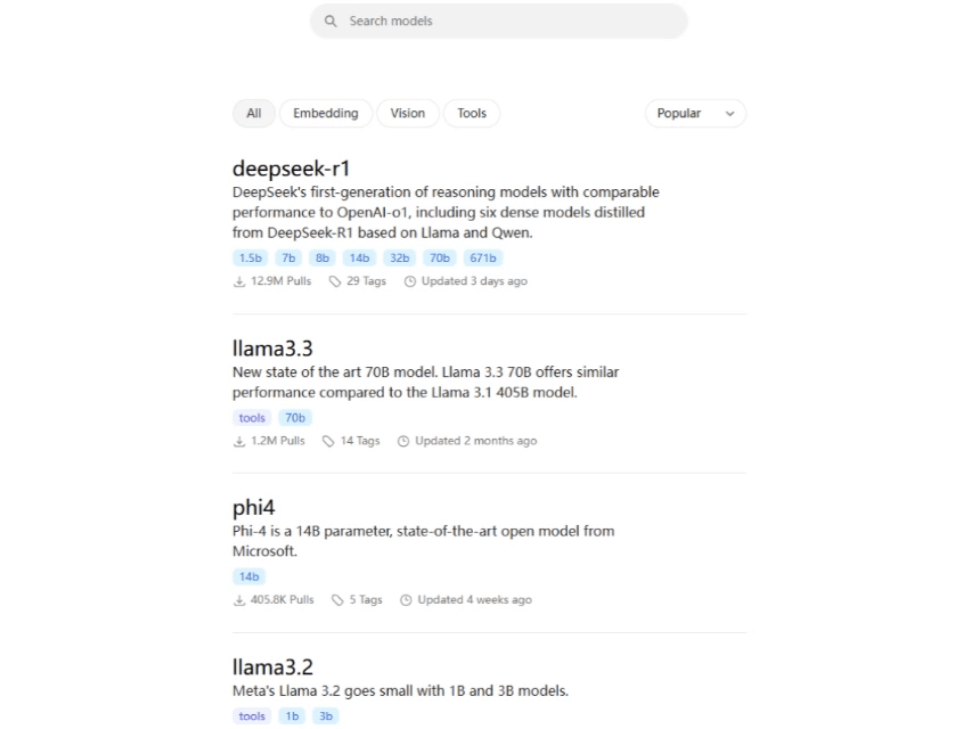
Let's return to the Ollama official website, click "Models" in the upper left corner to enter the model library, and click the DeepSeek-R1 large model.
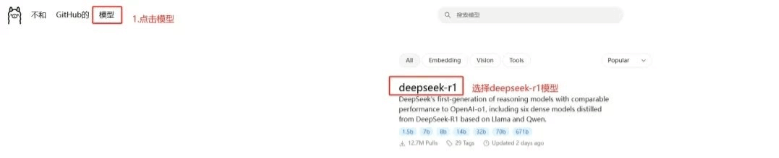
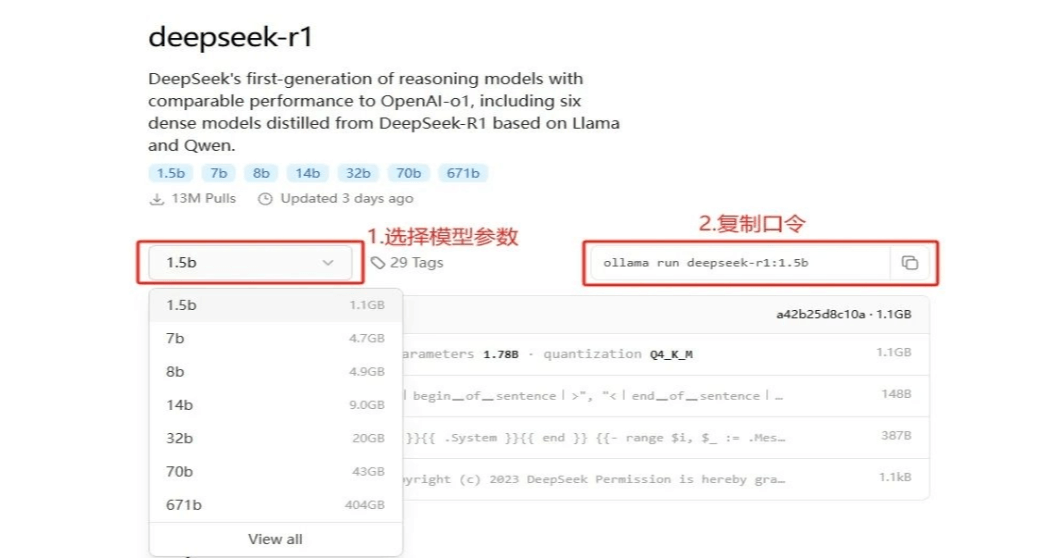
Ollama provides 7 models with different parameters for download.
The model parameter of R1 is 671B, which requires about 1300 GB of VRAM for you to run the full-blooded version of R1.
1.5B to 70B are distilled versions of R1. Although the model capability is not as good as the full-blooded version (the larger the parameter number, the stronger the capability), the hardware requirements are lower, and their performance among open-source models of the same scale is also very outstanding, making them suitable for local deployment by individuals or enterprises.
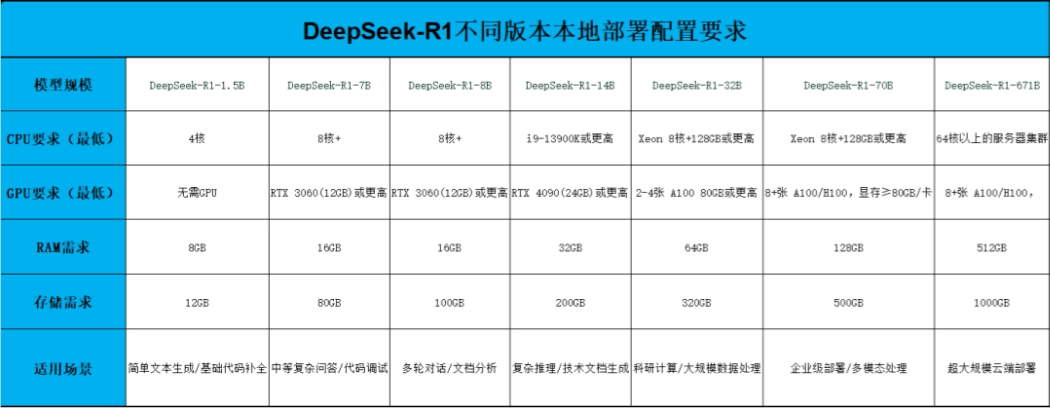
I have summarized atable of configuration requirements for each version of DeepSeek-R1, which everyone can refer to when choosing:
Here I choose the 1.5B model and copy the following command: ollama run deepseek-r1:1.5b
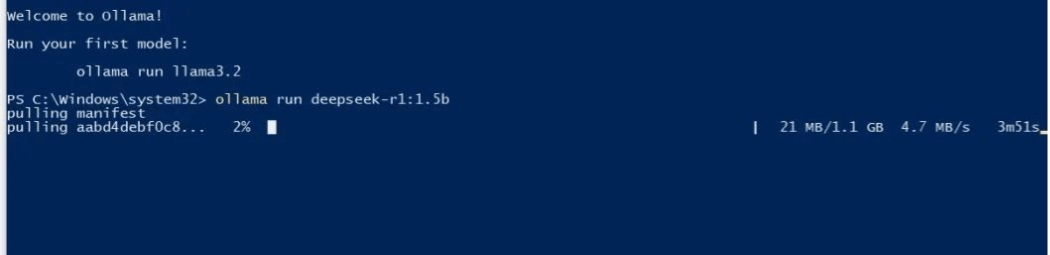
Paste the command into the window popped up by Ollama and press Enter, and the model download will begin.
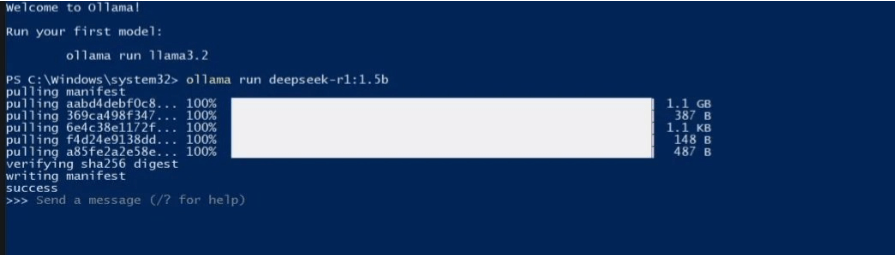
Wait quietly for the progress bar to reach 100%, and finally it prompts "success", which means the download is complete.
We enter in the command lineollama run deepseek-r1:1.5b+question, and we can directly converse with the AI.
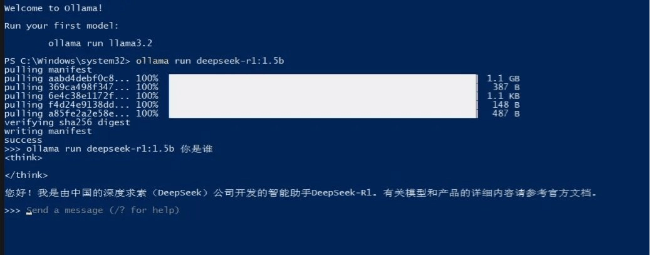
But this interface looks too crude, and having to copy a line of command every time you ask a question is also inconvenient.
Next, we'll optimize this problem through a client.
04
Calling the model through Cherry Studio
Cherry Studiois an open-source multi-model desktop client. It can directly call mainstream large models, such as OpenAI, Gemini, and local models.
There are also other open-source, easy-to-use clients likeChatbox AI, AnythingLLM, and so on.
The official team has also compiled a practical integration document, which can help us better apply DeepSeek.
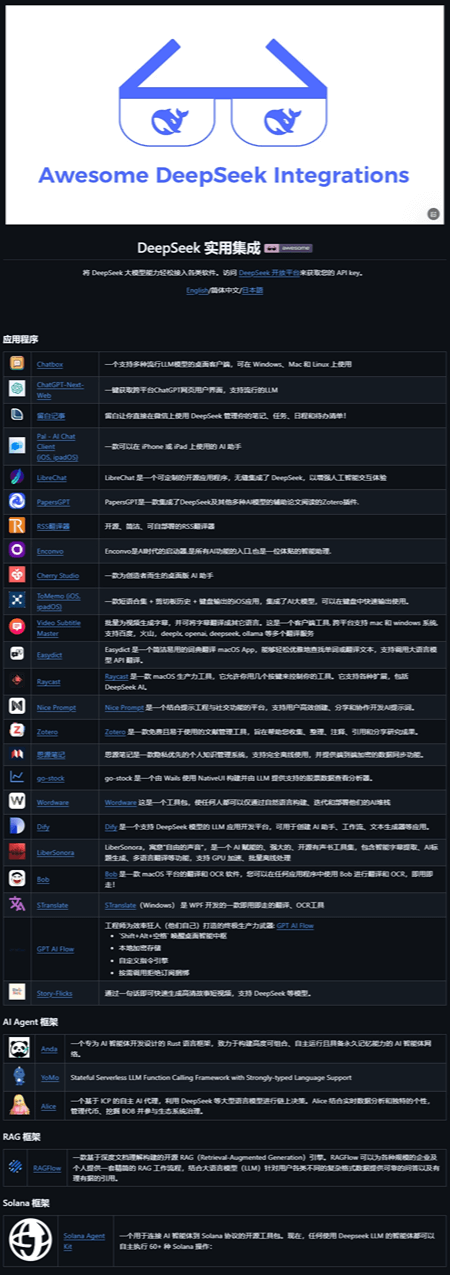
Here we'll take Cherry Studio as an example and operate it together.
Go to the download page on the Cherry Studio official website. You can click Download Now, or download from the cloud drive link.
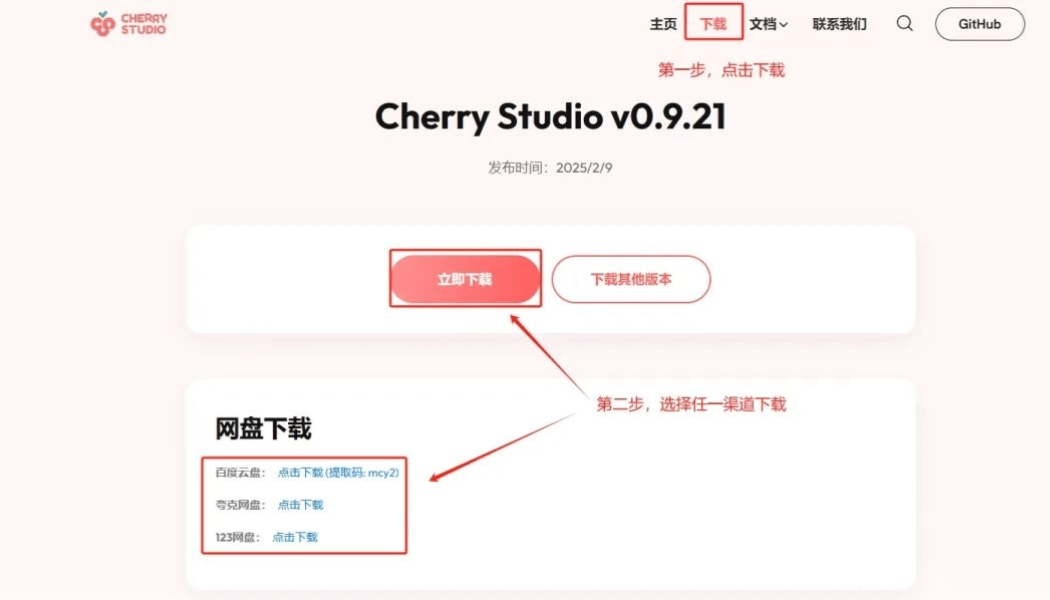
The installation steps are also just clicking Next directly.
After installation, click Settings in the lower left corner.
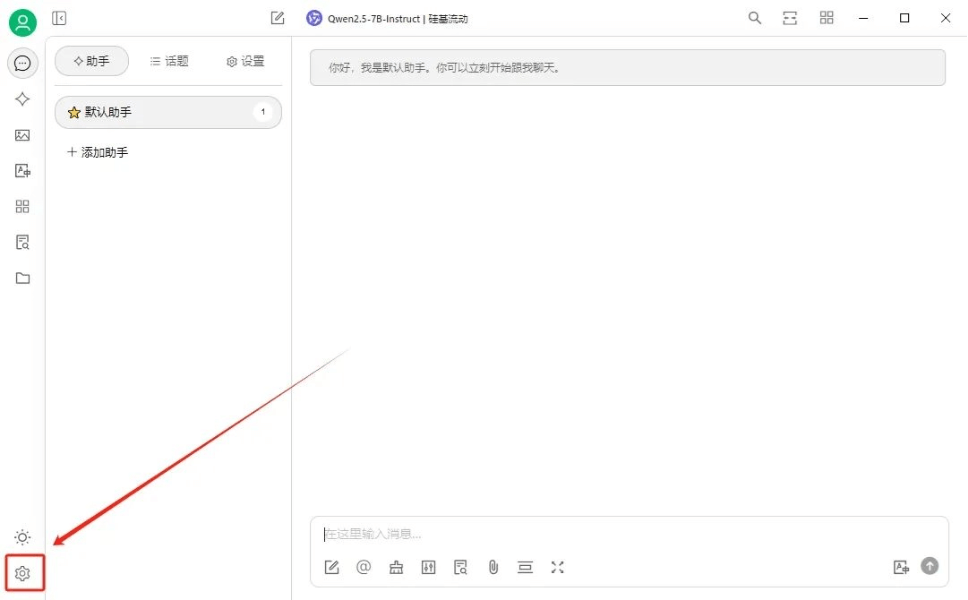
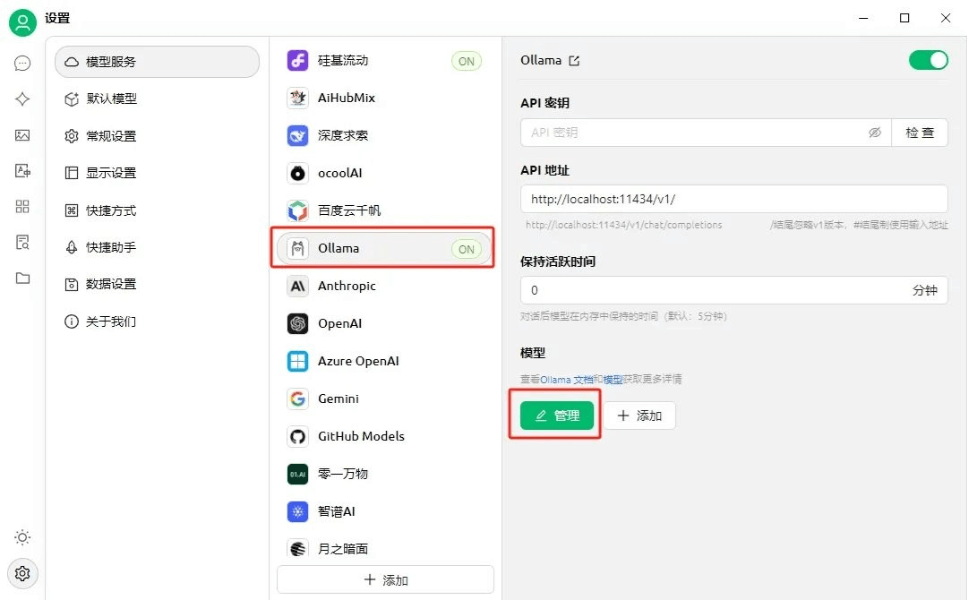
In Model Services, select Ollama, turn on Enable in the upper right corner, the API key will be filled in automatically, then click Manage.
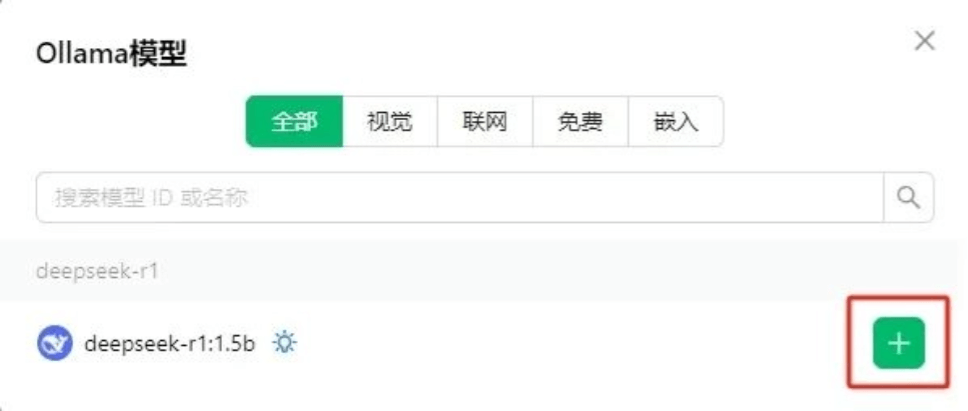
You can see the DeepSeek-R1 model already installed locally. Click the + sign on the right.
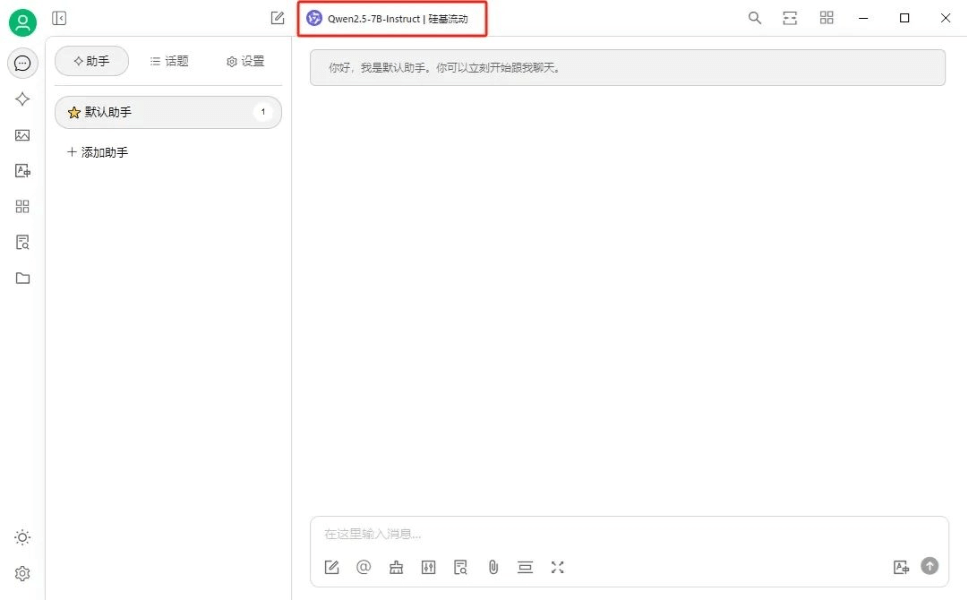
We return to the homepage and click the model name displayed at the top of the page.
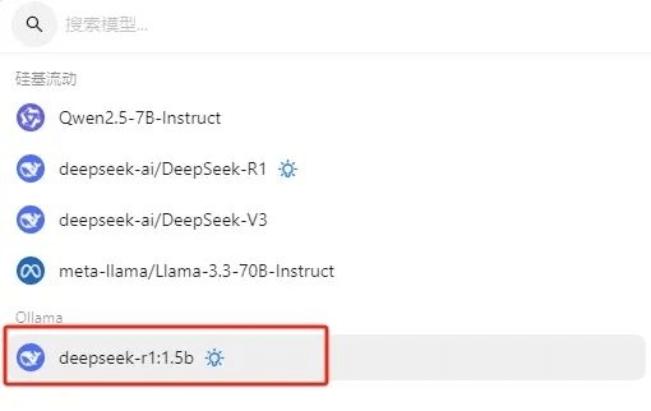
Click to select our locally deployed DeepSeek-R1:1.5B.
Then you can have a normal conversation with the AI.
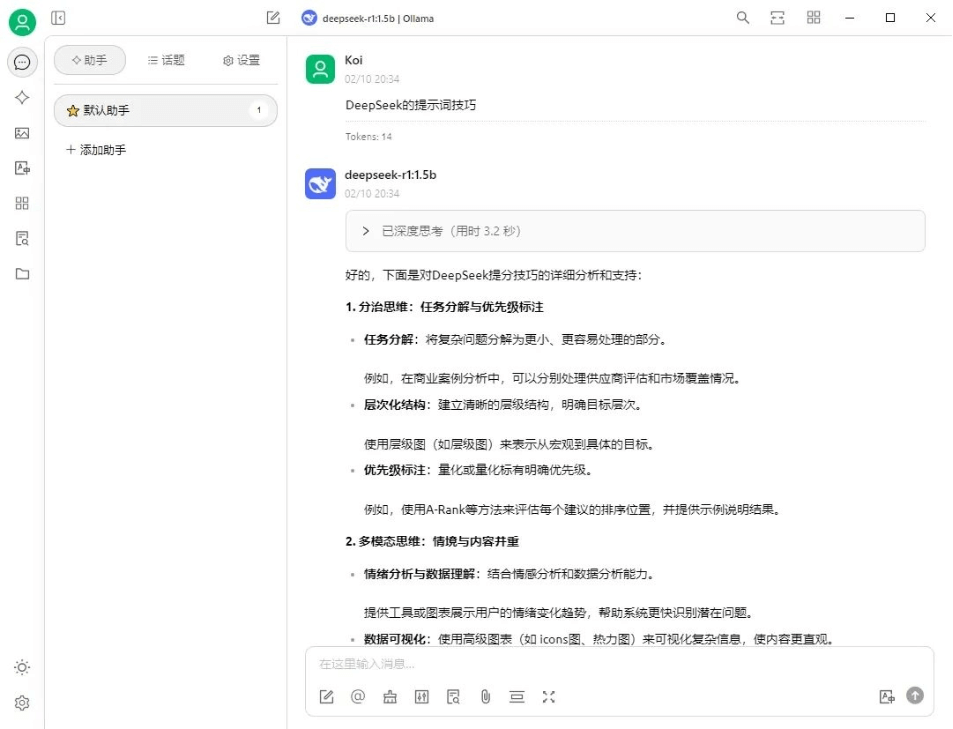
The 1.5B model does not have very strong generality and is suitable for some simple question-and-answer tasks. If you want to apply the locally deployed R1 in work, a 7B or higher parameter version is recommended.
Local deployment of DeepSeek has the advantages of timely response, being free, and a high degree of personalization, but it has certain requirements for hardware. If you have suitable equipment, you can try it.
Once you learn this step, you can deploy any open-source large model locally, go try it now!
All tools involved in this article:
Ollama:https://ai-bot.cn/sites/5973.html
Cherry Studio:https://ai-bot.cn/cherry-studio/
Original link:DeepSeek local deployment nanny-level tutorial, even beginners with zero foundation can do it!