
What is Zen Browser
Zen Browser is an open-source browser based on the Firefox engine that boosts user productivity through efficient design and powerful features. Zen Browser uses vertical tabs and a sidebar layout to optimize the experience on widescreen monitors, and supports split-screen browsing and workspace isolation for easy multitasking. Zen Browser offers highly customizable Zen Mods, allowing users to freely adjust the browser's appearance and behavior. Zen Browser is a great choice for users seeking efficiency, privacy, and a personalized experience.
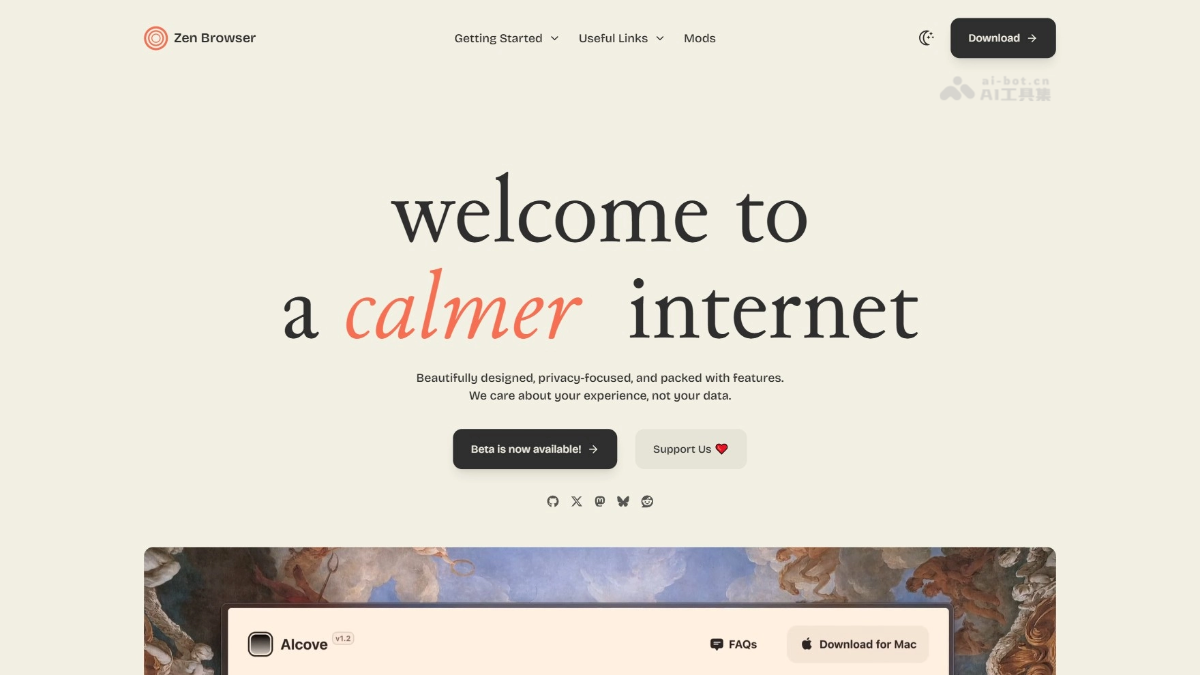
Zen Browser's main features
-
Vertical tabs: Tabs are arranged vertically in the sidebar, saving vertical space and improving browsing efficiency on widescreen monitors; the sidebar can also auto-hide to reduce interface distractions.
-
Split-screen browsing: Supports seamlessly placing two tabs side by side for easy multitasking.
-
Workspaces: Users can create multiple workspaces for scenarios such as work, study, and entertainment, and manage different tasks by switching quickly to improve efficiency.
-
Deep customization: Through the Zen Mods store, users can deeply modify the browser's appearance and functionality, such as adjusting corner radius or hiding the bottom bar, to meet personalized needs.
-
Privacy protection: Based on the Firefox engine, it avoids Google privacy tracking and supports ad blockers, letting users freely control their browsing experience.
-
Firefox account sync: Supports one-click migration of data such as bookmarks and passwords, reducing the cost of switching from other browsers to Zen Browser.
How to use Zen Browser
- Download and install: Visit Zen Browser's GitHub repositoryhttps://github.com/zen-browser/desktop,在“Releases”中下载对应操作系统的最新版本安装包安装。
- Launch and setup: After installation is complete, launch Zen Browser and follow the prompts for initial setup, such as choosing a language and importing bookmarks.
- Use vertical tabs: After opening the browser, tabs are displayed by default in the left sidebar; click the "+" to create a new tab, and the sidebar auto-hides when the mouse moves away.
- Split-screen browsing: Open two tabs, right-click one of them and select "Split View"; the two tabs will be displayed side by side.
- Workspaces: Click the "Workspaces" button in the top menu bar, create and name workspaces, drag tabs into the corresponding workspace, and switch workspaces by clicking the workspace name at the top.
- Deep customization (Zen Mods): Find the "Zen Mods" option in settings, and choose and install customization modules through the Zen Mods store to adjust the browser's appearance and functionality.
- Sync: Find the "Firefox Sync" option in settings, sign in to your Firefox account, and sync data such as bookmarks and passwords.
- Extension installation: Open the browser extension management page and search for and install extensions supported by the Firefox engine.
- Privacy settings: Find the "Privacy" option in the settings menu and adjust privacy settings, such as enabling ad blocking and disabling tracking.
Zen Browser's project address
- Project website:https://zen-browser.app/
- GitHub repository:https://github.com/zen-browser/desktop
Zen Browser's application scenarios
- Multitasking: Use split-screen browsing on a widescreen monitor to view and edit documents, code, or compare different web page content at the same time, improving work efficiency.
- Work and Life Switching: Through the workspace feature, set up separate workspaces for work (such as Jira, Figma, development documentation) and entertainment (such as Reddit, Bilibili), and quickly switch between different scenarios.
- Privacy Protection: Based on the Firefox engine, it avoids Google privacy tracking and is suitable for users with high privacy requirements, such as practitioners in finance, law, and other industries.
- Personalization: Users can deeply customize the browser interface and features to meet different users' personalized needs, such as designers adjusting the interface style.
- Development and Testing: For developers, test web page compatibility in the Firefox environment, while using the split-screen feature to compare different code versions.