
What is Xiaowang AI Screenshot
Xiaowang AI Screenshot is a free and powerful computer screenshot software that integrates DeepSeek's AI technology to provide users with a series of intelligent screenshot features. Users can perform regular screenshots, long screenshots, framed screenshots, and other operations, and can use AI features for OCR text extraction, AI translation, AI explanation, and more, meeting needs in different scenarios. It supports screenshot annotation, pinning, screen recording, GIF creation, and other features, making it convenient for users to further process and manage screenshots. Xiaowang AI Screenshot is characterized by being lightweight, login-free, and ad-free. The installation package is only 10.45MB, with low resource usage, and it is suitable for Windows and macOS systems. It provides innovative features such as screenshot backtracking and automatic archiving, helping users better manage and find historical screenshots.
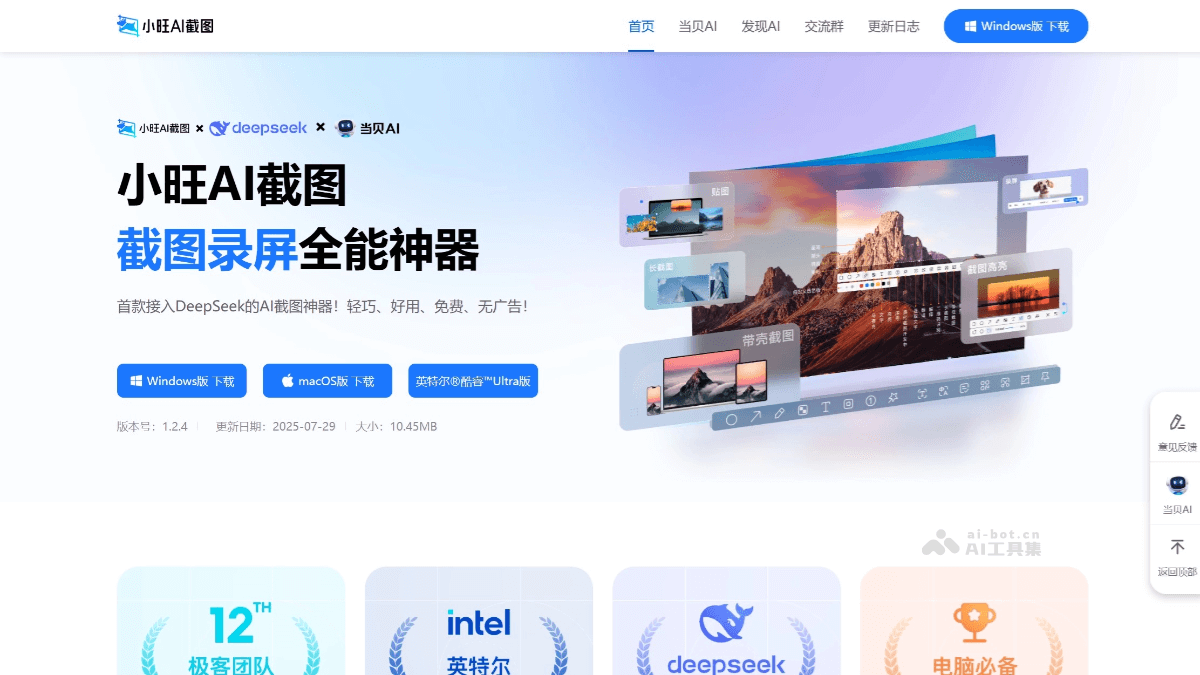
Main features of Xiaowang AI Screenshot
-
Multiple screenshot modes: Supports full screen, region, window, scrolling long screenshot, and other modes, flexibly handling different scenarios.
-
Long screenshot optimization: Intelligently stitches multi-page content to generate clear and coherent long images, suitable for saving reports, papers, or web page information.
-
Framed screenshots: Provides multiple device frame templates, generating framed mockups with one click, suitable for designers.
-
OCR text extraction: Based on DeepSeek technology, it can recognize text in images with high accuracy and supports handwriting recognition.
-
AI translation: Supports translation between 11 languages, with accuracy up to 94% for academic literature translation.
-
AI explanation: When encountering content you do not understand, take a screenshot to get AI-powered intelligent analysis and answers.
-
Professional annotation tools: Provides more than 20 annotation tools, including arrows, brushes, text boxes, mosaics, and more, with layer management support.
-
Local highlighting: Highlights important parts of screenshots, making it easy for others to understand quickly.
-
HD screen recording: Supports output in MP4 and GIF formats, meeting basic screen recording needs.
-
GIF editing: Supports pinning, decorative text, speed adjustment, and other features.
-
Smart gallery management: Screenshots are automatically categorized by timeline, supporting quick backtracking and encrypted storage without uploading to the cloud.
How to use Xiaowang AI Screenshot
- Download and installation: Visit the official website of Xiaowang AI Screenshot:https://www.xiaowang.com/,下载对应系统的安装包。
-
Windows version: Double-click the installer to run, choose a non-system drive path, check launch at startup, and show the tray icon in the taskbar; the single-file version can be used immediately after extraction, with no permission configuration required.
-
macOS version: For Intel models, drag the .dmg file to "Applications"; for M-series chips, choose the ARM-specific version. After installation, enable "Screen Recording" and "Accessibility" permissions in "System Settings -> Privacy & Security".
-
- Initial configuration
-
Shortcut keys: The default screenshot shortcut is
Alt+Z, and the screen recording shortcut isAlt+R, which can be customized in the software settings according to personal habits. -
Permissions: On first launch, you need to allow "Screen Recording" and "Accessibility" permissions. macOS users need to manually enable them in System Preferences.
-
- Screenshot operations
-
Start screenshot: Use the default shortcut key
Alt+Zor click the screenshot button, and choose a mode such as region screenshot, window screenshot, or scrolling screenshot. -
Annotation and Editing: After the screenshot is completed, use tools such as arrows, text, and brushes to annotate, highlight key points, or add mosaics to sensitive information.
-
AI Features: Click the "Text Recognition" or "OCR" button, and the software will automatically recognize the text in the screenshot and display the text content; select a chart or unfamiliar object in the screenshot, and AI can parse and output related information.
-
- Screen Recording Operations
-
Start Recording: Use the default shortcut key
Alt+Ror click the screen recording button, and choose full screen or a selected region for recording. -
In-Process Operations: During recording, you can pause to skip content and adjust the recording range.
-
End Recording: Press the screen recording shortcut key again or click the "Stop" button. After recording is completed, an editing window will automatically pop up, allowing simple editing of the video or GIF.
-
Application Scenarios of Xiaowang AI Screenshot
-
Knowledge Explanation: When students are studying on their own or reviewing and encounter concepts they do not understand, they only need to screenshot part of the content, and AI can quickly parse it and provide a detailed explanation.
-
Document Translation: When reading foreign-language documents or materials, the screenshot translation function can quickly provide high-quality translations, breaking down language barriers.
-
Meeting Notes: During meetings, key information can be quickly captured and text extracted to generate minutes, and complex data and charts can be interpreted instantly, improving work efficiency.
-
Material Organization: Translate foreign-language materials with one click, extract text content, and archive it to the history library, achieving full-process automation and making it convenient for later search and use.
-
Asset Organization: Self-media bloggers, writers, and video producers can use its functions such as screenshot text extraction and translation to quickly organize materials, generate high-quality content, and improve creative efficiency.
-
Video Production: Supports high-definition screen recording (full-screen/region mode) and GIF creation, meeting the needs for recording dynamic content, and allows editing and creating based on recorded content, such as adding text stickers and making emojis.