
What is UI-TARS Desktop
UI-TARS Desktop is an open-source desktop automation tool based on a vision-language model from ByteDance. It supports controlling computer operations through natural language instructions, such as opening files, browsing web pages, and operating software, and can accurately recognize screen elements and interact with them. It is compatible with Windows, Linux, and macOS systems, provides local and remote operation capabilities, and allows users to choose models of different sizes according to their hardware conditions. It has a built-in script editor, making it convenient for users to customize automation tasks. UI-TARS Desktop is open-sourced under the Apache 2.0 license, can be used for free, and supports commercial development. It is suitable for various automation scenarios, such as data processing and remote operations and maintenance.
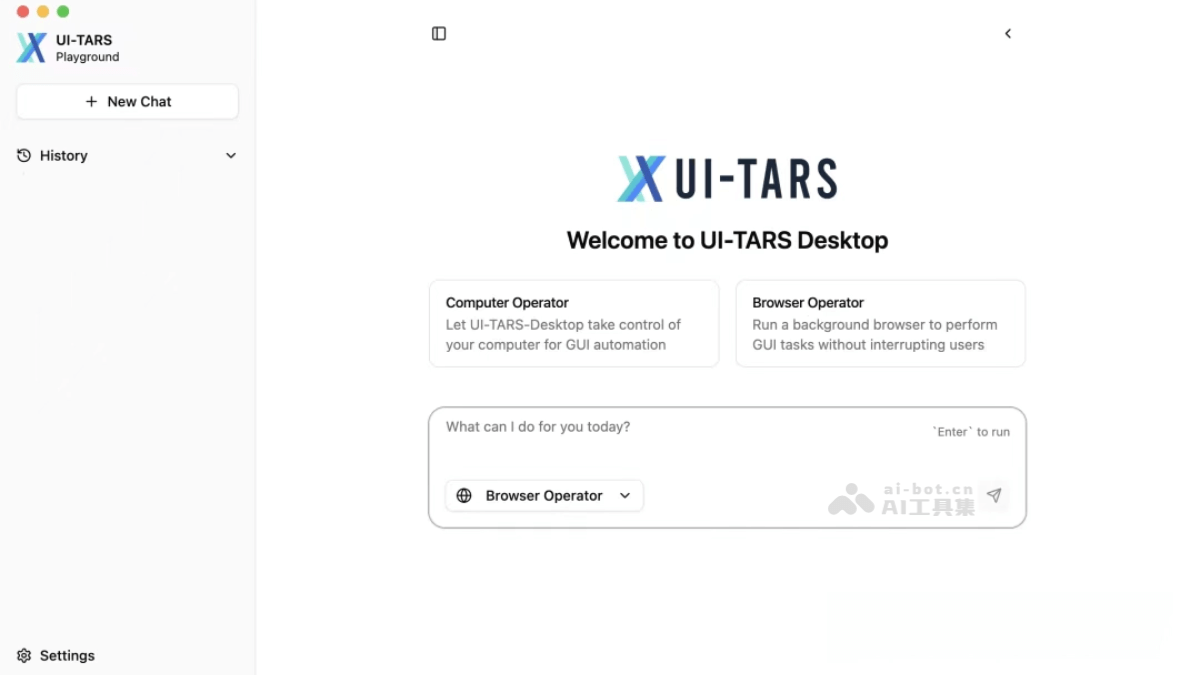
Main features of UI-TARS Desktop
- Natural language control: Users can directly control the computer through natural language instructions, such as "open a certain app," "search for a specific file," and "fill out a form," without the need for complex programming or manual operations.
- Visual recognition and interaction: Supports screenshots and visual recognition technology, can automatically locate interface elements on the screen (such as buttons, input boxes, etc.), and perform precise mouse clicks, keyboard input, and other operations, making it suitable for complex visual tasks.
- Cross-platform support: Compatible with Windows and macOS systems, can run on different operating systems, and meets diverse needs.
- Remote control: Supports remote control of computers and browsers. Users can connect to remote devices over the network to execute tasks or assist others in solving problems.
- Real-time feedback: Displays operation progress and status in real time when executing instructions, allowing users to understand the task execution status at any time.
- Data security: Localized deployment, with operation records and data stored on the user's device, ensuring privacy and security.
How to use UI-TARS Desktop
-
Download and installation: Visit the Releases page of the GitHub repository and download the latest version of the UI-TARS Desktop application. For macOS systems, drag the downloaded UI TARS application to the Applications folder. If the app cannot be opened, enter the command in the terminal
sudo xattr -dr com.apple.quarantine /Applications/UI\ TARS.appto repair it. Windows users can double-click the downloaded installation file and install it by following the prompts. Users of Homebrew can also quickly install it with the commandbrew install ui-tars-desktop. -
Deploy the model: UI-TARS provides two methods: cloud deployment and local deployment (vLLM). For cloud deployment, HuggingFace Inference Endpoints is recommended. For local deployment, first install
vllm>=0.6.1, then download the 2B, 7B, or 72B model, and finally run the commandpython -m vllm.entrypoints.openai.api_server --served-model-name ui-tars --model <path to your model>to start the OpenAI API service, and enter the API information in the settings. -
Launch and use: Open the UI-TARS Desktop application and enter natural language instructions, such as "open the browser and search for 'AI technology'." It will automatically parse and execute the corresponding operations and provide real-time feedback on the execution status.
-
Explore and customize: View the README and contribution guide on GitHub to learn more advanced usage. Developers can extend functionality through the UI-TARS SDK to create their own automation agents.
UI-TARS Desktop project address
- Github repository:https://github.com/bytedance/UI-TARS-desktop
Application scenarios of UI-TARS Desktop
-
Office automation: Automatically process Excel data, such as batch modifying spreadsheet content, generating charts, etc.; quickly open commonly used office software and perform operations, saving manual operation time.
-
Web operations: Automatically log in to web pages, fill out forms, browse web content, suitable for scenarios requiring frequent web operations, such as e-commerce operations, information collection, etc.
-
Software interaction: Operate professional software such as Photoshop and automatically perform complex image processing tasks; control video editing software to complete editing, add special effects, and other operations.
-
Remote operations and maintenance: Connect to a remote computer to perform system maintenance, software updates, troubleshooting, and other operations, especially suitable for IT operations and maintenance personnel.
-
Game assistance: Automatically complete repetitive tasks in game operations, such as character leveling, resource collection, etc., improving the gaming experience.
-
Learning assistance: Automatically search for learning materials, organize notes, play instructional videos, etc., helping users learn more efficiently.