
What is Subtitle Edit
Subtitle Edit is a free and open-source multifunctional subtitle editor that supports over 300 subtitle formats, including SRT, MicroDVD, and Sub Station Alpha. It features subtitle synchronization, creation, translation, audio waveform visualization, video playback, AI speech recognition, AI automatic translation, and OCR technology, and is used in scenarios such as film and television post-production, multilingual content creation, education and training, assisting the hearing-impaired, and providing subtitle translation services. Its interface is friendly and easy to get started with.
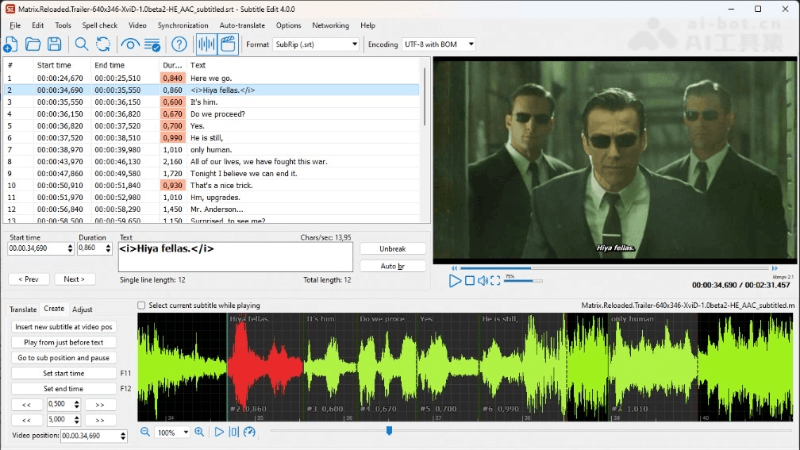
Subtitle Edit's Features
- Diverse Subtitle Format Support: Compatible with over 300 subtitle formats, including common ones such as SRT, SSA, and ASS.
- Subtitle Synchronization Adjustment: Provides intuitive synchronization tools to quickly adjust the synchronization between subtitles and video.
- Subtitle Creation and Editing: Supports users in creating subtitles from scratch or editing existing subtitles, with text editing and timeline adjustment.
- Audio Waveform Analysis: Built-in audio waveform display helps users precisely align subtitles through visual assistance.
- AI Speech Recognition: Uses advanced speech recognition technology to automatically convert speech in videos into text.
- AI Automatic Translation: Through the Google Translate API, automatically translates subtitles into multiple languages.
- OCR Image Text Recognition: Performs text recognition on subtitles in video images, supporting multiple subtitle image formats.
How to Use Subtitle Edit
- Download and Install:Visit Subtitle Edit'sofficial websiteor download it from an app store.Choose the corresponding version according to your operating system, extract it, and launch the program.
- Open a Video File:In Subtitle Edit, select the "File" menu and choose "Open video file" to load the video whose subtitles you want to edit.
- Import a Subtitle File:If you already have a subtitle file, you can import it via "File" -> "Open subtitle file...".
- Adjust Subtitle Synchronization:While watching the video, use the subtitle editing tools to adjust the start and end times of the subtitles to ensure they are synchronized with the audio.
- Edit Subtitle Text:Double-click any subtitle entry to edit the text content. You can correct typos, adjust the language style, or revise translations.
Subtitle Edit's Project URLs
- Official Website:https://www.nikse.dk/subtitleedit
- Github Repository:https://github.com/SubtitleEdit/subtitleedit/releases
- App Store:https://apps.apple.com/cn/app/subtitle-edit/id862438829?mt=12
Who Uses Subtitle Edit
- Film and Television Post-Production Staff: Use Subtitle Edit to adjust and synchronize subtitles for film and television works, ensuring consistency between subtitles and video content.
- Content Creators: Add multilingual subtitles to videos, expand the audience, and increase the internationalization of content.
- Educational Institutions: Add subtitles to educational videos or online courses to help students better understand and remember course content.
- Hearing-Impaired People: Rely on accurate subtitles to enjoy video content, and Subtitle Edit can help them better understand video information.