
What is Zapier AI
Zapier AI is a powerful automation tool that supports seamless integration of over 7,000 applications (such as Google Sheets, Slack, Salesforce, Trello, etc.), helping users quickly create automated workflows. For example, automatically sync data updates from Google Sheets to a Slack channel, or automatically turn customer leads in Salesforce into task cards in Trello. The tool supports features such as Tables, Interfaces, and Copilot. Through no-code operations, it enables individual and enterprise users to easily achieve data synchronization and process automation, greatly improving work efficiency.
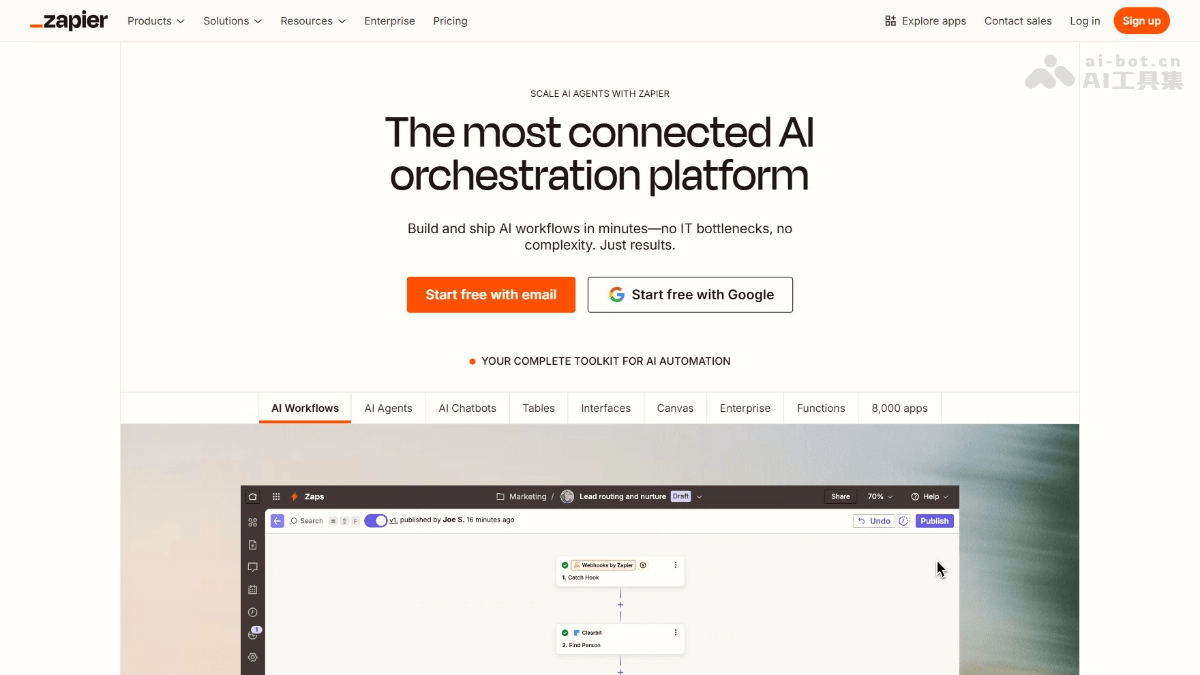
Main features of Zapier AI
- Automated workflows (Zaps):
- Connect applications: Zapier supports connecting over 7,000 applications, such as Google Sheets, Slack, Salesforce, Trello, Mailchimp, etc.
- Triggers and actions: Users can set trigger conditions (such as new emails or new tasks) and actions (such as sending notifications or creating records) to implement automated processes.
- Advanced features: Supports features such as filters, paths, scheduling, data formatting, loops, and Webhooks, improving the flexibility and intelligence of workflows.
- Zapier Tables:
- Data storage and management: Provides data storage functionality similar to spreadsheets, but more powerful than traditional spreadsheets.
- Automatic synchronization: Data can be automatically synchronized to other applications without manual import and export.
- Automated triggers: Supports automatically triggering workflows based on data changes, enabling smarter data management.
- Zapier Interfaces:
- Custom interfaces: Users can create custom customer portals, dashboards, or forms without writing code.
- Visual tools: Quickly build user interfaces through a drag-and-drop interface editor, improving user experience.
- Integration and automation: Custom interfaces can seamlessly integrate with Zapier workflows to enable automatic data processing and display.
- Copilot:
- Natural language interaction: Describe tasks in natural language, and Copilot can automatically break down tasks and create workflows.
- Task adjustment and optimization: Users can adjust and optimize workflows through Copilot, improving automation efficiency.
- Error diagnosis and repair: Provides detailed error information and repair suggestions to help users quickly solve problems.
- Canvas:
- Process design and orchestration: Based on Canvas, users can combine multiple workflows, forms, and data tables to design complex business processes.
- CUI mode: Supports describing requirements in natural language and automatically creating and adjusting processes.
- Visual flowcharts: Displays business processes graphically, making them easier to understand and manage.
How to use Zapier AI
- Register and log in: Visit the Zapier official website. Complete registration and login according to the prompts.
- Create an automated workflow (Zap): Click the "Make a Zap" button, which is the entry point for creating an automation workflow.
- Choose a Trigger App: In "Choose a Trigger App", select an app (such as Google Sheets, Salesforce, etc.).
- Choose a Trigger Event: Select a specific trigger event (such as "New Row", "New Lead", etc.).
- Connect Account: If the account for that app is not yet connected, click "Connect Account" to authorize it.
- Test Trigger: Click "Test This Step" to make sure the trigger works properly.
- Add Action Step:
- Choose an Action App: In "Choose an Action App", select an app (such as Slack, Trello, etc.).
- Choose an Action Event: Select a specific action event (such as "Send Channel Message", "Create Card", etc.).
- Configure Action Details: Fill in the specific parameters of the action as needed, for example, selecting a Slack channel or filling in the Trello card content.
- Test Action Step: Click "Test This Step" to make sure the action step works properly.
- Adjust the Workflow (Optional):
- Add a Filter: If needed, add a filter, for example, "only execute when the amount exceeds 1000 yuan".
- Add a Path: Branch the workflow into different paths based on conditions.
- Add a Delay: Add a delay to the workflow, for example, "wait 1 hour before executing the next step".
- Save and Enable: After completing all steps, click the "Turn On Zap" button to enable the workflow.
- Monitor the Workflow: Check the workflow's running status and history in the Zapier dashboard.
- Use Advanced Features (Optional):
- Zapier Tables: Create and manage data tables for storing and syncing data.
- Zapier Interfaces: Create custom interfaces, such as a customer portal or dashboard.
- Copilot: Create and adjust workflows through natural language descriptions to improve efficiency.
- Canvas: Design complex business processes, combining multiple workflows, forms, and data tables together.
Application Scenarios of Zapier AI
- Social Media Management: Automatically add new followers to an email list, or share new content on social media.
- Email Marketing: Automatically add new subscribers to an email list and send a welcome email.
- Content Publishing: Automatically share new blog posts on social media or notify the team about new content.
- Lead Management: Automatically sync new leads to a task management tool or send notifications.
- Customer Follow-up: Automatically send thank-you emails or notify the team of customer status updates.
- Project Task Automation: Automatically notify about new tasks in team tools or create task schedules in the calendar.