
What is Replay
Replay is an advanced AI music accompaniment separation software that uses deep learning technology to separate tracks such as lead vocals, vocals, and accompaniment from audio files. Users can input a complete song into Replay, and the software will automatically analyze the audio content, extract each track, and generate independent audio files. It is very useful for fields such as music production, karaoke accompaniment production, and music education. Replay supports multiple audio formats, such as MP3, WAV, etc., and its user interface is simple and easy to use, suitable for users of different skill levels. Through Replay, users can easily remix or create music, providing great convenience and flexibility for music creation and analysis.
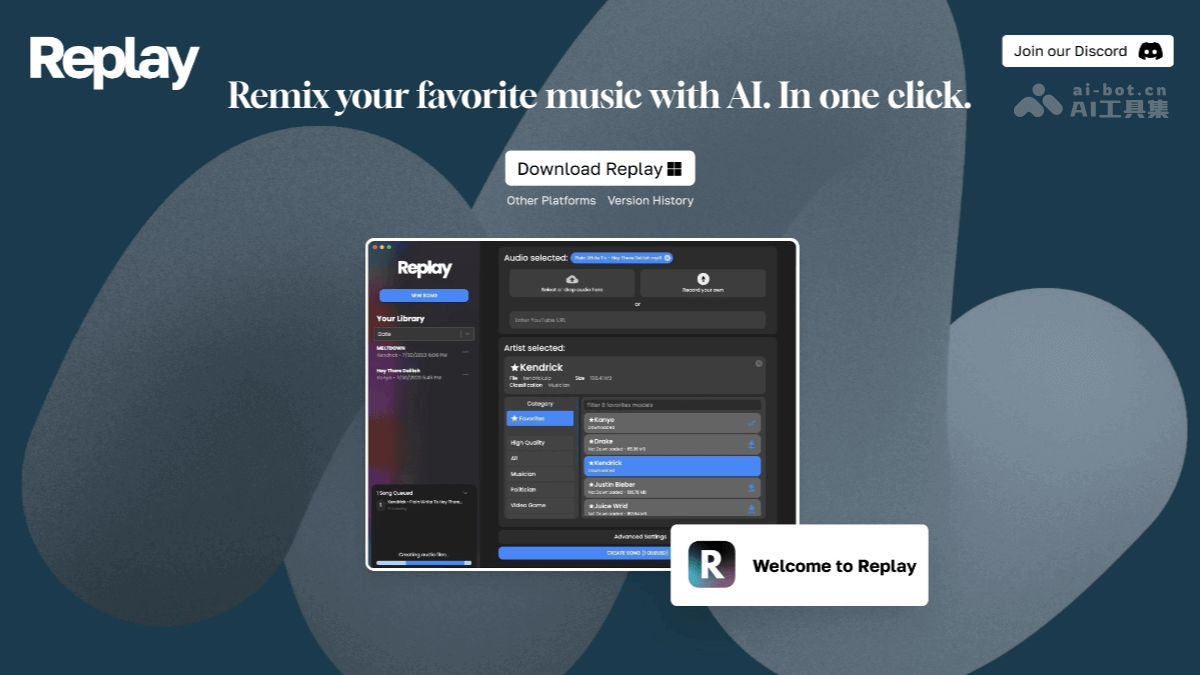
Main features of Replay
- Track separation: The core feature of Replay is to separate different tracks from an audio file. Tracks such as lead vocals, vocals, and accompaniment instruments (such as drums, bass, piano, etc.) can be extracted from the original audio to generate independent audio files.
- High-quality audio processing: Based on advanced AI algorithms, Replay can maintain high audio quality while separating tracks, avoiding audio quality loss. This is especially important for music production and creation, ensuring that the separated tracks still have good listening quality.
- Support for multiple audio formats: Replay supports multiple common audio formats, such as MP3, WAV, FLAC, etc., making it convenient for users to process audio files from different sources.
- Real-time preview and adjustment: Users can preview the separation effect in real time in the software and adjust it as needed. For example, the strength or clarity of the separated tracks can be fine-tuned to achieve the best effect.
- Automated processing: Replay has built-in automation features. Users only need to make simple settings to automatically complete track separation, saving the time and effort of manual adjustment.
How to use Replay
- Installation and startup
- Download the software: VisitReplay's official websiteand download the Replay installation package suitable for your operating system.
- Install the software: Double-click the downloaded installation package and follow the prompts of the installation wizard to complete the installation of Replay. During the first installation, the software will automatically download the required AI model, which requires waiting for a period of time.
- Start the software: After the installation is complete, double-click the Replay software icon to start the software and enter the main interface.
- Import audio files
- In the main interface of Replay, find the "Import File" button or the file drag-and-drop area.
- Click the "Import File" button and select the audio file from which you want to extract the accompaniment from the local folder window that pops up. Supported formats include MP3, WAV, AAC, FLAC, etc.
- You can also directly drag and drop the audio file into the software's file drag-and-drop area, and the software will automatically recognize and import the audio file.
- Parameter settings (optional)
- If you have specific requirements for accompaniment extraction, for example, if you hope to further improve the purity of the accompaniment or adjust the proportion of instrument sounds, you can find the parameter settings panel provided by the software after importing the file.
- In the parameter settings panel, you can fine-tune various parameters according to your needs, such as selecting different AI models, adjusting advanced parameters such as pitch and rhythm, to create the accompaniment effect that best suits your preferences.
- If you are satisfied with the default settings, you can also skip this step directly.
- Start extracting the accompaniment
- Click the "Start Extraction" or "STEM SONG" button on the interface, and Replay will immediately launch its powerful algorithm and begin the accompaniment separation and extraction operation on the imported song.
- During the extraction process, you can check the processing progress through the progress bar on the software interface. After a short wait, you will see the extracted accompaniment file appear in the software's output list.
- Save the accompaniment file
- Select the extracted accompaniment file in the output list and click the "Save" button.
- Choose the local folder location where you want to save the accompaniment file, and select the appropriate output format as needed, such as MP3, WAV, etc.
- Click "OK", and the pure song accompaniment will be successfully saved to your computer. Use it for music creation, singing practice, or other purposes.
Replay supported systems and requirements
- Supported systems:
- Windows: Supports the Windows operating system, including the latest Windows versions.
- Mac: Compatible with Mac systems. Whether it is a Mac computer equipped with an M-series chip or an Intel chip, Replay can be used.
- Linux: Linux users can also install and use Replay, and corresponding version support is provided.
- System requirements
- Memory: To obtain the best operating experience, it is recommended that the user's device have 8GB or more of running memory. 16GB will better unleash the software's performance.
- Processor: Although there is no clear minimum processor requirement, generally speaking, newer processors can provide better processing speed and performance.
- Storage space: A certain amount of hard drive space is needed to install the software and store the processed audio files. The specific size depends on the number and size of the audio files.
Replay application scenarios
- Music creation and mixing: Music producers can use Replay to extract the accompaniment or vocals of the original song, and then remix it according to their own creativity to create a brand-new version. Through the separated accompaniment or vocals, musicians can create new melodies or lyrics on this basis and develop completely new songs.
- KTV and accompaniment production: Replay can quickly remove the vocals from the original song and generate a pure accompaniment track, which is very suitable for making backing accompaniment for KTV. According to the needs of different singers or occasions, Replay can be used to extract and adjust the accompaniment to create personalized accompaniment versions.
- Music teaching: Music teachers can use Replay to separate the tracks of different instruments, allowing students to focus on learning and analyzing the performance techniques and style of a certain instrument.
- Music work analysis: Students and researchers can use Replay to gain an in-depth understanding of the structure of musical works, analyze the melody, harmony, and rhythm characteristics of different instruments, and improve their music appreciation and analysis abilities.
- Podcasts and content creation: Content creators can extract background music from existing musical works for use in videos, podcasts, or live streams, etc., to increase the atmosphere of the work. By separating specific sound effects or instrument sounds, they can be used to create creative sound effects and enrich the forms of expression of the content.
- AI cover singing and music generation: Replay combines AI technology to enable AI cover functionality; users only need to upload a song and the corresponding model to generate an AI cover version. Based on Replay's AI model, entirely new musical works can also be generated, providing more possibilities for music creation.