
What is Project IDE
Project IDE isCozea zero-code feature launched by theAI application developmentplatform, supporting users in orchestrating business logic and designing user interfaces based on a visual interface, building complete AI applications without writing code. Project IDE integrates tools such as UI Builder and workflow editor, supports interaction with data sources such as databases and knowledge bases, and can publish applications as API services or list them on the Coze Store. Based on Project IDE, users can easily implement AI application development from frontend to backend, lowering the development threshold and improving development efficiency.
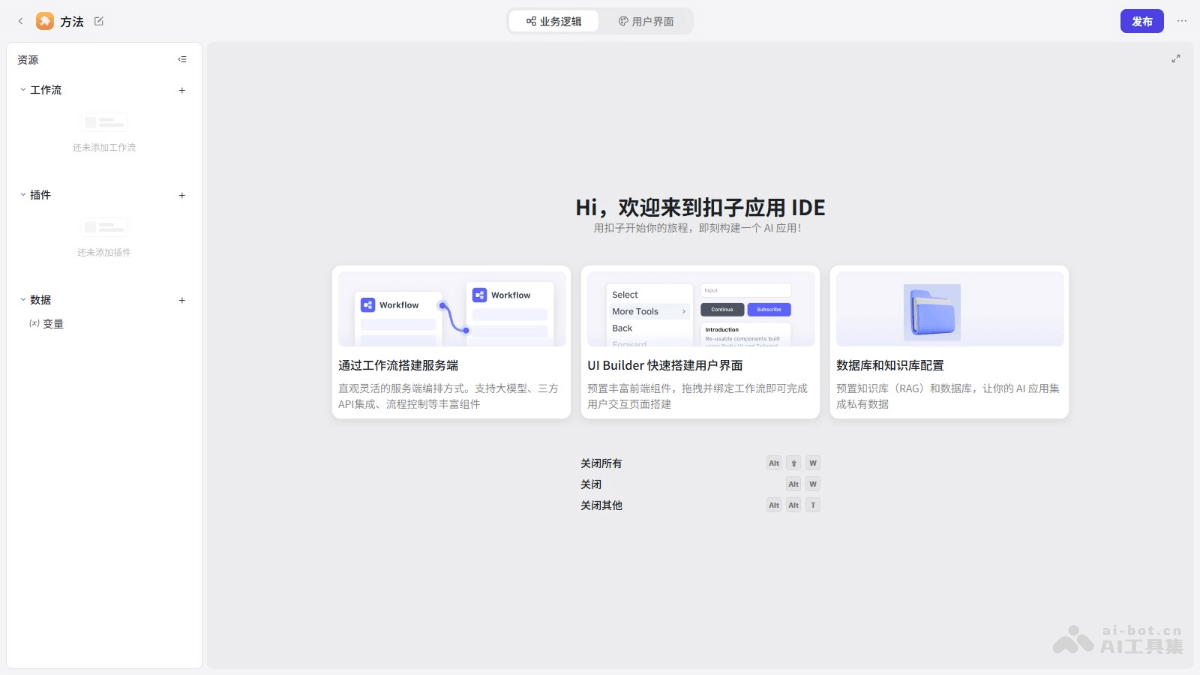
Main features of Project IDE
- UI Builder: Provides a visual user interface building tool, supporting users in designing frontend interfaces based on drag-and-drop components without writing code.
- Workflow orchestration: Supports users in orchestrating business logic in a drag-and-drop manner, creating workflows, and defining the processing flow of AI applications.
- Data interaction: Supports interaction with various data sources, including variables, plugins, knowledge bases, and databases, enabling AI applications to flexibly interact with local or online data.
- Page components: Provides a rich library of page components, including layout components, display components, and input components, etc., meeting different interface design needs.
- Application publishing: Supports publishing developed AI applications as API services, templates, or listing them on the Coze Store, making it easy to share and commercialize.
How to use Project IDE
- Create an AI application
- Log in to the Coze platform: Visitthe Coze official websiteand log in.
- Select a workspace: In the left menu bar, click "Workspace" to proceed with project development.
- Create an application: On the "Project Development" page, click the "Create" button in the upper right corner, and select "Create Application". Choose to create a blank application or create one using an official template.
- Orchestrate business logic
- Project IDE: After creating an application, you will automatically enter the integrated development environment (IDE).
- Create a workflow: Under the "Business Logic" menu, click the "+" sign for workflows to create a workflow.
- Add nodes: Add custom nodes, such as "Knowledge Base Retrieval", "Article Creation", "Image Generation", etc., and set input parameters and logic.
- Configure resources: Configure resources such as workflows, plugins, knowledge bases, and variables in the resource list.
- Design the interface
- Switch to the "User Interface" menu: In the IDE, switch to the user interface design section.
- Drag and drop components: Use the component library provided by Coze to drag the required components onto the canvas.
- Layout design: Design the page layout, such as the top application header, the left input parameter area, and the right article display area.
- Configure components: Adjust component styles and bind data and events in the configuration panel.
- Application testing
- Preview the application: Click the "Preview" button in the upper right corner to enter the preview interface.
- Conduct testing: Enter the requirements, click the button to test, and ensure the application works as expected.
- Publishing the Application
- Publish the Application: After completing testing, click the "Publish" button in the upper right corner.
- Fill in the Publishing Information: Enter the version number and publishing description, and select the publishing platform.
- Publish to the Store: Choose to publish to the Coze Store or integrate with other applications as an API service.
Application Scenarios of Project IDE
- Automated Customer Service: Use the Coze platform to develop a chatbot, integrate it into an enterprise's customer service system, and automatically answer customers' common questions, such as order status inquiries and product information, reducing customer service workload and improving response speed.
- Content Creation and Management: Use the Coze platform's AI writing assistant to automatically generate news articles, marketing copy, or social media content, improving content production efficiency. At the same time, manage the content library to enable intelligent retrieval and content recommendations.
- Education and Learning: Develop intelligent education applications that provide personalized learning resources and exercises based on students' learning habits and abilities, enabling an adaptive learning experience.
- Data Analysis and Reporting: Create AI-driven data analysis tools that automatically analyze an enterprise's sales data, market trends, and more, generate visualized reports, and help management make data-based decisions.
- Personalized Recommendation Systems: Deploy a recommendation system on an e-commerce platform to recommend products based on users' shopping history and preferences, improving user experience and increasing sales.