
What is Photo Retouch
Photo Retouch is an AI photo editing software that integrates object erasing, portrait beautification, image color adjustment, and cutout functions. It uses AI algorithms to quickly remove unwanted objects from photos and perform intelligent erasing and restoration for various scenarios. The software supports iOS, Android, macOS, and Windows systems. Photo Retouch offers video erasing, one-tap cutout, professional retouching, color adjustment, body reshaping, facial beautification, photo clarity restoration, black-and-white photo colorization, and cloud storage services. Users can easily edit photos, improve photo quality, and renovate old photos.
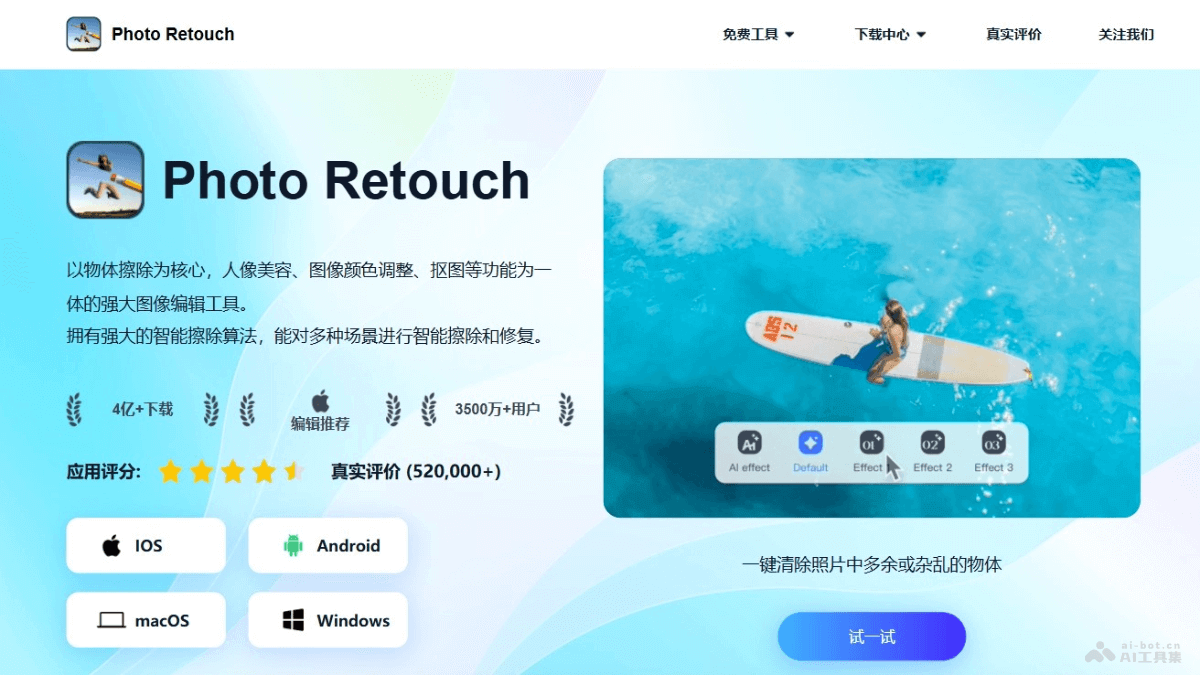
Main Features of Photo Retouch
- Object Removal: One-tap removal of unwanted objects in photos, such as passersby, watermarks, etc., making photos look cleaner.
- Video Erasing: Supports removing watermarks or deleting unwanted objects from videos, implemented based on moving object tracking and erasing technology.
- One-Tap Cutout: Intelligently recognizes objects in photos, easily removes complex backgrounds, and enables quick cutouts.
- Retouching: Provides professional image editing features, allowing users to adjust details as needed to enhance the visual effect of photos.
- Color Adjustment: Offers multiple functions for adjusting image colors, adding depth and visual impact to images.
How to Use Photo Retouch
- Download and Install: Visit the Photo Retouchofficial website, download the app according to your operating system (iOS, Android, macOS, or Windows), and install it.
- Open the App: Launch the Photo Retouch app.
- Select a Photo: Tap the "Open" or "Select Photo" button in the app, and choose the photo you want to edit from your device gallery.
- Select a Feature: Choose the corresponding feature based on the type of editing you want to perform, such as "Object Removal," "One-Tap Cutout," "Portrait Beautification," etc.
- Perform Editing:
- For object removal, use the brush tool to paint over unwanted objects in the photo, then tap Apply or a similar button to remove them.
- For cutout, select the corresponding tool, paint or select the object as instructed, and the app will automatically remove the background.
- For portrait beautification, select the corresponding beautification tools, such as "Facial Beautification" or "Body Reshaping," to make adjustments.
- Adjust and Refine: During editing, use different tools to make detail adjustments and achieve the best results.
- Preview and Save: After completing the edit, preview the photo to ensure you are satisfied. Tap the "Save" or "Export" button to save the edited photo to your local device.
Application Scenarios of Photo Retouch
- Remove Distracting Elements from Photos: Remove unwanted objects such as passersby, utility poles, trash cans, etc., from photos, making them look cleaner and more professional.
- Restore Old Photos: Restore old photos damaged by time, such as removing scratches, stains, fading, etc.
- Portrait Beautification: Perform beautification processing on portrait photos, such as skin smoothing, acne removal, teeth whitening, wrinkle removal, etc., making people look younger and more attractive.
- Product Photography: Cut out product photos and remove the background, making them easy to use in marketing materials.
- Creative Photography: Use deletion or addition of elements to create unique visual effects, such as compositing photos from different scenes.