
What is OpenScreen
OpenScreen is an open-source and free screen recording tool, serving as a Screen Studio alternative. The tool supports Mac and Windows systems and includes practical features such as manual zoom, customizable zoom depth, video cropping, background selection, and adding annotations, enabling smooth pan and zoom effects. OpenScreen uses the MIT license, is available for commercial use, and has no watermark, making it suitable for content creators, educators, and enterprises to produce product demos, instructional videos, and more.
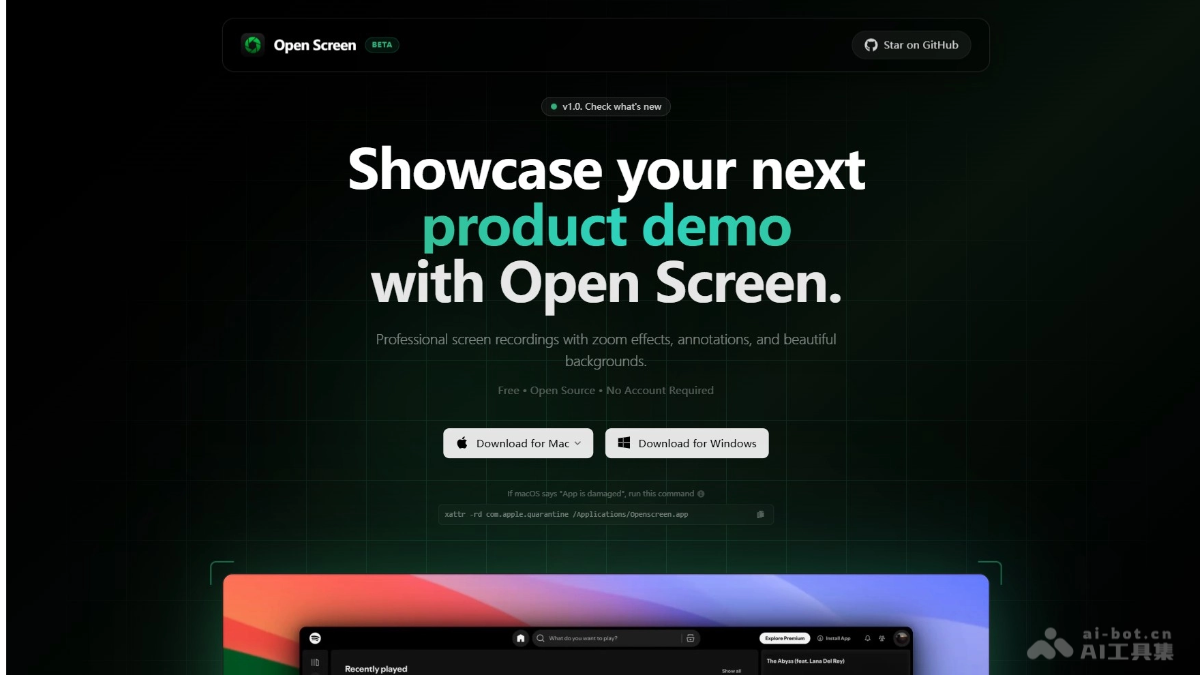
Main features of OpenScreen
-
Manual zoom and customizable depth: Users can manually add zoom effects and customize the zoom depth level to precisely display details.
-
Cropping function: Supports video cropping to hide unnecessary parts and make the video more focused.
-
Background selection: Supports selecting wallpapers, solid colors, gradients, or uploading custom images as backgrounds.
-
Smooth effects: Supports smooth pan and zoom effects to improve video fluidity.
-
Add annotations: Can add text, arrows, images, and other annotations to facilitate explanation and highlight key points.
-
Export options: Supports export in multiple aspect ratios and resolutions to meet different needs.
-
Cross-platform support: Compatible with Mac and Windows systems, with a wide range of applicability.
How to use OpenScreen
- Download and installation: Visit OpenScreen's GitHub Releases page and find the latest version's installation package. According to the operating system (Mac or Windows), download the corresponding installation file. Open the installation file and follow the prompts to complete the installation.
- Launch the software: After installation is complete, open the OpenScreen application.
- Select recording area: Choose to record the entire screen, or specify a particular application window.
- Add effects:
- Manual zoom: Set the zoom depth, duration, and position through the tools in the interface.
- Select background: In the settings, choose a wallpaper, solid color, gradient, or upload a custom image as the background.
- Add annotations: Use text, arrow, or image tools to add annotations in the video.
- Start recording: Click the record button to start recording the screen.
- Edit and export: After recording is complete, use the cropping tool to remove unnecessary parts. Further adjust the smoothness of zoom and pan. Choose the export resolution and aspect ratio, and save the video locally.
OpenScreen project address
- Project website:https://openscreen.vercel.app/
- GitHub repository:https://github.com/siddharthvaddem/openscreen
OpenScreen application scenarios
-
Self-media content creation: Used to produce product reviews, technical tutorials, and creative videos, clearly presenting content and attracting viewers through manual zoom, annotations, and other features.
-
Online education: Teachers record vivid and interesting online courses, add annotations and choose backgrounds, enhancing teaching interactivity and learning outcomes.
-
Enterprise product demonstrations: Enterprises produce product introductions and customer training videos, highlighting product features for marketing promotion and customer education.
-
Software Development and Testing: Developers record feature demonstrations, user feedback, and tutorial videos to facilitate team communication and user learning.
-
Personal Learning and Sharing: Individuals record learning processes and operational tips to facilitate review and knowledge sharing, improving learning efficiency.