
What is Open Interpreter
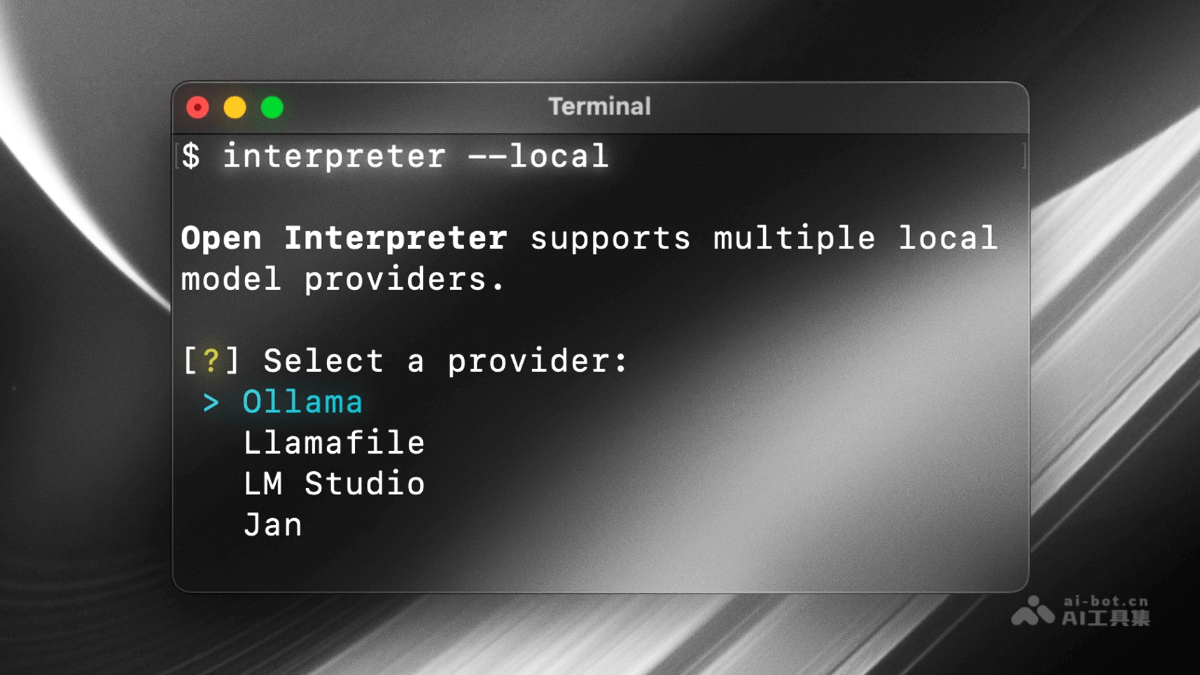
Open Interpreter is an open-source AI terminal assistant project that provides local code execution capabilities for large language models (LLMs). Through a natural language interaction interface, users can converse with the model in the terminal in a way similar to ChatGPT to complete various tasks. It supports code execution in Python, JavaScript, Shell, and other languages, and can create and edit files, control the browser for research, analyze data, and more. Users are asked to confirm before code runs, ensuring safety. It supports local operation and can use OpenAI-compatible servers to run models.
Main Features of Open Interpreter
-
Local code execution: Supports code in multiple programming languages such as Python, JavaScript, and Shell running in the local environment, allowing users to leverage local resources to complete complex tasks such as data analysis and file processing.
-
Natural language interaction: Provides an interaction interface similar to ChatGPT, where users can describe their needs in natural language, and Open Interpreter generates and executes code according to the instructions.
-
Safety mechanism: Requires user confirmation before executing code, ensuring that users have a clear understanding of and consent to the code being run, reducing security risks.
-
Rich execution capabilities: Can create and edit files such as photos, videos, and PDFs, control the browser for web searches and research, plot, clean, and analyze large datasets, and more.
-
Local operation and flexibility: Supports running in the local environment, allowing users to use local computing resources and network connections without being limited by time or file size.
-
Multi-platform support: Can run on Windows, macOS, and Linux systems, allowing users to choose the appropriate installation and usage method according to their operating system.
-
Interactive chat and programming interface: Provides an interactive chat mode, allowing users to converse with the model in real time; it also supports programming calls through a Python interface, making it convenient for developers to integrate.
-
Configuration and extension: Users can customize Open Interpreter's behavior through configuration files, such as changing the language model used, adjusting the context window size, and more.
How to use Open Interpreter
-
Installation: Install in the local environment via the command
pip install open-interpreter. -
Terminal startup: After installation is complete, run the
interpretercommand in the terminal to enter the interactive interface. -
Python call: In a Python script, use
from interpreter import interpreterto import the module, and execute tasks through theinterpreter.chat()method. -
Local operation: Connect to a local OpenAI-compatible server (such as LM Studio), and run the model by setting the
--api_baseand--api_keyparameters. -
Interactive chat: Start an interactive chat in the terminal or in Python, converse with the model in real time, describe tasks, and obtain execution results.
-
Code execution confirmation: Before code runs, Open Interpreter asks the user for confirmation, ensuring that the user has a clear understanding of the code being executed.
-
Configuration and customization: Through configuration files (such as
default.yaml) or customize behavior via command-line arguments, such as changing the language model, adjusting the context window size, etc. -
Save and restore conversations: You can save conversation history and restore previous conversations in subsequent sessions by loading historical messages.
Open Interpreter's project address
-
GitHub repository:https://github.com/OpenInterpreter/open-interpreter
-
Official documentation:https://docs.openinterpreter.com/
Open Interpreter's application scenarios
-
Data analysis and visualization: Quickly generate charts, analyze datasets, and help users conduct data exploration and gain insights.
-
Task automation: Handle automated operations such as file processing, batch renaming, and web scraping to improve work efficiency.
-
Content creation: Create and edit files such as photos, videos, and PDFs to assist content creation.
-
Teaching and learning: Convert natural language requests into executable code to assist programming teaching and learning.
-
Research and development: Control the browser for web searches and research, supporting rapid prototyping during development.
-
System management: Manage local system settings and tasks by running operations such as Shell scripts.