
What is Omni Reference
Omni Reference is Midjourney an all-purpose reference feature launched by , allowing users to embed specific characters, objects, or scenes from reference images into generated images. Omni Reference is available for the Midjourney V7 version and supports features such as personalization, stylization, and moodboards. Omni Reference supports implementation by dragging and dropping images on the web or using --oref commands in Discord, and adjusting the weight of the reference image based on the--ow parameter.
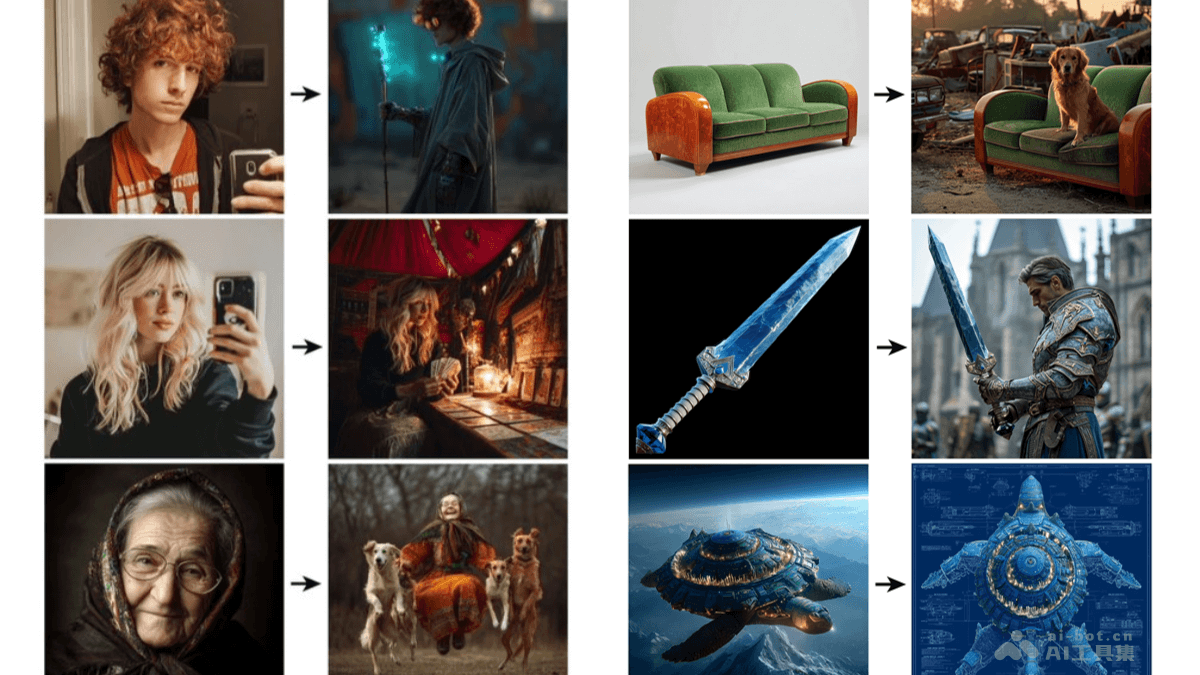
Main features of Omni Reference
- Embed characters or objects: Allows users to embed characters, objects, vehicles, or non-human creatures from reference images into generated images, achieving precise presentation of specific elements.
- Stylization and personalization: Combines features such as personalization, stylization, and moodboards to integrate the style or elements of the reference image into the creation, and supports adjusting the style of the generated image.
- Weight control: Based on the --ow parameter, users can adjust the influence of the reference image in the generated image, balancing detail preservation and style transfer.
- Cross-platform use: Supports use on Midjourney's web and Discord, where users add reference images by dragging and dropping images or entering commands.
How to use Omni Reference
- Use on Midjourney Web:
- Visit the official website: Visit theMidjourneyofficial website and ensure the Midjourney model setting is switched to the
V7version. - Open the Imagine bar: In the Midjourney web interface, click the Imagine bar.
- Upload or select an image: Click the image icon to open the image panel, select an image from the upload library, or upload a new image.
- Drag to the Omni Reference area: Drag the image to the Omni Reference area. Note that only one Omni Reference image can be used at a time.
- Adjust weight (optional): Use the slider to adjust the weight of Omni Reference (the --ow parameter), ranging from 1 to 1,000, with a default value of 100. If you need to follow the reference image more strictly, increase the weight; if you want the stylization effect to be more obvious, decrease the weight.
- Enter a text prompt: Enter a clear prompt in the text box describing the image content you want to generate. Combined with the Omni Reference image, the text prompt can help further refine the generation effect.
- Generate the image: Click the Generate button to start generating the image.
- Visit the official website: Visit theMidjourneyofficial website and ensure the Midjourney model setting is switched to the
- Use on Midjourney Discord :
- Prepare the URL of the reference image: Make sure you have a link to an accessible reference image.
- Enter the command: Enter the following command in Discord:
- /imagine prompt:<your text prompt> --oref <image link>
- Adjust weight (optional): If you need to adjust the weight of Omni Reference, use the --ow parameter.
- Generate the image: After sending the command, Midjourney generates an image based on the prompt and reference image.
Omni Reference project address
- Project official website:https://docs.midjourney.com/hc/en-us/articles/36285124473997-Omni-Reference
Application scenarios of Omni Reference
- Character embedding: Place a person or character into a new scene, suitable for creating illustrations or presentations.
- Product display: Place an object into a virtual environment, used in design or advertising.
- Scene construction: Integrate architecture or landscape into the background, suitable for concept design.
- Style transfer: Apply the style of a reference image to a new image.
- Creative composition: Combine multiple characters or objects into one image.