
What is OfficeAI Assistant
OfficeAI Assistant is a free intelligentAI office tool, designed for Microsoft Office and WPS users, and can improve office efficiency. OfficeAI Assistant is based on WordAI and ExcelAI plugins, helping users quickly complete tedious tasks, such aswriting weekly reports, organizing meeting minutes, selecting Excel formulas, etc. OfficeAI Assistant can simplify complex operations, such as inserting special characters or removing text formatting, so users do not need to memorize tedious steps. Combined with AI technology and ready-made templates, OfficeAI Assistant can help efficient creation, saving time and energy.
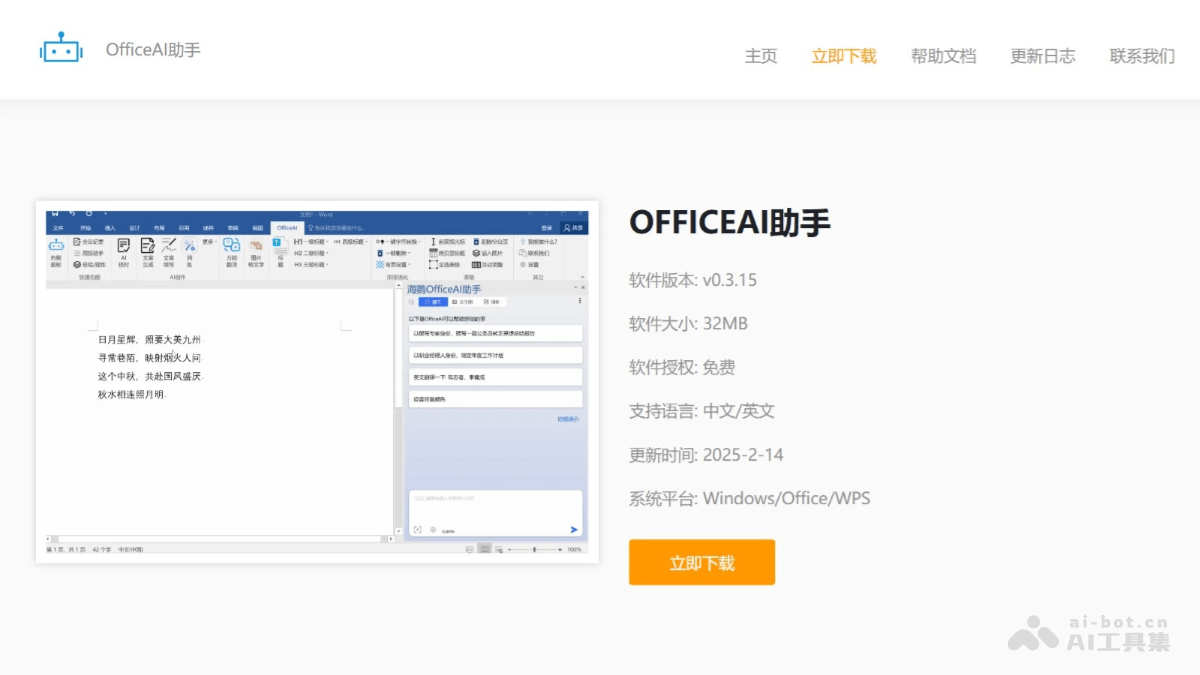
Main features of OfficeAI Assistant
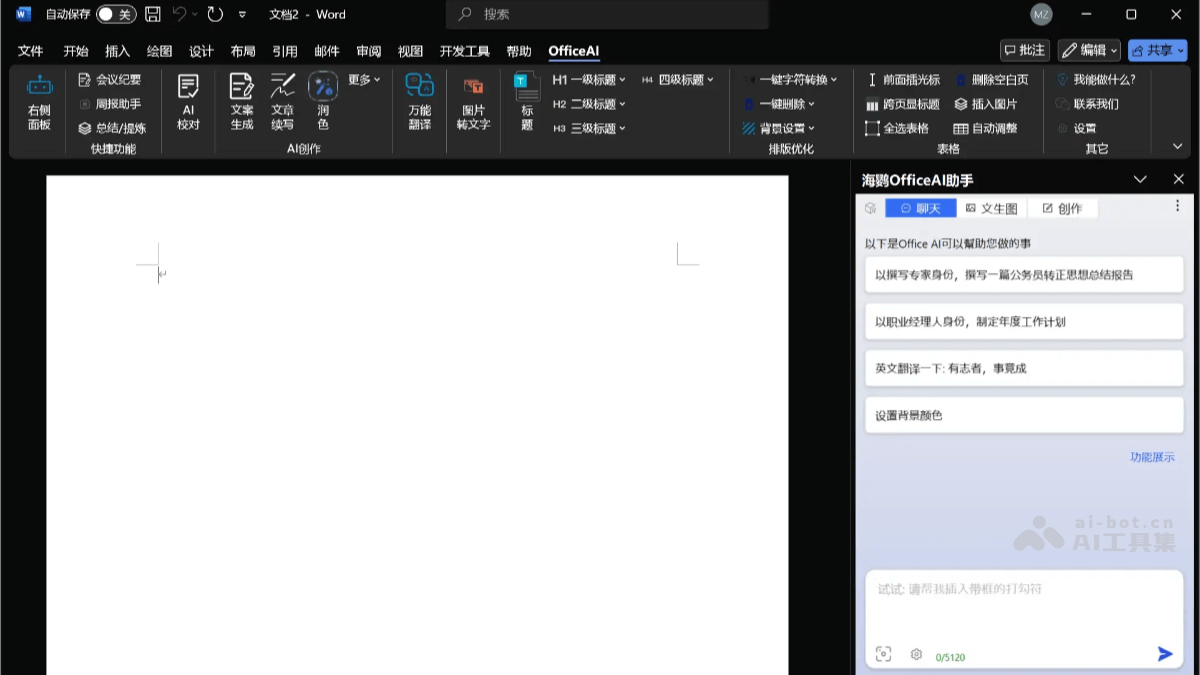
- WordAI plugin features:
- AI dialogue: Provides features such as free writing, exporting text, deleting blank lines, setting background color, and deleting blank pages.
- AI writing: Includes features such as copy generation, article polishing, work summaries, meeting minutes generation, article continuation, intelligent interaction, and writing suggestions.
- Intelligent proofreading: Mainly used to handle typos and spelling checks, more intelligent than traditional tools.
- AI formatting: One-click intelligent analysis of document structure and automatic formatting, improving document aesthetics.
- AI drawing: Generates images based on text descriptions, supporting simple illustrations and image generation in specific styles.
- Intelligent replacement: Supports one-click replacement of punctuation marks and removal of invisible characters.
- AI translation: Supports mutual translation between multiple languages, providing fast and accurate translation services.
- Table processing: Includes features such as input before tables, generating tables, summing, automatic adjustment, selecting all tables, inserting images, and adding headers across pages.
- Special symbols: Provides the function of quickly inserting special symbols without manual searching.
- Extract text from images: Supports extracting text from images and converting it into editable text.
- ExcelAI plugin features:
- AI dialogue:
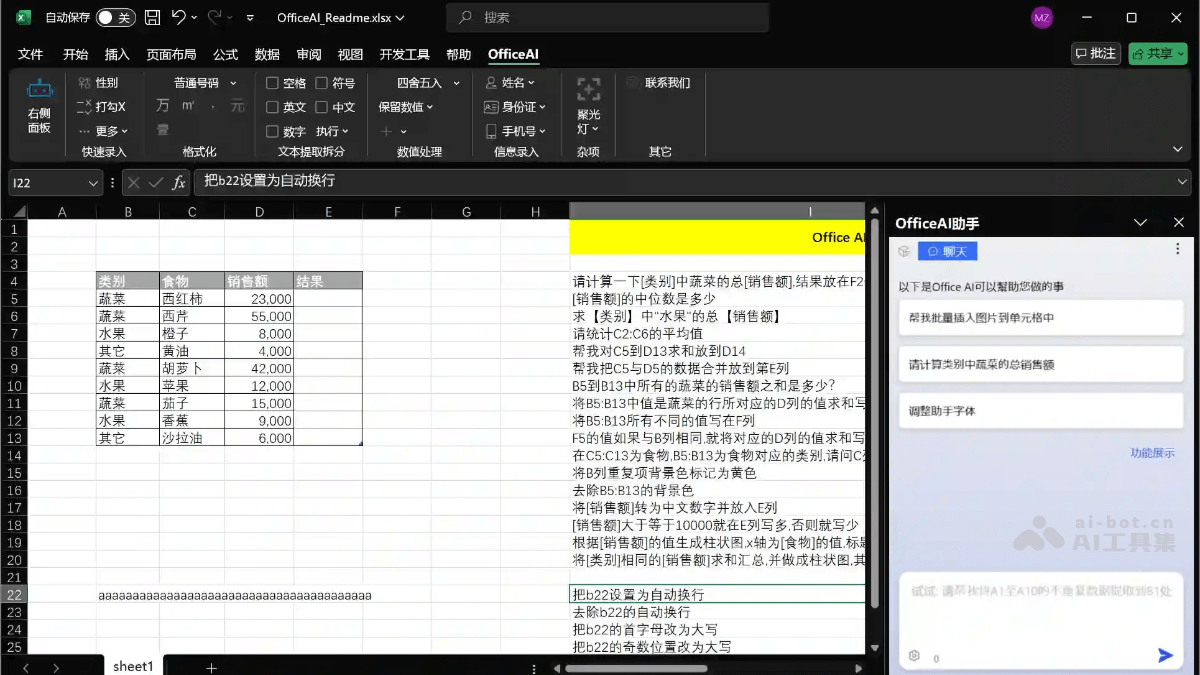
- Generate table: Quickly generate a table in the dialog box and automatically apply it to the current worksheet.
- Batch insert images: Batch insert images and automatically align them to cells, keeping image sizes consistent.
- Extract unique data: Extract unique data from a specified range and place it into target cells.
- Extract ID card information: Extract ID card information and calculate related data (such as age).
- Data analysis:
- Sum, average, maximum, minimum: Perform statistical operations on a specified cell range and place the results in a specified location.
- Example: Please help me calculate the sum of the data in A1:A10, and put the result in cell C1.
- Summarize by category: Perform operations such as summary summing and averaging on data according to category.
- Data merging: Merge data from multiple cells into one cell.
- Mark duplicates: Mark the background color of duplicates with a specific color.
- Generate Charts: Generate bar charts, line charts, etc., based on data, with support for custom titles and axis labels.
- Cell Formatting:
- Text Wrapping and Alignment: Set formatting for cells such as text wrapping, capitalization of the first letter, and capitalization of odd positions.
- Number Formatting: Convert numbers into formats such as Chinese uppercase numerals and percentages.
- Quick Data Formatting: Set data to commonly used formats, such as in units of ten thousand, displaying yuan, and displaying Chinese numerals.
- Smart Replace and Find:
- Conditional Replace: Perform complex replacement operations, with support for ignoring specific conditions (such as content within double quotation marks).
- Extract Specific Data: Extract data under specific conditions, such as summarizing by category or extracting values from different categories.
- Formula Expert: Support generating formulas directly through a dialog box, without the need to manually enter complex formulas.
- Spotlight Feature: Highlight the selected cell to make it easier to locate while editing, with support for setting the color and display method (highlight row, column, or both row and column at the same time).
- AI dialogue:
- Daily Conversation and Q&A: Answer office-related questions through the main program.
- Plugin Repair and Update: Automatically detect and repair plugin issues to ensure functions operate normally.
- Local Deployment Support: Support users in private deployment based on APIKEY or local models (such as Ollama and LMStudio).
- Multi-language Support: Support Simplified Chinese, Traditional Chinese, and English.
- Cross-platform Compatibility: Support Windows 7 and above, and compatible with Office 2013 and above and WPS.
- Free to Use: Provide a free large model engine, with no cost for individual users.
How to Use OfficeAI Assistant
- Download and Installation: Visit the OfficeAI Assistant official website https://www.office-ai.cn/ , and choose the installation package (supports Windows 7 and above).
- Installation Program: Follow the prompts of the installation wizard to complete the installation. After installation is complete, restart the computer to ensure the plugin loads properly.
- Registration and Login: Follow the prompts to complete registration and login.
- Use the WordAI Plugin:
- Open a Word or WPS document: Start Microsoft Word or WPS word processing software and open a document.
- Load the Plugin: OfficeAI Assistant automatically loads the WordAI plugin and displays the plugin button in the menu bar or sidebar.
- Use Features:
- Writing and Organizing: Click the plugin button and select functions such as "Write Weekly Report," "Organize Meeting Minutes," or "Polish Copy."
- Enter Requirements: Enter specific requirements in the pop-up dialog box, for example, "Organize this week's work content" or "Polish this copy."
- View Results: AI automatically generates or optimizes content and inserts it directly into the document.
- Using the ExcelAI plugin:
- Open Excel or WPS Spreadsheets: Launch Microsoft Excel or WPS Spreadsheets software, and open a spreadsheet file.
- Load the plugin: The ExcelAI plugin will load automatically, usually displayed in the menu bar or sidebar.
- Use the features:
- Formula assistance: Select the "Formula Recommendation" feature, and the system will recommend suitable formulas based on the selected cells.
- Data analysis: Click "Generate Chart" or "Data Analysis Report", and the system will organize the data and generate visual content.
- Spreadsheet operations: For example, "Insert Table", "Clean Duplicate Data", etc., can be operated directly based on the plugin.
- Use the main program features:
- Daily conversation: Enter questions in the main program, such as "How do I insert page numbers?" or "How do I remove formatting?" and the AI will provide detailed answers.
- Plugin repair: If the plugin has problems, click the "Repair Plugin" button in the main program to automatically detect and fix the problem.
- Configure local deployment (optional):
- Go to settings: Find the "Local Deployment" option in the main program.
- Enter APIKEY: If you need to use a private model, enter the APIKEY, or connect to a local model through the Ollama or LMStudio platform.
- Save settings: After completing the configuration, restart the software to use the locally deployed model.
Application scenarios of OfficeAI Assistant
-
Document writing and polishing: Quickly generate weekly reports, reports, or copy, and optimize language expression to improve writing efficiency.
-
Meeting minutes organization: Extract key information from meeting records with one click, and generate clear and standardized meeting minutes.
-
Data analysis and chart generation: Quickly analyze data in Excel, generate charts and analysis reports, and assist decision-making.
-
Formula recommendation and calculation: Automatically recommend suitable Excel formulas, simplify complex calculation processes, and improve data processing efficiency.
-
Format adjustment and problem answering: Unify document formatting, clean up redundant formatting, and at the same time answer questions about office software operations to improve work efficiency.