
What is Kimi CLI
Kimi CLI is a command-line general-purpose agent tool launched by Moonshot AI, providing developers with efficient and convenient programming assistance and file processing capabilities. It supports macOS and Linux systems and is installed via the uv package manager, with a simple and quick installation process. On first use, users need to configure it through the /setup meta-command, entering the API Key and selecting an appropriate model; for example, Coding members can select the "Kimi For Coding" model. Kimi CLI can provide programming suggestions and code generation, and can directly execute system commands through Shell mode, making it convenient for users to perform file operations and view results. It supports integration with Zsh and the Zed editor, further improving development efficiency.
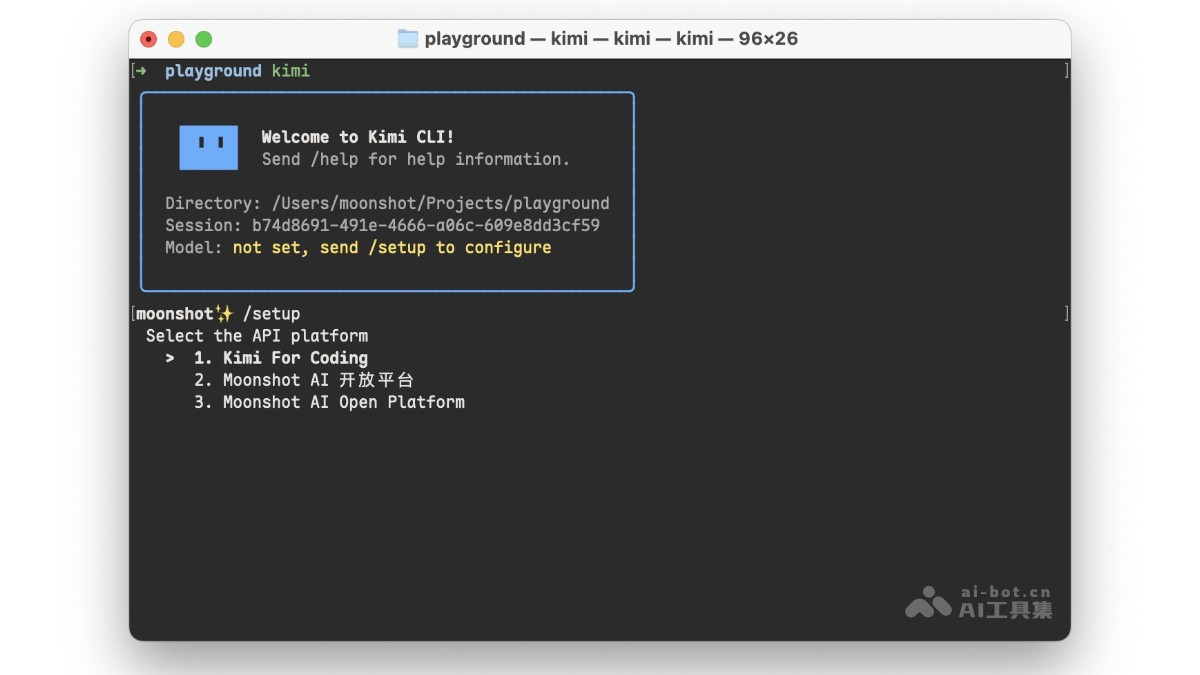
Main features of Kimi CLI
-
Programming assistance: Provides help with code generation, debugging suggestions, logic optimization, and more, supports multiple programming languages, and improves development efficiency.
-
File processing: Quickly reads, edits, and generates files, supports multiple file types such as text and code, and simplifies file operation workflows.
-
Interactive Shell mode: Switch to Shell mode with a shortcut key to directly execute system commands, making it convenient to view results and perform file operations.
-
Integration with development environments: Supports integration with development tools such as Zsh and the Zed editor, seamlessly fitting into development workflows and enhancing the development experience.
-
Multi-model support: Users can choose different models according to their needs; for example, Coding members can use the "Kimi For Coding" model, meeting diverse development needs.
Kimi CLI project address
- Github repository:https://github.com/MoonshotAI/kimi-cli
- Documentation:https://www.kimi.com/coding/docs/kimi-cli.html
How to use Kimi CLI
-
Installation: First, install the uv package manager, then install Kimi CLI via uv. After installation is complete, run
kimi --versionto check whether the installation was successful. -
Configuration: On first run, enter the
/setupmeta-command, and follow the prompts to enter the API Key and select an appropriate model. -
Startup: Enter the project directory in the command line and run
kimito start Kimi CLI. -
Using Shell mode: Switch to Shell mode with the Ctrl-K shortcut to execute system commands.
-
Integration with Zsh: Install the zsh-kimi-cli plugin and enable it in
~/.zshrc. After that, you can enter Kimi CLI mode in Zsh with Ctrl-K. -
Integration with the Zed editor: Add the Kimi CLI configuration information to the Zed configuration file, and then you can create a Kimi CLI Thread in the Zed sidebar.
-
Connecting to MCP tools: Through the
--mcp-config-fileparameter, specify the path to the MCP configuration file to use Kimi CLI to connect to MCP tools. -
Viewing help: Run
kimi --helpto view more usage and command options.
Application scenarios of Kimi CLI
-
Code generation and optimization: Quickly generate code snippets, functions, or complete scripts to help developers save time, while also providing code optimization suggestions to improve code quality.
-
Troubleshooting and debugging: Assist developers in analyzing problems in code, provide debugging suggestions and solutions, and accelerate the problem-solving process.
-
Documentation Writing and Comments: Automatically generate code comments and documentation to help developers better understand and maintain code, improving development efficiency.
-
File Operations and Management: Quickly read, edit, and generate files, support multiple file formats, simplify file processing workflows, and improve work efficiency.
-
Learning and Teaching: Provide programming guidance and sample code for beginners to help them master programming skills faster; it can also serve as a teaching tool to assist teachers in explaining programming concepts.
-
Team Collaboration: Team members can share and reuse code snippets, solutions, and best practices, promoting knowledge sharing and team collaboration.