
What is Glass
Glass is an open-source invisible AI desktop assistant launched by the Pickle team. Glass can capture screen content and audio in real time in the background and turn them into structured knowledge. Glass's core features include real-time meeting notes, automatic summary generation, context understanding, and real-time Q&A. Glass is designed to be truly invisible, will not appear in screen recordings, screenshots, or the Dock, and does not interfere with user operations at all. Glass supports macOS and Windows systems, can be used by users for free, and requires no registration. Glass's open-source nature makes it an emerging tool in the fields of AI office work and knowledge management.
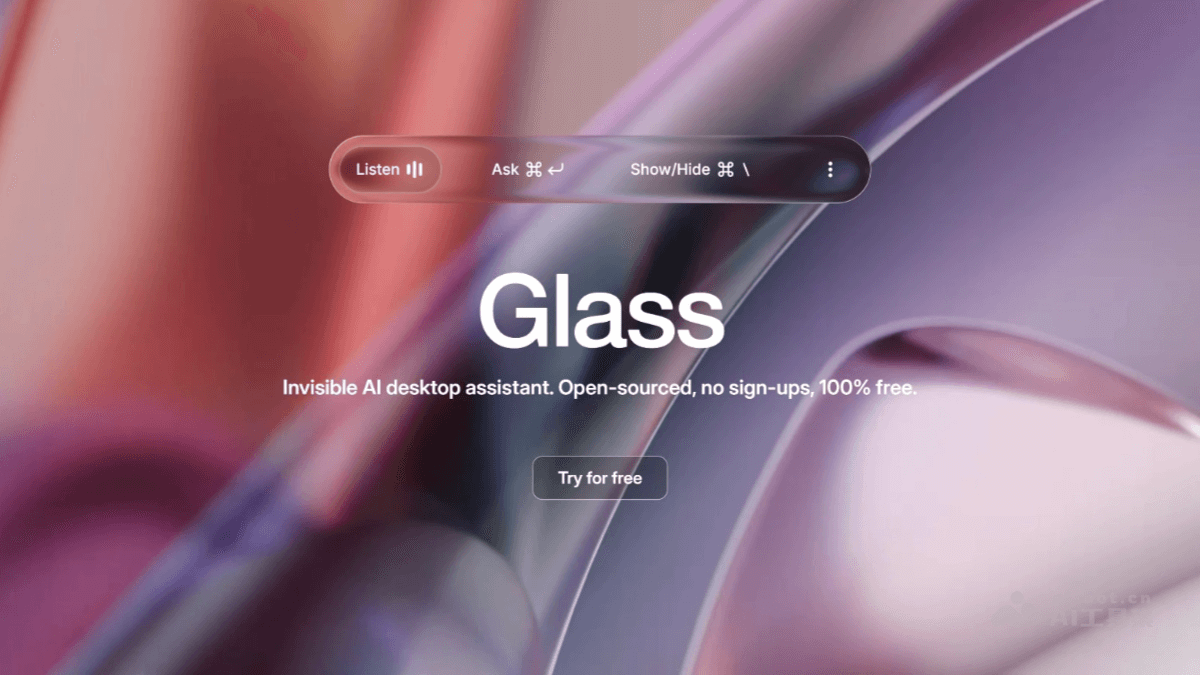
Glass's main features
- Real-time screen capture and audio recognition: Glass can listen to and capture screen content and audio (such as meeting speech) in real time and turn them into structured information.
- Context understanding and summarization: Combining visual and auditory information, it automatically generates high-quality meeting notes, summaries, and task lists.
- Real-time Q&A assistant: Users can ask questions at any time, and the AI gives answers based on previous screen operations and audio content.
- Invisible design: Glass is completely invisible, does not appear in screen recordings, screenshots, or the Dock, and does not interfere with user operations.
- Meeting notes and summaries: Automatically records meeting content, distinguishes speakers, extracts key information, and generates summaries.
- Knowledge retention: Retains users' operational behavior and voice interactions as knowledge documents for later reference and review.
How to use Glass
- macOS users:
- Download the precompiled version: Visit the Glass GitHub Release page. Download the latest version of the .dmg file (recommended) or the .zip archive. Open the .dmg file and drag the Glass application into the "Applications" folder.
- Run Glass: Find Glass in the "Applications" folder and double-click to launch it.
- Configure and use: After opening Glass, configure it according to the interface prompts, for example, enter the OpenAI API Key (optional). Use shortcuts (such as Cmd + \ to show/hide the main window, Cmd + Enter to call the AI assistant) to start using it.
- Windows users:
- Install the dependency environment: Make sure Python and Node.js are installed (Node.js 20.x.x is recommended). If not installed, install Node.js based on the following command:
curl -o- https://raw.githubusercontent.com/nvm-sh/nvm/v0.39.0/install.sh | bash
nvm install 20
nvm use 20-
- Clone and install the project: Open a terminal or command prompt and run the following command to clone the project:
git clone https://github.com/pickle-com/glass.git
cd glass-
- Install project dependencies:
npm run setup-
- Run Glass: Run the following command in the project root directory to start Glass:
npm start-
- Configure and use: After opening Glass, configure it according to the interface prompts, for example, enter the OpenAI API Key (optional). Use shortcuts (such as Ctrl + \ to show/hide the main window, Ctrl + Enter to call the AI assistant) to start using it.
Glass's project address
- GitHub repository:https://github.com/pickle-com/glass
Glass's application scenarios
- Meeting notes and summaries: In remote or local meetings, capture screen content and audio in real time, automatically generate meeting notes, summaries, and action items, and help teams efficiently record and follow up on meeting points.
- Academia and teaching: In classrooms or academic conferences, automatically record content and generate structured notes to assist students and researchers in better reviewing and organizing knowledge, enhancing learning and research efficiency.
- Team Collaboration and Project Management: In team discussions and project meetings, generate task lists and to-do items in real time, helping team members clearly understand task assignments and progress, and enhancing collaboration efficiency.
- Personal Knowledge Management: In daily learning or work, distill screen operations and voice interactions into knowledge documents, helping individual users efficiently organize knowledge for later reference and review.
- Office Assistance: When handling work tasks, answer questions in real time and provide background information and suggestions, helping users quickly complete tasks and improve work efficiency.