
Today let's share something suitable for raising a desktop pet.
When we normally use Claude Code or Codex CLI to get things done, the text in the terminal keeps scrolling, and if you don't look carefully, you have no idea what the Agent is doing.
Today I'd like to recommend a desktop pet project on GitHub called Clawd-on-desk ,Clawd-on-desk which can automatically sense AI Agent status, so with a glance out of the corner of your eye you can tell whether the AI is thinking, running tools, or already done.
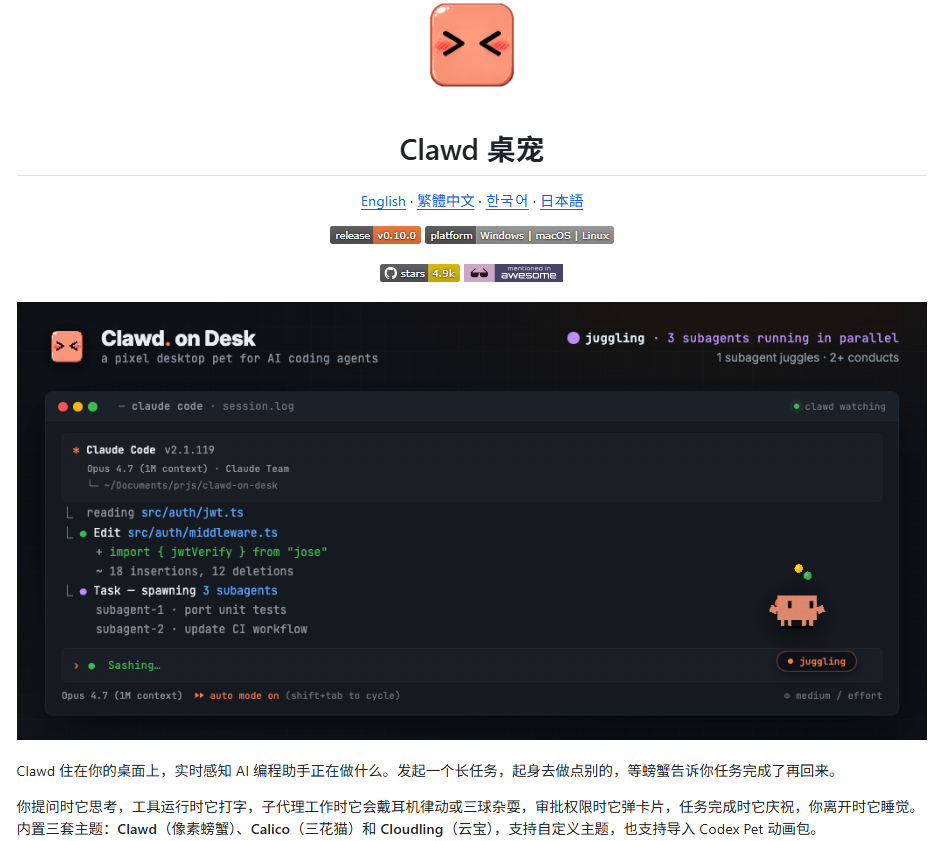
01. Project Introduction
Clawd-on-desk is a desktop pet application designed for AI Agents.
Ordinary desktop pets only have animation effects, but Clawd-on-desk listens to the session status of Claude Code,Codex CLI, Cursor Agent, Qwen Code, opencode, and other CLI/Agents, then turns the status into real-time feedback on the desktop:Project address:https://github.com/rullerzhou-afk/clawd-on-desk
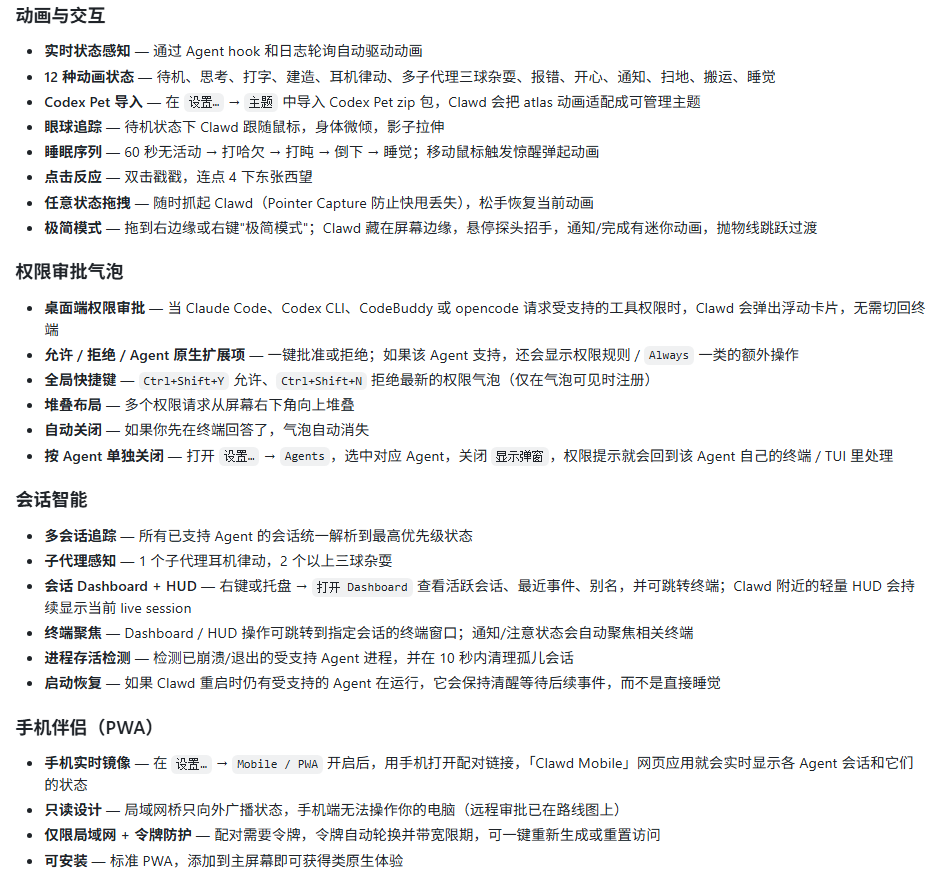
- As soon as you submit a prompt, the desktop pet enters a thinking state.
- When the Agent calls tools, runs commands, or edits files, the desktop pet enters a typing or working state.
- When sub-agents work in parallel, the desktop pet switches to a special animation.
- When the Agent requests permission, an approval bubble pops up on the desktop.
- When the task is complete, the desktop pet plays a celebration animation.
- When you leave or enter Do Not Disturb, the desktop pet enters a sleep state.
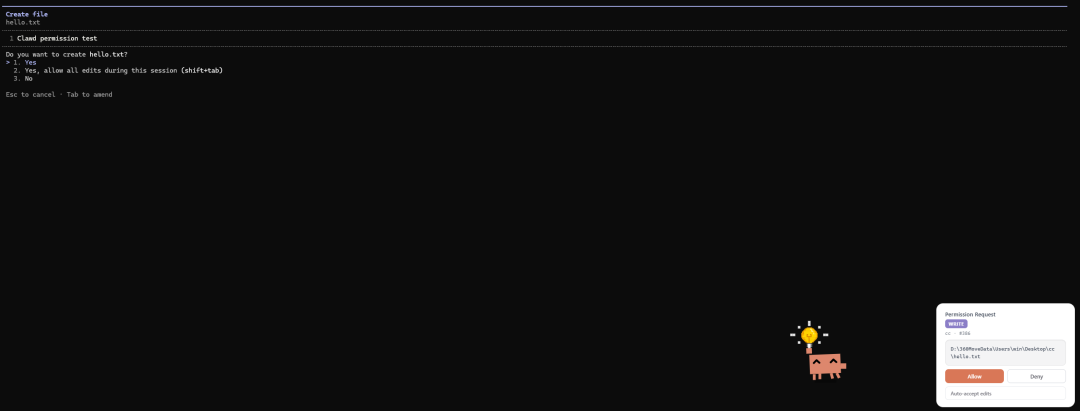
Besides showing status externally,Clawd-on-desk 's most practical feature is the permission approval bubble. When Claude Code, Codex CLI, CodeBuddy, opencode, etc. initiate a tool permission request, Clawd can pop up a floating card on the desktop so you can click allow or deny. This way you don't have to keep staring at the terminal waiting for confirmation.
If you run Claude Code or Codex CLI on a remote server, Clawd supports forwarding remote status and permission requests to the local desktop.
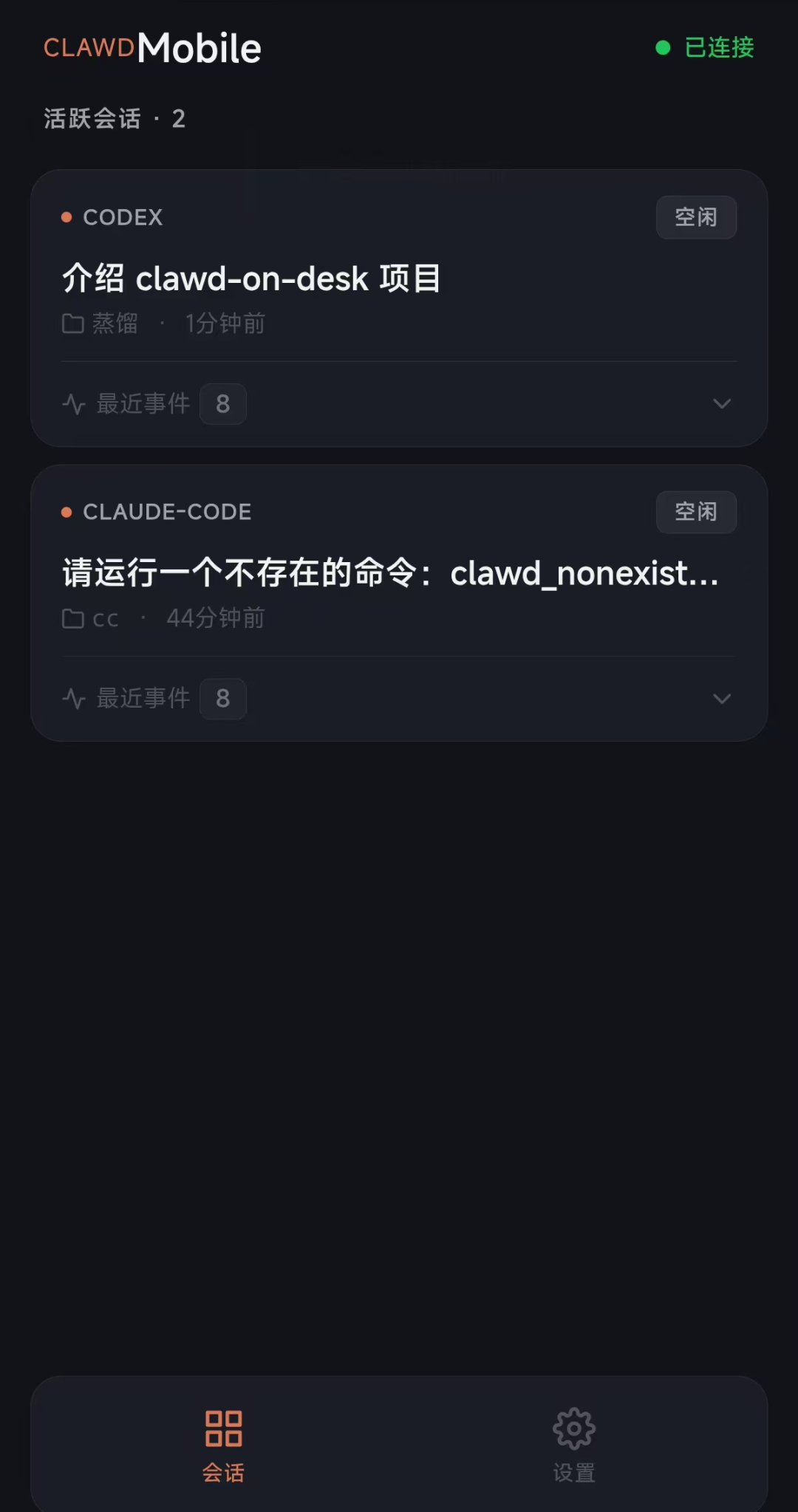
Clawd also has a Mobile / PWA feature. Once enabled, you can access the pairing link on your phone and see the local Agent session status. This way, even while playing on your phone, you can know in real time how far the Agent has gotten.
Clawd-on-deskThere are three default themes:
- Clawd: pixel crab
- Calico: calico cat
- Cloudling: cloud buddy
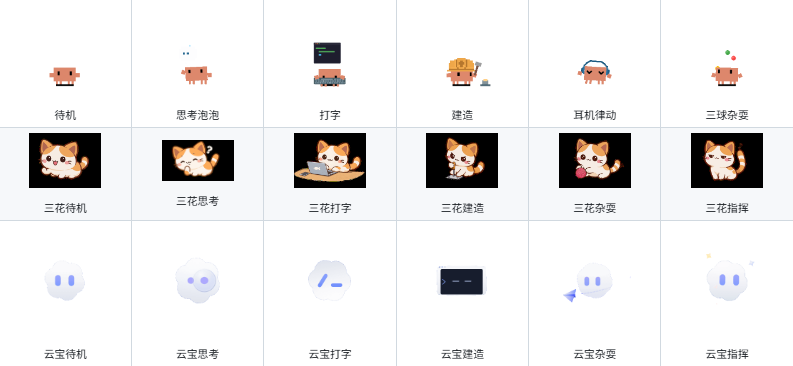
Clawd also supports custom themes and can import Codex Pet animation packs. For people who like tinkering with desktop pets and pixel animations, there's a lot of fun to be had.
02. Project Testing
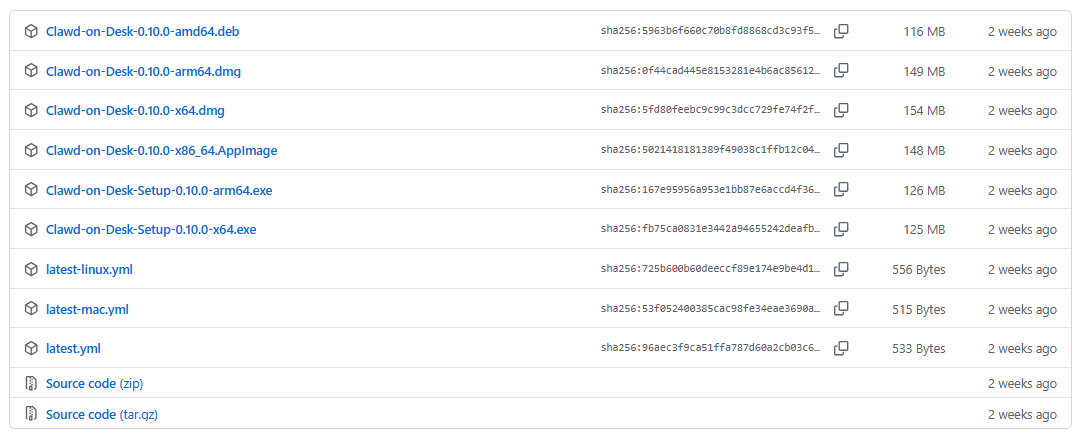
It's also very simple to use: download and open the installation package for your system, then just open your own AI Agent.
case 1 Running a complete task
case 2 Permission bubble
When the Agent needs permission, the desktop pet will pop up a permission request box on the topmost page, and you can just click it directly.
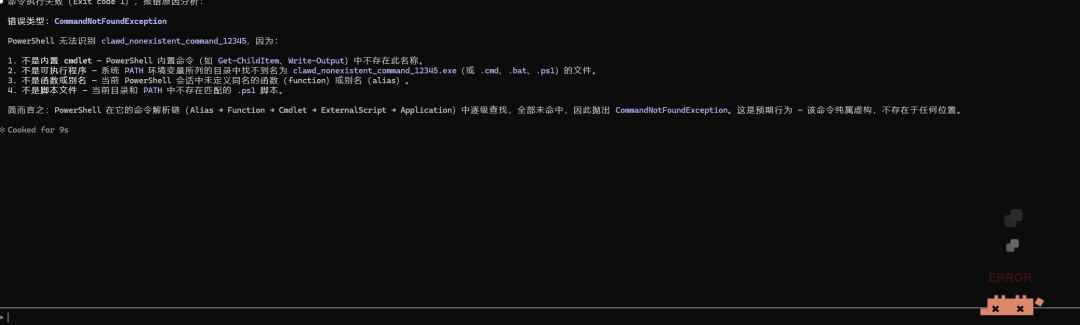
case 3 Error state
When a task goes wrong, an error form will also be displayed.
case 4 Remote control
Clawd-on-desk also has a remote control feature; you just need to fill in your VPS in the Clawd-on-desk program.
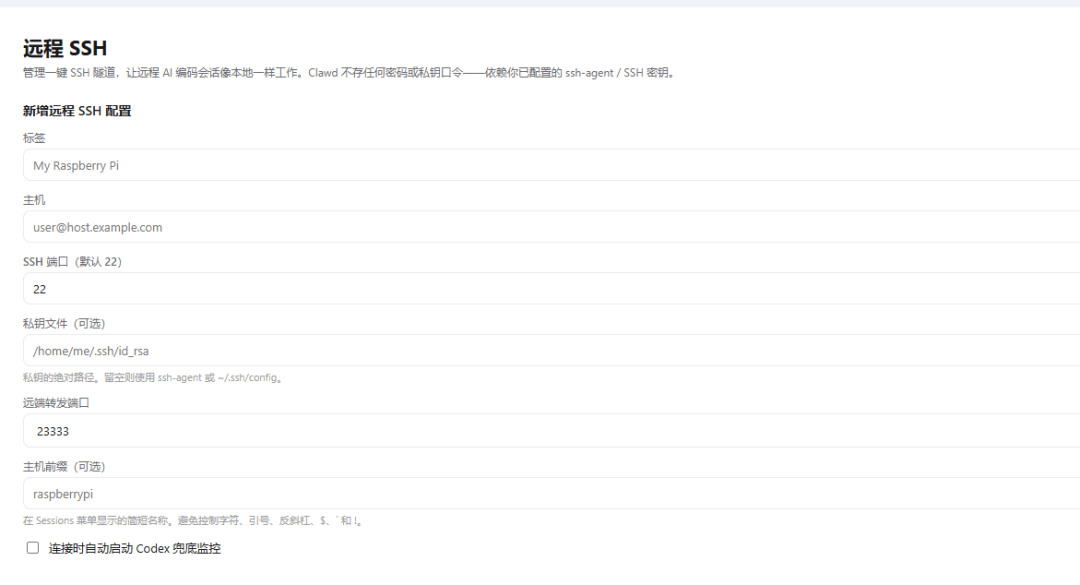
After filling it in, just click the link.
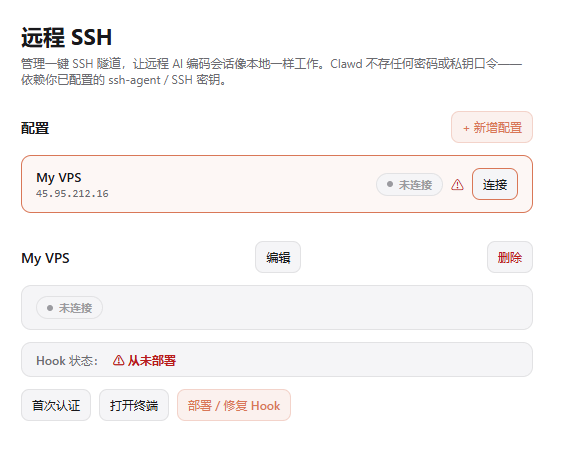
The first time, you need to click the first-time authentication button to connect. After connecting and installing the HOOK, when you run the Agent remotely, you can confirm permissions locally.
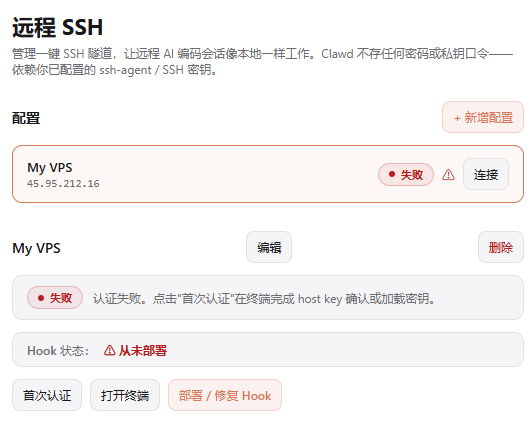
For remote servers, everyone had better log in with a private key. Logging in with a password will likely keep showing an error code like this:
[fail] Create remote hook directory - root@000.000.000.000: Permission denied(publickey,password).
case 5 Mobile companion
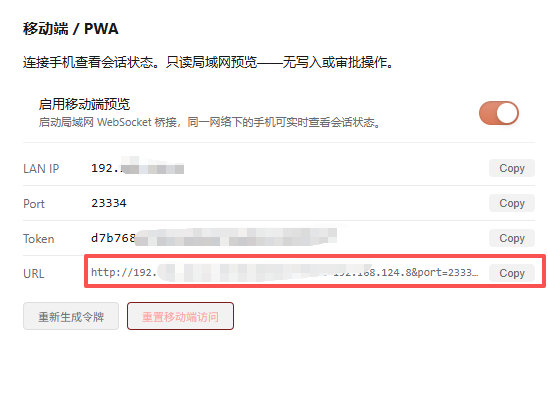
In Clawd-on-desk settings, enable Mobile / PWA, then open the pairing link on your phone.
After opening the link, you can see the running status of each Agent's project on your phone.
03. Dig a little deeper
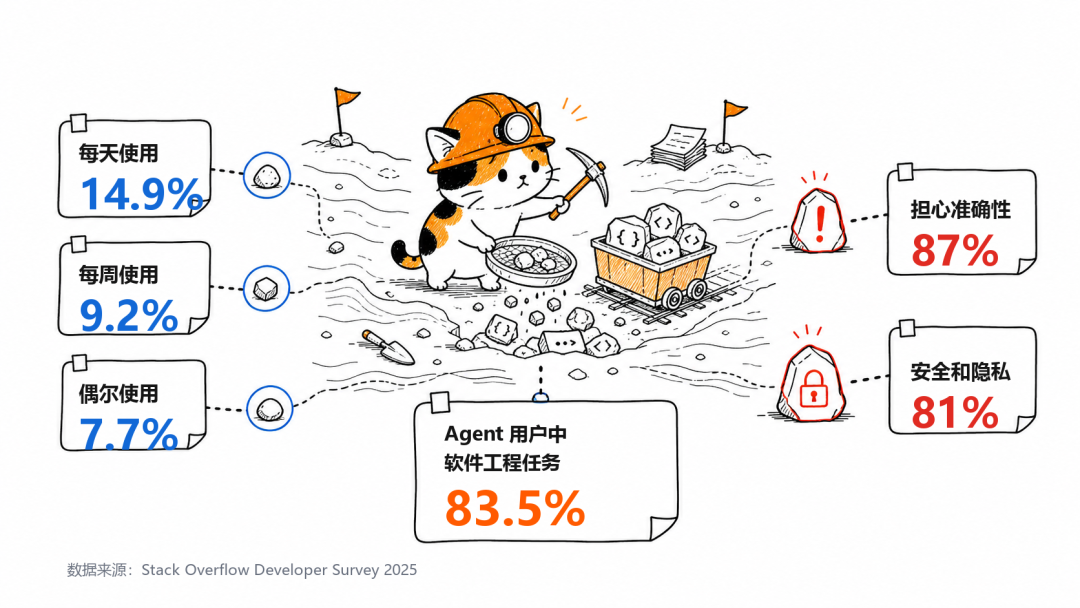
The Stack Overflow 2025 survey shows that among professional developers, 14.9% use AI Agents at work every day, 9.2% use them weekly, and 7.7% use them occasionally; among developers who use Agents, 83.5% use them for software engineering tasks.
But at the same time, 87% of respondents are worried about the accuracy of Agent output, and 81% are worried about security and privacy.
Developers are willing to use Agents, and developers also need to be able to see what Agents are doing.
Clawd-on-desk It is not responsible for writing code for you,Clawd-on-desk it is responsible for syncing the running status, permission requests, and remote sessions of Agents such as Claude Code and Codex CLI to the desktop.
For individual developers,Clawd-on-desk it can reduce the number of times they switch back to the terminal, and lower the costs caused by missing permission prompts, misjudging progress, and the black-box nature of remote tasks.
Once AI Agents become a permanent tool in the development environment, visible status, controllable permissions, and remote takeover will become a basic experience in AI programming workflows.
Clawd-on-desk makes this very interesting.
Original link:A desktop pet that can sense AI status has racked up 5K stars on GitHub