Most developers initially use coding agents to handle code: inspecting repositories, generating diffs, running tests, and opening pull requests.
This is still the core focus of Codex. But a great deal of work on computers is already mediated through code: executing shell commands, browsing the web, calling APIs, exporting documents, responding to events, triggering automation. As these interfaces become available to Codex, it starts to feel less like a coding assistant in the narrow sense and more like a system for getting computer work done.
The Codex app makes this shift concrete. A thread can maintain context, use tools, display artifacts, and continue across multiple prompts, rather than resetting after each interaction.
Getting more out of Codex means using these capabilities in combination:
- Persistent threads that retain context
- Voice input, steering, and queuing used while the user is still in the loop
- Browser, computer use, MCP servers, and connectors that let Codex go beyond repository actions
-
Thread automation and Goals that continue working when the user is away
-
A sidebar where users can review code, documents, presentations, and other artifacts
Persistent Threads
Persistent threads: Long-running Codex threads that retain work context across multiple sessions.
Pinned threads are one way to keep persistent threads within reach. They are useful for the following repetitive workflows:
These are persistent workspaces, not ephemeral chats. Codex can revisit them over time, retaining prior decisions, preferences, and work context that would otherwise need to be rebuilt from scratch.
Pinned thread shortcuts make this practical. Command-1 through Command-9 jump directly to saved threads.
Voice Input
Voice input is valuable because it captures the rough version of a thought before it gets compressed into polished text.
Codex has built-in voice input. It is especially well suited to vague starting points that are natural to say but awkward to type:
I remember someone named Ben in Slack mentioned this. I don't remember the details. Please go look it up.
For an agent that can search, gather context, and report back, this is often enough.
It also works well for two- or three-minute idea dumps before a task is fully formed.
Transcripts serve the same purpose. Raw meeting transcripts or dictated planning notes often provide better source material than brief summaries, because they preserve uncertainty, emphasis, and unfinished ideas.
Steering and Queuing
Voice becomes even more useful when paired with explicit control over an active task.
Steering: Interrupting an ongoing Codex task with new direction before the current step is complete.
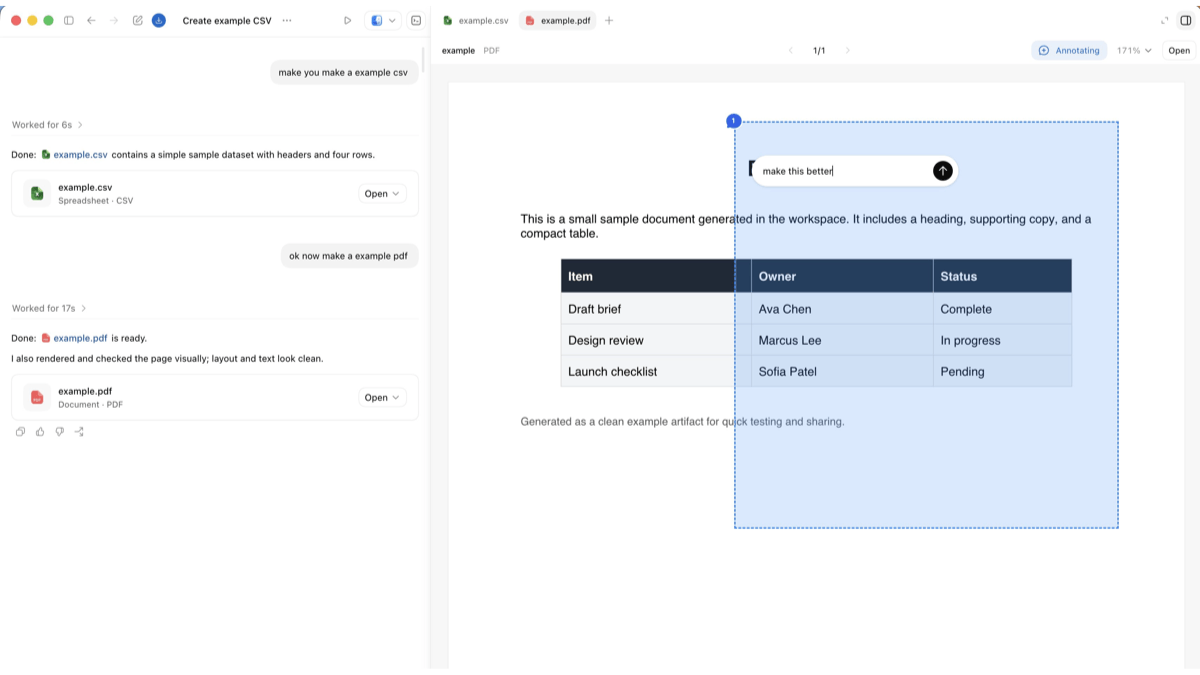
Steering is useful when the agent is heading in the wrong direction and needs correction. For example, during a website review, a user can interrupt the work while annotating the interface in the sidebar:
Make this smaller. The spacing between these two elements feels off. This copy is wrong.
Queuing: Adding work for Codex to do after the current step is complete.
Queueing is different. It does not interrupt the task in progress. It adds the next task to the queue. A user might say:
After the work is complete, send the preview link to the reviewers in Slack.
Guidance changes what Codex nowis doing. Queueing changes whatnextshould happen. Both keep the user close to the work as it unfolds.
Tools and reach
Once a thread has continuity, the next question is what it can act on. Codex can expand outward layer by layer:
-
$browser for an in-app browser in the sidebar, where Codex can inspect and annotate web interfaces
-
@chrome for logged-in browser state and Chrome-based workflows
-
@computer for work that exists only through the desktop GUI
$browser is good for sidebar browser review.@chrome is good for logged-in browser work that depends on the user's Chrome context.@computer is good for tasks that exist only through the desktop GUI.
MCP servers and connectors extend the same idea to the rest of the workflow. Slack, Gmail, and Calendar matter because many important tasks first appear as messages, inbox items, or scheduling questions before they become code.
Skillsmake repeated workflows reusable. Once a workflow proves useful, package it as a skill so Codex can run it again without relearning the whole process from scratch.
Work from anywhere
The Codex mobile app changes the time a user has to be at a desk. A task can start on a Mac—where the files, permissions, and local setup already live—and then continue while the user checks in from a phone.
This matters in small moments. Someone can step away from the desk while Codex runs a longer task, answer a question outside, approve the next step, or redirect the thread before coming back. The local environment stays the same; the user does not have to be.
Automations
Automations run Codex work on a schedule. Usescheduled automationwhen a repetitive task should restart from a workspace, such as a daily report or a regular repository check. Usethread automation。
Thread automation: heartbeat-style recurring wake-up calls that return to the same Codex thread on a schedule.
Pinned threads are useful, but they still wait for the user to return. Thread automation can check something every few minutes or every few hours, continue until a condition is met, and adjust its pace over time.
A chief of staff thread might run every 30 minutes:
Every 30 minutes, check Slack and Gmail for unanswered messages that need my attention. Help me prioritize the most important ones. If someone asks me a question, research the answer as deeply as possible and draft a reply for me, but do not send it.
When the user returns, the expensive part of gathering context is often already done. The human still decides what to send.
Thread automation is also good for feedback loops. Thread automation can monitor pull request comments, Google Docs comments, or Slack replies and keep the surrounding work moving while the user is away.
Consider an animation workflow where a reviewer shares a video in Slack. Thread automation can check the thread on a schedule, render an updated version when comments arrive, and reply in the same thread while @-mentioning the reviewer. If an integration cannot complete the final upload, desktop automation can complete this step through the GUI.
This loop spans fetching feedback from Slack, rendering in the codebase, and completing the final upload through desktop automation.
Goals
Goals are most powerful when a task has a real endpoint that an Agent can continuously push toward. A weak goal is:
Implement the plan in this Markdown file.
A stronger goal has measurable success criteria.
For example, an engineer might migrate an internal tool from Python to Rust by setting up a new directory, defining the goal, and making the endpoint clear: the new implementation is not complete until unit tests pass.
A Goal combines continuous execution with a verifier. The user defines the outcome, the stopping conditions, and the signals that indicate whether Codex is approaching it.
Useful verifiers include:
Ambition matters, but without verification it is just a wish.
Sidebar
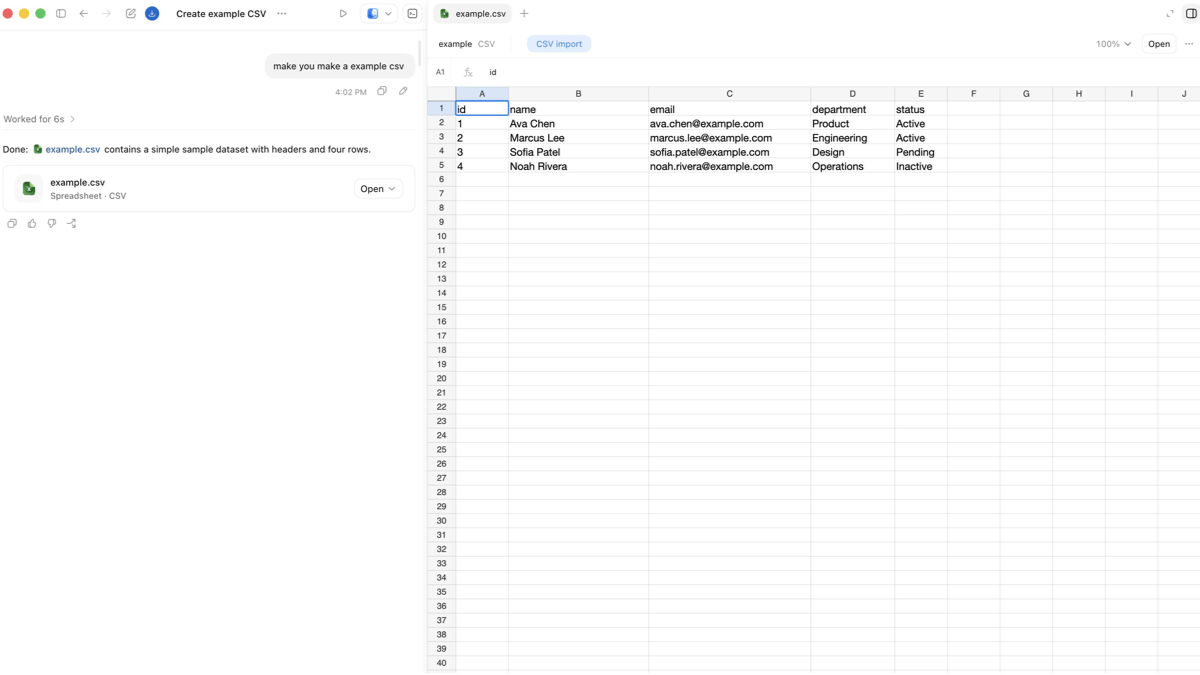
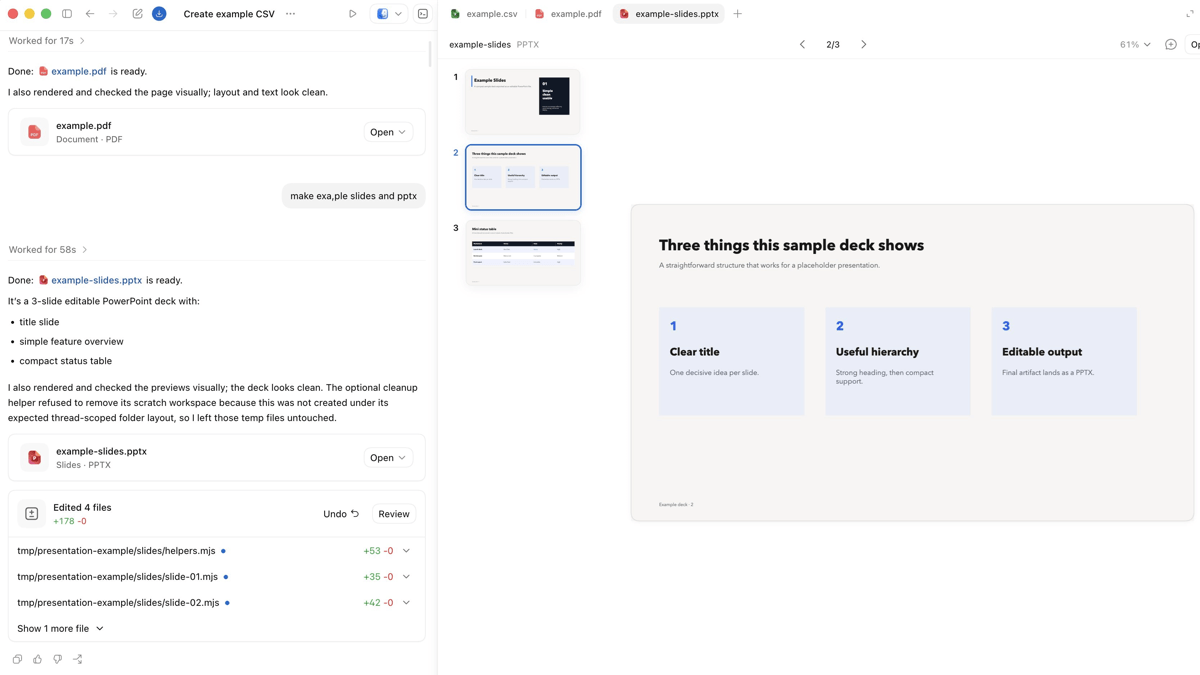
The sidebar keeps work next to the conversation that produced it. Instead of exporting artifacts and switching context, users can review in place. The output may be code, but it may also be a presentation, PDF, browser page, spreadsheet, or other artifact created along the way.
It is especially well suited to four kinds of work:
The sidebar lets users review Markdown, spreadsheets, data tables, documents, and slides in place. They can inspect, annotate, and modify artifacts without interrupting the loop.
A presentation or PDF can stay next to the thread that generated it, ready for direct review and correction.
Annotations
The in-app browser lets Codex inspect a rendered page, control it, and respond directly to annotations on the interface being reviewed. Comments on a page or artifact stay inside the work loop instead of becoming a separate handoff.
The web page becomes both the output and the control interface. Codex can build an artifact, open it in the sidebar, inspect it, debug it, and continuously refine the same object in place.
These interfaces are especially useful:
-
index.html for lightweight static artifacts
-
Storybook for UI review
-
Remotion Studio for programmatic animation
-
browser-based slide presentations
-
data apps for analytics workflows
A single index.html file can become a persistent interactive artifact without a server. Thread automation can also refresh static artifacts over time, so that when the user returns, the thread has something new waiting.
Shared memory
Persistent threads become more useful when they share memory beyond a single conversation.
Shared memory: persistent context stored beyond a single thread so that future work can resume from something explicit and reviewable.
One durable pattern is to anchor persistent threads in an Obsidian vault. In practice, this means a folder of plain text files that stays easy to inspect, edit, move, and preserve over time. Teams can store that folder in cloud storage, Git, Dropbox, Google Drive, or another sync layer that fits their workflow.
A vault might look something like this:
vault/
├── TODO.md
├── people/
├── projects/
├── agent/
└── notes/
At the top level,AGENTS.md can define how Codex should update that workspace as it learns more about people, projects, decisions, and open loops.
Do not copy an exact vault structure. Teach the agent where persistent context should live, what context to keep, and when not to create clutter.
A practical AGENTS.md might say:
-
Treat ~/vault as persistent working memory.
-
Prefer canonical notes over note sprawl.
-
Route TODOs, people, projects, daily summaries, and scratch notes explicitly.
-
Keep decisions, blockers, owners, dates, and useful links.
-
Do not churn the vault if there is no meaningful change.
Repositories hold code. Vaults hold rolling context: who is involved, what changed, what is blocked, what needs follow-up, and what would otherwise disappear between sessions.
Important context should not live only in the conversation transcript. Write it somewhere so the next thread can pick it up again.
Codex also has first-party memory features inSettings > Personalization > Memory. They provide a local recall layer for preferences, repeated workflows, and known pitfalls. They complement explicit written context rather than replace it. Chronicle pushes in the same direction by helping Codex build memories from recent screen context.
Extending outward from code
Codex still starts from code. But more of the work around code can now be reached through the same system: MCP servers, browser surfaces, desktop control, thread automation, and reviewable artifacts.
This changes the control model. Steer interrupts work in progress. Queue schedules the next task. Thread automation keeps a thread alive while the user is away. Goals add an explicit endpoint that Codex can keep working toward.
Codex can now carry a workflow from instruction to execution to artifact review, even when the work leaves the repository.