
What is FileNeatAI
FileNeatAI is an efficient and intelligent AI file organizing and categorization tool. Based on advanced AI technology, it automatically identifies file content and information, and with user-defined prompts, it precisely categorizes and organizes all kinds of cluttered files. Whether they are documents, images, or files in other formats, the tool can quickly classify them into the corresponding folders and supports operations such as file renaming. The tool supports both online models and local model deployment, ensuring data privacy and security. With its interactive UI design and simple, convenient interface, FileNeatAI can greatly improve users' file management efficiency and keep computer files in perfect order.
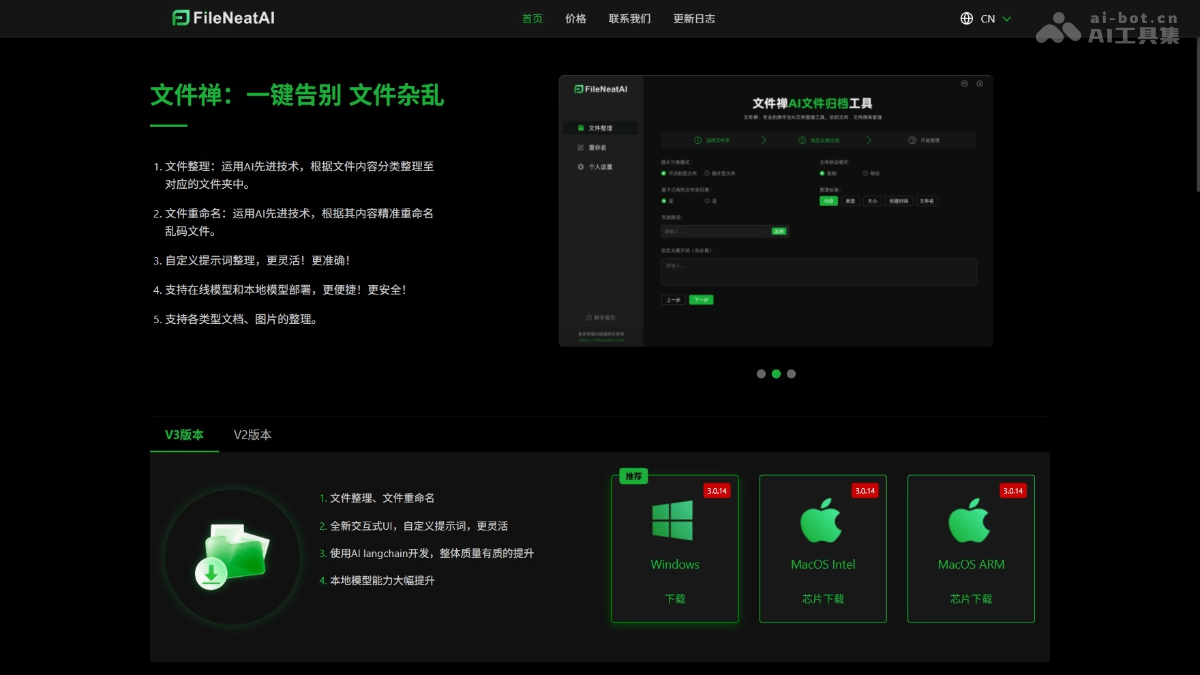
Main Features of FileNeatAI
- File Organization: Intelligently identifies file content based on AI technology, precisely categorizes files, and also supports categorization based on multiple factors such as file type, creation time, and size, automatically removing duplicate files to make file management more efficient and orderly.
- File Renaming: The tool precisely renames files based on their content. Users can set different renaming rules according to their own needs, making file names more recognizable and practical.
- Custom Prompts: User-defined prompts meet personalized file organization needs, and prompts can be resubmitted on the results page to flexibly adjust and optimize file categorization and naming results.
- Model Support: Provides a variety of online models for users to conveniently choose from, and supports local model deployment to meet users' usage requirements under different network environments and privacy needs.
How to Use FileNeatAI
- Download and Install: Visit the official FileNeatAI website:https://www.fileneatai.com,根据操作系统选择对应的版本进行下载。
- Install the Software: After the download is complete, follow the installation wizard's prompts to complete the installation and launch of the software.
- Add Files/Folders: Drag the files or folders you need to organize directly into the software's main window, or click the "Select Folder" button to browse and select the files or folders you need to organize. If a file or subdirectory does not need to be organized, simply delete it in the window.
- Set File Organization Options:
- Image Categorization Mode: If you need to organize images, choose the visual analysis mode, using llava to perform visual analysis on the images to obtain descriptions. Or choose the OCR recognition mode, using tesseract to recognize the text in the images before analysis.
- Categorize Based on Existing Files: Read the directories under the storage path address, and match files to subdirectories according to the file path subdirectory structure in the storage path.
- File Organization Mode: Choose whether to copy or move the organized files.
- Reference Options: Select the factors for the AI to reference when organizing files, such as content, type, creation time, size, file name, etc.
- Custom Prompts: If there are customized requirements, implement them based on custom prompts.
- Start Organizing:
- Organize: After setting the organization options, click the "Next" button, and the software will start organizing the files.
- View Organization Results: After organization is complete, users can view the results and click the delete button on the right to adjust anything they are not satisfied with.
- Confirm Organization: After confirming, click the "Confirm Organize" button, and the software will copy or move the files to the storage directory to complete the organization.
- File renaming (optional): If you need to rename files, simply drag the folder or files into the renaming function area and follow the prompts.
- Configure local model (optional):
- Local model deployment: If you need to use a local model, fill in the corresponding API server, key, model name, and other information in personal settings.
- Test connection: After configuration is complete, click the "Test connection" button to check whether the configuration is correct.
FileNeatAI application scenarios
- Document management: Classify work documents by content, type, and creation time for easy search and management, improving work efficiency.
- Project material organization: Categorize project materials by project name and keywords for quick location and to ensure smooth project progress.
- Study material organization: Classify study materials by subject, course, and learning stage for easy review and search, improving learning efficiency.
- Paper writing: Classify paper-related files by topic, research method, and references for easy access to materials while writing.
- Photo management: Classify photos by shooting time, location, and people for easy recall and search for specific photos.