
What is Edge Copilot
Edge Copilot is an AI assistant feature in the Microsoft Edge browser, providing users with a smarter and more convenient browsing experience. It can understand users' natural language commands, quickly answer questions related to the current webpage content, and summarize the core points of long articles, videos, or PDF documents. Edge Copilot supports multi-tab collaboration and can view all tabs opened by the user, helping with information comparison and decision-making. It has voice interaction capabilities, allowing users to use voice commands to have Copilot perform operations such as finding information and opening webpages.
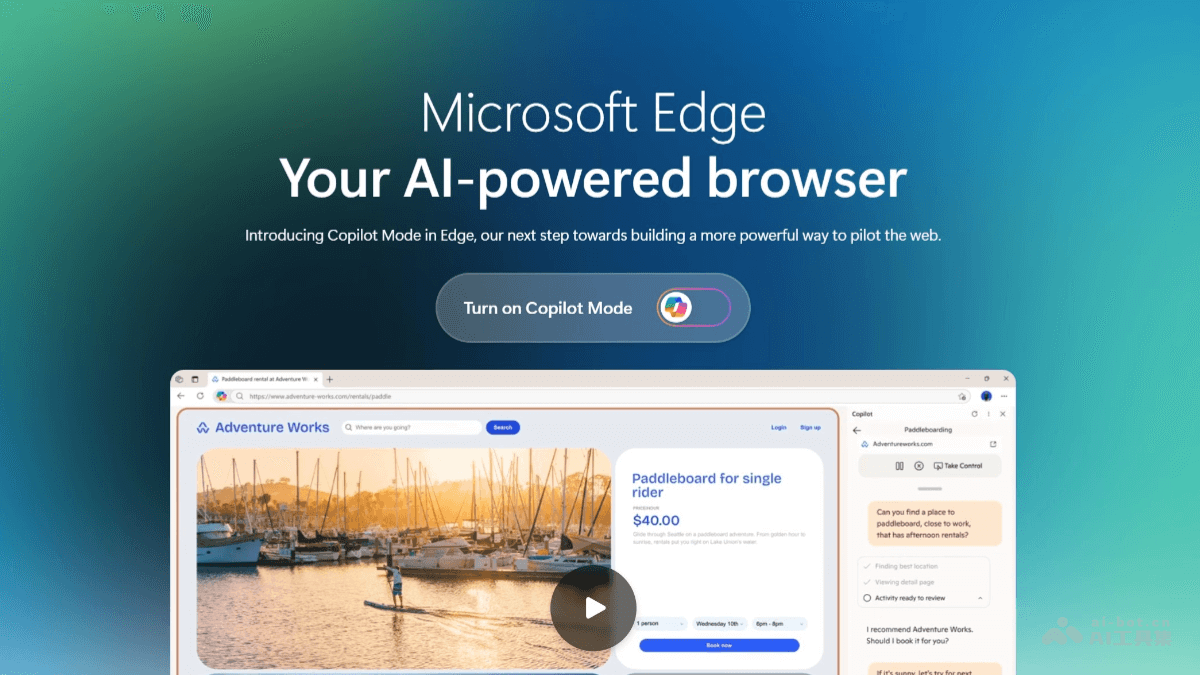
Main Features of Edge Copilot
- Multi-tab Context Understanding: Copilot can view all tabs opened by the user and fully understand the content the user is exploring. For example, when comparing multiple vacation rental options, users can directly converse with Copilot to get listings that are 'closest to the beach and have a kitchen.' It is suitable for scenarios involving the integration of multi-source information, such as research, shopping, and travel planning.
- AI-powered Unified Input Box: In a new tab, users will see a concise input box that supports entering URLs, searching for questions, or directly conversing with AI. Users can enter questions like 'Compare these two monitors and tell me which is better for design,' and Copilot will integrate information from multiple currently open tabs and provide recommendations.
- Voice Interaction: Copilot supports natural voice navigation. Users can speak directly to it and ask it to help complete tasks, such as finding information on a page or opening multiple tabs for comparison.
- Task Automation: Microsoft is exploring ways to let Copilot perform some common actions, such as booking flights, filling out forms, and one-click ordering (requiring final confirmation from the user).
- In-page Embedded Collaboration: Users can call Copilot without leaving the current webpage. It appears as a dynamic panel, keeping the original page visible.
- Content Summarization and Rewriting: Copilot can summarize the content of webpages and documents, helping users quickly browse long articles. It provides text rewriting functionality to help users adjust the tone, style, or content of the text.
- Privacy and Security: Copilot mode strictly follows Microsoft's privacy standards, and users' data is always under their own control. Copilot will only access information such as tabs and history with the user's explicit authorization. Users can turn Copilot mode on or off at any time in Edge settings.
Edge Copilot Official Website Address
- Official Website Address:https://www.microsoft.com/zh-cn/edge/ai-powered/copilot-mode
How to Use Edge Copilot
- Usage Steps
-
Sign in to a Microsoft account: Visit the Edge official website and use a personal Microsoft account to sign in to the Edge browser. If you have not yet created an account, you can register first.
-
Navigate to the target page: Open the website, video, or PDF document you want to ask about in Edge.
-
Open Copilot: Click the Copilot icon in the upper right corner of the browser to open the Copilot feature in the edge sidebar.
-
Authorize the use of browser information: When using it for the first time, Copilot will request authorization to use browser information. After authorization, Copilot will use relevant data according to your settings.
-
- How to Ask Questions
-
Type a prompt: Enter a question or instruction in the Copilot sidebar, and Copilot will answer based on the page content.
-
Voice input: Click the "Voice" button and use the Copilot Vision feature to have a natural conversation with Copilot by voice.
-
Request summary: Select "Create summary" or "Expand this topic" in the Copilot sidebar to let Copilot analyze and summarize the page content.
-
- Set preferences
-
Adjust permissions: Click "More menu" and go to Edge settings to update Copilot usage permissions, such as whether Copilot is allowed to use the current web page content, browser history, and so on.
-
Privacy protection: Users can choose to restrict Copilot's access to certain information to ensure privacy and security.
-
Edge Copilot use cases
- Trip planning: Users can open multiple travel booking websites at the same time and let Copilot compare the prices, locations, and facilities of different hotels to quickly find the most suitable accommodation option.
- Online shopping: After opening product pages on multiple e-commerce websites, users can ask Copilot which product offers better value for money, or let Copilot help compare the features and user reviews of different products.
- Academic research: Users can open multiple academic papers and let Copilot help summarize their similarities or differences and extract key information, saving research time.
- Daily task management: Users can authorize Copilot to access their schedule and history, letting it automatically arrange restaurant reservations, manage itineraries, and remind users to buy necessities.
- Content creation: When writing articles or making videos, users can ask Copilot to provide inspiration on related topics, recommend materials, or help proofread content to improve creative efficiency.