
What is Cursor CLI
Cursor CLI is a command-line tool developed by the Cursor team, bringing AI programming capabilities to any environment, including the terminal and headless mode. It supports developers in using the powerful features of Cursor Agent from the command line, such as code generation, file operations, and terminal command execution. Users can interact with the AI through simple commands (such as cursor-agent chat) to quickly solve programming problems or optimize code. Cursor CLI supports multiple AI models and seamlessly integrates with the models in a Cursor subscription. It is suitable for developers using IDEs such as Neovim and JetBrains, and can run in parallel with these tools, providing a more flexible programming experience.
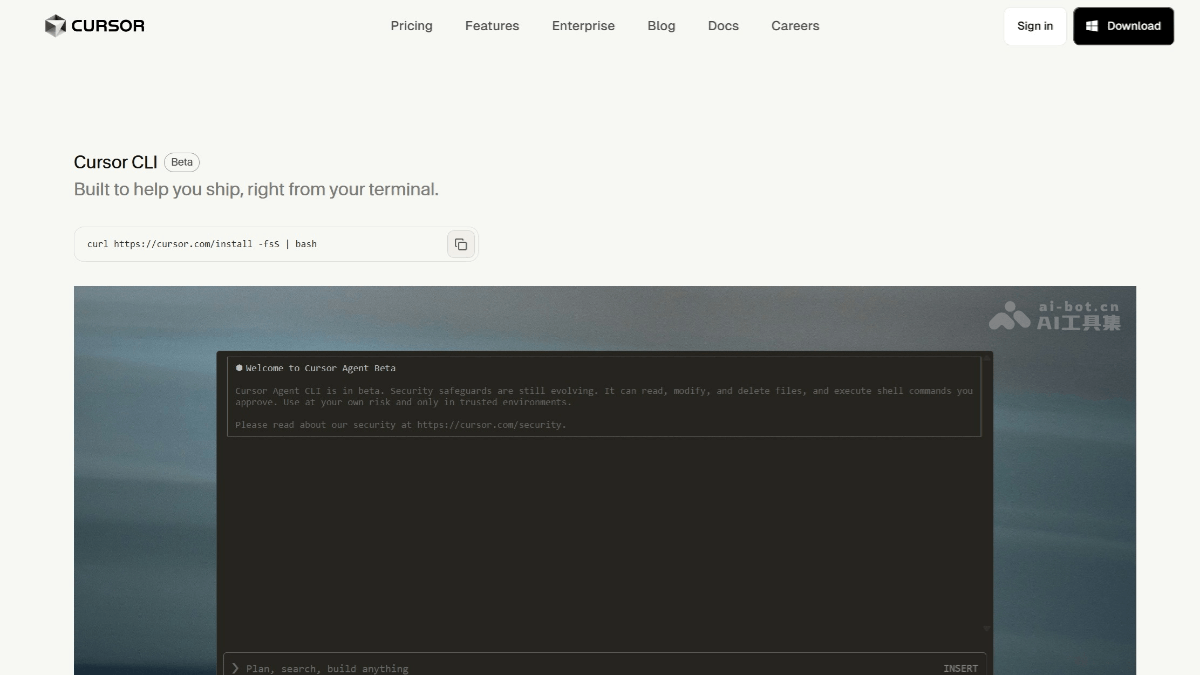
Main features of Cursor CLI
- AI programming capabilities
-
Code generation and editing: Users can describe their requirements in natural language, and Cursor CLI will generate the corresponding code and provide multiple suggestions for users to choose from and modify.
-
Code review and optimization: Supports code review, such as detecting security issues, and can also translate code from one language to another.
-
Real-time model update synchronization: Connects directly to the AI server, so when models are updated, the latest version can be called in real time without waiting for a plugin update.
-
Flexible model switching: Supports multiple mainstream AI models (such as Anthropic, OpenAI, Gemini, etc.), and users can switch flexibly as needed.
-
-
File generation and modification: Supports the model in generating new files or modifying existing files.
-
File navigation and switching: Users can quickly switch files using the arrow keys.
-
Run terminal commands: Can directly run terminal commands and view the output.
-
Command-line tool integration: Supports integration with various command-line tools, for example, in the JetBrains Debug console, the VSCode integrated terminal, or a server SSH session.
-
Automated script development: Supports a non-interactive print mode, suitable for automation scenarios such as scripts and CI/CD pipelines.
-
Specialized task handling: For example, in a React project, commands can be used to quickly configure a component's anti-aliasing and performance modes.
-
Interactive sessions: Users can have interactive sessions with the AI agent through the command line to write, review, and modify code.
-
Historical conversation records: Supports restoring historical conversations, making it convenient for users to switch between different tasks.
-
Cross-environment support: Compatible with multiple development environments (such as VSCode, JetBrains, Android Studio, etc.), and can run in any terminal.
Cursor CLI official website address
- Official website address:https://cursor.com/cli
How to use Cursor CLI
- Install Cursor CLI: Run the following command in the terminal to install:
curl https://cursor.com/install -fsSL | bash - Start Cursor CLI: After installation is complete, you can start Cursor CLI and enter a prompt using the following command:
cursor-agent chat "你的需求描述"cursor-agent chat "生成一个 Python 爬虫" - Use the features of Cursor CLI
-
Code generation: Describe your requirements in natural language, and Cursor CLI will generate the corresponding code.
-
File operations: Can generate new files or modify existing files.
-
Command execution: Can directly run terminal commands and view the output.
-
Code review: Supports functions such as code security review and language translation.
-
-
Resume historical conversations: Use
cursor-agent resumeorcursor-agent chat --resume [thread id]to resume a previous session. -
View conversation list: Use
cursor-agent lsto view previous conversation records. -
Switch models: Use the
/modelcommand to switch to a different AI model, for example/model gpt-5。 -
Configuration file: You can create a rules file in the
.cursor/rulesdirectory to customize the Agent's behavior.
Application scenarios of Cursor CLI
- Quickly fix bugs in the production environment: In emergency situations, developers can directly call Cursor CLI through the command line to quickly locate and fix problems in the code without switching to the IDE.
- Cross-language project transformation: For example, to translate Python code into the Go language, Cursor CLI can help developers quickly complete code conversion, saving time and effort.
- Teaching and learning: In programming teaching, teachers can use Cursor CLI to generate sample code to help students quickly understand complex programming concepts.
- Cross-IDE development: For developers using different IDEs (such as Neovim, JetBrains, VSCode), Cursor CLI can seamlessly integrate with these tools to provide a unified AI programming experience.