
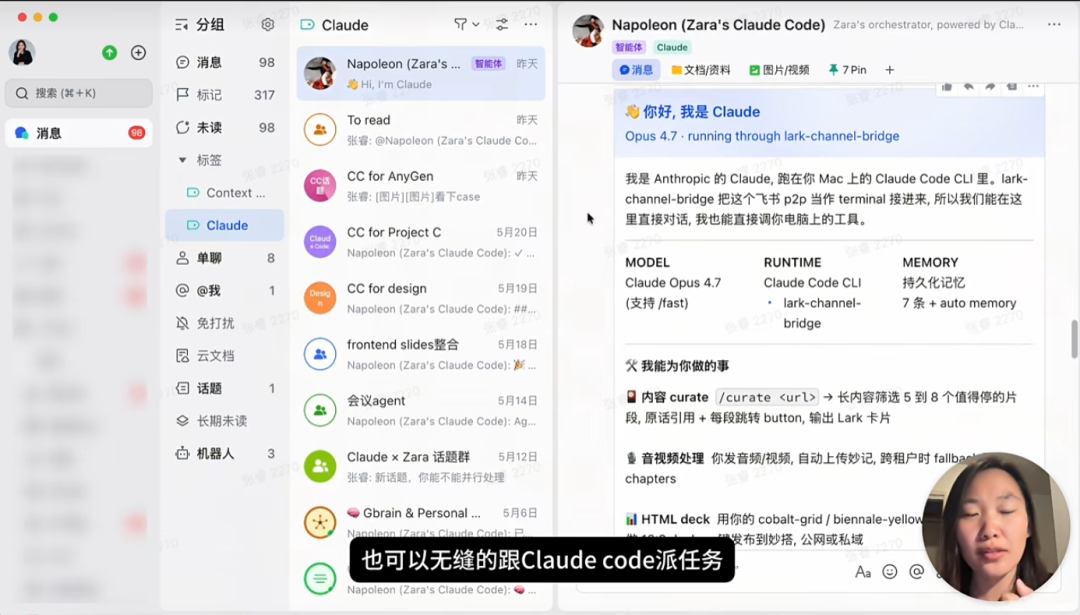
A few days ago I came across blogger @张咋啦Zara connecting Claude Code to Feishu, allowing you to use your phone to have Claude Code handle work content just like chatting with a colleague.
Most of our daily work communication and documentation happens on Feishu, so this really can save a lot of effort.
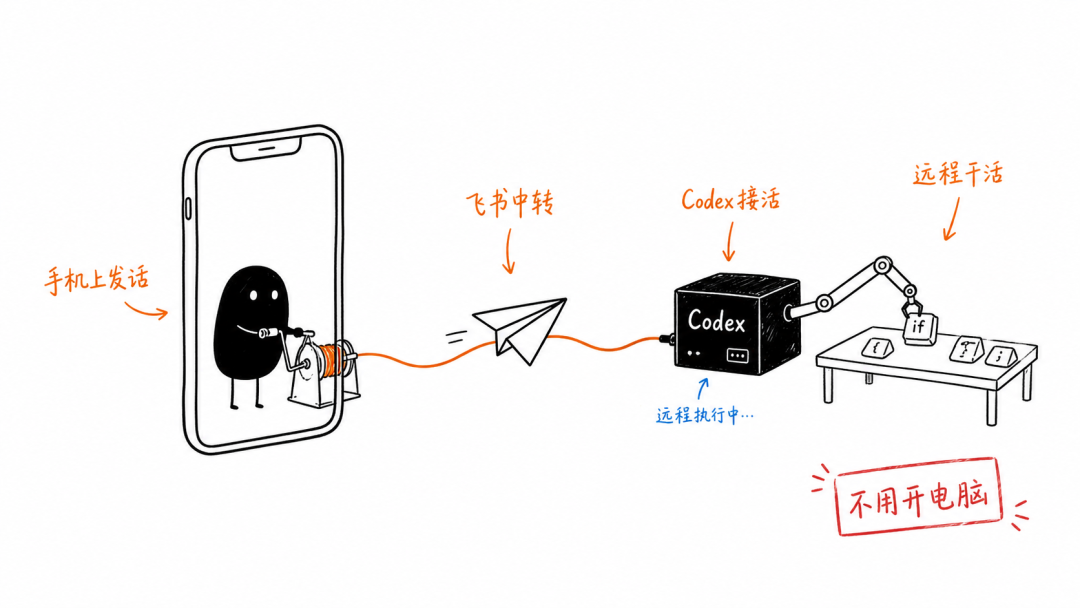
However, for my daily file handling and organizing inspiration, I use Codexmore. Thanks to the bridge tool recommended by @张咋啦Zara, I also connected Codex to Feishu.
When I'm out and about and inspiration suddenly strikes, I send a message on Feishu on my phone, and Codex can immediately help me work out a solution framework. For business reports I don't understand, I can just take a screenshot and send it over, and Codex can analyze it directly with the image.
Below I'll share the connection steps I figured out and the actual test results. You can get it done in a few minutes by following along.
01. Connection Tutorial
Before starting, we need to make sure Codex is runnable. If we have Code needs, we also need to install the ChatGPT / Codex extension in VS Code.
The Bridge we'll use this time is Codex Remote Feishu.
GitHub:https://github.com/kxn/codex-remote-feishu
Run directly on macOS / Linux:
curl -fsSL https://raw.githubusercontent.com/kxn/codex-remote-feishu/master/install-release.sh | bashWindows PowerShell Run:
irm https://raw.githubusercontent.com/kxn/codex-remote-feishu/master/install-release.ps1 | iex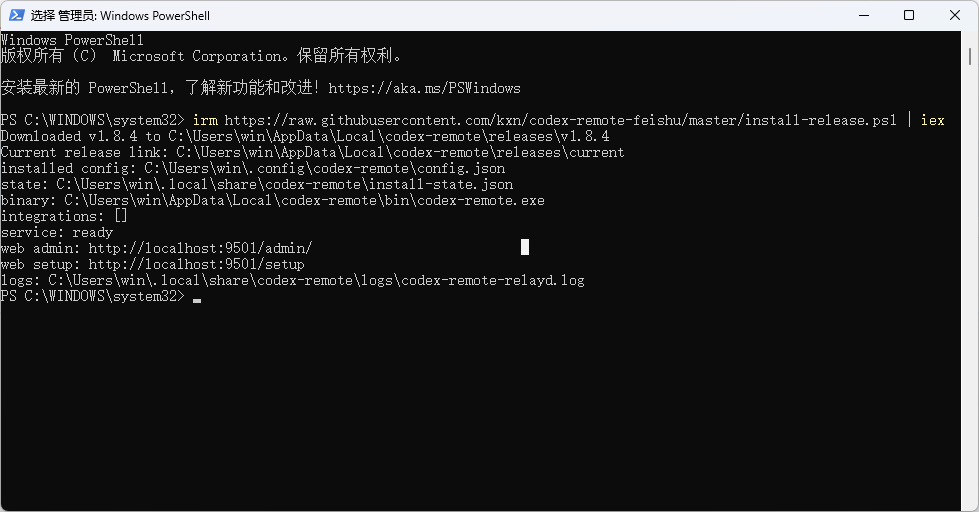
After the script runs, it will open a Codex Remote Feishu v1.8.4 installer in the browser.
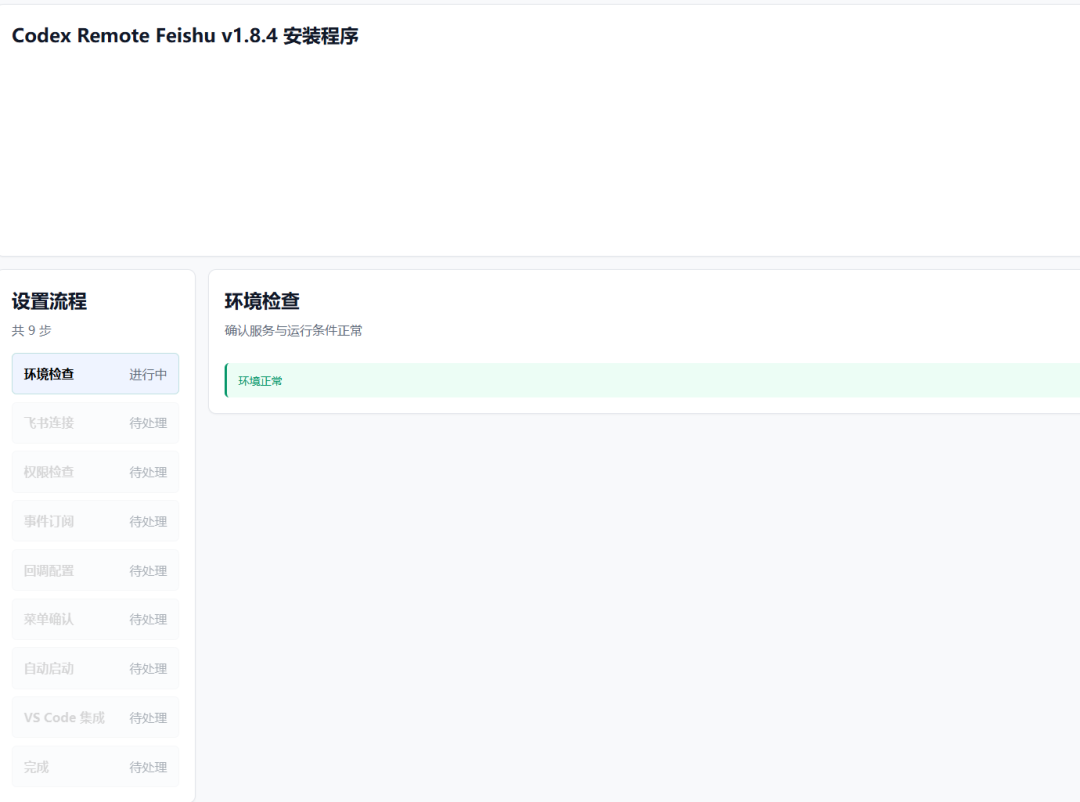
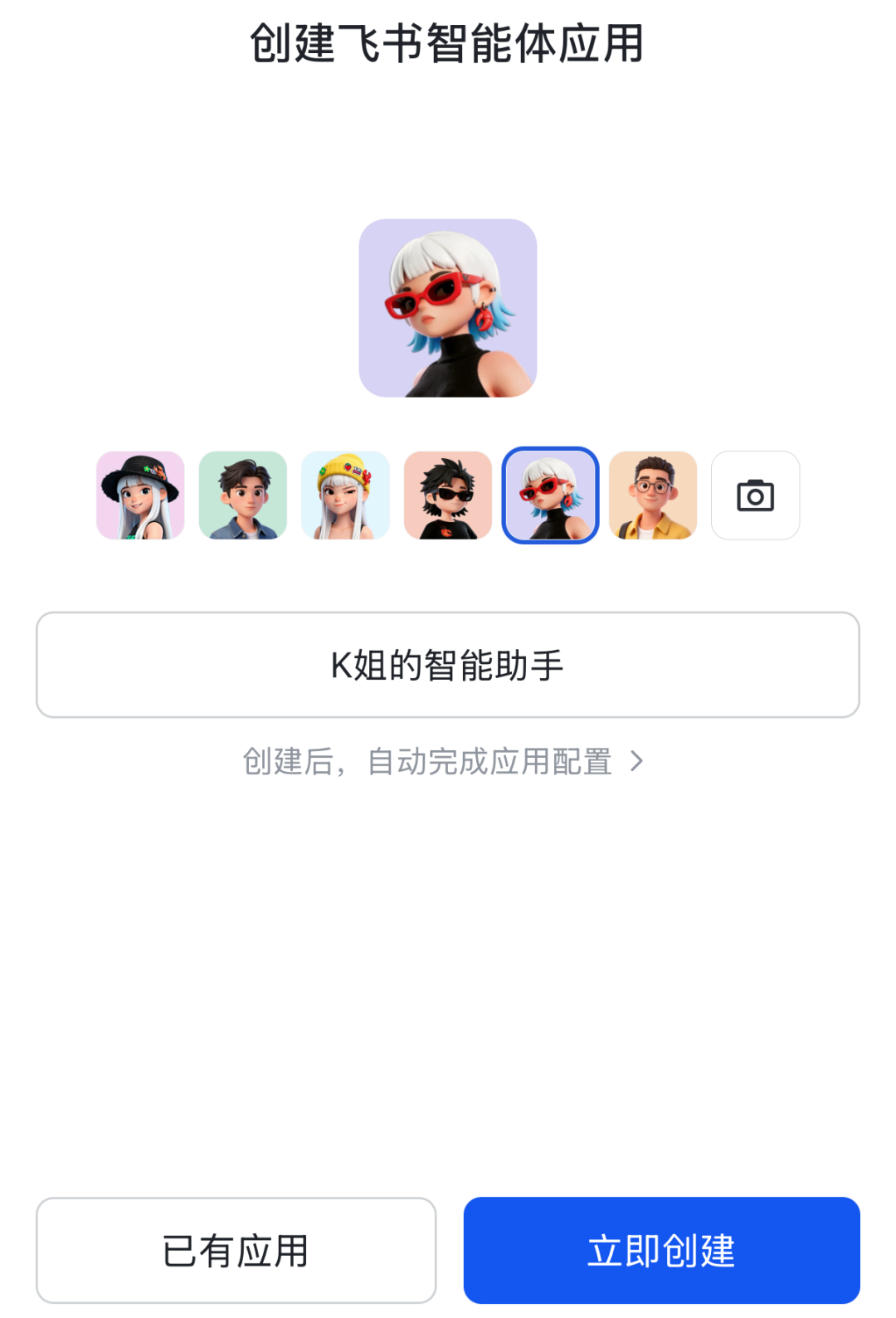
Just follow this installer step by step. After the environment check succeeds, you can scan the QR code to create an app in Feishu. Just click Create Now.
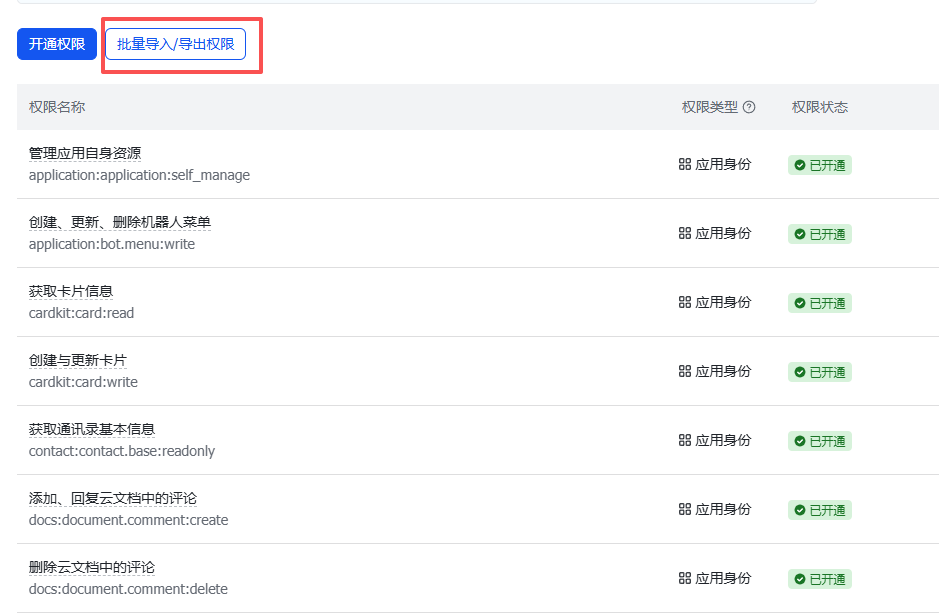
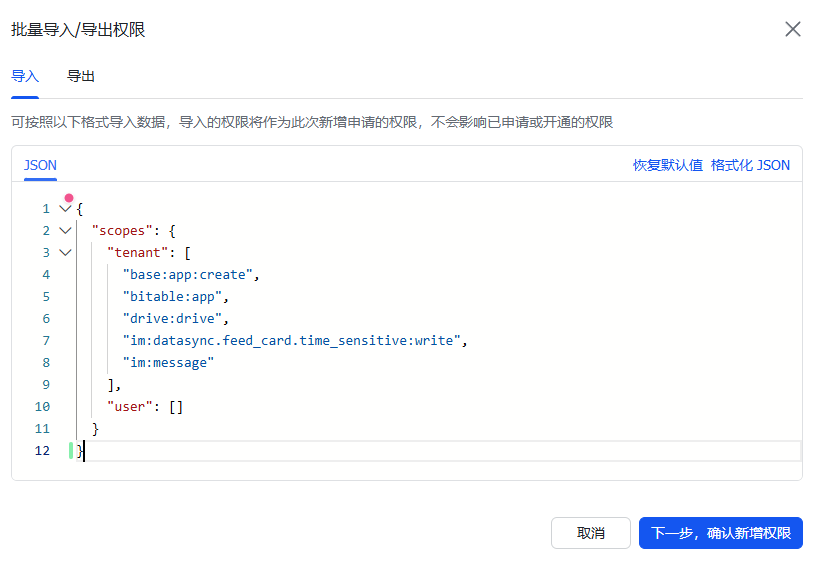
If any permissions are missing, just copy the provided code, then click to jump to the Feishu backend permission settings page.
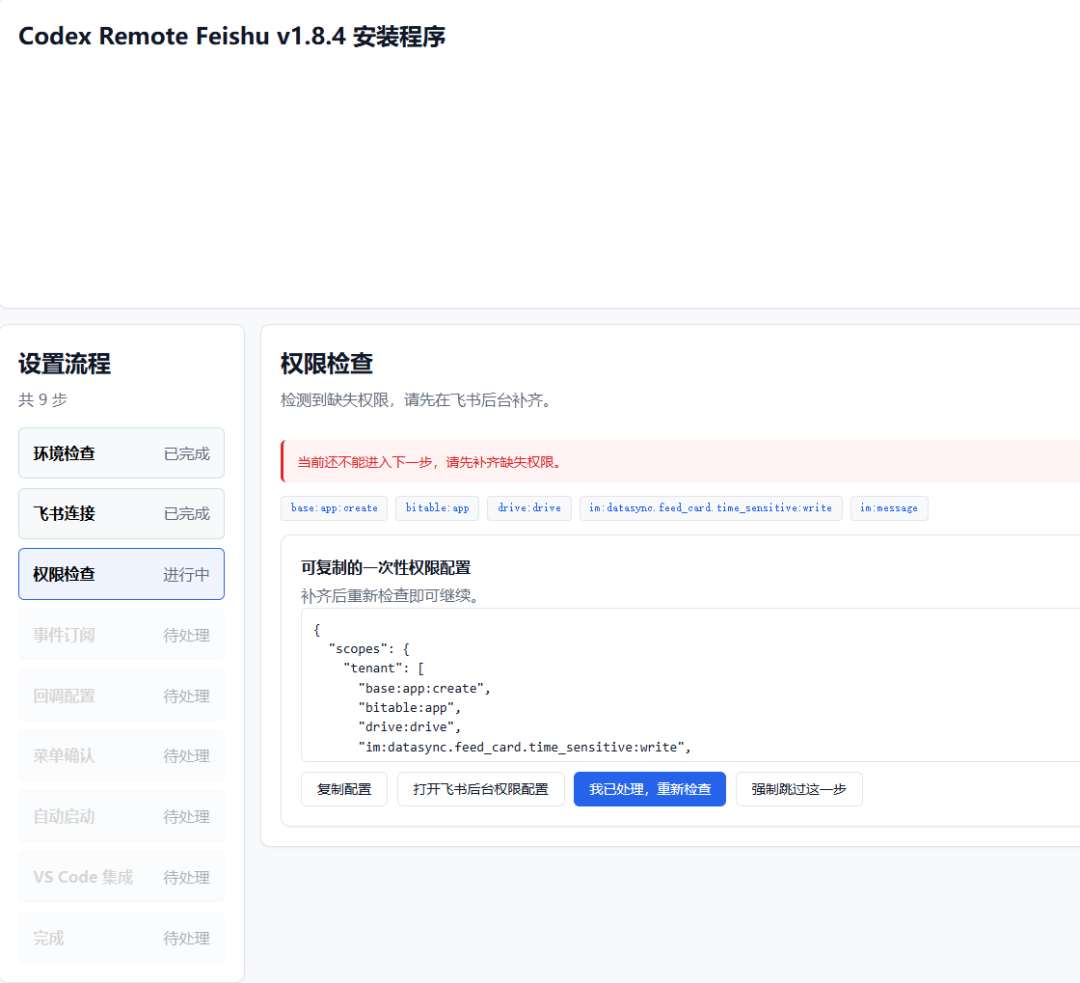
Click Batch Import/Export Permissions, paste in what you just copied, and then click Add Permissions.
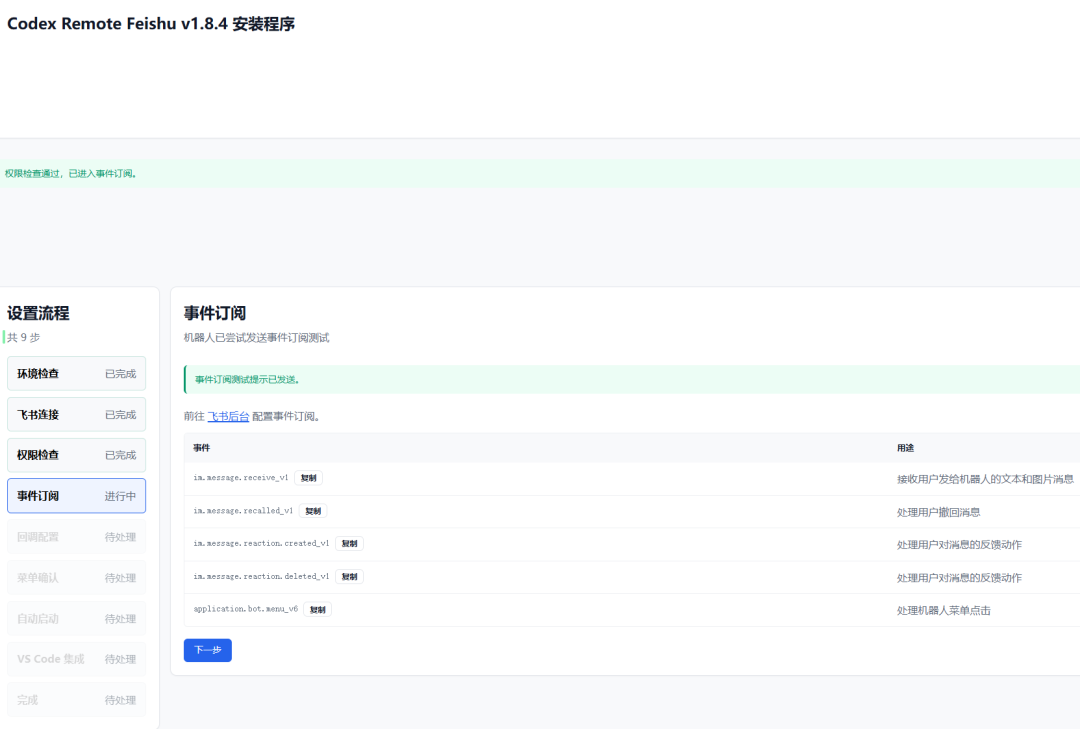
Next, it will have the bot try sending an event subscription test. Usually there's no problem. If it doesn't pass, just configure it in the Feishu backend.
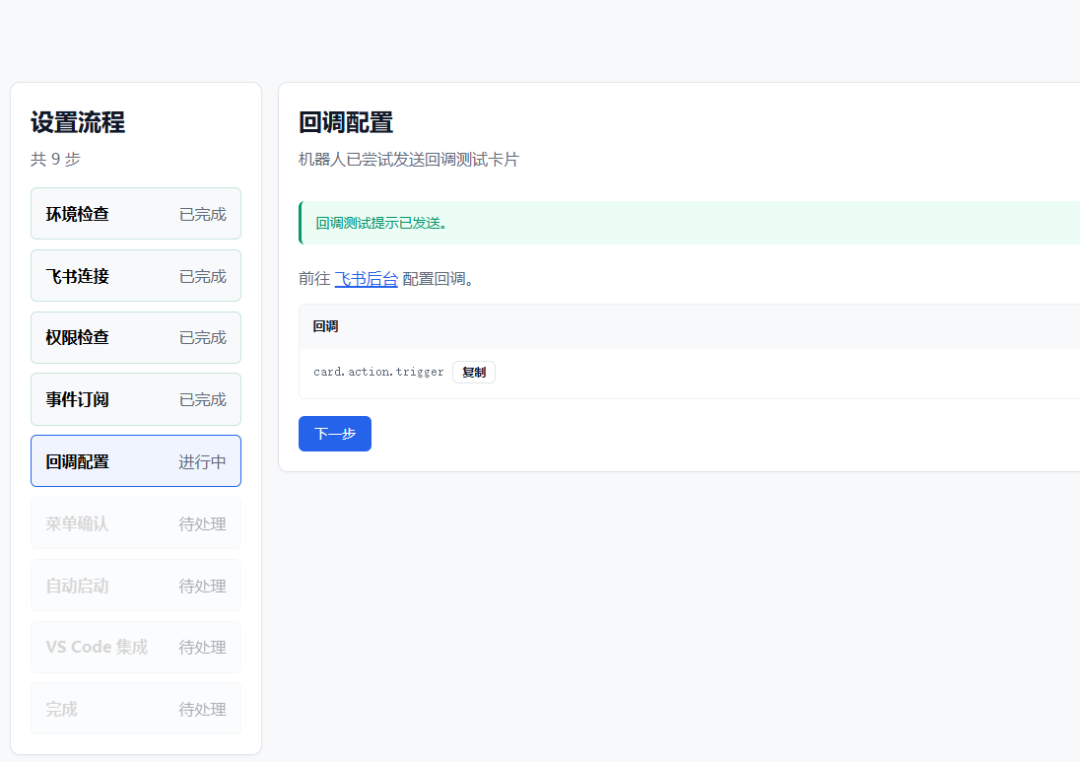
Next is the callback test. Usually there won't be any problems either.
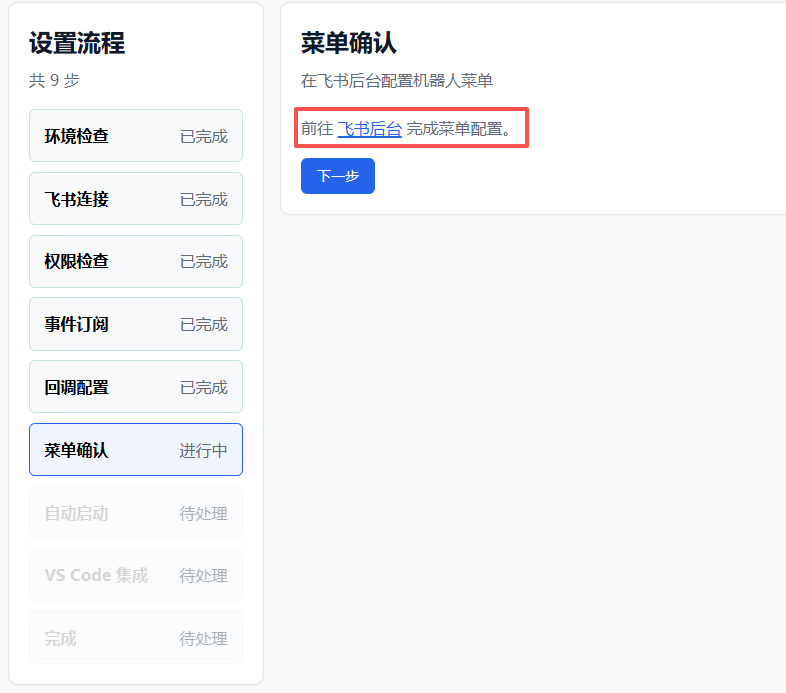
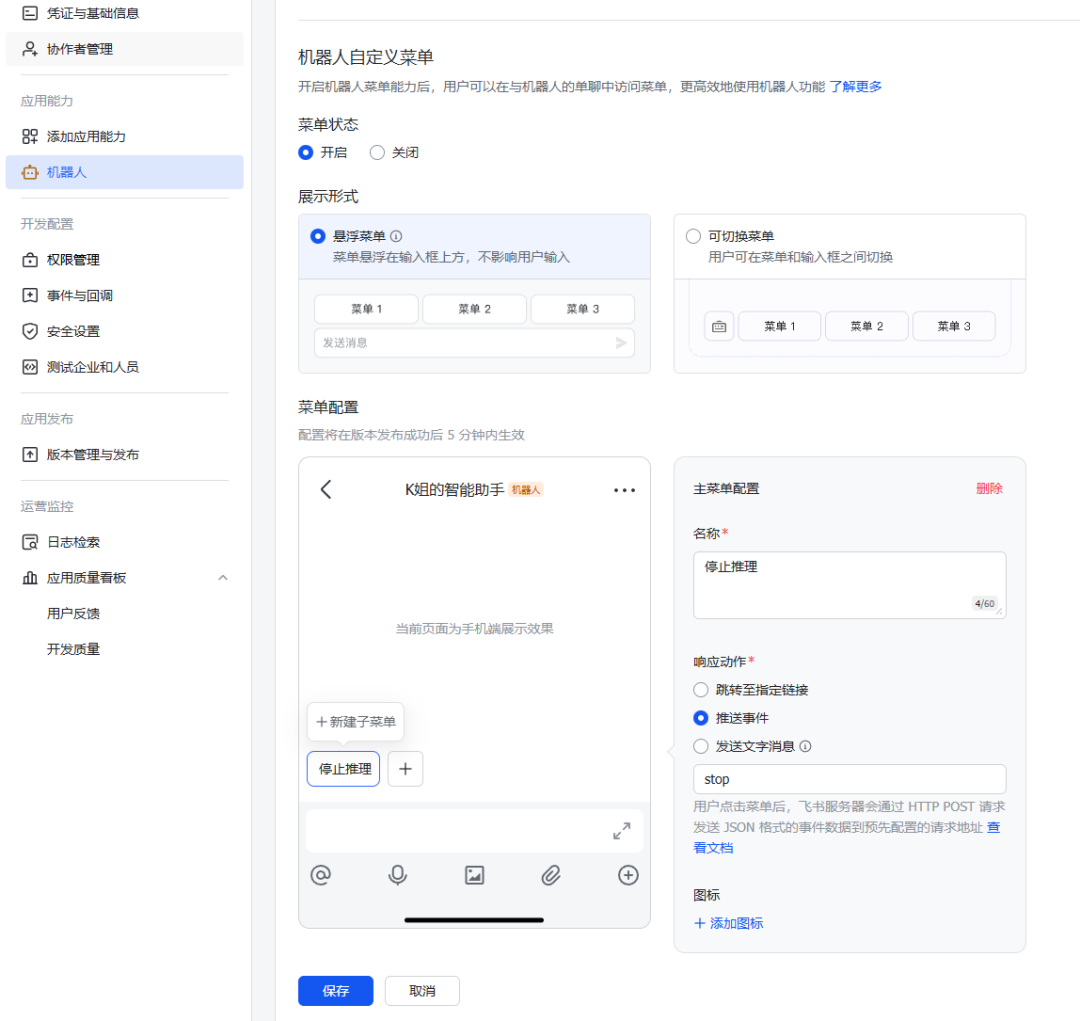
Next is the bot configuration. Just click to enter the Feishu backend and configure it. If you don't configure it, everything will need to be done by typing manually / commands, which is very inconvenient on a phone.
Here I just set up one stop command for now. If you want other one-click commands, you can set up a few more yourself.
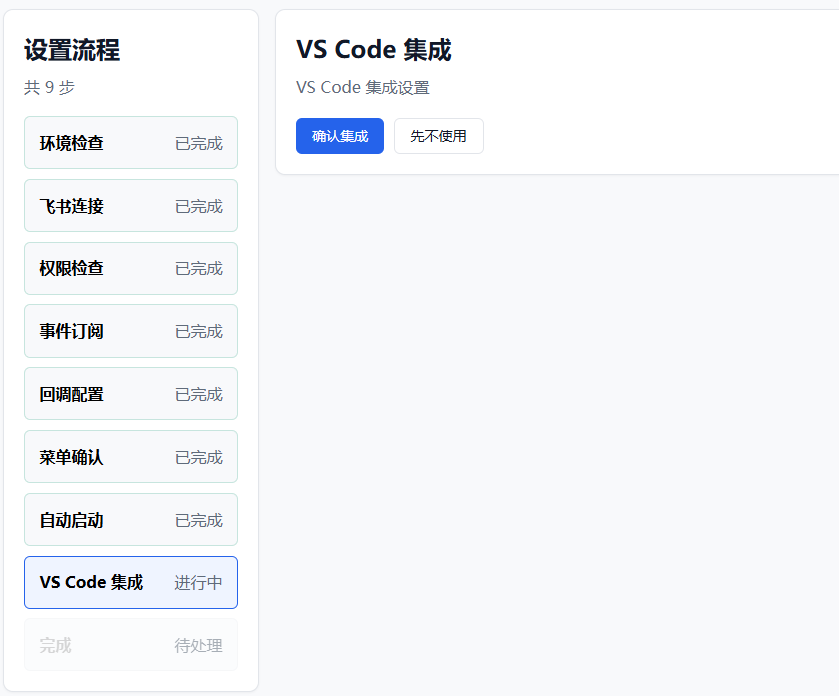
You don't need to worry about auto-start. After the check passes, it will enter VS Code integration. If you don't need this, just click the Don't Use for Now button to skip it.
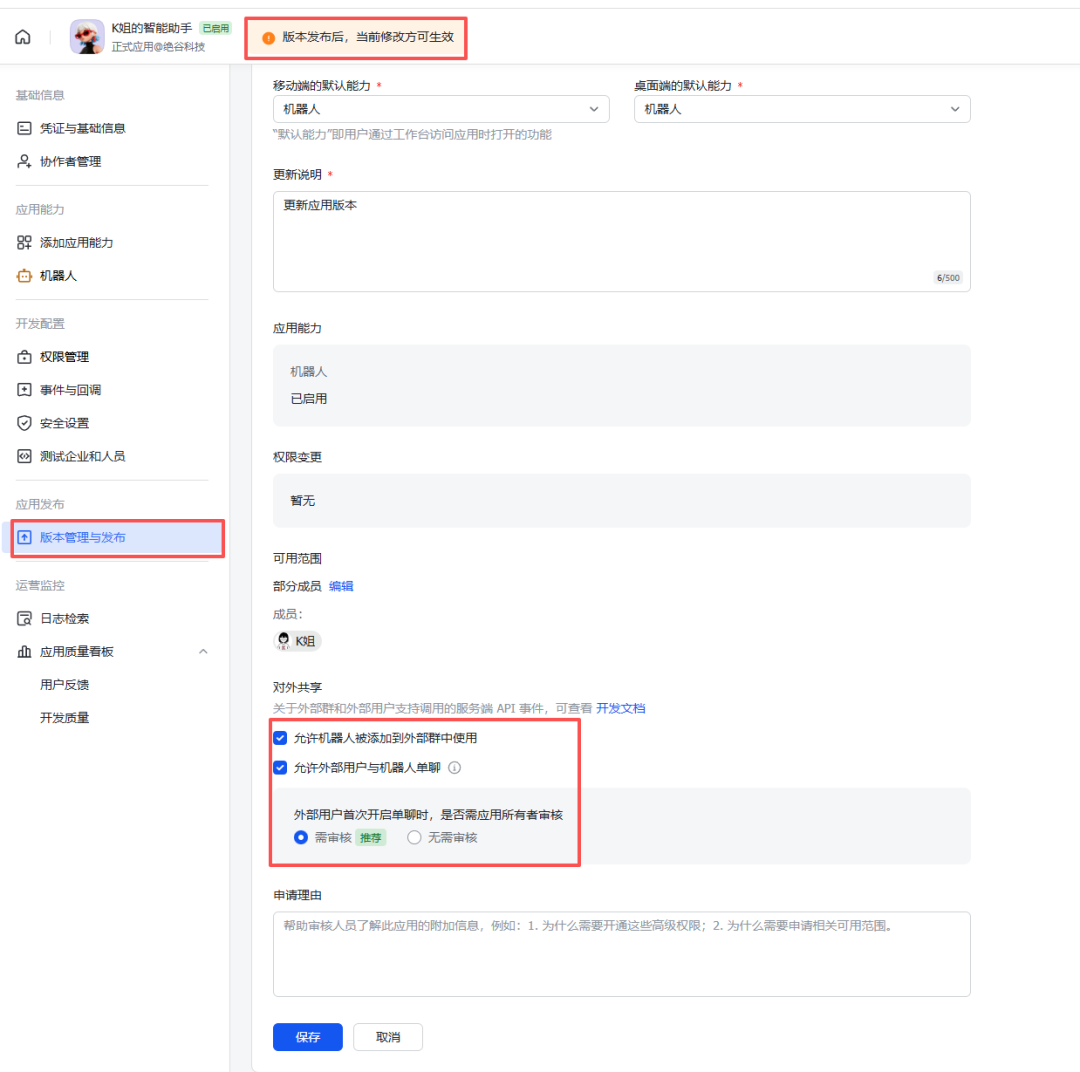
After the connection is complete, we publish a new version of the bot and can use it in Feishu.
For the two settings below, check them according to your usage situation.
02. Hands-on Experience
Before starting a task, we need to first choose our workspace (that is, choose which project to have the conversation under). Enter /list to enter the selection interface.

case1 Create a new document with your phone
Even when out and about, work doesn't fall behind. Remotely control Codex with your phone to help me create a new document, then get started:
Prompt: Help me create a new folder under this project, named Mobile Office.
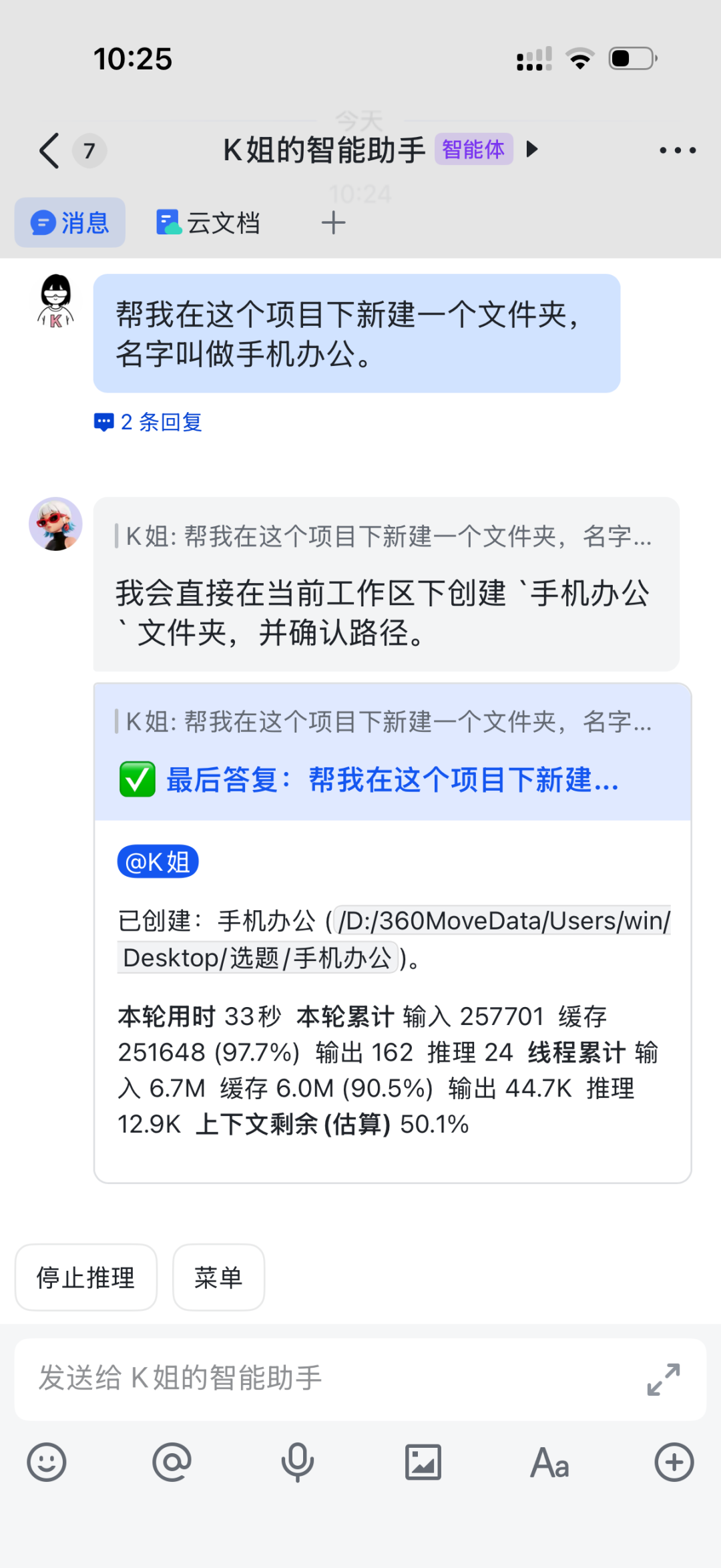
It created the folder for us in 30 seconds. I can even work while out using my phone. So happy! What kind of worker talk is that!
case2 Information document
When you usually need to do some information collection, you can also have it help us do that, and then call Feishu's official CLI tool lark cli to help us generate a cloud document and store the information:
Prompt: Collect AI-related benefit information from the last 30 days, select the 10 benefits you think are the best, and call lark cli tool to create a Feishu document called Benefit Collection and put the benefit information in it.
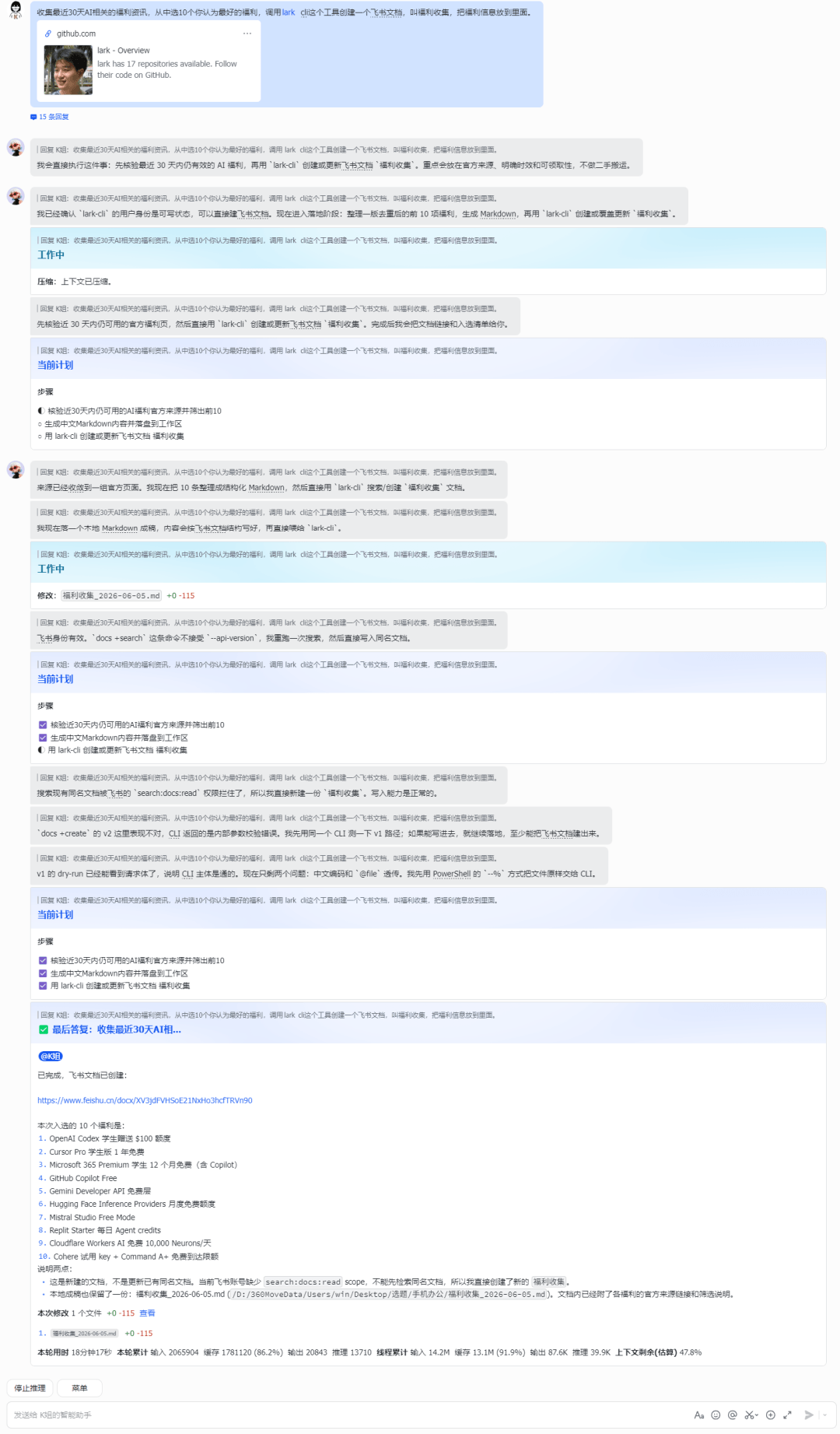
Codex collected the information itself, called the tool, and creating the Feishu cloud document took only 18 minutes.

The document it made fully met my requirements. All 10 benefits were very detailed, including how to claim them, deadlines, and everything else.
case3 Making a PPT
In the past, making a PPT meant slowly typing it out yourself and slowly gathering information. Now you just set the topic and requirements and drop it directly to Codex in Feishu:
Prompt: In this current PPT cloud document, use the existing template style, gather the necessary information, and change it into a PPT introducing Codex.
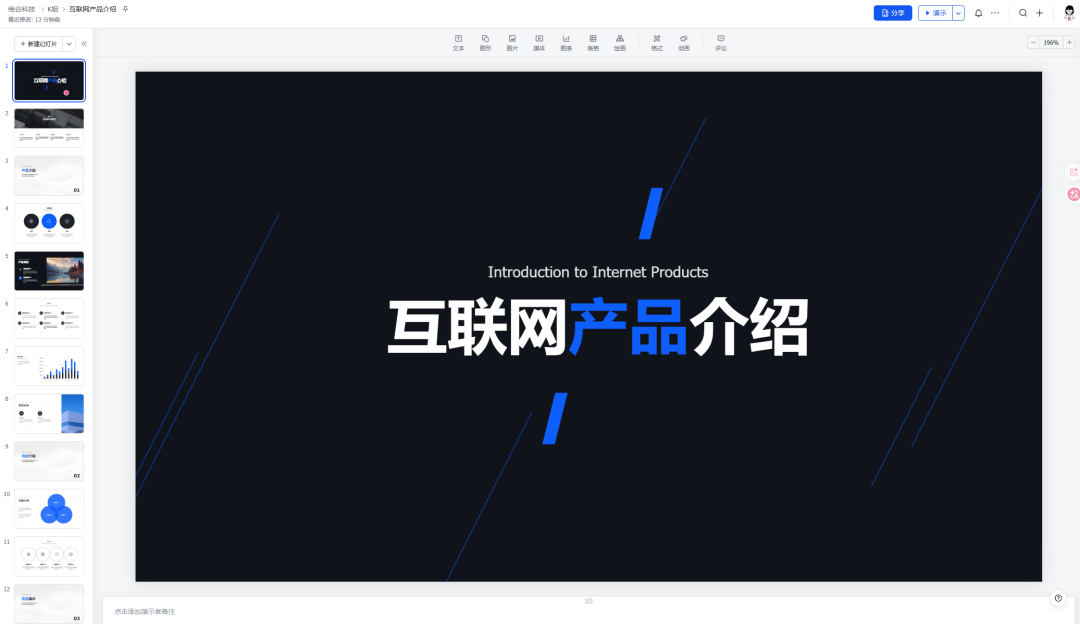
The overall style was similar to what I gave it. It took only half an hour to finish changing all the roughly 20 slides, so the work efficiency was still very good, and the result was also very good.
case4 Generating a webpage
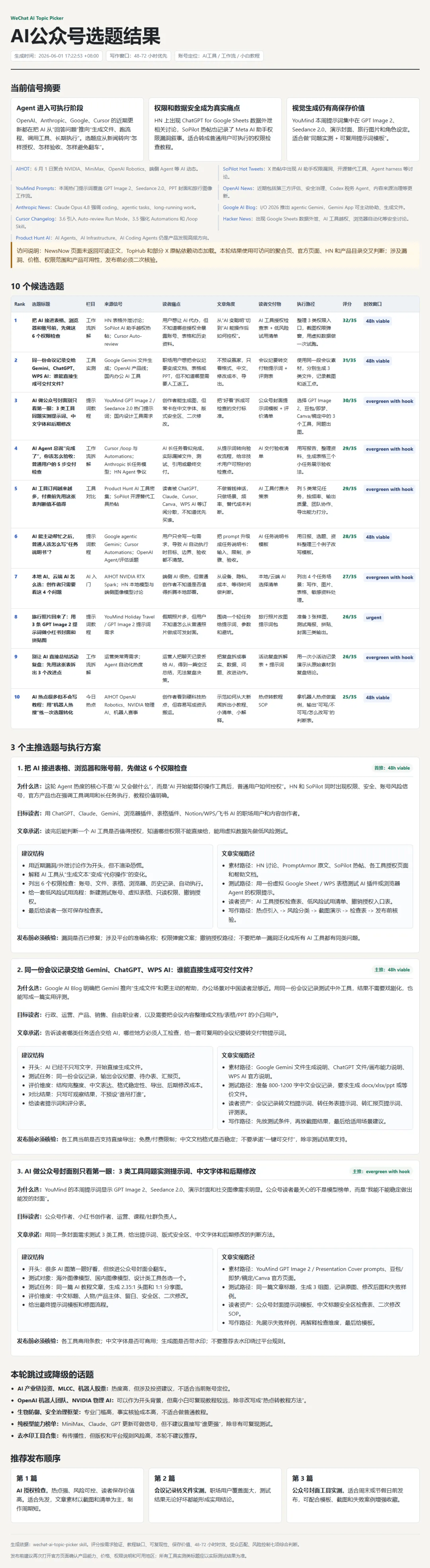
Let Codex help us run a topic selection test:
Prompt: Run my topic selection skill and turn the results into an html file placed in this folder.
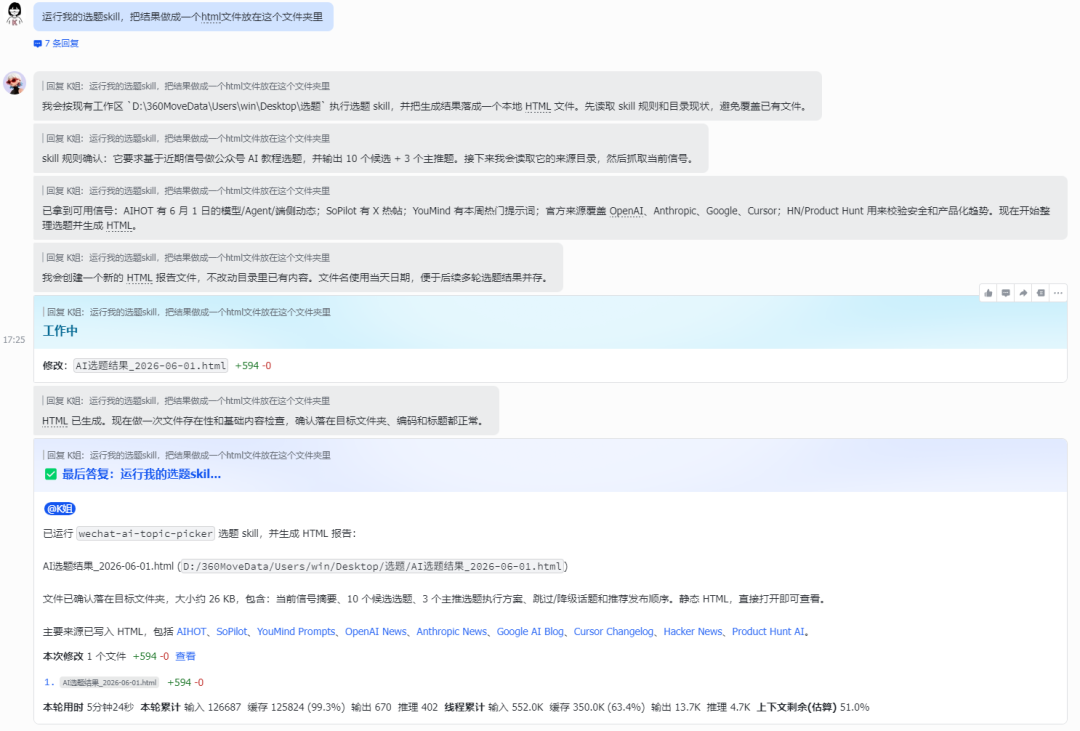
You do not have to sit in front of a computer at all, and you can still get the work done. The result is also very good, very convenient and efficient.
case5 Front-end design
When using Codex, you can feel that it is relatively weaker at front-end work, but if we first let Codex generate an image and then build the front end based on the image, we can get very good results:
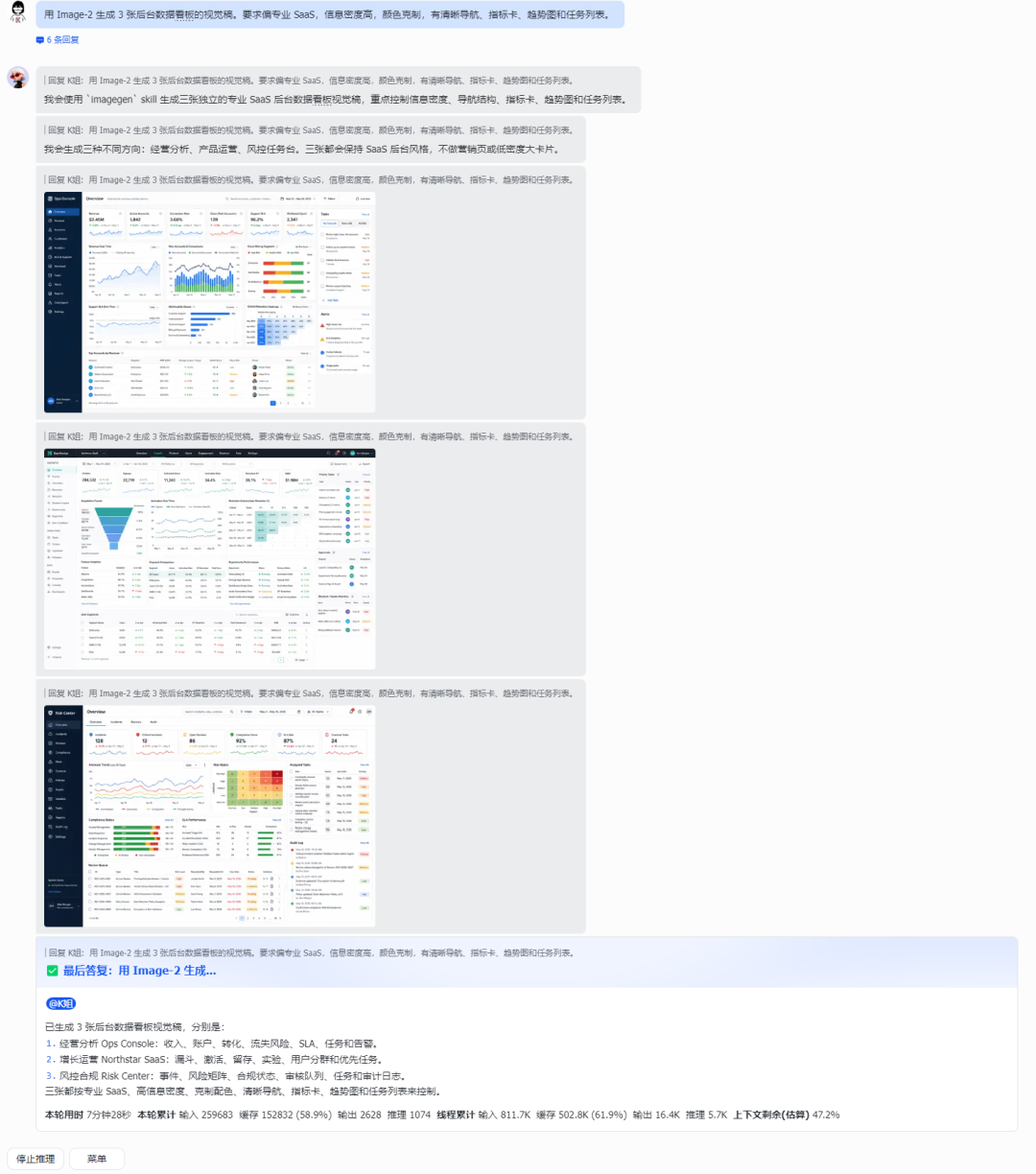
Prompt: Use Image-2 to generate 3 visual mockups for a backend data dashboard. The requirements are a professional feel SaaS, high information density, restrained colors, and clear navigation, metric cards, trend charts, and task lists.
After getting the images, pick one and continue:
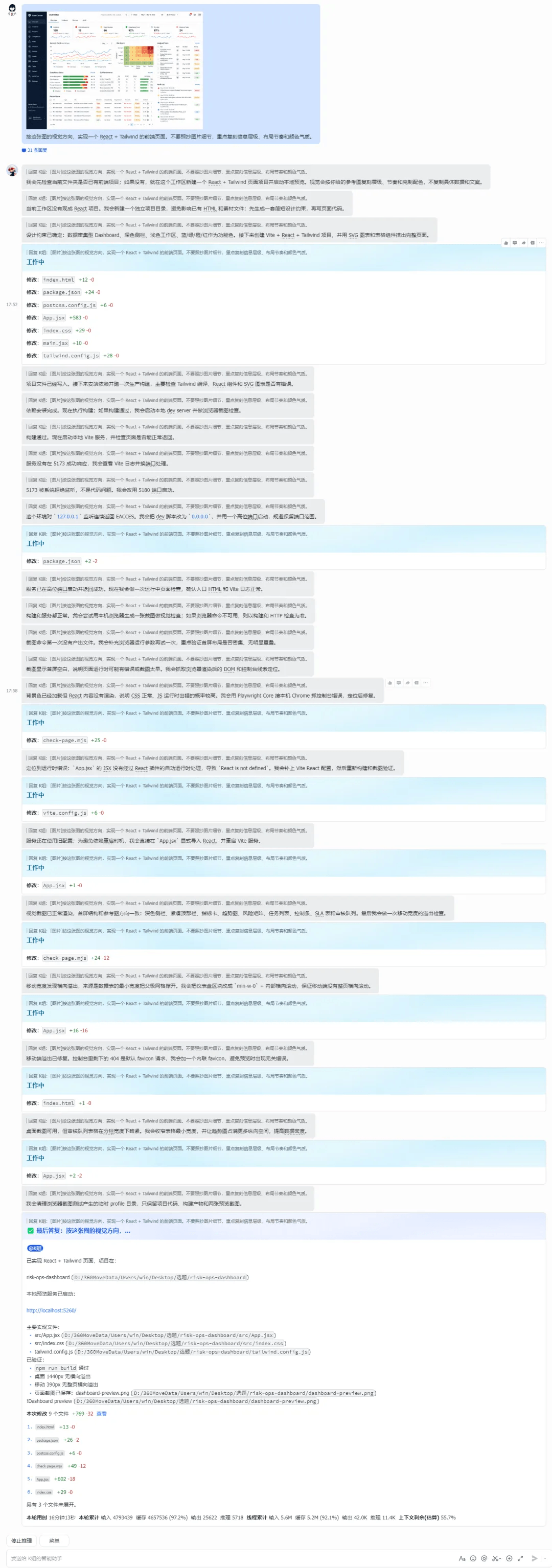
Prompt: Following the visual direction of this image, implement a React + Tailwind front-end page. Do not copy the details of the image; focus on reproducing the information hierarchy, layout rhythm, and color temperament.
I was still out shopping when it sent me the result to look at. Working on a phone is so great!
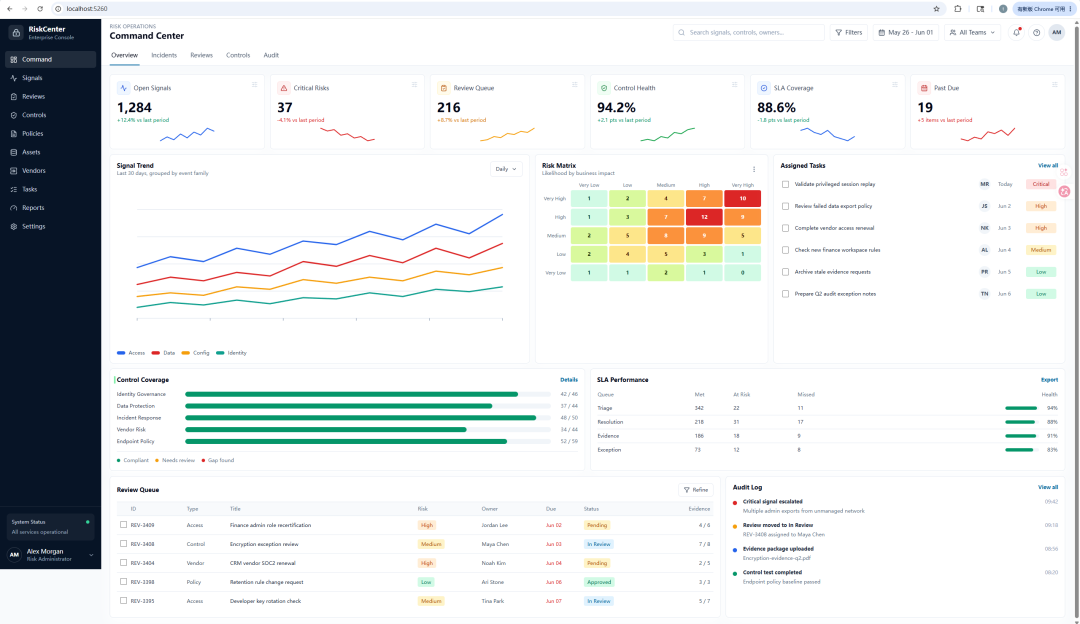
The result was also very good. In the past, when Codex wrote pages, it was easy for it to start from components and layout, and the result was very simple and ugly.
Now if you give it an image, with an aesthetic anchor point, the result is much better.
Maybe some friends will ask, if I write code in front of a computer every day, my first feeling might be: can't I just use Codex directly?
But as long as we encounter these scenarios, Feishu integration is very valuable:
Often using a phone to handle work messages.
Hoping to continue advancing projects without opening a computer.
Wanting to put screenshots, files, and progress in Feishu for collaboration.
Already treating Feishu as the team's work entry point.
03. Some sharing
Currently, the model I mainly call in Codex is GPT-5.5. It is indeed strong, but high-intensity use requires the Pro plan, which costs over a thousand RMB a month, which is still quite expensive for most individuals.
Actually, 90% of our daily office scenarios cannot bring out the full strength of GPT-5.5. If we switch to a domestic model, at 1/10 the price, we can achieve 90% of the ability of the top models. This cost-effectiveness is very worthwhile for most people.
But having only a highly cost-effective model is not enough.
Connecting Codex with Feishu completely changed the way I work, and made me understand that what matters more is having top-tier product applications that can bring out 120% of a model's capabilities. Only by weaving AI into the details of everyday work and building a new human-AI collaborative workflow can technology truly land.
Original link:Connected Codex to Feishu! Write documents and develop projects anytime, anywhere