
What is Claude Desktop
Claude Desktop is an AI assistant tool launched by Anthropic. It supports Mac and Windows systems and can be awakened at any time through global shortcuts (such as double-pressing the Option key on Mac), making it convenient for users to quickly call it in any application. The tool has screen sharing capabilities, can directly take screenshots or share application windows, and supports voice input (such as by pressing the Caps Lock key) to ask questions while speaking. The tool supports connecting to local tools, such as code editors, files, and databases, allowingClaudedirect participation in workflows. It improves work efficiency and becomes a capable assistant for users in work and study.
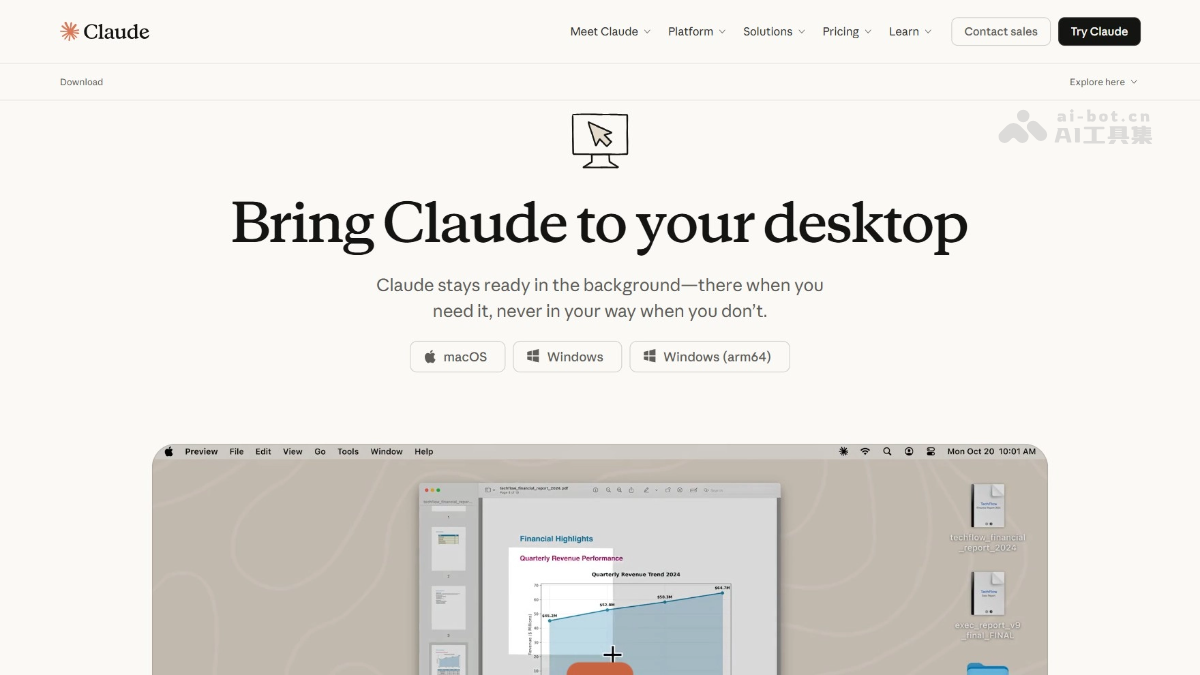
Main features of Claude Desktop
-
Global shortcut wake-up: By double-pressing the Option key (Mac) or using a specific shortcut, users can quickly wake up Claude in any application without switching interfaces.
-
Screen sharing and screenshots: Supports screenshots or sharing the entire application window. Users can directly show screen content to Claude, facilitating real-time collaboration and problem solving.
-
Voice input: Pressing the Caps Lock key enables voice input, allowing users to communicate with Claude while speaking, improving interaction efficiency.
-
Tool connections: Connects to local code editors, files, and databases through the MCP protocol, allowing Claude to directly operate on and process the user's work environment, improving work efficiency.
-
File drag-and-drop: Supports users dragging files (such as code, documents, and data) directly into the Claude window for quick sharing and processing.
How to use Claude Desktop
- Download and install: Visit the Claude Desktop official website https://claude.com/download,点击下载页面,根据系统选择版本下载并安装。
- Log in or create an account: After opening the application, users with an existing account can log in directly, and those without an account can register a new one.
- Use the global shortcut to wake up: Mac users double-press the
Optionkey, and Windows users use the default shortcut (such asCtrl + Space) to wake up Claude. - Screen sharing and screenshots: Click the "Screenshot" or "Share Window" button in the Claude window, then select the screenshot area or share the entire application window.
- Voice input: Press the
Caps Lockkey to enable voice input and communicate with Claude while speaking. - File drag-and-drop: Drag files into the Claude window, and Claude automatically loads and processes the file contents.
- Connect tools: Connect local tools (such as code editors, file systems, or databases) through the MCP protocol, allowing Claude to operate them directly.
Application scenarios of Claude Desktop
- Code development: While writing code, double-press the
Optionkey to wake up Claude, drag in code files, and get syntax checks, optimization suggestions, or solutions to programming problems. - Document processing: When reading or writing documents, share the document window and let the tool summarize the content, extract key information, or polish the text.
- Program debugging: When encountering program issues, share the screen or drag in related files and let the tool help analyze errors and debug code.
- Data analysis: When processing data files, drag the data files into the Claude window to get data analysis suggestions or generate visualizations.
- Learning assistance: When learning new knowledge, use voice input or text questions to have Claude provide explanations, summaries, or expanded learning materials.