
Anthropic releases the Claude Computer Use developer best practices guide, covering a complete solution from screenshot preprocessing and model selection to security defense. Aimed at the Claude 4.6 family and Opus 4.7 models, the core recommendations include pre-scaling screenshots to 1280×720 to improve click accuracy, ordering text before screenshots, replacing prompt engineering with a teaching mode, and integrating three layers of injection defense plus long-conversation context compression strategies, helping build production-grade Agent automation systems.
Resolution and Scaling
Click accuracy is the foundation of Computer Use integration. If clicks are offset, all subsequent workflows will fail. The article points out that the most impactful optimization is also the simplest: pre-downsample the screenshot before sending it to the API.
Internal API Processing Limits
The API limit for the Claude 4.6 family is:
- maximum long side of 1568 pixels
- maximum total pixels of 1.15MP
- exceeding either limit triggers internal silent downsampling
Opus 4.7 supports higher resolution:
- maximum long side of 2576 pixels
- maximum total pixels of 3.75MP
- exceeding the limits likewise triggers silent downsampling
Core Problem
When a screenshot exceeds the API limits, the model sees a compressed image, and the coordinates it returns are also based on the compressed size, while the client harness still executes clicks at the original resolution. The mismatch between the coordinate space and the image the model perceives is the primary cause of inaccurate clicks at high resolution.
Recommended Resolutions
- General default: 1280×720. Uses about 80% of the pixel budget, is common in training data, and offers good compatibility.
- Opus 4.7 recommendation: 1080p, achieving a better balance between token consumption and performance.
- Maximize API fit: calculate the optimal resolution according to the native aspect ratio, avoiding proportional distortion caused by forced stretching.
Resolutions to Avoid
- Native resolution (unscaled): unless it happens to be below the limits, this is the most common cause of inaccurate clicks.
- Too low resolution (below 960×540): too much detail is lost, and the model cannot recognize small UI elements.
- macOS note: screenshots often have a 2x device pixel ratio; a 1440p screen actually outputs 2880p, far exceeding the API upper limit.
- The 4.6 family should avoid 1920×1080 and above: this exceeds the pixel limit and is silently compressed; Opus 4.7 has a higher upper limit, and 1080p and 1440p are within budget, but native 4K sent directly without scaling should still be avoided.
Coordinate Scaling
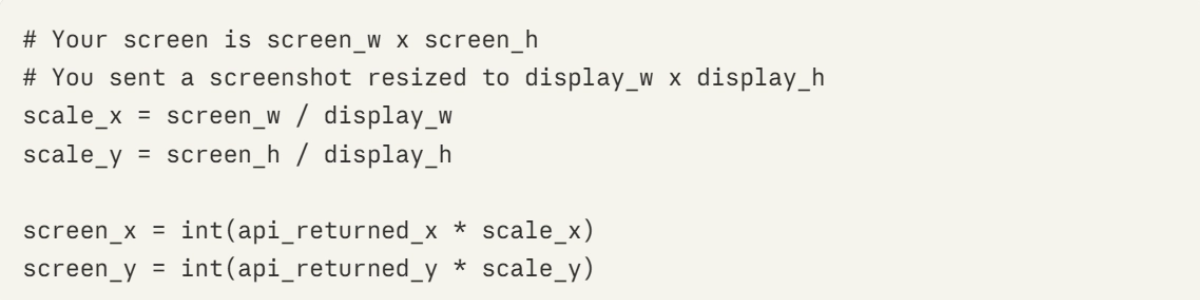
After scaling down the screenshot yourself before sending, the coordinates returned by the model are based on the display_width_px / display_height_px at the time of sending, and must be proportionally restored to real screen coordinates before execution:
Ordering of Message Array Content
When constructing the message content array, place the text instructions before the screenshot.
Recommended order:
content = [
    {"type": "text", "text": "Click on the Submit button"},
    {"type": "image", ...},
]content = [
{"type": "image", ...},
{"type": "text", "text": "Click on the Submit button"},
]Model Selection
Based on Anthropic's internal testing, different models each have their strengths:
- Sonnet 4.6: highest mechanical click precision, accurate spatial localization, fewer near-distance errors, and better tolerance for heavy image compression. Suitable for most mechanical execution tasks, achieving the best balance among accuracy, reasoning, and cost.
- Opus 4.7: Stronger reasoning ability, and click precision has caught up with Sonnet 4.6. Plus, with a larger resolution budget (3.75MP vs 1.15MP), the amount of compression needed is smaller. If a task requires both reasoning and precise clicking, Opus 4.7 is currently the best solution.
- Haiku 4.5: The latency-first choice, suitable for scenarios with extremely high speed requirements.
Advanced Mode: Orchestrator Mode (Orchestrator + Sub-agent)
In complex workflows, you can use a model with strong reasoning ability (such as Opus) as the "orchestrator" responsible for planning and decision-making, and then have Sonnet or Haiku execute the specific clicking operations, dividing labor and collaborating.
Small Target Handling
Large buttons, input boxes, and standard menu items can all be clicked reliably by Claude. For tiny elements such as checkboxes, system tray icons, dropdown arrows, and small toggles, accuracy will decline.
Reason: After a 4K screen (3840×2160) is compressed to 720p, a checkbox that was originally 16 pixels may be left with only about 5 pixels, making it difficult to hit precisely.
Solutions
- Enable Zoom: Claude 4.6 and 4.7 support zoom capability, allowing the model to first magnify a specific area to see it clearly before clicking. Add "enable_zoom": True in the tool configuration.
- Enlarge the Target: If the UI is controllable, increasing the size of the click target (lowering system DPI, increasing browser zoom, adjusting UI scale) can produce a disproportionately large improvement in accuracy.
- Keyboard Alternative: For extremely small elements, Tab navigation or keyboard shortcuts are more reliable than mouse clicks.
- Consider Source Resolution: Compressing a 4K+ display to 720p will lose a large amount of detail. If using the 4.6 model, you can try lowering DPI or focusing screenshots on the relevant screen area; if using Opus 4.7, a higher resolution budget can reduce the need for compression.
Thinking Effort Tuning
Claude supports adaptive thinking, with effort set through the thinking parameter: low, medium, high, xhigh (Opus 4.7 only), max.
Opus 4.7
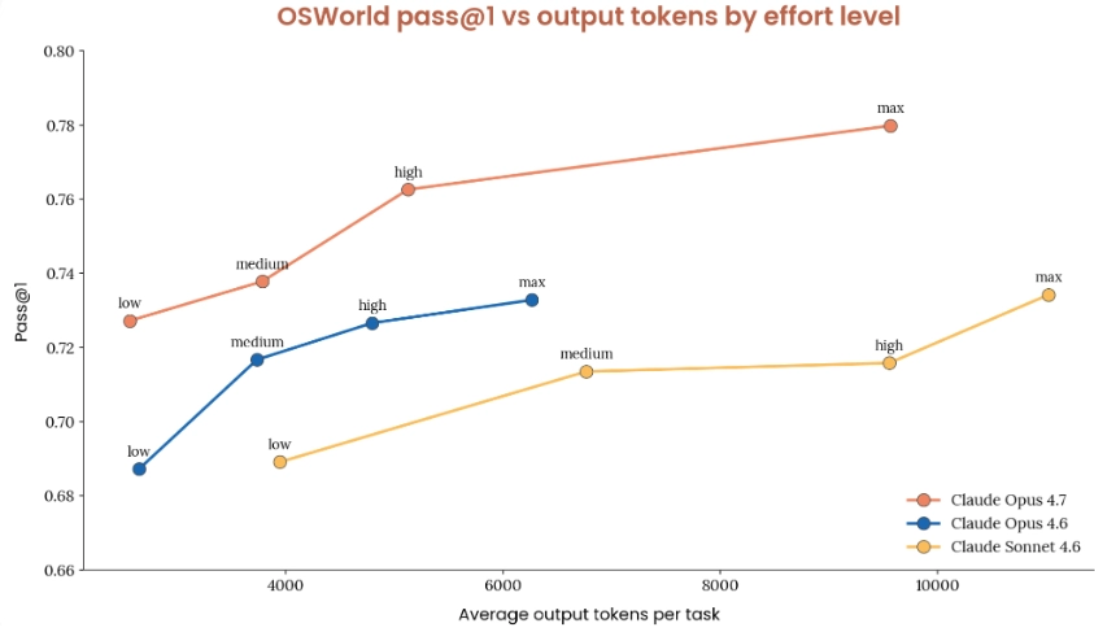
In the OSWorld Verified benchmark:
- high levelaccuracy is close to max, while output tokens are only about half.
- low levelscores are similar to Opus 4.6's high/max, with token usage about 1/10.
- max levelhas the highest score, with a significantly increased token cost.
Recommendations:
- Default: high (the best cost-performance for complex multi-step interactions)
- High throughput/cost-sensitive:low
- Simple and fast tasks: try Sonnet 4.6
- Complex one-off tasks:max
Claude 4.6 Family
Tests show that medium's task success rate is already close to the highest value, and further increases in thinking effort yield diminishing returns.
- Recommended default:medium
- low is better than turning thinking off, because it reduces errors and retries, so the actual total token consumption is lower.
- Not recommended to use max in Computer Use: in tests there was no accuracy improvement compared with high, and it only increases token cost.
Prompt Injection Defense
Letting an AI Agent directly operate a computer makes security crucial. Anthropic's defense system is divided into three layers:
First layer:Training Immunity
During training, the model is exposed to a large number of web pages and application interfaces containing injected content, and through reinforcement learning it learns to recognize and refuse malicious instructions.
Second layer:Real-time Classifier
On each request, scan in parallel the content entering the Claude context, detecting hidden instructions in text, instructions embedded in images, and fake UI elements attempting to deceive the Agent.
When using the official computer_20251124 tool type, the prompt injection classifier runs automatically, in parallel with model inference, with zero additional latency and zero additional cost. If you implement the tool yourself without using the official type, this automatic layer of protection is not present.
Third layer:Human-in-the-loop
Before performing irreversible operations (submitting forms, making payments, sending messages, changing data), have the Agent pause and ask the user to confirm. The original text emphasizes: the most effective defense is actually human-in-the-loop.
Long-conversation context management
Computer Use tasks are often very long. Each screenshot consumes 1000–1800 tokens, and a 200K context window is full in fewer than 100 screenshots; a 1M window is similarly tight.
First layer: Cache Breakpoints
The API supports up to 4 cache breakpoints. Recommended approach: place 1 on the system prompt and tool definitions (fixed content), and the other 3 on the latest tool_result, clearing old markers and placing new ones each turn. This way, the API does not reprocess the entire conversation prefix every time.
Second layer: Rolling Buffer
Keep the full data of only the most recent N screenshots; replace earlier screenshots with the text placeholder [Image omitted].
Key detail: use batch replacement rather than clearing one by one. By default, keep the most recent 3 (keep_n=3), and perform a cleanup every 25 accumulated (interval=25). If you replace one by one, the conversation prefix changing every turn causes cache invalidation; batch replacement keeps the prefix byte-identical across multiple turns, maintaining the cache hit rate.
Third layer: LLM compression
When the rolling buffer can no longer hold up, use the model itself to summarize the conversation history, then discard the original content.
The compression prompt template requires preserving 8 categories of information: the user's complete instructions (preserving verbatim all constraints such as "must", "do not", "always"), the task template, constraint rules, executed operations, error and fix records, progress tracking, current state, and next-step plan.
The most critical principle: all user instructions must be preserved verbatim. User instructions are the most critical element; losing them will cause the Agent to deviate from the task.
Server-side automatic compression
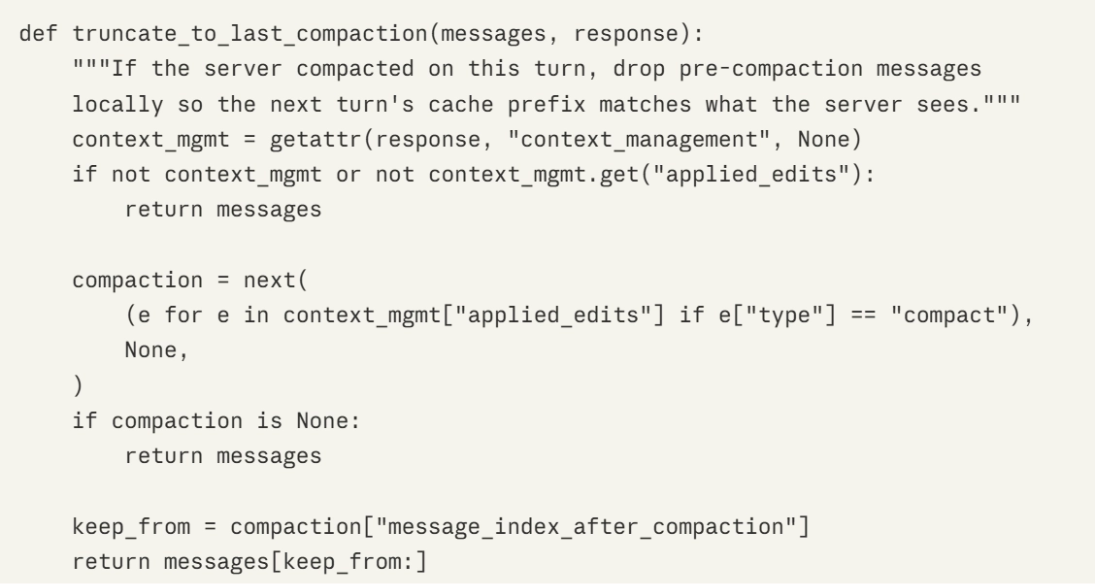
Add the context_management parameter and the compact-2026-01-12 beta identifier to the API request, and the server will automatically trigger compression when input tokens reach the threshold. The client only needs to truncate the local message array to the same position after receiving the compression response, keeping the cache aligned.
Teaching mode
The traditional approach is to describe the task in words, but it is laborious to write and the model can easily misunderstand. The original text proposes a new idea: don't tell Claude how to do it, just "demonstrate" it directly.
Recording phase
The user manually performs the task once, and the system records each step of the operation (click coordinates, input content, page navigation), with each step accompanied by a screenshot, and the click position marked with a blue circle on the screenshot.
Replay phase
Claude receives a complete operation demonstration: "Step 1, click the expense type dropdown menu" with an annotated screenshot, "Step 2, select the travel type" with the next screenshot... Claude executes the same sequence in the current real environment, but does not rigidly replay by coordinates. If the UI layout changes, buttons shift, or menus are rearranged, Claude understands "what to do" based on the demonstration and finds the corresponding element in the current interface.
Three replay modes
- Strict Mode: Execute strictly step by step; if the UI changes too much, stop and report. Suitable for compliance-sensitive scenarios.
- Adaptive Mode: Use the demonstration as a reference but adjust flexibly to handle minor layout changes, button renames, and menu reordering. Recommended default mode.
- Goal-Oriented Mode: Focus only on the final result; recorded steps serve only as a reference. Suitable for scenarios where the UI changes frequently but the goal remains the same.
Advisor Mode
Most Computer Use operations are mechanical (clicking, typing, scrolling), so using Sonnet is low-cost and fast. But occasionally deep thinking is needed: should this button be clicked? What if the information is wrong? How to roll back if the process goes wrong?
Approach: Let Sonnet perform routine operations on its own, and call Opus 4.7 as an advisor when strategic decisions are needed. After Opus makes a decision, hand it back to Sonnet to continue executing the mechanical steps, achieving a balance between low cost and high intelligence.
Ineffective Optimizations (No Effect Observed in Internal Testing)
The original text explicitly lists the following methods as not producing consistent improvements in internal evaluations:
- Splitting screenshots into small tiles (quadrants/regions) and sending them separately.
- Overlaying a coordinate grid on the screenshot to help the model locate elements.
- Changing the scaling algorithm (no difference in results among PIL LANCZOS, sips, etc.).
Troubleshooting Quick Reference Table
The original text provides a systematic diagnostic framework:
| Symptom | Possible Cause | Solution |
|---|---|---|
| Systematic one-way click offset | Display size does not match the actually sent image; screenshot exceeds API limit and is silently compressed; images come before text in the message array | Ensure the display size matches the scaled screenshot; pre-scale to 1280×720; text before images |
| Roughly correct but deviates from the target | Target is extremely small; 4K+ source image over-compressed; forced non-native aspect ratio | Enable enable_zoom; lower DPI or crop the area; maintain aspect ratio |
| Completely clicks the wrong element | Ambiguous instructions; visually similar elements; a single step is too complex | Add positional context; split into smaller steps; supplement with a page layout description |
| Overall accuracy is poor | Screenshot exceeds the limit; 4K+ high-resolution source; resolution too low | Pre-scale; Opus 4.7 reduces compression; try a 1280×720 baseline |
Special Scenarios: Some drop-down menus may invoke system-level UI that the browser viewport cannot capture—the model appears to fail, but actually it cannot see the menu. In this case, have the model switch to JavaScript execution, keyboard navigation, or direct DOM manipulation instead of clicking.
Quick Reference Code
The guide provides ready-to-use Python code templates covering:
- compute_max_api_fit(): Calculate the optimal API-fitting resolution based on the native aspect ratio
- prepare_screenshot(): Scale the screenshot and convert it to base64
- scale_coordinates(): Convert API-returned coordinates back to real screen coordinates
And a complete API call example: the full process from screenshot capture, pre-scaling, message construction (text before images), tool configuration, to coordinate restoration and execution.
Summary
The core engineering logic of the guide can be summarized as: pre-scale screenshots to eliminate coordinate misalignment → text before screenshots to optimize understanding → choose by scenario (Sonnet for execution/Opus for reasoning) → enable zoom or keyboard alternatives for small targets → medium/high thinking effort is optimal → three layers of defense to ensure safety → three-layer funnel to manage context → recording instead of writing to reduce cost → advisor mode to save tokens. "Pre-scaling screenshots" is the single-point optimization with the highest return on investment, and "teaching mode" represents a new paradigm evolving from Prompt Engineering to Demonstration Learning.
Official website address
- Official website address:https://claude.com/blog/best-practices-for-computer-and-browser-use-with-claude