
What is AIRI
AIRI is an open-source AI virtual character soul project that allows users to have an interactive digital companion. AIRI supports Web, macOS, and Windows platforms, and features multimodal interaction capabilities, including chatting and playing games (such as Minecraft and Factorio). The desktop version can run independently without interfering with other work, supports VRM and Live2D models, and features animation effects such as automatic blinking and eye tracking. AIRI supports voice interaction and can connect to various large language models and voice services.
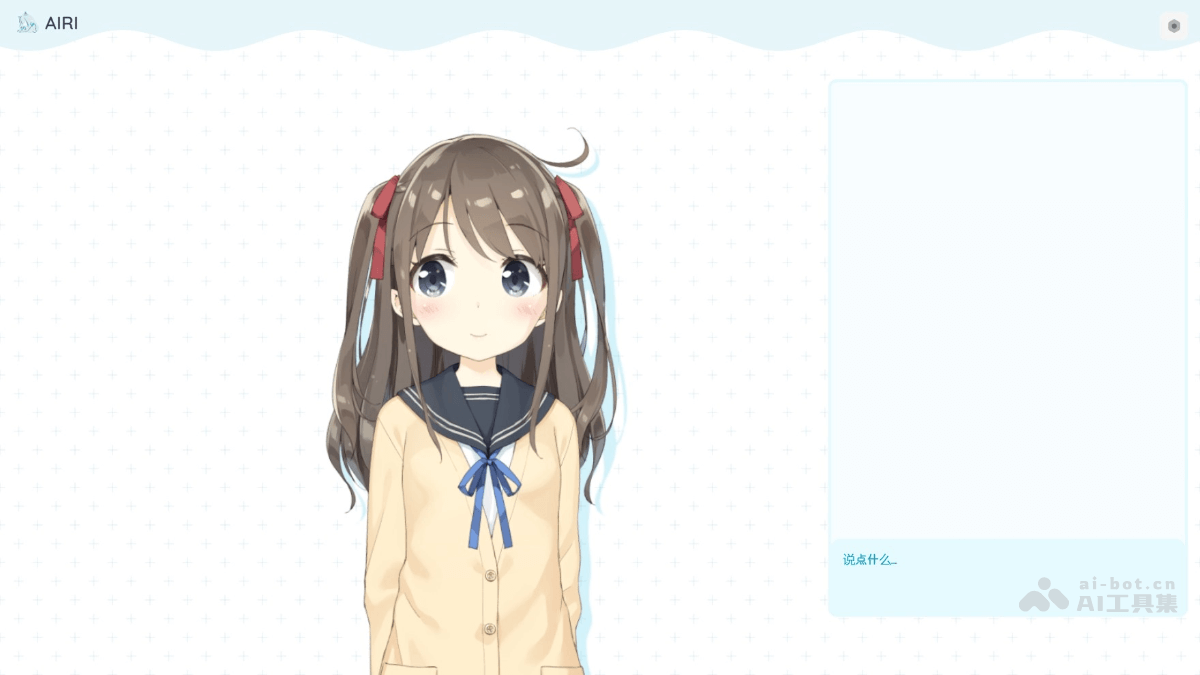
Main Features of AIRI
- Multimodal Interaction: Supports chatting and voice interaction; users can communicate with the digital companion via text or voice.
- Hover Fade-Out Feature: The model window fades out when the mouse hovers over it, allowing operation of underlying applications without disturbing other work.
- Hotkey Operations: Supports closing the model window via hotkeys, making it convenient for users to switch operations quickly.
- Animation Effects: Supports VRM and Live2D models, with animation effects such as automatic blinking and eye tracking, making the digital companion more vivid.
- Game Interaction: Supports playing games such as Minecraft and Factorio, allowing users to play together with the digital companion.
- Social Features: Supports interaction with users on chat platforms such as Telegram and Discord.
AIRI Official Website Address
- Official Website:https://airi.moeru.ai/
- GitHub Repository:https://github.com/moeru-ai/airi
How to Use AIRI
- Visit the Official Website: Visit the AIRI official website https://airi.moeru.ai/,选择访问方式,在线访问直接点击登录,客户端访问根据操作系统下载对应版本。
- Obtain an API Key: If you choose to use a specific large language model, you need to obtain the corresponding API key.
- Select a Large Language Model: Select a supported large language model in the settings.
- Enter the API Key: Enter the obtained API key into the configuration to ensure the model can be used normally.
- Select a Chat Model: Select a chat model in the settings.
- Disable Hover Fade-Out Mode: Disable the "hover fade-out" mode from the system tray to interact better with the digital companion.
- Adjust the Window Position: Place the digital companion's window at a suitable position on the screen so it does not interfere with other operations while working or gaming.
- Start Interacting:
- Bring Up the Chat Window: Hover the mouse over the model interface and click the chat bubble icon to bring up the chat window.
- Enter Content: Enter content in the chat window to start text communication with the digital companion.
AIRI Application Scenarios
- Chat Companion: As a chat companion, it accompanies users in daily conversations, providing emotional support and entertainment.
- Learning Assistant: Helps users learn new knowledge, answer questions, and provides learning suggestions and resources.
- Multiplayer Games: Plays supported games together with users, such as Minecraft and Factorio, increasing the fun and interactivity of the game.
- Game Commentary: Provides real-time game commentary and strategy suggestions while the user is playing.
- Task Reminders: Help users manage schedules and remind them of important tasks and meetings.