
Claude Code is a command line tool for agentic coding. This article covers proven and effective tips and methods for using Claude Code across various codebases, languages, and environments.
We recently releasedClaude Code, a command line tool for agentic coding. Developed as a research project, Claude Code provides Anthropic engineers and researchers with a more native way to integrate Claude into their coding workflows.
Claude Code is intentionally designed to be low-level and not force a particular approach, providing near-raw model access without enforcing a specific workflow. This design philosophy creates a powerful tool that is flexible, customizable, scriptable, and safe. Although powerful, this flexibility presents a learning curve for engineers new to agentic coding tools—at least until they develop their own best practices.
This article outlines general patterns that have proven effective, both for teams within Anthropic and for external engineers using Claude Code across various codebases, languages, and environments. Nothing in this list is set in stone or universally applicable; treat these suggestions as a starting point. We encourage you to experiment and find the approach that works best for you!
Looking for more detailed information? Our complete documentation onclaude.ai/codecovers all the features mentioned in this article and provides additional examples, implementation details, and advanced techniques.
1. Customize your setup
Claude Code is an agentic coding assistant that automatically pulls context into prompts. This context gathering consumes time and tokens, but you can optimize it through environment tuning.
a. Create CLAUDE.md files
CLAUDE.md is a special file that Claude automatically pulls into context when starting a conversation. This makes it an ideal place to document the following:
- Common bash commands.
- Core files and utility functions.
- Code style guidelines.
- Testing instructions.
- Repository conventions (e.g., branch naming, merge vs. rebase, etc.).
- Development environment setup (e.g., use of pyenv, available compilers).
- Any unexpected behaviors or warnings specific to the project.
- Other information you want Claude to remember.
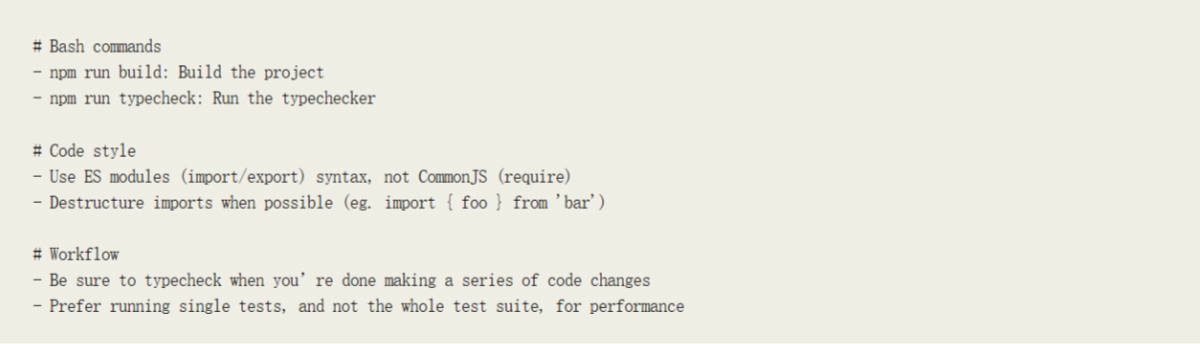
There are no fixed format requirements for CLAUDE.md files. We recommend keeping them concise and readable. For example:
You can place CLAUDE.md files in multiple locations:
- The repository root, or wherever you run claude (the most common usage). Name it CLAUDE.md and commit it to git so it is shared across sessions and teams (recommended), or name it CLAUDE.local.md and ignore it via .gitignore
- Any parent directory of the directory where you run claude. This is especially useful for monorepos, for example you might run claude from root/foo while having files at both root/CLAUDE.md and root/foo/CLAUDE.md. Both will automatically be pulled into context
- Any subdirectory of the directory where you run claude. This is the reverse of the above case, in which when you work on files in a subdirectory, Claude pulls the CLAUDE.md file in the subdirectory into context on demand
- Your home directory(~/.claude/CLAUDE.md). This will apply to all your claude sessions, and when you run the /init command, Claude will automatically generate a CLAUDE.md file for you.
b. Adjust your CLAUDE.md file
Your CLAUDE.md file becomes part of Claude's prompt, so it should be optimized like any frequently used prompt. A common mistake is to add a large amount of content without iterating on its effectiveness. Take the time to experiment and determine how to best get the model to follow instructions.
You can manually add content to CLAUDE.md, or press # to give Claude an instruction, and it will automatically merge it into the relevant CLAUDE.md. Many engineers frequently use # while coding to record commands, files, and style guides, and then include the CLAUDE.md changes in commits so that team members can benefit as well.
At Anthropic, we occasionally run CLAUDE.md files through theprompt improver, often tweaking instructions (for example, adding emphasis with "important" or "must") to improve adherence.
c. Manage the list of tools Claude is allowed to use
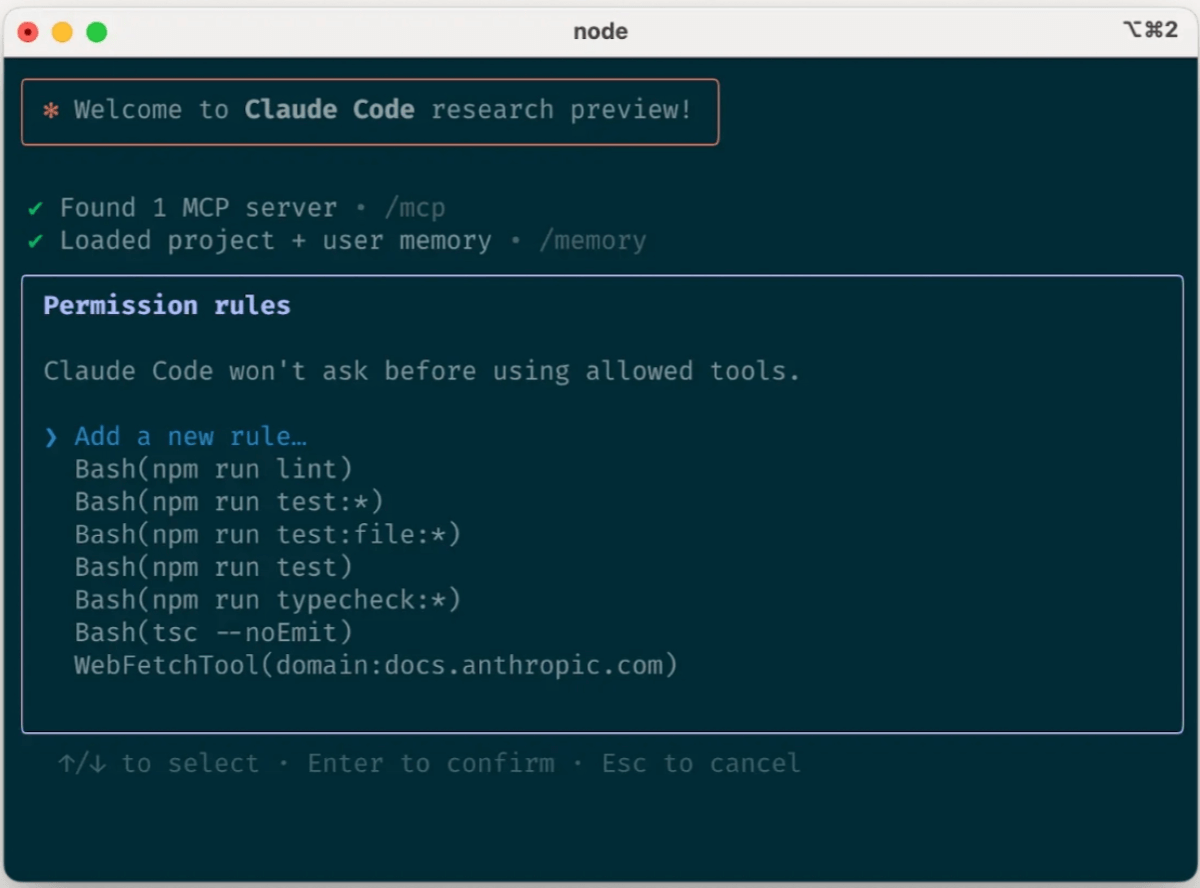
By default, Claude Code requests permission for any operation that may modify the system: file writes, most bash commands, MCP tools, and so on. We deliberately adopt this conservative design to prioritize safety. You can customize the allowlist to add tools you have confirmed are safe, or to allow potentially unsafe operations that are easy to undo (such as file edits and git commits).
There are four ways to manage allowed tools:
- Select "Always allow" when a prompt appears in the session.
- After starting Claude Code, use the /allowed-tools command to add or remove tools from the allowlist. For example:
- Add Edit to always allow file edits.
- Add Bash(git commit:*) to allow git commits.
- Add mcp__puppeteer__puppeteer_navigate to allow navigation using the Puppeteer MCP server.
- Manually edit the .claude/settings.json or ~/.claude.json file (it is recommended to put the former under version control for team sharing).
- Use the --allowedTools command-line argument to set session-specific permissions.
d. If using GitHub, install the gh CLI Claude
Know how to use the gh CLI to interact with GitHub, including creating issues, opening pull requests, reading comments, and so on. If gh is not installed, Claude can still interact via the GitHub API or an installed MCP server.
2. Provide Claude with more tools
Claude can access your shell environment, and you can build a set of convenient scripts and functions for it just as you would for yourself. It can also leverage more complex tools through MCP and REST APIs.
a. Combine Claude with bash tools
Claude Code inherits your bash environment, giving it access to all your tools. Although Claude knows common utilities such as unix tools and gh, it will not know your custom bash tools without instructions:
- 1. Tell Claude the tool name and usage examples.
- 2. Have Claude run --help to view the tool documentation.
- 3. Document commonly used tools in CLAUDE.md.
b. Combine Claude with MCP
Claude Code can act as both an MCP server and a client. As a client, it can connect to any number of MCP servers in three ways to access their tools:
- In the project configuration (available when running Claude Code in that directory).
- In the global configuration (available in all projects).
- In the committed .mcp.json file (available to anyone in the codebase). For example, you can add Puppeteer and Sentry servers to your .mcp.json so that every engineer working in your repository can use these tools out of the box. When using MCP, launching Claude with the –mcp-debug flag also helps identify configuration issues.
c. Use custom slash commands
For repeated workflows—debugging loops, log analysis, etc.—store prompt templates in Markdown files in the .claude/commands folder. When you type /, these commands appear in the slash command menu. You can commit these commands to git to make them available to the rest of the team.
Custom slash commands can contain the special keyword $ARGUMENTS to pass arguments from the command invocation.
For example, here is a slash command you can use to automatically pull and fix a GitHub issue:
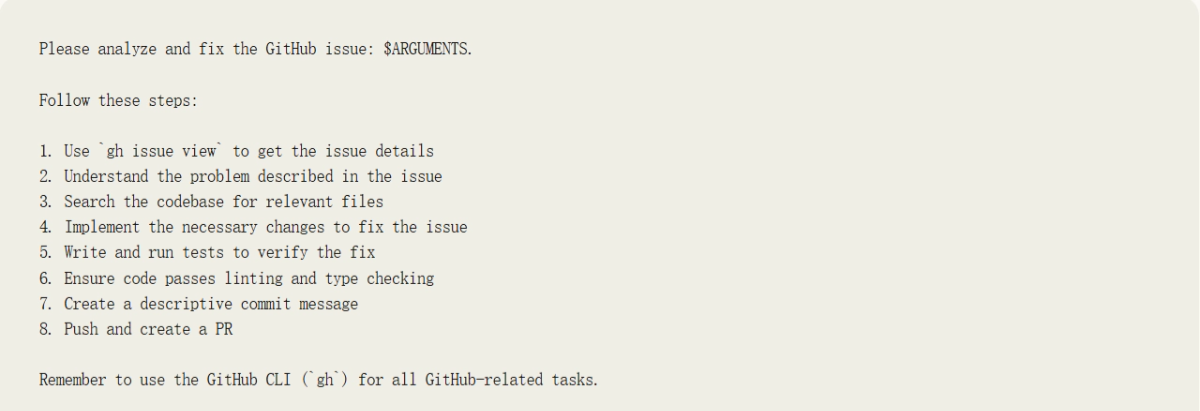
Put the above content into the .claude/commands/fix-github-issue.md file, and you can use the /project:fix-github-issue command in Claude Code. For example, you can use /project:fix-github-issue 1234 to have Claude fix issue #1234. Similarly, you can add personal commands to the ~/.claude/commands folder so that these commands are available in all sessions.
3. Try common workflows
Claude Code does not force a specific workflow, and you can use it flexibly as needed. With this flexibility, our user community has developed several successful patterns for using Claude Code efficiently:
a. Explore, plan, code, commit
This versatile workflow applies to many issues:
- Have Claude read relevant files, images, or URLs, and you can provide general guidance ("read the file that handles logging") or a specific file name ("read logging.py"), but explicitly tell it not to write any code for now. This is the part of the workflow where you should consider heavy use of subagents, especially for complex issues.
- Tell Claude to use subagents to verify details or investigate specific issues it may have, especially in the early stages of a conversation or task, which helps keep context available without much loss in efficiency. Have Claude formulate a plan to solve the specific issue. We recommend using the word "think" to trigger extended thinking mode, which gives Claude more compute time to evaluate alternatives more thoroughly. These specific phrases map directly to progressively increasing thinking budget levels in the system: "think" < "think hard" < "think harder" < "ultrathink". Each level allocates more thinking budget for Claude to use. If the result of this step seems reasonable, you can have Claude create a document or GitHub issue to record its plan, so that you can return to this point if the implementation (step 3) does not meet your requirements.
- Have Claude implement its solution in code. This is also a good time to ask it to explicitly verify the correctness of its solution as it implements each part of the solution.
- Have Claude commit the results and create a pull request. If relevant, this is also a good time to have Claude update any README or changelog to explain what it just did.
Steps 1 through 2 are crucial—without them, Claude tends to jump straight to writing solution code. Although that may be exactly what you want, having Claude research and plan first can significantly improve performance on deeply thought-out issues.
b. Write tests, commit; code, iterate, commit
This is Anthropic's favorite workflow, suitable for changes that can be easily verified through unit tests, integration tests, or end-to-end tests. Test-driven development (TDD) becomes even more powerful in intelligent coding:
- Have Claude write tests based on the expected input/output pairs. Explicitly state that you are doing test-driven development so that it avoids creating mock implementations, even for functionality that does not yet exist in the codebase.
- Tell Claude to run the tests and confirm whether they fail. It is often helpful to explicitly tell it not to write any implementation code at this stage. When you are satisfied with the tests, have Claude commit the tests. Have Claude write code that passes the tests, and instruct it not to modify the tests.
- Tell Claude to continue until all tests pass. It usually takes several iterations for Claude to write code, run tests, adjust the code, and run the tests again. At this stage, it may be helpful to ask it to use an independent sub-agent to verify whether the implementation is overfitting to the tests.
- Have Claude commit the code when you are satisfied with the changes.
Claude performs better when it has a clear goal to iterate on. This goal can be a visual sketch, a test case, or any concrete objective. This means that if there is a clear goal or direction, Claude can better realize its potential and provide better results or solutions.
c. Write code, screenshot the result, iterate
Similar to the testing workflow, you can provide Claude with visual goals:
- Provide Claude with a way to capture browser screenshots (for example, using Puppeteer MCP, the iOS simulator MCP server, or manually copying/pasting screenshots into Claude).
- Provide Claude with a visual mockup by copying/pasting or dragging and dropping an image, or by giving Claude the image file path.
- Have Claude implement the design in code, capture a screenshot of the result, and iterate until its result matches the mockup.
- When you are satisfied, have Claude commit.
Like humans, Claude's output improves significantly after iteration. Although the first version may be good, it is usually much better after 2-3 iterations. Provide Claude with the tools to view its output for the best results.
d. YOLO safety mode
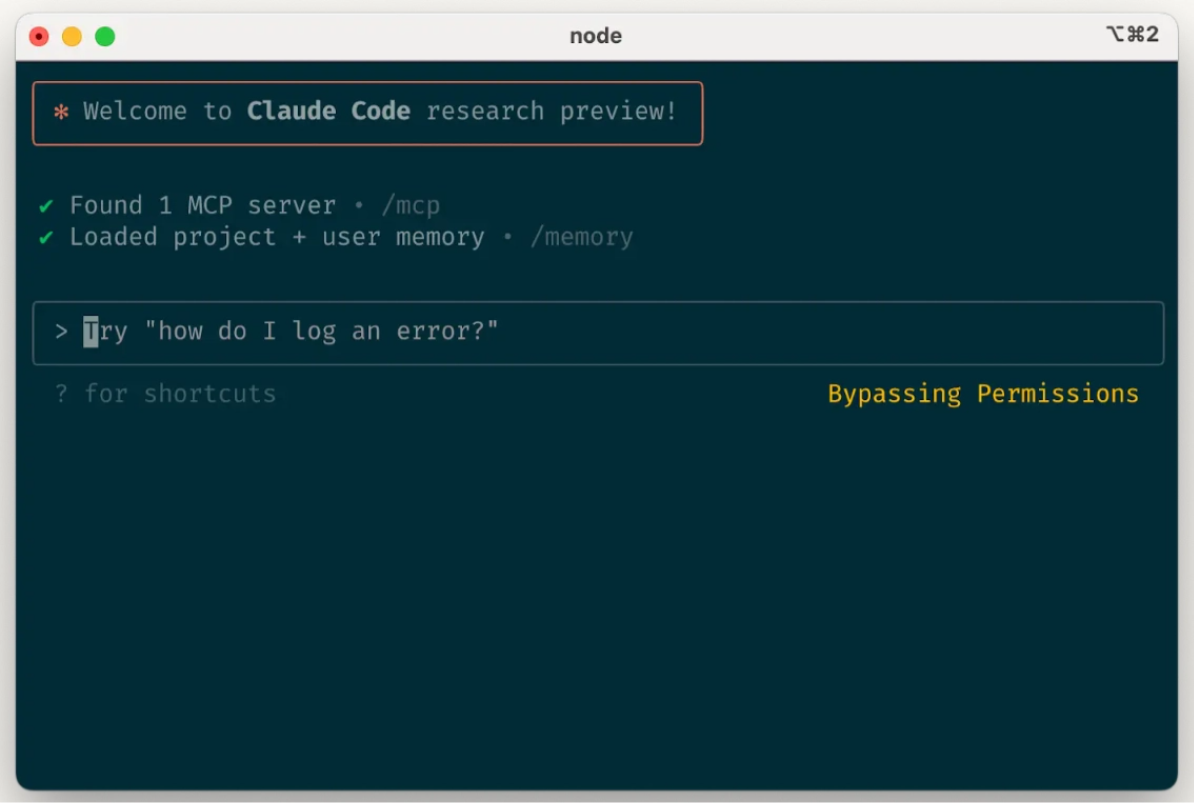
You can use claude –dangerously-skip-permissions to bypass all permission checks and let Claude work without interruption until completion, without supervision. This approach is especially suitable for workflows such as fixing lint errors or generating boilerplate code.
But note that allowing Claude to run arbitrary commands carries risks and may lead to data loss, system damage, or even data leakage (for example, through prompt injection attacks). To minimize these risks, please use –dangerously-skip-permissions in a container without network access. You can refer to this Docker development containerimplementation。
e. Codebase Q&A
When encountering a new codebase, you can use Claude Code to learn and explore. You can ask Claude the same kinds of questions you would ask other engineers on the project during pair programming. Claude can proactively search the codebase to answer general questions such as:
- How does the logging system work?
- How do I create a new API endpoint?
- What does async move{…} on line 134 of the foo.rs file do?
- What edge cases does CustomerOnboardingFlowImpl handle?
- Why is foo() called on line 333 instead of bar()?
- What is the Java equivalent implementation of line 334 in baz.py?
At Anthropic, using Claude Code in this way has become a core part of our onboarding workflow, significantly shortening the time for new employees to get up to speed and reducing the workload on other engineers. No special prompting needed! Just ask a question, and Claude will explore the code to find the answer.
f. Using Claude for git operations
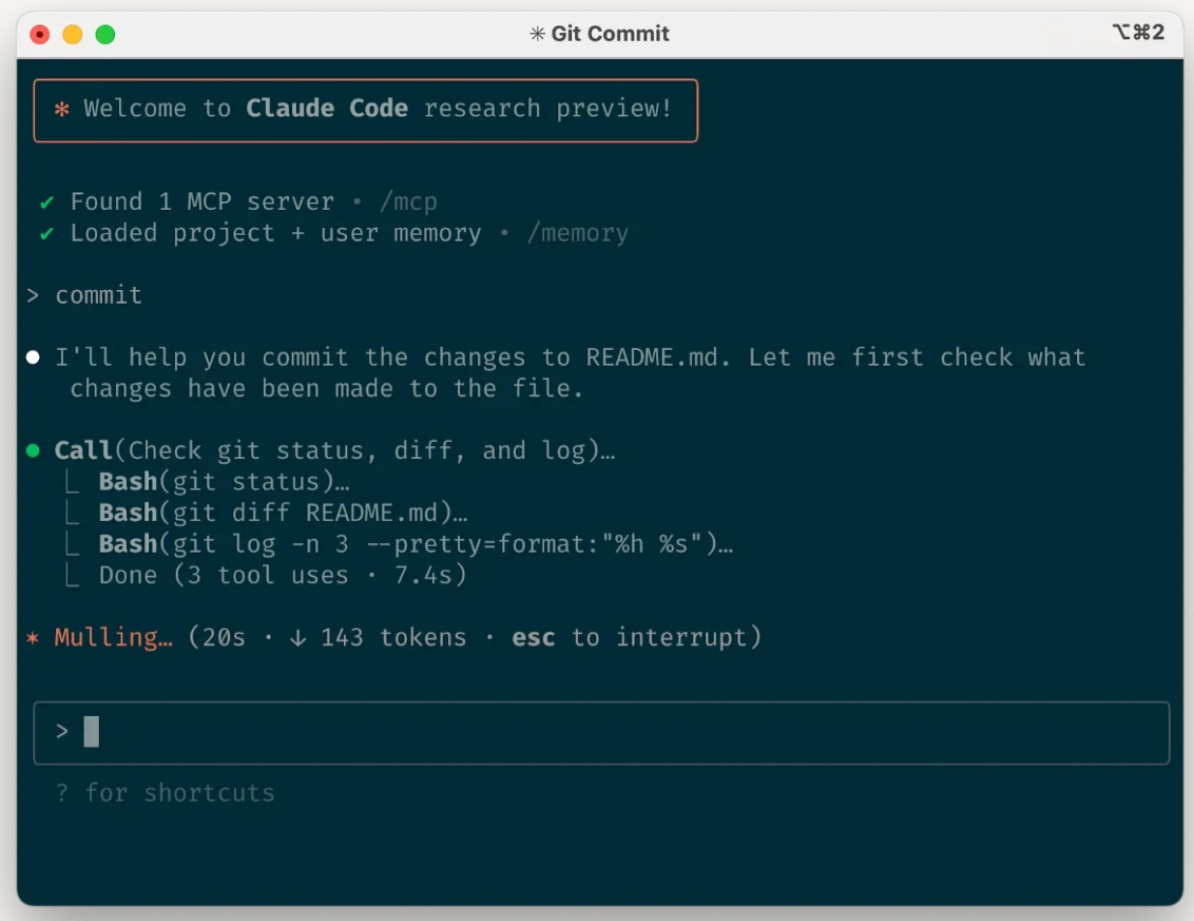
Claude can efficiently handle many git operations. Many engineers at Anthropic use Claude for over 90% of their git interactions:
- Search git history to answer questions such as "What changes are included in version v1.2.3?", "Who was responsible for this specific feature?", or "Why was this API designed this way?" It is helpful to explicitly prompt Claude to look at git history to answer such queries.
- Write commit messages. Claude automatically looks at your changes and recent history, taking all relevant context into account to write the commit message.
- Handle complex git operations, such as reverting files, resolving rebase conflicts, comparing and porting patches, etc.
g. Using Claude for GitHub interactions
Claude Code can manage many kinds of GitHub interactions:
- Create pull requests. Claude understands the abbreviation "pr" and will generate an appropriate commit message based on the diff and surrounding context.
- Implement one-off fixes for simple code review comments: just tell it to fix the comments on a PR (optionally providing more specific instructions), and when done it will push back to the PR branch.
- Fix failed builds or linter warnings.
- Classify and triage open issues on GitHub by having Claude go through the open issues on GitHub.
This both eliminates the need to remember gh command-line syntax and automates routine tasks.
h. Using Claude to work with Jupyter notebooks
Anthropic's researchers and data scientists use Claude Code to read and write Jupyter notebooks. Claude can interpret outputs including images, providing a shortcut for data exploration and interaction. Although there is no mandatory prompt or workflow, the workflow we recommend is to open Claude Code and the .ipynb file in VS Code.
You can also have Claude clean up or beautify a Jupyter notebook before showing it to colleagues. Explicitly telling it to make the notebook or its data visualizations "beautiful and elegant" helps remind it that this is about optimizing the human viewing experience.
4. Optimize your workflow
The following suggestions apply to all workflows:
a. Be specific and clear in your instructions
Claude Code's success rate improves significantly with the specificity of the instructions, especially on the first try. Giving clear instructions in advance reduces the need for later corrections.
For example
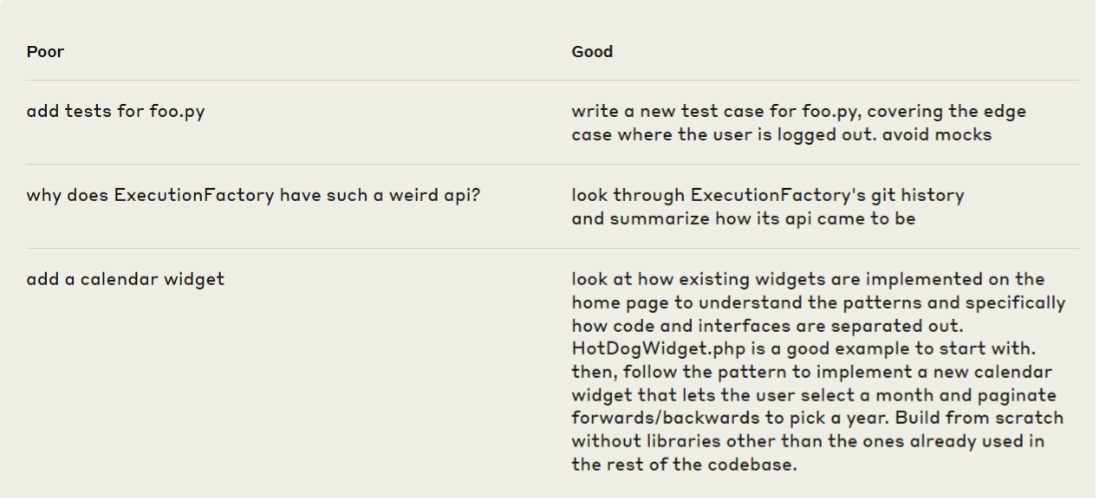
Claude can infer intent, but it cannot read minds. Clear instructions lead to better alignment with expectations.
b. Provide images to Claude
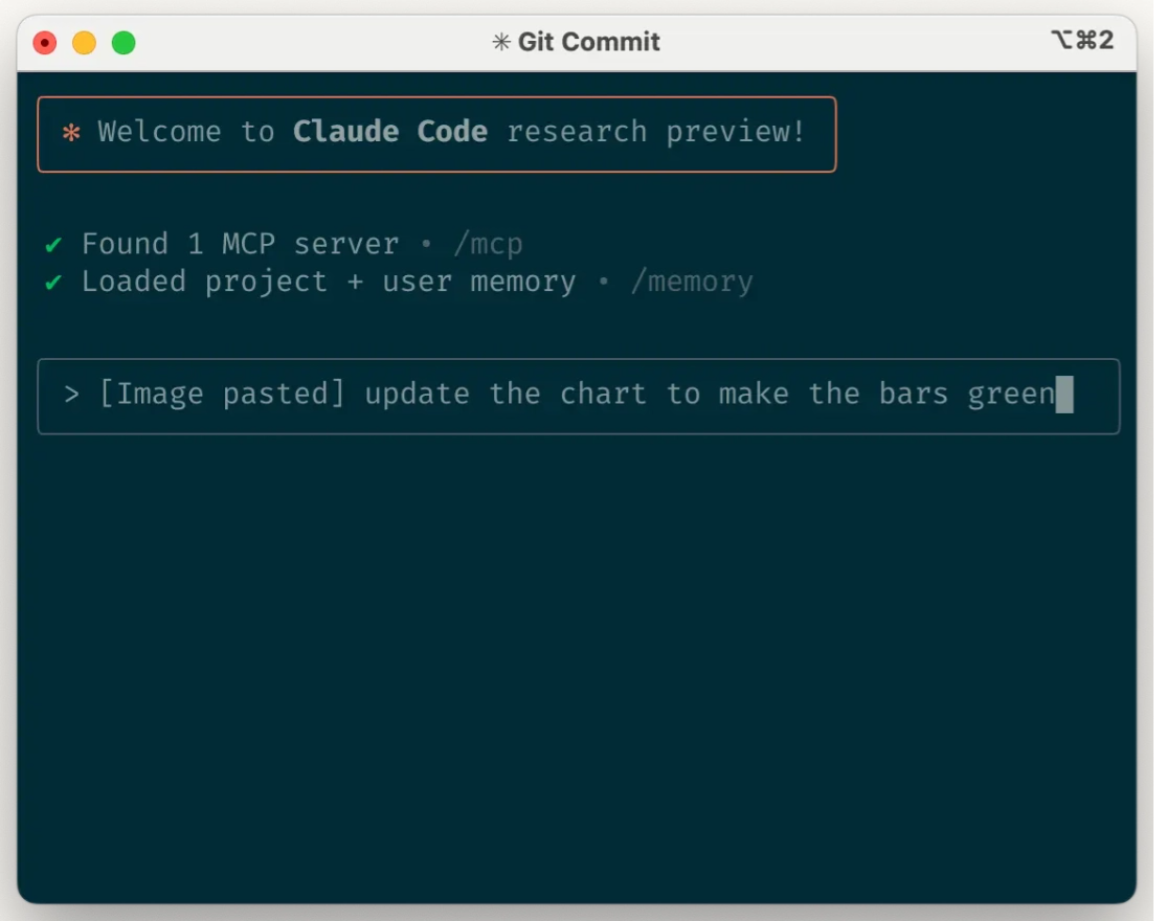
Claude can handle images and diagrams excellently in the following ways:
- Paste screenshots directly (pro tip: on macOS, press cmd+ctrl+shift+4 to save a screenshot to the clipboard, then press ctrl+v to paste. Note that this is not the commonly used cmd+v paste method on Mac, and it is unavailable during remote operations).
- Drag and drop images directly into the prompt input box.
- Provide the image file path.
This is especially useful in the following scenarios: using design mockups as the reference standard for UI development, and using visual charts for analysis and debugging. Even without adding visual materials to the context, it is still helpful to clearly tell Claude the visual aesthetic requirements for the final result.
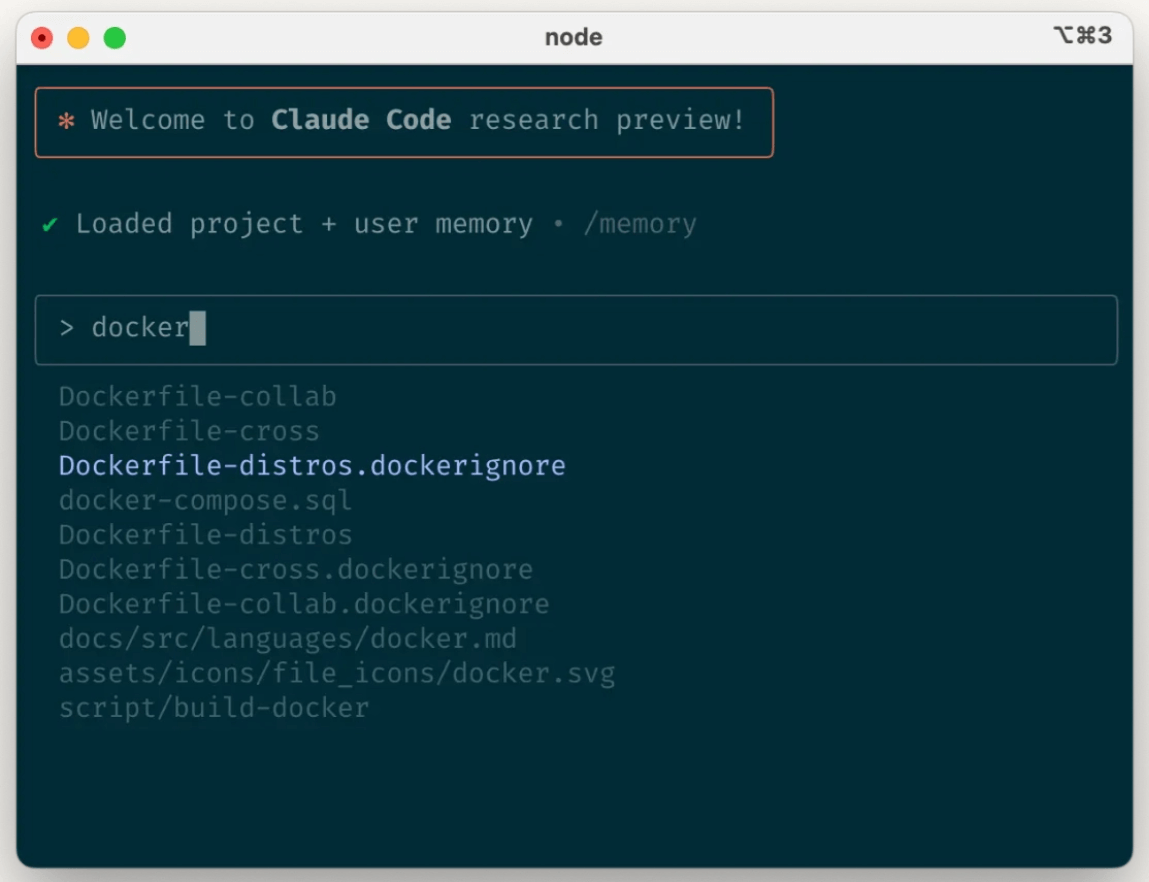
c. Explicitly specify the files you need Claude to look at or process
Use the Tab key autocomplete feature to quickly reference any file or folder in the codebase, helping Claude accurately locate or update the target resource.
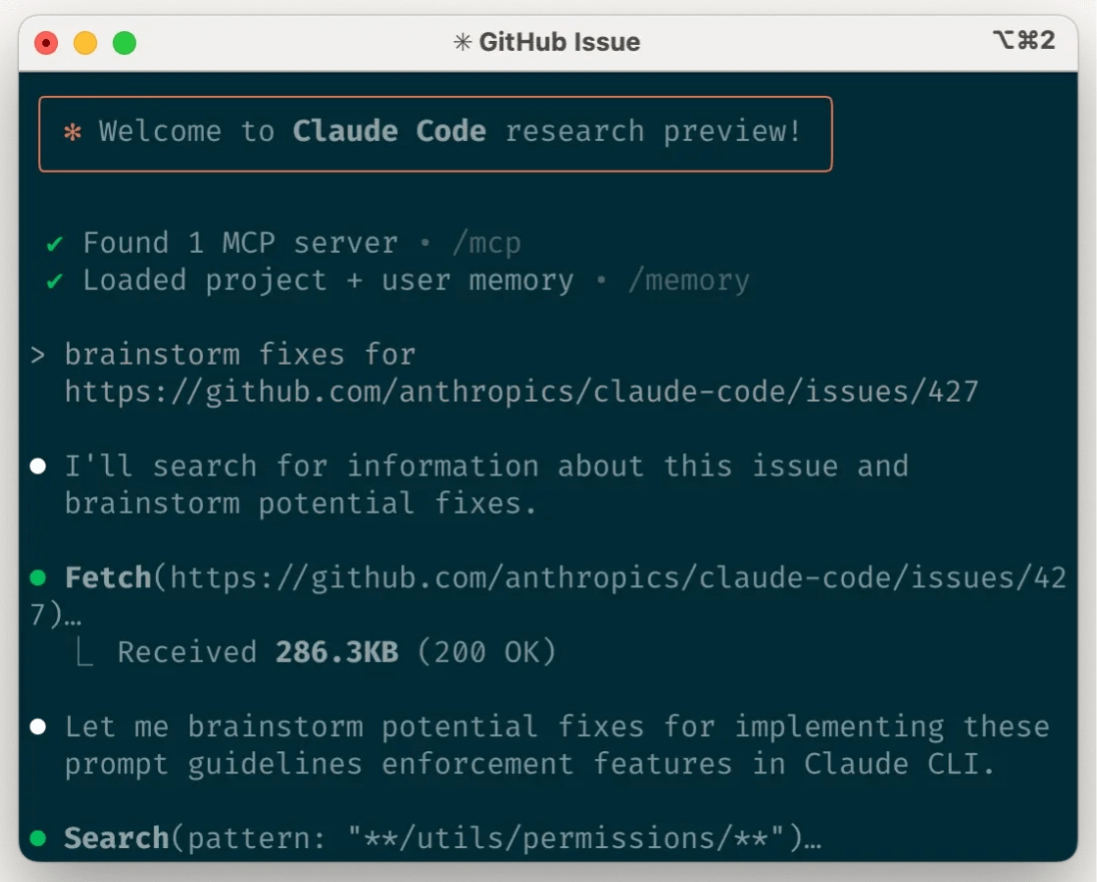
d. Provide Claude with URL links
Paste a specific URL into the prompt, and Claude will automatically fetch and read the content. To avoid repeatedly requesting permission for the same domain (such as docs.foo.com), you can use the /allowed-tools command to add the domain to the allowlist.
e. Timely corrections and frequent adjustments
Although auto-accept mode (toggled via shift+tab) allows Claude to work autonomously, guiding Claude through active collaboration usually yields better results. The best practice is to fully explain the requirements to Claude at the start of a task, but you can also make the following corrections at any time:
Four core correction tools:
- Plan ahead: Ask Claude to create a plan first, and explicitly instruct it not to start coding without confirmation.
- Immediate interrupt (press Esc): Pause the current operation while Claude is thinking, calling tools, or editing files, preserving context so you can adjust instructions.
- History backtracking (double-press Esc): Roll back to a historical checkpoint and modify earlier prompts to explore different approaches.
- Undo changes: Often used in conjunction with item 2, ask Claude to revert changes and try a new approach.
Although Claude Code can occasionally solve a problem perfectly on the first try, using these correction tools usually leads to better solutions faster.
f. Use /clear to keep context focused
During long sessions, Claude's context window may accumulate irrelevant conversations, file contents, and commands, which can affect performance or cause distractions. It is recommended to frequently use the /clear command between different tasks to reset the context window.
g. Use checklists and scratchpads for complex workflows
For multi-step tasks or scenarios requiring detailed solutions (such as code migration, fixing a large number of lint errors, or running complex build scripts), you can improve efficiency by having Claude use a Markdown file (or even a GitHub issue!) as a checklist and working scratchpad:
For example, when fixing a large number of lint issues, you can do the following:
- 1. Have Claude run the lint command and write all errors (including file names and line numbers) into a Markdown checklist.
- 2. Instruct Claude to handle the issues one by one, marking each as complete after the fix is verified before moving on to the next one.
h. Pass data to Claude
There are several ways to provide data to Claude:
- Copy and paste directly into the prompt (the most commonly used method).
- Pipe input into Claude Code (e.g., cat foo.txt | claude), especially useful for logs, CSV, and large data.
- Tell Claude to obtain data via bash commands, MCP tools, or custom slash commands.
- Have Claude read files or fetch URLs (also works for images). Most sessions combine these methods. For example, you can pipe in a log file, then have Claude use tools to fetch additional context to debug the log.
5. Use headless mode to automate infrastructure
Claude Code includesheadless mode, suitable for non-interactive scenarios such as CI, pre-commit hooks, build scripts, and automation. Use the -p flag and a prompt to enable headless mode, and use --output-format stream-json to get streaming JSON output.
Please note that headless mode does not persist between sessions. You must trigger it in each session.
a. Using Claude for issue triage
Headless mode can support automation triggered by GitHub events, such as when a new issue is created in your repository. For example, the publicClaude Code repositoryuses Claude to check for new issues as they appear and assign appropriate labels.
b. Using Claude as a linter
Claude Code can providesubjective code reviewbeyond what traditional lint tools can detect, identifying issues such as typos, outdated comments, and misleading function or variable names.
6. Scale up with multi-Claude workflows
Beyond using it alone, some of the most powerful use cases involve running multiple Claude instances in parallel:
a. Have one Claude write code and another Claude verify it
A simple but effective approach is to have one Claude write code while another reviews or tests it. Similar to collaborating with multiple engineers, it is sometimes beneficial to keep separate contexts:
Use Claude to write code. Run /clear or start a second Claude in another terminal. Have the second Claude review the first Claude's work. Start another Claude (or /clear again) to read the code and the review feedback. Have this Claude modify the code based on the feedback. You can do something similar with tests: have one Claude write tests, then have another Claude write code to make the tests pass. You can even have your Claude instances communicate with each other by giving them separate work scratchpads and telling them which one should write and which one should read.
This separation usually produces better results than having a single Claude handle everything.
b. Create multiple checkouts of the repository
Instead of waiting for Claude to complete each step, many engineers at Anthropic do this:
- Create 3-4 git checkouts in separate folders.
- Open each folder in its own terminal tab.
- Start Claude in each folder to perform a different task.
- Cycle through progress and approve/reject permission requests.
c. Use git worktree
This approach works well for multiple independent tasks and provides a lighter-weight alternative to multiple checkouts. Git worktree allows you to check out multiple branches of the same repository into separate directories. Each worktree has its own working directory and isolated files while sharing the same Git history and reflog.
Using git worktree lets you run multiple Claude sessions on different parts of the project at the same time, with each session focused on its own independent task. For example, you might have one Claude refactor your authentication system while another builds a completely unrelated data visualization component. Since the tasks do not overlap, each Claude can work at full speed without waiting for the other's changes or dealing with merge conflicts:
- Create worktrees:git worktree add ../project-feature-a feature-a。
- Start Claude in each worktree:cd ../project-feature-a && claude。
- Create additional worktrees as needed (repeat steps 1-2 in a new terminal tab).
Some tips:
- Use a consistent naming convention.
- Keep one terminal tab per worktree.
- If you use iTerm2 on Mac, set up notifications for when Claude needs attention.
- Use separate IDE windows for different worktrees.
- Clean up when done: git worktree remove ../project-feature-a.
d. Combine headless mode with custom tools
claude -p (headless mode) programmatically integrates Claude Code into larger workflows while leveraging its built-in tools and system prompt. There are two main patterns for using headless mode:
- 1. Fan-out processing is suitable for large-scale migrations or analysis(for example, analyzing the sentiment of hundreds of logs or analyzing thousands of CSVs):
- Have Claude write a script to generate a task list. For example, generate a list of 2k files that need to be migrated from framework A to framework B.
- Loop through the tasks, programmatically invoking Claude for each task, and giving it a task and a set of tools it can use. For example: claude -p "Migrate foo.py from React to Vue. When done, if successful it must return the string OK, if it fails return FAIL." –allowedTools Edit Bash(git commit:*)"
- Run the script multiple times and refine your prompt to get the desired results.
- 2. Pipeline integration integrates Claude into an existing data/processing pipeline:
- Call claude -p "<your prompt>" –json | your_command, where your_command is the next step in your processing pipeline That's it!
- JSON output can help provide structure for easier automated processing.
For both use cases, using the –verbose flag may help debug Claude calls. We generally recommend turning off verbose mode in production for cleaner output.
Acknowledgments
Written by Boris Cherny. This work draws on best practices from the entire Claude Code user community, whose creative approaches and workflows continually inspire us. Special thanks also to Daisy Hollman, Ashwin Bhat, Cat Wu, Sid Bidasaria, Cal Rueb, Nodir Turakulov, Barry Zhang, Drew Hodun, and many other Anthropic engineers, whose valuable insights and practical experience with Claude Code helped shape these recommendations.
Original link:https://www.anthropic.com/engineering/claude-code-best-practices